
1. Product Overview
The Evertech 8 Channel HD DVR Security System provides a comprehensive surveillance solution for your home or office. This system includes an 8-channel Digital Video Recorder (DVR) compatible with 1080P, 720P, AHD, TVI, CVI, and Analog cameras, along with four 1080P HD dome cameras featuring manual zoom lenses.
Included Components:
- 1 x 8-Channel H.264 HD Digital Video Recorder (DVR)
- 1 x 1TB Hard Disk Drive (pre-installed for continuous recording)
- 1 x Power Supply for DVR
- 1 x Remote Control
- 1 x USB Mouse
- 1 x CD software for PC
- 1 x User Manual (this document)
- 4 x 1080P HD 2.8-12mm Manual Zoom Lens Dome Cameras (Day and Night Vision, Indoor & Outdoor)

Figure 1: Overview of the Evertech 8 Channel HD DVR Security System components, including the DVR unit, four dome cameras, and accessories.
2. System Setup
2.1 DVR Connections
Follow these steps to connect your Digital Video Recorder (DVR) to the cameras, monitor, and network.
- Connect Cameras: Attach the BNC cables from your cameras to the 'Video Input' ports on the back of the DVR.
- Connect Monitor: Use an HDMI cable to connect the 'HDMI Output' port on the DVR to your monitor or TV. Alternatively, use a VGA cable for the 'VGA Output' port.
- Connect Network: Plug an Ethernet cable into the 'Network Port' on the DVR and connect the other end to your router or modem for remote access.
- Connect USB Devices: Insert the USB mouse into one of the 'USB' ports for local control.
- Connect Power: Plug the DVR power adapter into the 'DC 12V' power input on the DVR, then connect it to a power outlet.

Figure 2: Rear panel of the DVR showing video input (BNC), HDMI/VGA output, audio input/output, network port, USB ports, and power input.
2.2 Camera Installation
The included dome cameras are designed for both indoor and outdoor use. They feature a 2.8-12mm manual zoom lens, allowing you to adjust the field of view and focus after installation.
- Mounting: Securely mount the cameras to a wall or ceiling using appropriate hardware. Ensure the camera is positioned to cover the desired surveillance area.
- Cable Routing: Route the camera cables to the DVR, ensuring they are protected from environmental damage.
- Power: Connect the camera power cables to a suitable 12V DC power source (not included with individual cameras, typically powered by a central power supply or individual adapters).
- Adjust Lens: After mounting, manually adjust the zoom and focus rings on the camera lens to achieve the desired view and clarity.

Figure 3: Detailed view of the dome camera, highlighting its durable metal weatherproof casing, double glass design, SMT LEDs for IR range, and 2.8-12mm adjustable varifocal lens for manual zoom and focus.
2.3 Mobile Remote Access Setup
Access your security system remotely via your smartphone or tablet using the dedicated mobile application.
- Download App: Search for the recommended mobile application (e.g., XMeye App) in your device's app store (Apple App Store for iOS, Google Play Store for Android).
- Install and Register: Install the app and follow the on-screen instructions to register an account.
- Add Device: Within the app, select the option to add a new device. You will typically be prompted to scan a QR code.
- Scan QR Code: Locate the QR code on your DVR unit or in the DVR's system settings menu. Use the app's scanner to scan this code.
- Live Viewing: Once the device is added, you can begin live viewing your camera feeds and accessing recorded footage from your mobile device.

Figure 4: Illustration of remote access capabilities, showing live viewing on a PC monitor, tablet, and smartphone, indicating the flexibility of monitoring your system.
3. Operation
3.1 Recording Modes
The DVR supports various recording modes to suit your surveillance needs:
- Manual Recording: Start and stop recording manually at any time.
- Alarm Recording: Recording is triggered by an external alarm input.
- Motion Detection Recording: Recording starts automatically when motion is detected in the camera's field of view. You can customize sensitivity and detection areas.
- Timing Recording: Schedule recording to occur during specific times of the day or week.
3.2 Playback
The DVR allows for multi-channel real-time playback of recorded footage. Use the USB mouse or remote control to navigate the DVR interface:
- Access the 'Playback' menu from the main interface.
- Select the desired date and time range for playback.
- Choose the camera channels you wish to review.
- Utilize controls for fast-forward, rewind, pause, and frame-by-frame viewing.
3.3 Motion Detection & Email Alerts
Configure motion detection and email alerts to be notified of suspicious activity:
- Navigate to the 'Alarm' or 'Motion Detection' settings in the DVR menu.
- Enable motion detection for specific camera channels.
- Define the detection area and sensitivity levels for each camera.
- Configure email settings, including recipient address and SMTP server details, to receive alerts when motion is detected.
4. Maintenance
4.1 Hard Drive Management
The DVR comes with a 1TB hard drive pre-installed. The system supports up to a 6TB SATA hard drive. Ensure the hard drive is functioning correctly for continuous recording. Periodically check the hard drive status in the DVR's system settings.
4.2 System Backup
Regularly back up important footage to prevent data loss:
- USB Backup: Connect a USB flash drive to the DVR's USB port and use the backup function in the menu to transfer selected recordings.
- Network Backup: Utilize the network backup feature to transfer recordings to a connected computer or network storage device.
4.3 Cleaning
To ensure optimal performance and image quality:
- Cameras: Gently wipe the camera lenses and housing with a soft, damp cloth. Avoid abrasive cleaners.
- DVR: Keep the DVR unit free from dust. Ensure ventilation openings are not obstructed to prevent overheating.
5. Troubleshooting
This section addresses common issues you might encounter with your security system.
5.1 No Video Display on Monitor
- Check Cables: Ensure HDMI or VGA cables are securely connected to both the DVR and the monitor.
- Monitor Input: Verify that your monitor is set to the correct input source (HDMI or VGA).
- DVR Power: Confirm the DVR is powered on and its indicator lights are active.
5.2 Cameras Not Displaying Image
- Power Supply: Ensure cameras are receiving adequate power (12V DC).
- BNC Connections: Check that all BNC cables are firmly connected between the cameras and the DVR.
- Camera Mode: Verify that the camera's video output mode (AHD, TVI, CVI, Analog) is compatible with the DVR's current settings.
5.3 Remote Access Issues
- Network Connection: Confirm the DVR is connected to the internet and has a stable network connection. Check the network cable and router status.
- App Configuration: Double-check the device ID or QR code used to add the DVR to the mobile app. Ensure correct network settings (e.g., port forwarding if required by your network setup).
- Firewall: Ensure your network firewall is not blocking the DVR's access to the internet or the mobile app's connection.
5.4 No Recording
- Hard Drive Status: Check the DVR's system settings to ensure the hard drive is detected and functioning correctly.
- Recording Schedule: Verify that the recording schedule is properly configured for continuous, motion-triggered, or timed recording.
- Disk Space: Ensure there is sufficient free space on the hard drive. The system typically overwrites older footage when full.
6. Specifications
6.1 DVR Specifications
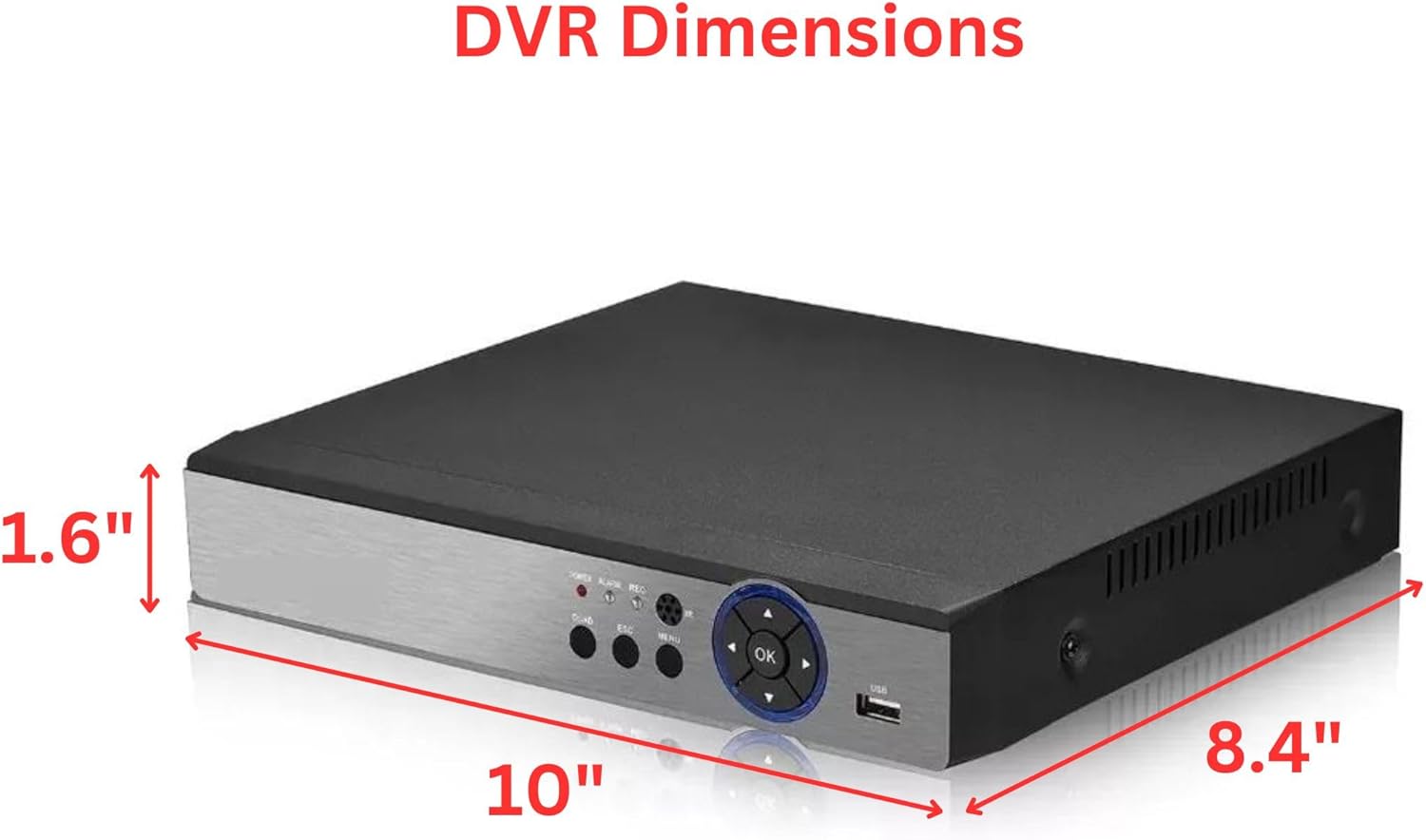
Figure 5: Detailed technical specifications for the 8 Channel H.265/H.264 Digital Video Recorder, including system, display, video, audio, record & playback, storage & backup, and interface details.
| Feature | Description |
|---|---|
| Operating System | Embedded LINUX Operating System |
| Video Input | 8 Channel BNC (Compatible with 1080P/720P/AHD/TVI/CVI/Analog) |
| Video Output | 1CH VGA, 1CH HDMI (1080P) |
| Audio Input/Output | 1CH Audio Input (RCA) / 1CH Audio Output (RCA) |
| Display Screen | 1 / 4 / 8 / 9 Screen Layouts |
| Record Mode | Manual, Alarm, Motion Detection, Timing |
| HDD Port | 1 SATA (supports up to 6TB) |
| Network Port | RJ45 10M/100M self-adaptive Ethernet port |
| USB Port | 2 x USB2.0 |
| Power Supply | 12V DC |
| Dimensions (L x W x H) | 260(L) x 221(W) x 44(H) mm (Approx. 10.23" x 8.66" x 1.77") |

Figure 6: DVR dimensions, showing approximate measurements of 10 inches in length, 8.4 inches in width, and 1.6 inches in height.
6.2 Camera Specifications
| Feature | Description |
|---|---|
| Resolution | 1080p (1920 x 1080 Effective Pixels) |
| Video Output | Analog (CVBS), AHD, TVI, CVI |
| IR Distance | Up to 98ft with SMD IR LED |
| Lens | 2.8-12mm Manual Zoom Lens (Varifocal) |
| Power | 12V DC |
| Body Construction | Durable Metal Weatherproof Casing |
| Mounting | Wall and Ceiling Mountable |
7. Warranty and Support
7.1 Warranty Information
This Evertech security system comes with a One Year Warranty from the date of purchase, covering manufacturing defects and malfunctions under normal use. Please retain your proof of purchase for warranty claims.
7.2 Technical Support
For any technical assistance, setup guidance, or troubleshooting not covered in this manual, please contact Evertech customer support. Free technical support is available to assist you with your product.
Please refer to the contact information provided with your product packaging or visit the official Evertech website for the most up-to-date support details.

