
Introduction
Welcome to your new Spigen S530W Bluetooth Selfie Stick. This manual provides essential instructions for the safe and effective use of your device. Please read it thoroughly before operation and retain it for future reference.
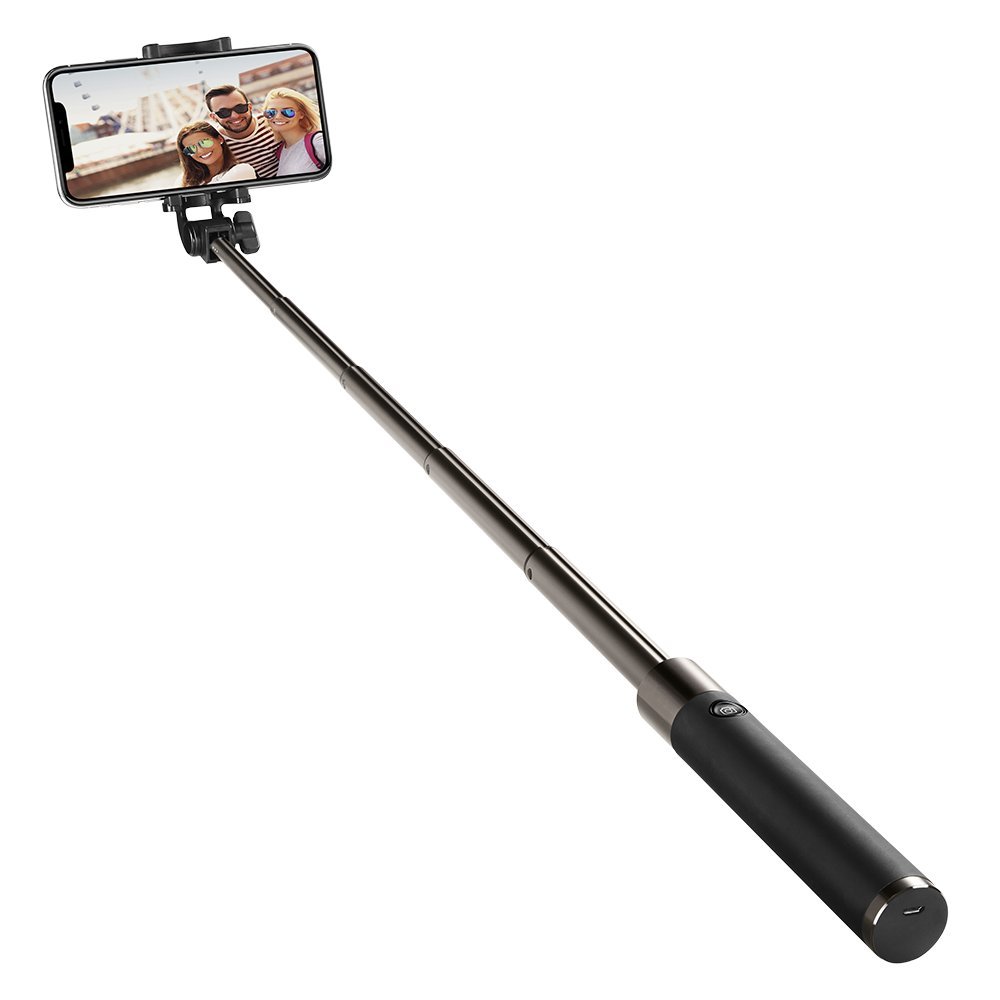
Image: The Spigen S530W Bluetooth Selfie Stick in its extended form, holding a smartphone.
Product Features
- Lightweight and compact design with comfortable grip handle.
- Extendable handheld design with an adjustable mounting bracket for versatile angles.
- Suitable for various conditions, offering compact portability.
- Compatible with iOS and Android smartphones via Bluetooth.
Package Contents
- Spigen S530W Bluetooth Selfie Stick
- Charging Cable (Micro USB)
- User Manual
Setup
Charging the Selfie Stick
The selfie stick uses a built-in rechargeable battery. Before first use, fully charge the device.
- Locate the charging port on the handle.
- Connect the provided charging cable to the port and a standard USB power source.
- The indicator light will illuminate (e.g., red) during charging and typically turn off or change color (e.g., blue) when fully charged.
Bluetooth Pairing
Follow these steps to pair your selfie stick with your smartphone:
- Ensure your smartphone's Bluetooth is enabled.
- Press and hold the power button on the selfie stick handle until the indicator light flashes (usually blue), indicating pairing mode.
- On your smartphone, navigate to Bluetooth settings, search for available devices, and select "Spigen S530W" or a similar name.
- Once successfully paired, the indicator light will stop flashing and remain solid or turn off.
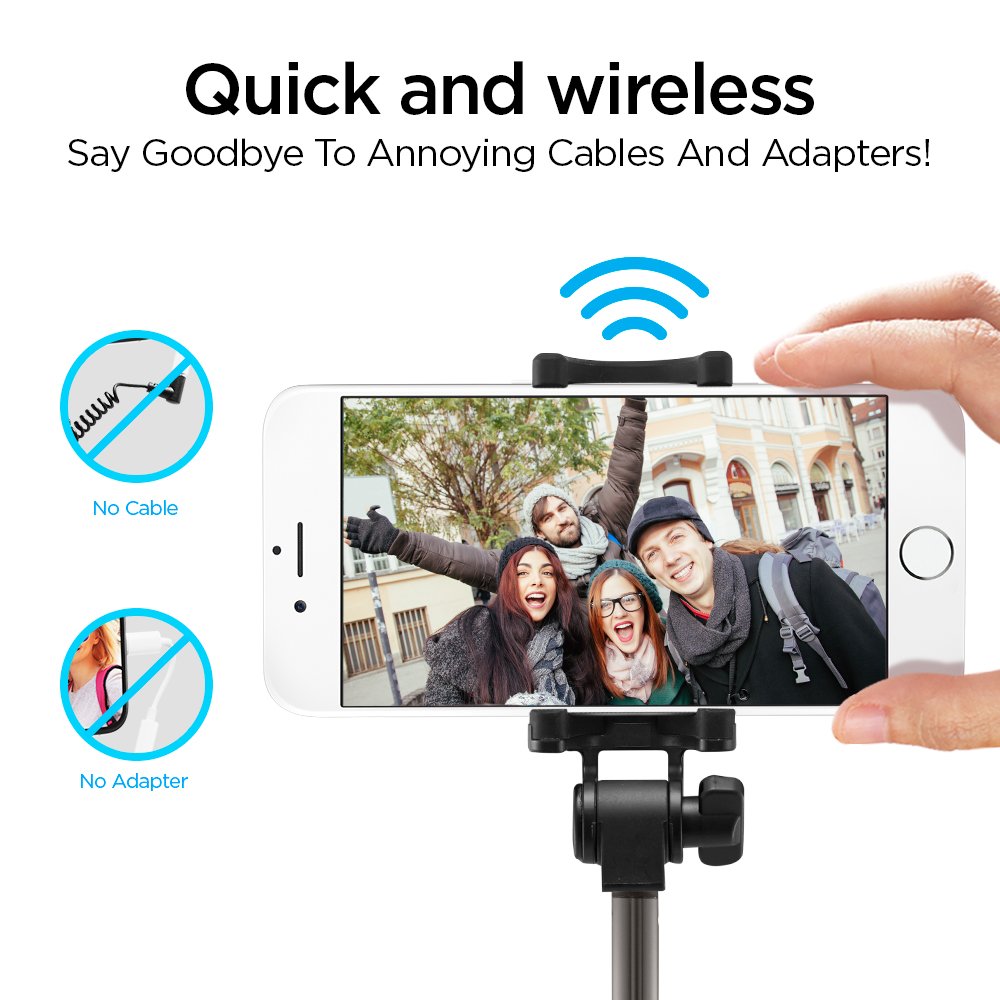
Image: Wireless Bluetooth connection for the Spigen S530W selfie stick, eliminating the need for cables or adapters.
Attaching Your Smartphone
The adjustable clamp securely holds your smartphone.
- Gently pull apart the phone clamp to open it.
- Insert your smartphone into the clamp, ensuring it is centered and securely held by the rubber grips.

Image: The adjustable phone clamp of the Spigen S530W, designed to accommodate smartphones from 2.2 to 3.3 inches in width.
Operating Instructions
Extending and Retracting the Stick
To extend the selfie stick, gently pull the telescopic rod outwards. To retract, push it back into the handle until it is fully collapsed.

Image: The Spigen S530W selfie stick can be extended from a compact 185mm to a maximum length of 770mm.
Adjusting the Angle
The phone mount can be adjusted to achieve the desired shooting angle.
- Loosen the adjustment knob on the phone mount.
- Tilt the phone mount to your preferred angle (up to 295 degrees of rotation).
- Tighten the adjustment knob to secure the position.

Image: The phone mount offers a 295-degree rotation for flexible angle adjustments.
Taking Photos/Videos
Once your phone is paired and positioned, open your camera app.
- Open your smartphone's camera application.
- Press the shutter button on the selfie stick handle to capture a photo or start/stop video recording.

Image: The Spigen S530W features a comfortable matte handle and an easily accessible shutter button for convenient operation.
Maintenance
To ensure the longevity and optimal performance of your selfie stick:
- Clean the device with a soft, dry cloth. Avoid using harsh chemicals, solvents, or abrasive materials.
- Store the selfie stick in a cool, dry place away from direct sunlight, high humidity, and extreme temperatures.
- Do not attempt to disassemble or modify the device, as this will void the warranty.
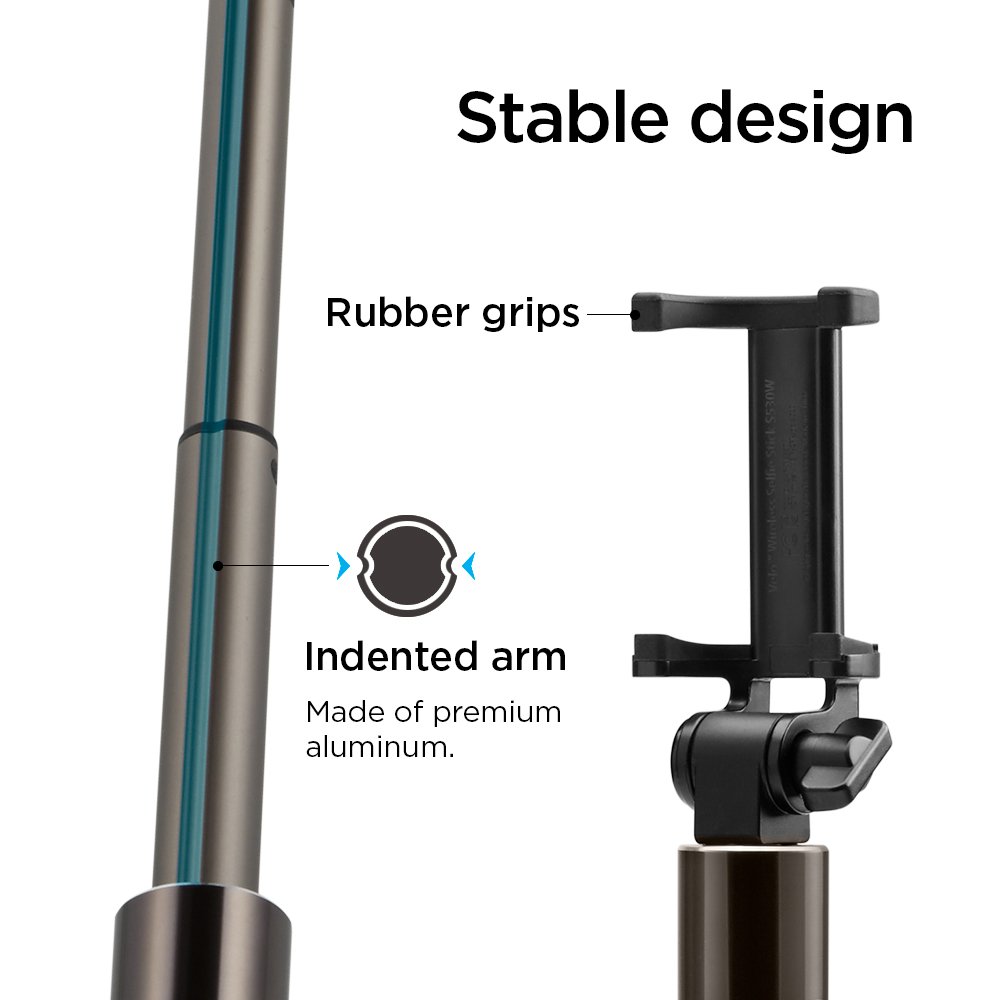
Image: The stable design incorporates rubber grips for secure phone holding and an indented aluminum arm for durability.
Troubleshooting
Device Not Powering On
Ensure the battery is charged. Connect the selfie stick to a power source using the charging cable and allow sufficient time for charging.
Bluetooth Not Connecting
- Ensure the selfie stick is in pairing mode (flashing indicator light).
- Check that Bluetooth is enabled on your smartphone.
- Forget the device from your phone's Bluetooth settings and attempt to re-pair.
- Ensure the selfie stick is within close range of your smartphone.
- Restart both the selfie stick and your smartphone.
Shutter Button Not Working
- Verify that the selfie stick is successfully paired with your smartphone.
- Ensure your camera application is open and active.
- For some Android phones, you may need to adjust camera settings to assign the volume key function to "shutter" or "capture."
Specifications
| Feature | Detail |
|---|---|
| Brand | Spigen |
| Model | S530W |
| Item Model Number | 000SS21746 |
| Connectivity | Bluetooth |
| Material (Pole) | Aluminum |
| Extended Length | Up to 770 mm |
| Folded Length | 185 mm |
| Weight | 113.4 g (4 Ounces) |
| Battery Type | 1 Lithium Metal battery |
| Compatible Devices | Cellphones (iOS & Android) |
| Color | Black |
| Product Dimensions (LxWxH) | 25.4 x 5.08 x 38.1 cm |
| Date First Available | 11 January 2021 |
| GTIN | 08809522196794 |
Warranty and Support
For detailed warranty information or technical support, please refer to the official Spigen website or contact their customer service department. It is recommended to keep your purchase receipt as proof of purchase for any warranty claims.