
1. Introduction
This manual provides essential information for setting up, operating, maintaining, and troubleshooting your Samsung UN50M5300A 50-Inch 1080p Smart LED TV. This television delivers vivid Full HD 1080p resolution, offering twice the clarity of standard HD TVs. It features intuitive Smart TV capabilities and built-in Wi-Fi for a connected home entertainment experience.
Included in the Box:
- Samsung UN50M5300A 50-Inch Class 1080P Smart LED HD TV
- TM1240B Remote Control
- Power Cable
- User Manual
2. Setup
2.1 Unpacking and Placement
Carefully remove the TV from its packaging. Place the TV on a stable, flat surface or mount it on a wall using a compatible VESA mount (200 x 200 mm or 400 x 400 mm). Ensure adequate ventilation around the TV.
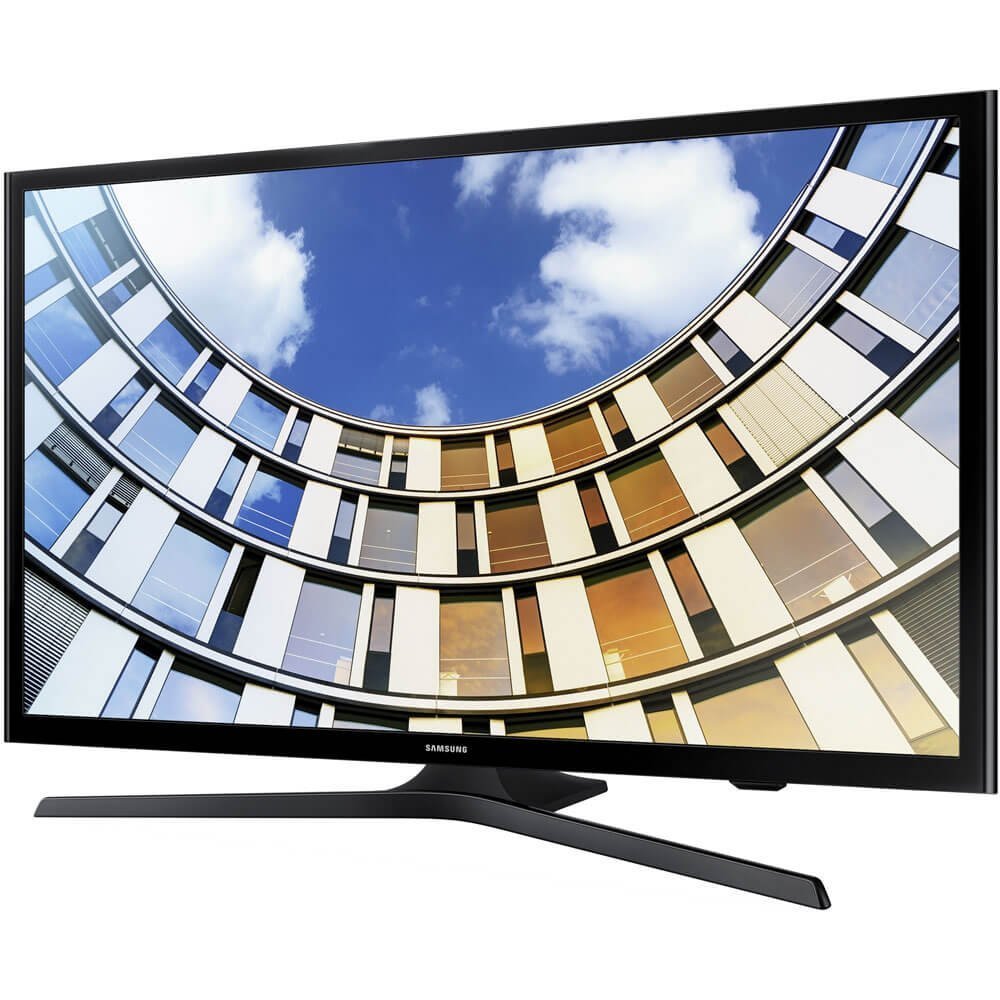
Figure 2.1: The Samsung UN50M5300A 50-Inch Smart LED TV with its stand.
2.2 Connecting Peripherals
Connect your external devices such as Blu-ray players, gaming consoles, or sound systems to the TV's ports. The TV features:
- 2 HDMI ports
- 1 USB port
- 1 Ethernet port
- 1 Component input
- 1 Digital Audio Out port
2.3 Power On and Initial Configuration
Plug the power cable into the TV and then into a wall outlet. Press the power button on the remote control (TM1240B) or on the TV itself. Follow the on-screen instructions to complete the initial setup, including language selection, network connection (Wi-Fi or Ethernet), and channel scanning.
3. Operating Instructions
3.1 Remote Control (TM1240B)
The included TM1240B remote control allows you to navigate the TV's features. Use the directional pad to move through menus and the 'Enter' button to select. Dedicated buttons provide quick access to volume, channel, and Smart Hub functions.
3.2 Smart TV Features
Access the Smart Hub to find your favorite streaming applications like Netflix, YouTube, Hulu, and Amazon Instant Video. The built-in Wi-Fi allows for seamless streaming and internet browsing.

Figure 3.2: The Samsung Smart Hub provides access to various applications.
3.3 Picture and Sound Settings
Navigate to the TV's settings menu to adjust picture modes (e.g., Standard, Movie, Dynamic), brightness, contrast, and color. For audio, you can select sound modes and adjust equalizer settings to optimize your viewing experience.

Figure 3.3: The TV supports Full HD 1080p resolution for clear images.
3.4 ConnectShare Movie
Utilize the ConnectShare Movie feature by plugging a USB drive into the TV's USB port. This allows you to play movies, photos, and music directly from your USB storage device.

Figure 3.4: ConnectShare Movie allows media playback from a USB device.
4. Maintenance
4.1 Cleaning the TV
To clean the screen, gently wipe it with a soft, dry microfiber cloth. For stubborn marks, lightly dampen the cloth with water or a screen-cleaning solution specifically designed for electronics. Avoid using harsh chemicals or abrasive materials. Clean the TV's frame and stand with a soft, dry cloth.
4.2 Software Updates
Periodically check for software updates through the TV's settings menu to ensure optimal performance and access to the latest features. Connect your TV to the internet to download and install updates.
4.3 Eco Sensor
The TV features an Eco Sensor that automatically adjusts screen brightness based on the light in your room, helping to conserve energy. This feature can be enabled or disabled in the TV's settings.

Figure 4.3: The Eco Sensor helps optimize energy consumption.
5. Troubleshooting
If you encounter issues with your TV, refer to the following common problems and solutions:
- No Power: Ensure the power cable is securely connected to both the TV and a working electrical outlet. Test the outlet with another device.
- No Picture/Sound: Verify that the correct input source is selected. Check all cable connections (HDMI, component, etc.) for looseness or damage.
- TV Turns Off Unexpectedly: Check the TV's power saving settings (e.g., Eco Sensor, auto-off timer) in the system menu. Disable any settings that might be causing the TV to power down automatically.
- Wi-Fi Connection Issues: Ensure your Wi-Fi password is entered correctly. Some older TV models may have limitations on Wi-Fi password length; if your password is very long, try a shorter, strong password on your router if possible, or connect via Ethernet. Restart your router and the TV.
- Remote Control Not Working: Replace the batteries in the remote control. Ensure there are no obstructions between the remote and the TV's sensor.
For more detailed troubleshooting, consult the full user manual or Samsung's online support resources.
6. Specifications
| Feature | Specification |
|---|---|
| Model Number | UN50M5300A |
| Screen Size | 50 Inches (49.5" measured diagonally) |
| Display Technology | LED |
| Resolution | 1080p (Full HD) |
| Refresh Rate | 60 Hz (Motion Rate 60) |
| Operating System | Tizen |
| Connectivity Technology | HDMI, Wi-Fi |
| HDMI Ports | 2 |
| USB Ports | 1 |
| Ethernet Port | 1 |
| Digital Audio Out | 1 |
| VESA Mount Standard | 200 x 200 mm, 400 x 400 mm |
| Item Weight | 25.4 Pounds |
| Power Consumption | 47 Watts |
| Manufacturer | Samsung Electronics |
7. Warranty and Support
7.1 Warranty Information
This Samsung TV comes with a Limited Warranty. Please refer to the warranty card included with your product or visit the official Samsung website for detailed terms and conditions, including coverage period and service procedures.
7.2 Customer Support
For technical assistance, product inquiries, or warranty claims, please contact Samsung Customer Support. Contact information can typically be found on the Samsung official website or in the documentation provided with your TV.