
Introduction
Welcome to the Montblanc Summit SmartWatch user manual. This guide provides comprehensive instructions for setting up, operating, maintaining, and troubleshooting your Montblanc Summit SmartWatch. Designed to combine the elegance of traditional Swiss watchmaking with advanced smart technology, your Montblanc Summit offers a seamless experience compatible with both iPhone and Android smartphones, running on the latest Android Wear 2.0 operating system.
Please read this manual carefully to ensure proper use and to maximize the functionality of your device.
Product Overview
Key Features
- 44 mm case with a black leather strap.
- Scratch-resistant sapphire crystal.
- Compatible with iPhone and Android smartphones.
- Runs on Android Wear 2.0 operating system.
- Internal memory for apps and data.
- Connectivity: Wi-Fi and Bluetooth.
- Notifications for calls, messages, and apps.
- Water resistant (IP68 rating).
Components
Familiarize yourself with the main components of your Montblanc Summit SmartWatch:
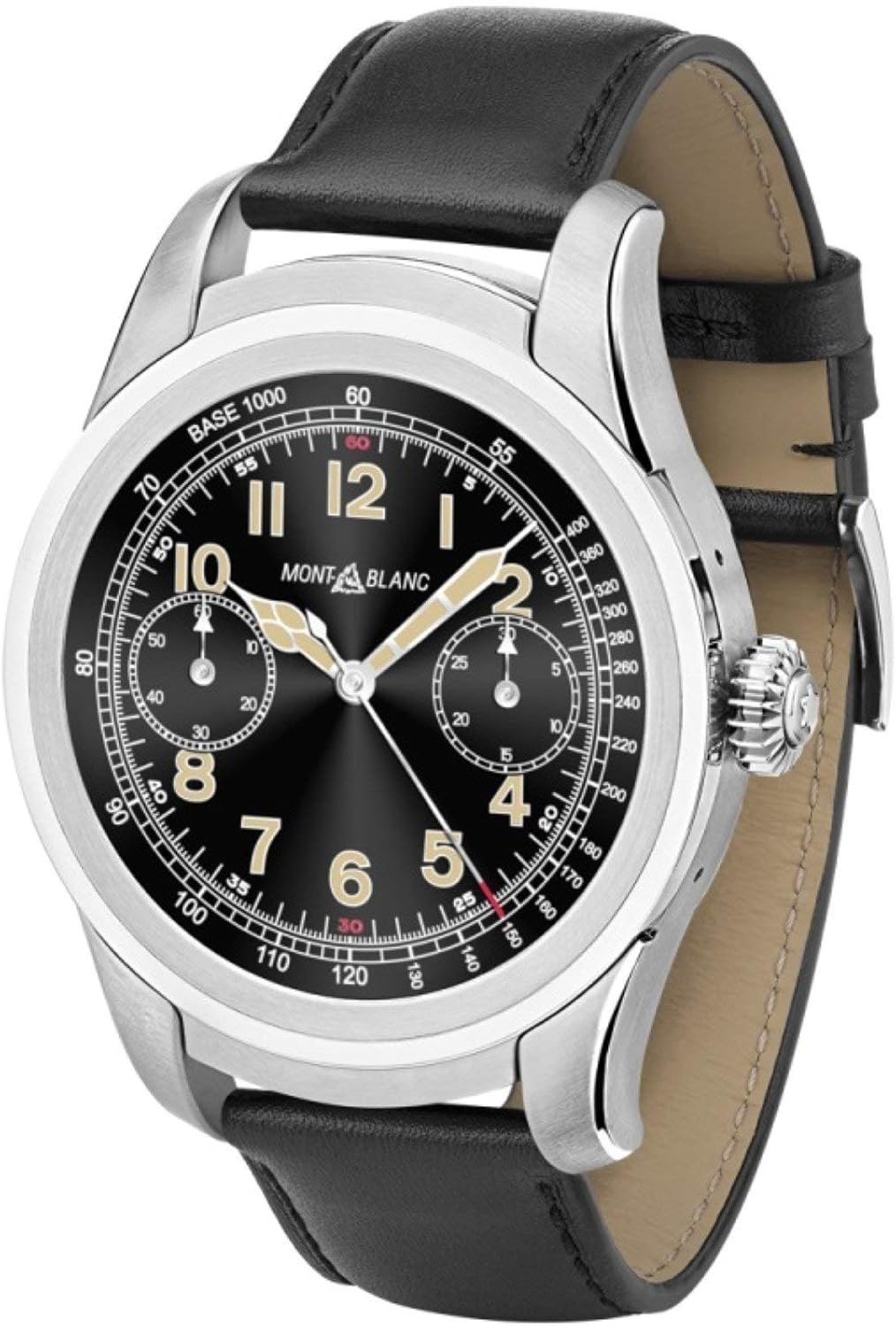
Figure 1: Front view of the Montblanc Summit SmartWatch. This image displays the watch face with its black dial, silver hour markers, and chronograph subdials. The watch features a silver-toned case and a black leather strap with visible stitching.

Figure 2: Back view of the Montblanc Summit SmartWatch. This image highlights the rear of the watch case, revealing the optical heart rate sensor and charging contacts. Text indicating "WATER RESISTANT IP68" and "SWISS DESIGN" is visible, along with the Montblanc logo on the strap buckle.

Figure 3: Montblanc Summit SmartWatch and its accessories in the packaging. The image shows the watch nestled in its presentation box on the left, and on the right, the separate compartment containing the magnetic charging puck and a USB cable for charging.
Setup
1. Initial Charging
Before first use, fully charge your Montblanc Summit SmartWatch. Connect the provided USB cable to the magnetic charging puck and then to a USB power adapter (not included) or a computer's USB port. Place the watch onto the charging puck, ensuring the contacts align. The watch display will indicate charging status.
2. Powering On
Press and hold the crown (side button) until the Montblanc logo appears on the screen.
3. Pairing with Your Smartphone
- Download the "Wear OS by Google" app from the App Store (for iPhone) or Google Play Store (for Android).
- Open the Wear OS app on your smartphone and follow the on-screen instructions.
- On your Montblanc Summit, select your preferred language and accept the terms of service.
- A pairing code will appear on both your watch and smartphone. Confirm that the codes match, then tap "Pair" on your phone.
- Allow the watch to complete the setup process, which may include software updates. This may take several minutes.
Operating Your SmartWatch
Basic Navigation
- Touchscreen: Swipe up, down, left, or right to navigate through menus, notifications, and watch faces. Tap to select items.
- Crown: Press the crown to return to the watch face or open the app drawer. Rotate the crown to scroll through lists and notifications.
- Side Buttons: (If applicable) Some models may have additional programmable buttons. Refer to the on-screen prompts for their functions.
Notifications
Notifications from your paired smartphone will appear on your watch. Swipe up from the watch face to view them. Tap a notification to expand it, and swipe left or right to dismiss it.
Connectivity
- Bluetooth: Your watch maintains a Bluetooth connection with your smartphone for data synchronization and notifications.
- Wi-Fi: The watch can connect to Wi-Fi networks independently, allowing for app updates and certain functionalities even when your phone is not nearby. Access Wi-Fi settings through the watch's settings menu.
Using Apps
Press the crown to open the app drawer. Tap on an app icon to launch it. You can download additional apps from the Google Play Store directly on your watch (when connected to Wi-Fi) or through the Wear OS app on your phone.
Maintenance
Cleaning
Regularly clean your Montblanc Summit SmartWatch to maintain its appearance and functionality. Use a soft, lint-free cloth. For stubborn dirt, slightly dampen the cloth with water. Avoid using harsh chemicals, abrasive materials, or solvents.
The leather strap should be cleaned with a dry or slightly damp cloth. Avoid prolonged exposure to water or direct sunlight to prevent damage.
Charging
Charge your watch daily or as needed. Use only the original Montblanc charging puck and USB cable. Ensure the charging contacts on the watch and puck are clean and dry before charging.
Water Resistance
Your Montblanc Summit SmartWatch has an IP68 water resistance rating. This means it is protected against dust ingress and can withstand immersion in water up to 1.5 meters for up to 30 minutes. It is suitable for everyday use and activities like hand washing or light rain. However, it is not recommended for swimming, diving, or high-pressure water activities.
Software Updates
Keep your watch's software updated to ensure optimal performance and access to the latest features. Your watch will typically notify you when an update is available. Ensure your watch is charged and connected to Wi-Fi during updates.
Troubleshooting
Common Issues and Solutions
- Watch not turning on: Ensure the watch is fully charged. Connect it to the charger and wait a few minutes before attempting to power on again.
- Cannot pair with smartphone:
- Ensure Bluetooth is enabled on your smartphone.
- Make sure the Wear OS app is open and running.
- Restart both your watch and smartphone.
- Forget the device in your phone's Bluetooth settings and try pairing again.
- Notifications not appearing:
- Check notification settings in the Wear OS app on your phone.
- Ensure the watch is connected to your phone via Bluetooth.
- Verify that "Do Not Disturb" mode is not active on either device.
- Poor battery life:
- Reduce screen brightness.
- Disable "Always-on display" if enabled.
- Limit background app refresh.
- Ensure no apps are constantly running in the background.
Factory Reset
If you experience persistent issues, a factory reset may resolve them. Warning: A factory reset will erase all data on your watch and restore it to its original factory settings. You will need to re-pair it with your smartphone.
- On your watch, swipe down from the top of the screen to access Quick Settings.
- Tap the Settings icon (⚙️).
- Scroll down and tap "System".
- Tap "Disconnect & reset" or "Reset".
- Confirm your choice.
Specifications
| Feature | Detail |
|---|---|
| Model Number | 117744 |
| Operating System | Android Wear (Wear OS by Google) |
| Connectivity | Bluetooth, Wi-Fi |
| GPS | No (as per specifications) |
| Special Features | Notifications |
| Display Size | 7 Inches (Note: This might be a generic or incorrect value from source, typically smartwatches are 1.2-1.4 inches) |
| Color | Black |
| Dimensions (Package) | 19 x 3 x 1 cm |
| Product Weight | 20 g |
| Band Width | 23 mm |
| Water Resistance | IP68 |
Note: Display size "7 Inches" appears to be an anomaly in the provided data for a smartwatch and may refer to a different measurement or be an error. Typical smartwatch display sizes are around 1.2-1.4 inches.
Warranty and Support
For detailed information regarding the warranty of your Montblanc Summit SmartWatch, please refer to the warranty card or documentation included with your purchase. Warranty terms and conditions may vary by region and retailer.
For technical support, service, or further inquiries, please visit the official Montblanc website or contact Montblanc customer service. Keep your proof of purchase and model number (117744) ready when seeking support.
No official product videos from the seller were provided in the product data for this manual.


