
1. Introduction
This manual provides essential instructions for the safe and efficient operation of your Smartbitt SBNB1000 Uninterruptible Power Supply (UPS). The SBNB1000 is designed to protect your electronic equipment from power outages, voltage fluctuations, and surges, ensuring a stable power supply. Please read this manual thoroughly before installation and use, and retain it for future reference.
2. Safety Instructions
Observe the following safety precautions to prevent injury and damage to the UPS or connected equipment.
- Do not open the UPS casing. There are no user-serviceable parts inside. Refer all servicing to qualified service personnel.
- Do not connect appliances that draw high current, such as hair dryers, vacuum cleaners, or laser printers, to the UPS outlets.
- Do not connect the UPS to its own output.
- Ensure the UPS is connected to a grounded AC power outlet.
- Do not block ventilation openings. The UPS requires adequate airflow for cooling.
- Avoid installing the UPS in areas with excessive dust, humidity, or extreme temperatures.
- In case of fire, use a dry chemical extinguisher. Water can cause electrical shock.
- The battery inside the UPS is not user-replaceable. Contact qualified personnel for battery service.
3. Product Overview
The Smartbitt SBNB1000 UPS provides reliable power protection for your electronic devices. Familiarize yourself with its components.
3.1 Front Panel

Figure 3.1: Front view of the Smartbitt SBNB1000 Uninterruptible Power Supply. It features a power button and three indicator LEDs (green, yellow, red) at the top, and the Smartbitt logo with model number NB1000USB at the bottom.
- Power Button: Used to turn the UPS on or off.
- LED Indicators:
- Green LED: Indicates AC power is present and the UPS is operating in line mode.
- Yellow LED: Indicates the UPS is operating on battery power.
- Red LED: Indicates a fault or overload condition.
3.2 Rear Panel
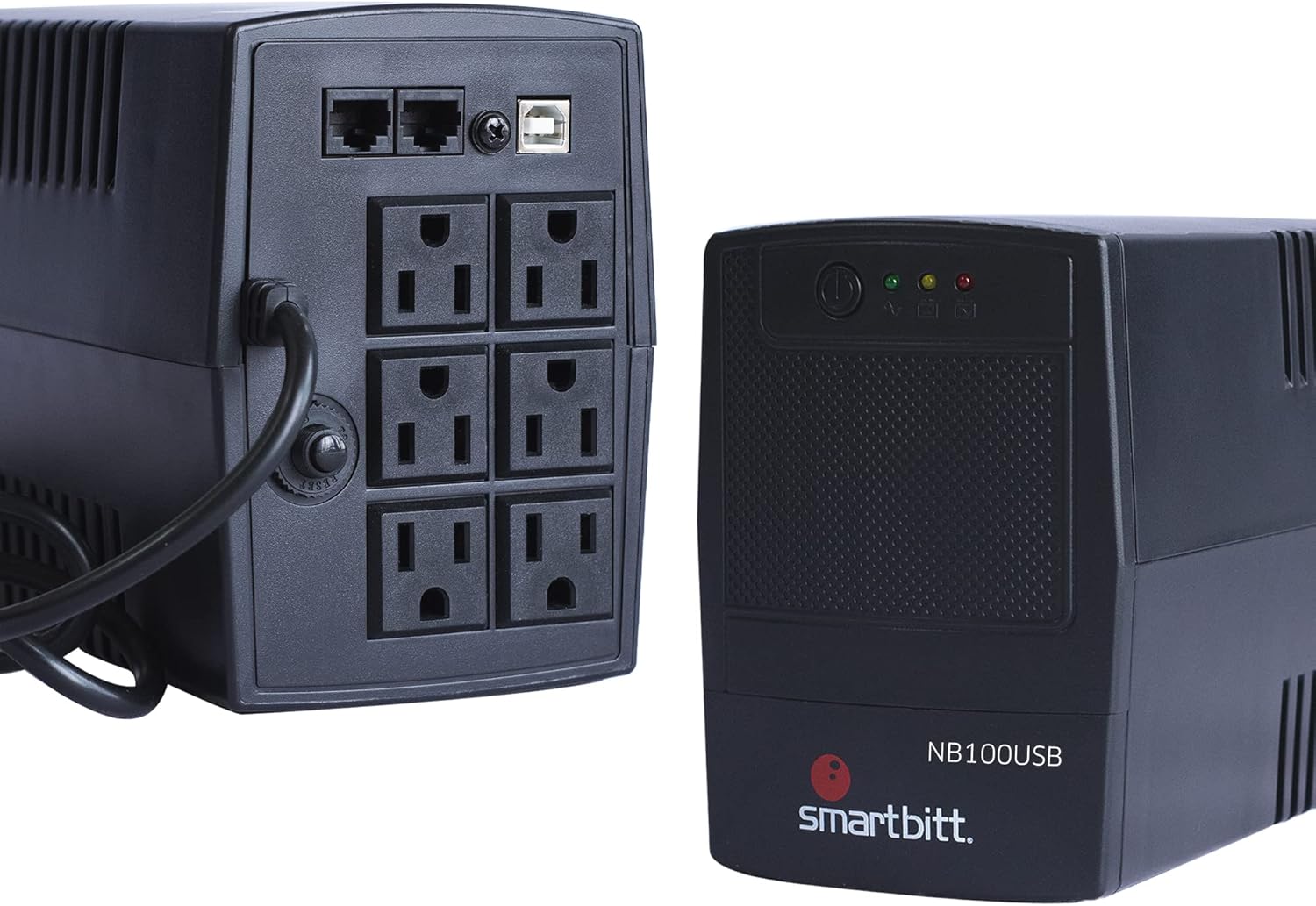
Figure 3.2: Rear view of the Smartbitt SBNB1000 UPS, displaying six NEMA 5-15R outlets, RJ11/RJ45 ports for surge protection, and a USB communication port.
- NEMA 5-15R Outlets (x6): These outlets provide both battery backup and surge protection. Connect critical devices such as computers, monitors, and network equipment here.
- RJ11/RJ45 Ports: Provide surge protection for telephone/fax lines or network connections.
- USB Communication Port: Allows the UPS to communicate with a computer for monitoring and controlled shutdown.
- AC Input Power Cord: Connects the UPS to a wall outlet.
4. Setup
4.1 Unpacking and Inspection
- Carefully unpack the UPS and its accessories.
- Inspect the unit for any shipping damage. If damage is found, do not operate the unit and contact your dealer.
- Verify that all accessories are included: UPS unit, user manual, and warranty information.
4.2 Placement
- Place the UPS on a flat, stable surface.
- Ensure adequate clearance (at least 10 cm or 4 inches) around the ventilation openings on the sides and rear of the unit.
- Avoid direct sunlight, heat sources, and areas with excessive moisture or dust.
4.3 Initial Battery Charge
For optimal performance, charge the UPS battery for at least 4 hours before initial use.
- Connect the UPS power cord to a grounded wall outlet.
- Press the power button to turn on the UPS. The green LED should illuminate.
- Allow the UPS to charge for the recommended duration without connecting any devices.
4.4 Connecting Equipment
- Ensure the UPS is turned off before connecting any equipment.
- Connect your computer, monitor, and other critical electronic devices to the NEMA 5-15R outlets on the rear panel. All six outlets provide battery backup and surge protection.
- For telephone/fax or network surge protection, connect the incoming line to the "IN" port and your device to the "OUT" port using appropriate cables.
- (Optional) Connect the USB cable from the UPS to your computer's USB port to enable power management software features (software not included, typically downloadable from manufacturer's website).
5. Operation
5.1 Turning the UPS On/Off
- To Turn On: Press and hold the power button for approximately 2 seconds. The UPS will beep, and the green LED will illuminate, indicating it is operating in AC line mode.
- To Turn Off: Press and hold the power button for approximately 2 seconds. The UPS will beep, and the green LED will turn off.
5.2 LED Indicators and Audible Alarms
| Indicator | Status | Description |
|---|---|---|
| Green LED | Solid On | UPS is operating on AC utility power (Line Mode). |
| Yellow LED | Flashing | UPS is operating on battery power (Battery Mode). Audible alarm will sound. |
| Red LED | Solid On | Indicates an overload condition or a fault. |
| Audible Alarm | Beeping (e.g., every 10 seconds) | UPS is operating on battery power. |
| Audible Alarm | Continuous Beep | Low battery warning or overload condition. |
5.3 Power Management
The Smartbitt SBNB1000 provides automatic voltage regulation (AVR) to correct minor power fluctuations without switching to battery power, thus preserving battery life. During a power outage or significant voltage drop, the UPS will automatically switch to battery power, indicated by the yellow LED and an audible alarm.
When the UPS is operating on battery power, save your work and shut down your computer properly to prevent data loss. The battery backup time is approximately 35 minutes at full load (500W). Actual backup time may vary depending on the connected load.
6. Maintenance
6.1 Battery Care
- The UPS contains a sealed lead-acid battery. This battery is not user-serviceable.
- To maximize battery life, keep the UPS connected to an AC outlet at all times to ensure the battery remains charged.
- Avoid storing the UPS in extreme temperatures.
- If the UPS is stored for an extended period, recharge the battery every three months to prevent permanent damage.
- Battery replacement should only be performed by qualified service personnel.
6.2 Cleaning
Use a soft, dry cloth to clean the exterior of the UPS. Do not use liquid or aerosol cleaners. Ensure the UPS is turned off and unplugged from the wall outlet before cleaning.
7. Troubleshooting
Refer to the table below for common issues and their solutions.
| Problem | Possible Cause | Solution |
|---|---|---|
| UPS does not turn on. | No AC input power. Battery discharged. | Ensure the power cord is securely connected to a live wall outlet. Allow the UPS to charge for at least 4 hours. |
| UPS beeps continuously, Red LED is on. | Overload condition. | Disconnect non-essential equipment from the UPS outlets. Ensure total connected load does not exceed 500W. |
| UPS switches to battery mode frequently. | Unstable AC input power. | This is normal operation for the UPS to protect connected devices. If it happens excessively, consult an electrician to check your building's wiring. |
| Short battery backup time. | Battery not fully charged. Battery nearing end of life. Excessive load. | Ensure the battery is fully charged. Reduce the connected load. If the battery is old, it may need replacement by qualified personnel. |
8. Specifications
Technical specifications for the Smartbitt SBNB1000 UPS.
| Feature | Specification |
|---|---|
| Model | SBNB1000 |
| Capacity (VA) | 1000 VA |
| Power (Watts) | 500 W |
| Input Voltage | 120 V AC |
| Output Voltage (Max) | 132 V AC |
| Voltage Regulation | -10% to +10% |
| Frequency | 60 Hz |
| Outlets | 6 x NEMA 5-15R (Battery Backup & Surge Protected) |
| Battery Type | Sealed Lead-Acid (1 x 12V) |
| Recharge Time | 4 hours (to 90% capacity) |
| Backup Time (Full Load) | Approximately 35 minutes (at 500W) |
| Noise Level | 40 dB |
| Dimensions (H x W x D) | 14.2 cm x 10 cm x 28.7 cm (5.59 in x 3.94 in x 11.3 in) |
| Weight | 4.9 kg (10.8 lbs) |
| Material | Plastic |
9. Warranty and Support
The Smartbitt SBNB1000 UPS comes with a manufacturer's warranty. Please refer to the warranty information included with your product for details on coverage and terms.
For technical support, service, or warranty claims, please contact Smartbitt customer service. You may also find additional resources, including datasheets and software, on the official Smartbitt website.

Figure 9.1: Scan this QR code for additional product information and datasheets from Smartbitt.
Official Datasheet: Smartbitt SBNB1000 Datasheet (PDF)


