This manual provides comprehensive instructions for the setup, operation, maintenance, and troubleshooting of your Minolta MN35Z-R Digital Camera. Please read this manual thoroughly before using your camera to ensure proper and safe operation.
Figure 1: Front view of the Minolta MN35Z-R Digital Camera in red.
Setup
1. Unpacking and Initial Inspection
Carefully remove all items from the packaging. Verify that all components listed below are present and undamaged.
Package Contents:
Minolta MN35Z-R Camera
8GB SD card
Camera pouch
Instruction manual (this document)
Warranty information
Battery (Lithium Ion)
2. Battery Installation and Charging
The camera uses a Lithium Ion battery. Ensure the battery is fully charged before first use.
Locate the battery compartment on the bottom of the camera.
Open the battery compartment cover.
Insert the battery according to the polarity indicators inside the compartment.
Close the battery compartment cover securely.
Connect the camera to a power source using the provided USB cable and charger to charge the battery. The charging indicator light will show the charging status.
3. SD Card Installation
The camera supports SDXC memory cards. An 8GB SD card is included.
Locate the SD card slot, usually near the battery compartment.
Insert the SD card with the metal contacts facing the correct direction (refer to the diagram near the slot). Push until it clicks into place.
To remove, push the card in again until it clicks, then release. The card will partially eject.
4. Initial Power On and Basic Settings
Press the power button to turn on the camera. Follow the on-screen prompts to set the date, time, and language.
Operating the Camera
1. Taking Still Photos
The Minolta MN35Z-R captures still images at 20 Mega Pixels resolution.
Turn the camera on.
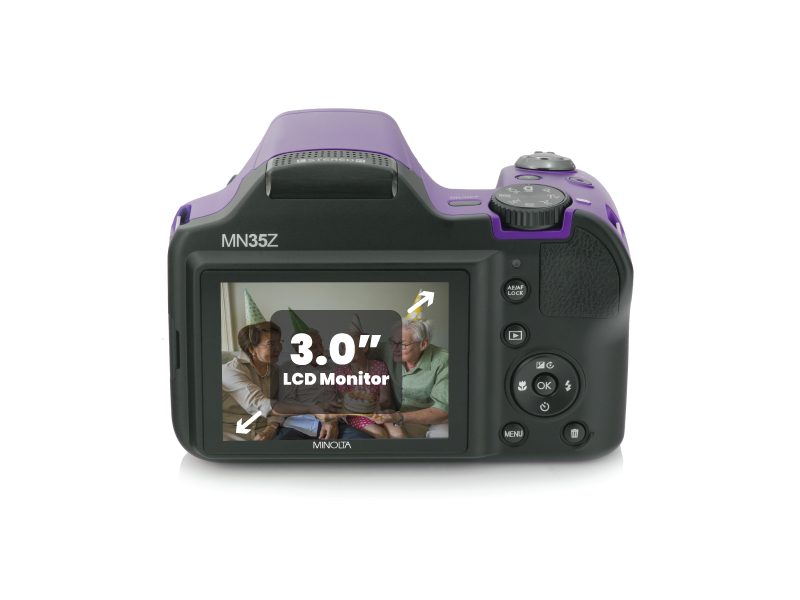
Frame your shot using the 3.0-inch LCD screen.
Press the shutter button halfway down to focus. The camera features Auto Focus with Phase Detection.
Press the shutter button fully down to capture the image.
Figure 2: The 3.0-inch LCD monitor for framing and reviewing shots.
2. Recording HD Videos
Record Full HD 1080p videos at 30 frames per second.
Switch the camera to video recording mode (refer to your camera's mode dial or menu).
Press the record button to start recording.
Press the record button again to stop recording.
3. Using the Optical Zoom
The camera features a powerful 35x optical zoom, allowing you to capture distant subjects with clarity.
Use the zoom lever (typically around the shutter button) to zoom in or out.
The optical image stabilization (OIS) helps reduce blur caused by camera shake, especially at higher zoom levels.
Figure 3: Illustration of the 35x optical zoom capability.
4. Wi-Fi and Bluetooth Connectivity
Connect your camera to a smartphone or tablet via Wi-Fi or Bluetooth for remote control and easy media transfer.
Download the official Minolta camera app to your mobile device.
Enable Wi-Fi or Bluetooth on your camera and mobile device.
Follow the app's instructions to pair your devices.
Once connected, you can use your phone as a remote shutter or transfer photos and videos directly.
Figure 4: Seamless connectivity with mobile devices for remote control and media sharing.
5. Scene Modes and Special Features
The camera offers 26 scene modes to optimize settings for various shooting conditions, along with features like Face Detection and High Dynamic Range (HDR).
Access scene modes through the camera's menu or mode dial.
Select the appropriate mode for your environment (e.g., Portrait, Landscape, Night, Sports).
Enable Face Detection for improved focus on human subjects.
Utilize HDR for scenes with high contrast to preserve detail in both highlights and shadows.
Figure 5: The camera's versatility across various shooting scenarios.
Maintenance
1. Cleaning the Camera
Camera Body: Use a soft, dry cloth to wipe the camera body. For stubborn dirt, slightly dampen the cloth with water. Avoid using solvents or abrasive cleaners.
Lens: Use a lens brush or a blower to remove dust. For smudges, use a specialized lens cleaning solution and a microfiber lens cloth. Do not touch the lens surface with your fingers.
LCD Screen: Gently wipe with a soft, lint-free cloth. Avoid pressing too hard.
2. Battery Care
Store batteries in a cool, dry place when not in use.
Avoid fully discharging the battery frequently.
If storing for extended periods, charge the battery to about 50% capacity.
Do not expose batteries to extreme temperatures.
3. Storage
When not in use, store the camera in its pouch or a camera bag to protect it from dust, moisture, and physical damage. Remove the battery if storing for a very long period.
Troubleshooting
Problem
Possible Cause
Solution
Camera does not turn on.
Battery is depleted or incorrectly inserted.
Charge the battery. Reinsert the battery correctly.
Images are blurry.
Camera shake, incorrect focus, or low light.
Hold the camera steady. Ensure focus is achieved before shooting. Use flash or increase ISO in low light.
Cannot connect to Wi-Fi/Bluetooth.
Incorrect pairing process, disabled Wi-Fi/Bluetooth, or app issue.
Ensure Wi-Fi/Bluetooth is enabled on both devices. Restart the camera and mobile device. Re-attempt pairing. Check app permissions.
"Memory Card Error" message.
Corrupted card, incorrect insertion, or incompatible card.
Reinsert the SD card. Try a different, compatible SD card. Format the card (this will erase all data).
Flash does not fire.
Flash mode is off or battery is low.
Check flash settings and ensure it's set to Auto or On. Charge the battery.
Specifications
Feature
Detail
Model Name
MN35Z
Model Number
MN35Z-R
Brand
Minolta
Photo Sensor Resolution
20 MP
Video Resolution
FHD 1080p (30 FPS)
Optical Zoom
35x
Image Stabilization
Optical
Screen Size
3 Inches LCD
Connectivity Technology
Bluetooth, Wi-Fi
Supported File Format
JPEG, RAW
Battery Type
Lithium Ion
Item Dimensions (D x W x H)
3.2" x 4.8" x 3.4"
Item Weight
1.1 Pounds
Built-In Media
8GB SD card, Camera, Camera pouch, instruction manual, warranty
Flash Memory Type
SDXC
Flash Modes
Automatic
Focus Type
Auto Focus
Shooting Modes
High dynamic range, Scene (26 modes)
UPC
084438960112
Warranty and Support
Warranty Information
The Minolta MN35Z-R Digital Camera comes with a 1-year manufacturer's warranty. This warranty covers defects in materials and workmanship under normal use. Please retain your proof of purchase for warranty claims.
Customer Support
For technical assistance, troubleshooting not covered in this manual, or warranty inquiries, please contact Minolta customer support. You can also visit the official Minolta store for additional resources and product information.
Ask about setup, troubleshooting, compatibility, parts, safety, or missing instructions. Manuals+ will review the question and use this page’s manual context to help answer it.