Introduction
The Pioneer MRX-5 is a versatile wireless speaker designed to deliver high-quality audio. Featuring two 77mm mid-bass drivers and a 28mm tweeter, it provides clear and powerful sound. With built-in Wi-Fi, Bluetooth, Chromecast, and PlayFi technologies, the MRX-5 supports various streaming options. Its integrated Li-Ion battery allows for up to 4 hours of portable use. The speaker also supports FlareConnect for multi-room audio integration with compatible devices.
Package Contents
Please ensure all items are present in the package:
- Pioneer MRX-5 Wireless Speaker
- Remote Control
- Auxiliary Cable
- LAN Cable
- Power Adapter (not explicitly listed but implied for charging)
- User Manual (this document)
Product Overview
Familiarize yourself with the various parts and controls of your Pioneer MRX-5 speaker.
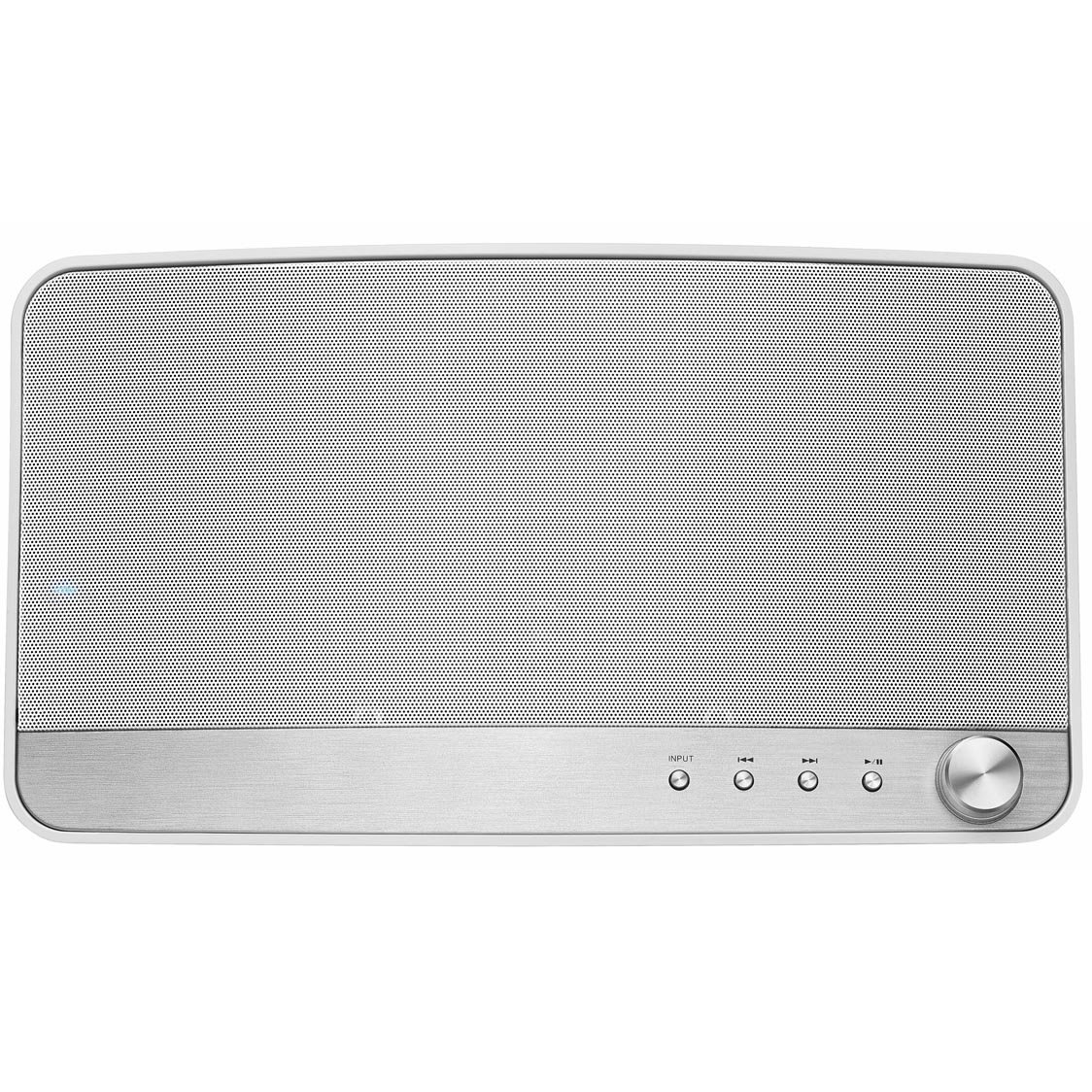
Figure 1: Front view of the Pioneer MRX-5 wireless speaker, showcasing its minimalist design and speaker grille.
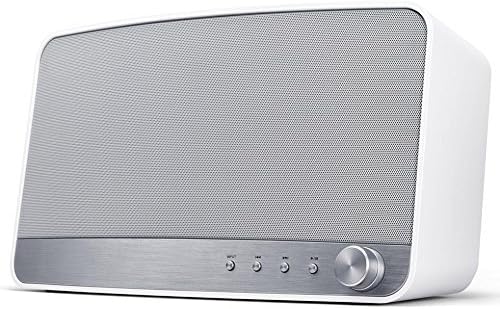
Figure 2: Close-up of the front panel controls, including buttons for playback and a rotary volume knob.
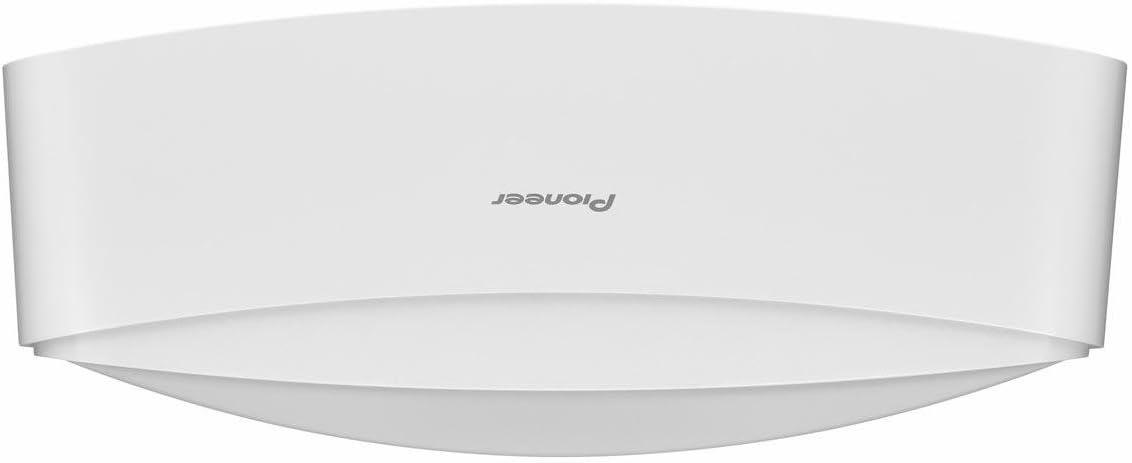
Figure 3: Rear panel of the Pioneer MRX-5, showing the network port, standby/on button, DC IN, and AUX IN ports.
Setup
1. Powering On and Charging
- Connect the provided power adapter to the DC IN port on the rear of the speaker (refer to Figure 3).
- Plug the power adapter into a wall outlet.
- Press the STANDBY/ON button on the rear panel to power on the speaker.
- The battery charges automatically when connected to power. A full charge provides approximately 4 hours of playback.
2. Network Connection (Wi-Fi / LAN)
For optimal streaming and multi-room functionality, connect the speaker to your home network.
Wi-Fi Connection:
- Download the Pioneer Remote App from your device's app store (iOS or Android).
- Ensure your smartphone/tablet is connected to the same Wi-Fi network you intend to connect the speaker to.
- Open the Pioneer Remote App and follow the on-screen instructions to add and configure your MRX-5 speaker to the Wi-Fi network.
LAN (Wired) Connection:
- Connect one end of the provided LAN cable to the NETWORK port on the rear of the speaker (refer to Figure 3).
- Connect the other end of the LAN cable to an available Ethernet port on your router or network switch.
- The speaker will automatically connect to the network.
3. Bluetooth Pairing
- Press the CONNECT button on the rear panel (refer to Figure 3) or the Bluetooth button on the front panel (refer to Figure 2) to enter Bluetooth pairing mode. The indicator light will flash.
- On your smartphone or tablet, go to the Bluetooth settings.
- Select "Pioneer MRX-5" from the list of available devices.
- Once paired, the indicator light will stop flashing and remain solid.
Operating Instructions
1. Basic Controls
The MRX-5 can be controlled via the Pioneer Remote App or the physical buttons on the unit.
- Volume Control: Rotate the large knob on the front panel or use the volume controls within the Pioneer Remote App.
- Play/Pause: Press the Play/Pause button on the front panel or in the app.
- Skip Tracks: Use the Skip Forward/Backward buttons on the front panel or in the app.
- Input Selection: Use the input selection buttons on the front panel or the app to switch between Wi-Fi, Bluetooth, and AUX inputs.
2. Streaming Services and Multi-room Audio
The MRX-5 supports various streaming platforms and multi-room audio technologies.
- Chromecast built-in: Cast audio directly from compatible apps on your smartphone or tablet.
- PlayFi: Use the PlayFi app to stream music from various services and create a multi-room audio system with other PlayFi compatible devices.
- FlareConnect: For multi-room audio, connect the MRX-5 to other FlareConnect compatible Pioneer devices. This allows sharing audio sources (e.g., turntable, TV sound) across different rooms via the Pioneer Remote App.
- Spotify/Tidal: Stream directly from these services using their respective apps or through the Pioneer Remote App.
3. Auxiliary Input
To connect an external audio device:
- Connect one end of the auxiliary cable to the AUX IN port on the rear of the MRX-5 (refer to Figure 3).
- Connect the other end to the headphone jack or audio output of your external device.
- Select the AUX input using the front panel controls or the Pioneer Remote App.
Maintenance
Cleaning
- Always disconnect the power adapter before cleaning.
- Use a soft, dry cloth to wipe the exterior of the speaker.
- Do not use liquid cleaners, aerosols, or abrasive cleaning agents, as these may damage the finish or internal components.
Battery Care
- To preserve battery life, fully charge the speaker before its first use.
- If storing the speaker for an extended period, charge it to approximately 50% every 3-6 months.
- Avoid exposing the speaker to extreme temperatures, which can degrade battery performance.
- For long-term storage or when not in use, it is recommended to completely power off the device using the rear STANDBY/ON button to prevent excessive battery drain.
Troubleshooting
If you encounter issues with your MRX-5 speaker, refer to the following common solutions:
No Power / Speaker Not Turning On
- Ensure the power adapter is securely connected to both the speaker and a working wall outlet.
- Verify the wall outlet is functional by plugging in another device.
- If operating on battery, ensure the battery is charged. Connect to power and allow some time for charging before attempting to power on.
- Press and hold the STANDBY/ON button for a few seconds to ensure it's not just in standby mode.
No Sound
- Check the volume level on both the speaker and your connected device.
- Ensure the correct input source (Wi-Fi, Bluetooth, AUX) is selected.
- If using Bluetooth, ensure the speaker is properly paired and connected to your device.
- If using Wi-Fi, verify the network connection is stable and the streaming app is functioning correctly.
- If using AUX, ensure the cable is fully inserted into both the speaker and the source device.
Cannot Connect to Wi-Fi / Network Issues
- Ensure your router is powered on and functioning.
- Confirm that your smartphone/tablet is connected to the same Wi-Fi network as the speaker during setup.
- Try restarting your router and the MRX-5 speaker.
- If using the LAN cable, ensure it is securely connected to both the speaker and the router.
- Check for any firmware updates for the speaker via the Pioneer Remote App.
Bluetooth Pairing Failure
- Ensure the speaker is in Bluetooth pairing mode (indicator light flashing).
- Turn off Bluetooth on your device and turn it back on.
- Forget "Pioneer MRX-5" from your device's Bluetooth settings and attempt to pair again.
- Move your device closer to the speaker to ensure it's within range.
- Ensure no other devices are currently connected to the speaker via Bluetooth.
Specifications
| Feature | Specification |
|---|---|
| Model Number | MRX-5 |
| Speaker Type | Wireless, Portable Bluetooth/Wi-Fi Speaker |
| Audio Channels | 1.0 (Mono, but stereo output from two drivers) |
| Speaker Size | 77 mm (Mid-bass drivers) |
| Output Power | 5 Watts (Maximum) |
| Connectivity Technology | Bluetooth, Wi-Fi (Chromecast built-in, PlayFi, FlareConnect) |
| Wired Connections | AUX IN (3.5mm), LAN (Ethernet) |
| Control Method | Application (Pioneer Remote App), On-device buttons |
| Battery Type | 1 Lithium-polymer (included) |
| Battery Life | Up to 4 hours (approximate) |
| Dimensions (L x W x H) | 14.5 x 32 x 18 cm (5.7 x 12.6 x 7.1 inches) |
| Weight | 2.5 Kilograms (5.5 lbs) |
| Included Components | Remote control, Auxiliary cable, LAN cable |
Warranty Information
Pioneer products are covered by a limited warranty. For specific warranty terms and conditions, please refer to the warranty card included with your product or visit the official Pioneer website for your region. Keep your purchase receipt as proof of purchase for warranty claims.
Support
For further assistance, technical support, or to download the Pioneer Remote App, please visit the official Pioneer website or contact their customer service department.
- Pioneer Remote App: Search "Pioneer Remote App" in the Apple App Store or Google Play Store.
- Official Website: www.pioneer-audiovisual.eu (or your regional Pioneer website)
- Customer Service: Refer to the contact information provided on the official website for your region.


