
1. Introduction
This manual provides essential information for setting up, operating, maintaining, and troubleshooting your Dell Latitude 5289 2-in-1 Laptop. The Latitude 5289 is a versatile device featuring a 12.3-inch Full HD touchscreen display, powered by an Intel Core i7-7600U processor, 16GB of RAM, and a 256GB Solid State Drive, running Windows 10 Pro.
Please read this manual thoroughly to ensure proper use and to maximize the performance and longevity of your device.

Figure 1: Dell Latitude 5289 2-in-1 Laptop in open position, displaying the Windows 10 Pro operating system on its screen and the full keyboard.
2. Getting Started
2.1 Unpacking
Carefully remove your Dell Latitude 5289 laptop and its accessories from the packaging. Ensure all components are present:
- Dell Latitude 5289 Laptop
- AC Power Adapter and Power Cord
- Documentation (including this manual)
2.2 Connecting the Power Adapter
Before initial use, connect the AC power adapter to the laptop and a power outlet to charge the battery. The charging port is located on the left side of the laptop.
2.3 Initial Boot and Windows Setup
Press the power button, located on the left side of the laptop, to turn on the device. Follow the on-screen instructions to complete the initial setup of Windows 10 Pro. This process typically involves selecting your region, language, accepting license terms, and setting up user accounts.
3. Hardware Overview
3.1 Left Side Ports and Features
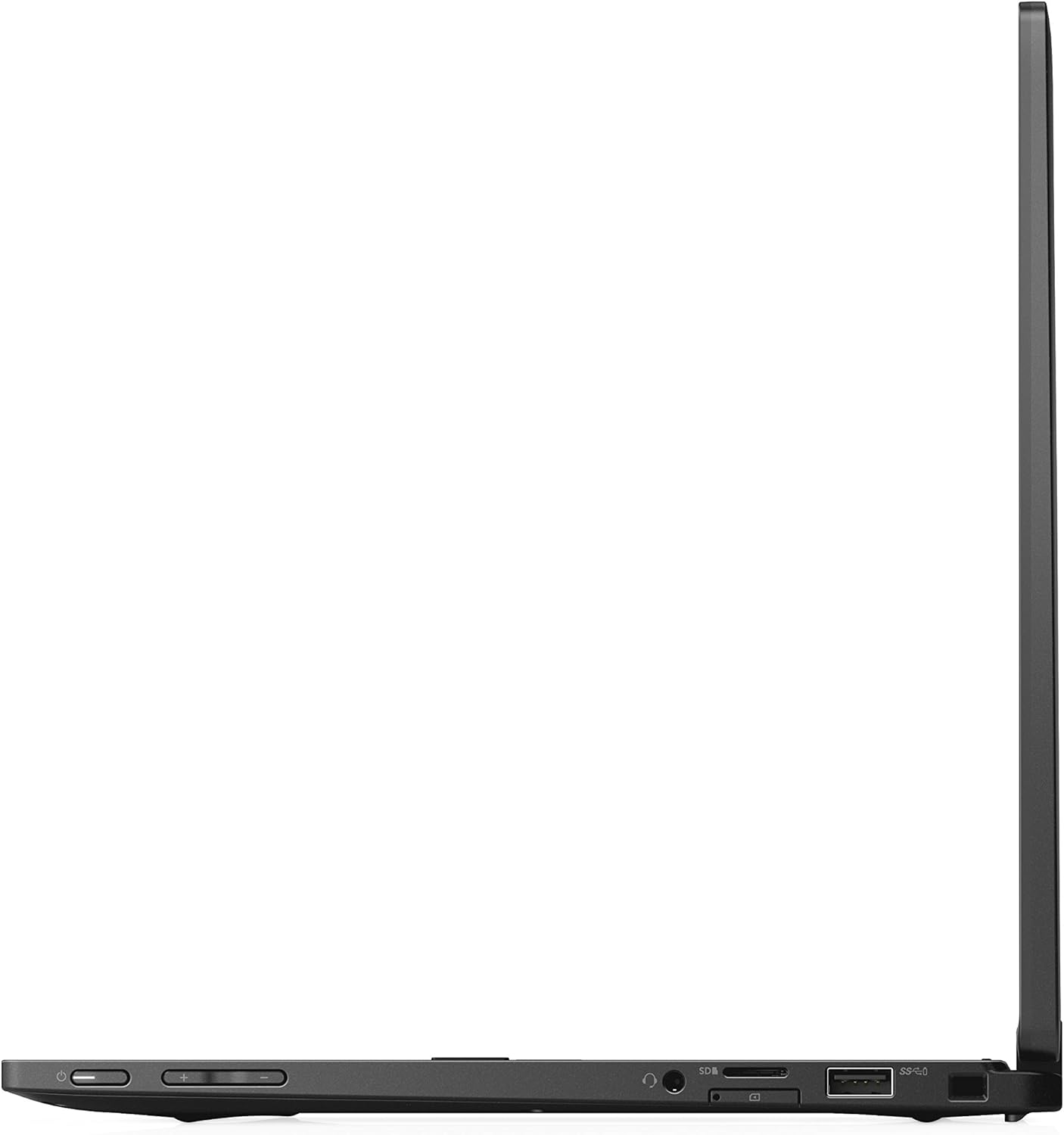
Figure 2: Left side of the Dell Latitude 5289, featuring the power button, volume controls, USB-C port, HDMI port, USB 3.0 port, and Smart Card Reader slot.
- Power Button: Turns the laptop on or off.
- Volume Up/Down: Adjusts audio output.
- USB-C Port (Thunderbolt 3): For data transfer, video output, and charging.
- HDMI Port: Connects to external displays.
- USB 3.0 Port: Connects to USB devices.
- SD Card Reader: For reading and writing to SD memory cards.
3.2 Right Side Ports and Features

Figure 3: Right side of the Dell Latitude 5289, featuring a USB 3.0 port, audio jack, and Noble Wedge Lock slot.
- USB 3.0 Port: Connects to USB devices.
- Audio Jack: Connects headphones or external speakers.
- Noble Wedge Lock Slot: For security cable locks.
3.3 Back View

Figure 4: Back view of the Dell Latitude 5289, showing the Dell logo and ventilation grilles.
The back of the laptop features the Dell logo and ventilation grilles to ensure proper airflow and cooling during operation.
4. Basic Operation
4.1 Power On/Off
- To Power On: Press the power button located on the left side of the laptop.
- To Shut Down: Click the Windows Start button, then select Power > Shut down.
- To Restart: Click the Windows Start button, then select Power > Restart.
- To Sleep: Click the Windows Start button, then select Power > Sleep.
4.2 Using the Touchscreen
The 12.3-inch Full HD display supports touch input. You can interact with the operating system and applications using gestures similar to a tablet or smartphone. Common gestures include tapping, swiping, pinching to zoom, and rotating.
4.3 Keyboard Functions
The laptop features a full-sized keyboard. Many keys have secondary functions accessible by holding down the Fn key and pressing the corresponding function key (F1-F12). These functions often include adjusting brightness, volume, toggling Wi-Fi, and controlling media playback. The keyboard is also backlit for use in low-light conditions.
4.4 Touchpad Usage
The integrated touchpad allows for precise cursor control. It supports multi-touch gestures for scrolling, zooming, and other functions. Refer to Windows settings for customizing touchpad behavior.
4.5 Wireless Connectivity
- Wi-Fi: To connect to a wireless network, click the Wi-Fi icon in the system tray, select your desired network, and enter the password if required.
- Bluetooth: To pair Bluetooth devices, go to Windows Settings > Devices > Bluetooth & other devices, and follow the instructions to add a new device.
5. System Maintenance
5.1 Cleaning the Device
- Use a soft, lint-free cloth slightly dampened with water or a screen cleaner to clean the display.
- For the keyboard and chassis, use a soft, dry cloth. Avoid harsh chemicals or abrasive materials.
- Ensure the laptop is powered off and unplugged before cleaning.
5.2 Battery Management
- To prolong battery life, avoid fully discharging the battery frequently.
- Store the laptop in a cool, dry place when not in use for extended periods.
- Use only the original Dell AC adapter for charging.
5.3 Software Updates
Regularly update your Windows operating system and Dell drivers to ensure optimal performance and security. Windows Update can be accessed via Settings > Update & Security > Windows Update. Dell provides driver updates through its official support website.
5.4 Data Backup
Regularly back up your important data to an external drive or cloud storage to prevent data loss.
6. Troubleshooting
6.1 No Power
- Ensure the AC adapter is securely connected to both the laptop and a working power outlet.
- Check if the power outlet is functional by plugging in another device.
- Try a different power outlet.
6.2 Display Problems
- If the screen is blank, ensure the laptop is powered on.
- Adjust screen brightness using the function keys (Fn + F11/F12).
- If an external monitor is connected, ensure the display output is correctly configured (Fn + F8).
6.3 Connectivity Issues
- Wi-Fi: Ensure Wi-Fi is enabled and you are connected to the correct network. Restart your router if necessary.
- Bluetooth: Ensure Bluetooth is enabled and the device you are trying to connect to is in pairing mode.
6.4 System Unresponsive
If the system becomes unresponsive, press and hold the power button for approximately 10-15 seconds to force a shutdown. Then, restart the laptop.
7. Technical Specifications
| Feature | Specification |
|---|---|
| Model Name | Latitude 5289 |
| Item Model Number | F9HJH |
| Processor | Intel Core i7-7600U (2.8 GHz, Max Turbo 3.9 GHz) |
| RAM | 16 GB LPDDR3 (1866 MHz) |
| Storage | 256 GB SSD |
| Display | 12.3 Inches FHD (1920 x 1080) Touchscreen |
| Graphics Coprocessor | Intel HD Graphics 620 |
| Operating System | Windows 10 Pro |
| Wireless Type | 802.11ac, Bluetooth 4.2 |
| USB 3.0 Ports | 2 |
| Item Weight | 4.59 pounds |
| Product Dimensions | 12.4 x 18.1 x 3.2 inches |
| Batteries | 1 Lithium Ion battery (included) |
8. Warranty and Support
8.1 Warranty Information
Your Dell Latitude 5289 laptop comes with a standard limited warranty. For detailed information regarding warranty terms, coverage, and duration, please refer to the warranty documentation included with your product or visit the official Dell support website.
8.2 Technical Support
For technical assistance, driver downloads, or further troubleshooting, please visit the Dell Support website. You will need your product's service tag or express service code, typically found on a label on the bottom of your laptop, to access specific support resources.
Dell Support Website: www.dell.com/support