
1. Introduction
This user manual provides detailed instructions for the setup, operation, maintenance, and troubleshooting of your MARATHON Large Digital Wall Clock with an 8-inch display. Designed for clarity and ease of use, this clock is suitable for various environments including offices, classrooms, labs, and homes.

Image: Front view of the MARATHON Large Digital Wall Clock in Graphite Gray, displaying time.
2. Key Features
- Large Digital Display: High contrast 7.5-inch LCD display with large digits for easy readability from a distance.
- Versatile Placement: Features integrated keyholes for wall mounting and a fold-out stand for desktop use.
- Alarm with Snooze: Includes a loud, easy-to-set alarm function with a snooze option.
- Daylight Saving Time (DST): Equipped with a special feature for automatic Daylight Saving adjustments.
- Battery Powered: Operates on 3 AAA batteries (included).

Image: Diagram illustrating the dimensions of the clock: 9 inches (23 cm) width, 6.5 inches (16.5 cm) height, with 3.5 inch (9 cm) digits.
3. Setup
3.1. Battery Installation
- Locate the battery compartment cover on the back of the clock.
- Remove the cover by sliding it off or gently prying it open.
- Insert 3 AAA batteries, ensuring correct polarity (+ and - terminals match the markings inside the compartment). The clock comes with batteries included.
- Replace the battery compartment cover securely.

Image: Rear view of the clock, highlighting the battery compartment and control buttons.
3.2. Placement Options
- Desktop Placement: Extend the fold-out stand located on the back of the clock to place it on any flat surface.
- Wall Mounting: Use the integrated keyholes on the back of the clock to hang it securely on a wall. Ensure appropriate wall anchors or screws are used for stability.

Image: Clock positioned on a desk, demonstrating desktop use.
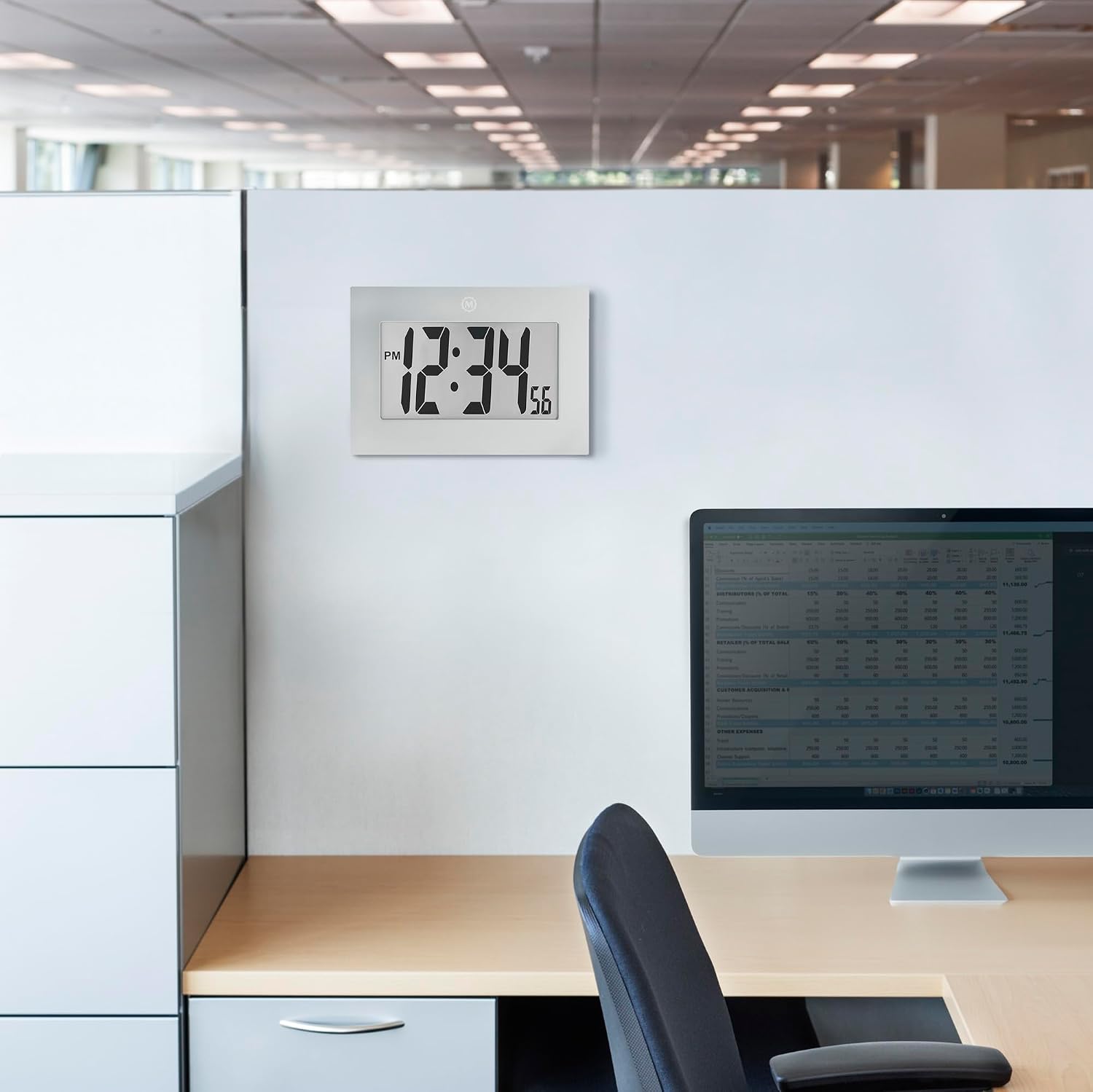
Image: Clock mounted on an office wall, showing wall placement.
4. Operating Instructions
The control buttons are located on the back of the clock. These include MODE, ALARM ON/OFF, UP (▲), and DOWN (▼) buttons, along with a SNOOZE button on top.
4.1. Setting Time and Date
- Press and hold the MODE button until the display flashes, indicating setup mode.
- Use the UP (▲) or DOWN (▼) buttons to adjust the flashing value (e.g., hour, minute, year, month, day).
- Press the MODE button again to confirm the setting and move to the next adjustable parameter.
- Repeat steps 2 and 3 until all desired settings (time, date, year) are configured.
- Once finished, press the MODE button one last time to exit setup mode.
4.2. Setting the Alarm
- Press the MODE button repeatedly until the alarm time is displayed (usually indicated by "AL" or a bell icon).
- Press and hold the MODE button until the alarm time flashes.
- Use the UP (▲) or DOWN (▼) buttons to set the desired alarm hour and minute.
- Press the MODE button to confirm each setting.
- To activate or deactivate the alarm, press the ALARM ON/OFF button. A bell icon on the display indicates the alarm is active.
4.3. Snooze Function
When the alarm sounds, press the large SNOOZE button on the top of the clock to temporarily silence the alarm. The alarm will sound again after a short interval (typically 5-10 minutes). To turn off the alarm completely, press the ALARM ON/OFF button on the back.
4.4. Time Format (12/24 Hour)
During time setting, you can typically toggle between 12-hour (with AM/PM indicator) and 24-hour (military time) formats using the UP (▲) or DOWN (▼) buttons when the hour setting is flashing.
4.5. Daylight Saving Time (DST)
This clock features an automatic Daylight Saving Time adjustment. Refer to the specific instructions included in the product packaging for details on enabling or disabling this feature, if necessary.
5. Maintenance
5.1. Battery Replacement
When the display dims or the clock functions become erratic, it's time to replace the batteries. Follow the battery installation steps in Section 3.1. Always replace all 3 AAA batteries at the same time with new ones for optimal performance.
5.2. Cleaning
To clean the clock, gently wipe the display and casing with a soft, dry cloth. Avoid using abrasive cleaners, solvents, or spray cleaners directly on the clock, as these can damage the finish or internal components.
6. Troubleshooting
| Problem | Possible Cause | Solution |
|---|---|---|
| Display is blank or dim. | Low or dead batteries. | Replace all 3 AAA batteries with new ones. |
| Time is incorrect. | Time not set correctly or DST issue. | Refer to Section 4.1 to reset the time. Check DST settings. |
| Alarm does not sound. | Alarm is not activated or set incorrectly. | Ensure the alarm is turned ON (bell icon visible) and the alarm time is set correctly (Section 4.2). |
| Buttons are unresponsive. | Temporary software glitch or low batteries. | Remove and reinsert batteries to perform a soft reset. If problem persists, replace batteries. |
7. Specifications
| Feature | Detail |
|---|---|
| Brand | MARATHON |
| Model Number | CL030064-GG-00-NA |
| Color | Graphite Grey |
| Display Type | Digital |
| Product Dimensions (W x H) | 6.5"W x 9"H |
| Power Source | Battery Powered |
| Batteries Required | 3 AAA batteries (included) |
| Mounting Type | Desk Clock, Wall Mount |
| Special Feature | Daylight Saving |
| Material Type | Plastic, Acrylonitrile Butadiene Styrene |
| Item Weight | 431 Grams |
| Indoor/Outdoor Usage | Indoor |
8. Warranty and Support
MARATHON has been manufacturing precision timing instruments since 1939. This product comes with a Limited Warranty. For detailed warranty information, product support, or to contact customer service, please visit the official MARATHON website or refer to the warranty card included with your purchase.
You can find more information about MARATHON products and support at www.marathonwatch.com.