
1. Introduction
The Micolindun GM-280 is an external USB sound card and hub designed to enhance your computer's audio capabilities and expand its USB connectivity. This device provides multiple 3.5mm audio ports for headphones, headsets, speakers, and microphones, and also functions as a 2-port USB hub. It is a plug-and-play device, requiring no additional drivers for most operating systems.
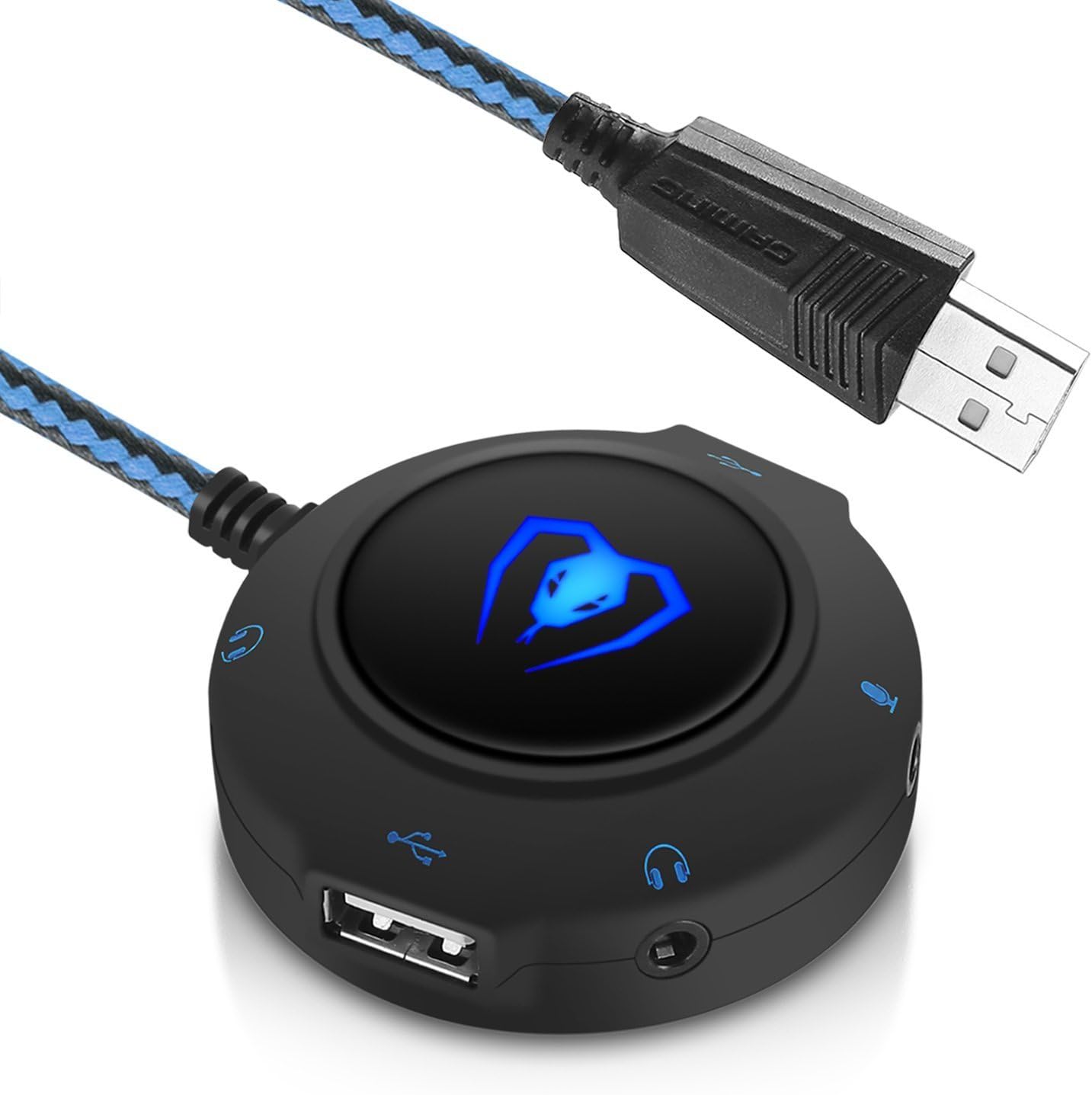
Figure 1: Micolindun GM-280 External USB Sound Card and Hub
2. Product Features
- External Sound Card: Converts a single USB port into multiple 3.5mm audio jacks, supporting headphones, headsets, speakers, and microphones. It accommodates both single-plug and dual-plug headphones simultaneously.
- Faulty Device Replacement: Ideal for replacing a malfunctioning internal sound card, damaged 3.5mm audio port, or a broken USB audio adapter.
- USB Hub Function: Expands one USB port into two additional USB ports, compatible with various USB devices such as USB drives, hard drives, mice, keyboards, and laptop coolers. Offers quick response without delay.
- Plug and Play: No drivers are required for installation.
- Wide Compatibility: Compatible with Windows XP, 7, 8, 8.1, 10, and Mac OS systems.
- Portable Design: Compact (5.5 x 5.5 cm) and lightweight (65g) with a 1.15m textile flexible cable for convenient placement and portability. Features a frosted surface material and a bright blue LED light.
3. Package Contents
Please check the box for the following items:
- 1 x Micolindun GM-280 External USB Sound Card/Hub
- 1 x Instruction Manual (this document)

Figure 2: Packaging and Contents
4. Specifications
| Feature | Description |
|---|---|
| Model | GM-280 |
| Color | Blue |
| Cable Length | 1.15 m (45 inches) |
| Weight | 65g (0.13 Pounds) |
| Product Dimensions (L x W x H) | 5.5 x 5.5 cm (2.17" x 2.17" x 0.79") |
| Hardware Interface | USB |
| Audio Ports | 2 x 3.5mm Headphone/Speaker, 1 x 3.5mm Microphone |
| USB Hub Ports | 2 x USB 2.0 Type-A |
| Operating System Compatibility | Windows XP, 7, 8, 8.1, 10; Mac OS |
| Enclosure Material | Plastic |
| UPC | 760450055554 |
5. Setup
5.1 Connecting the Device
- Locate an available USB port on your PC or laptop.
- Plug the USB connector of the Micolindun GM-280 into the available USB port. The device is plug-and-play, so your operating system should automatically detect and install it without needing additional drivers.
- Once connected, the blue LED light on the device will illuminate, indicating it is powered on and ready for use.
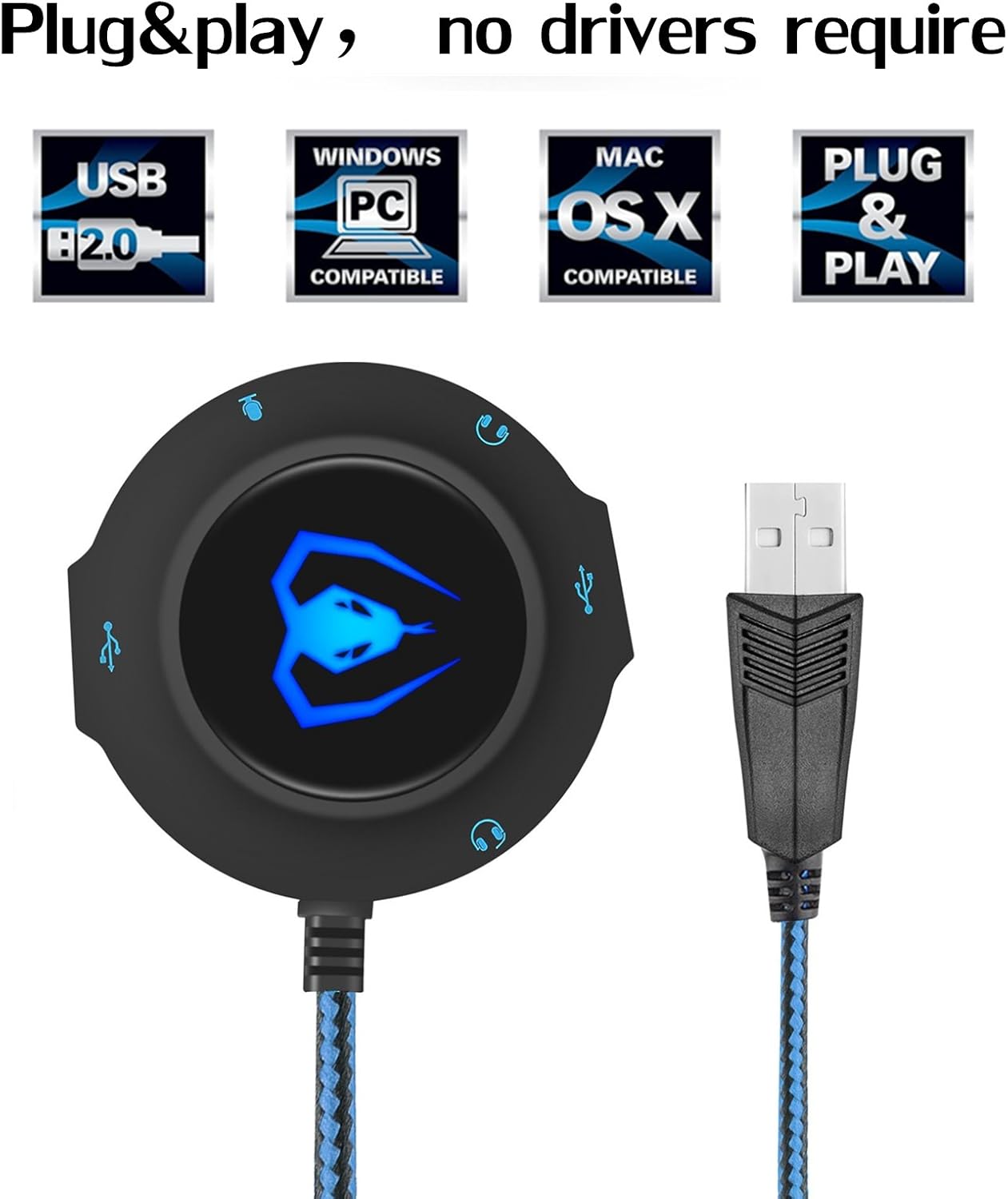
Figure 3: Plug and Play Connection
5.2 Connecting Audio Devices
The GM-280 features multiple 3.5mm jacks for various audio devices:
- Headphone/Speaker Jacks: Two 3.5mm jacks are available for connecting headphones or speakers. These support both single-plug and dual-plug configurations.
- Microphone Jack: One 3.5mm jack is dedicated for connecting a microphone.
Simply plug your audio devices into the corresponding jacks on the GM-280.

Figure 4: Multifunctional Connectivity Diagram
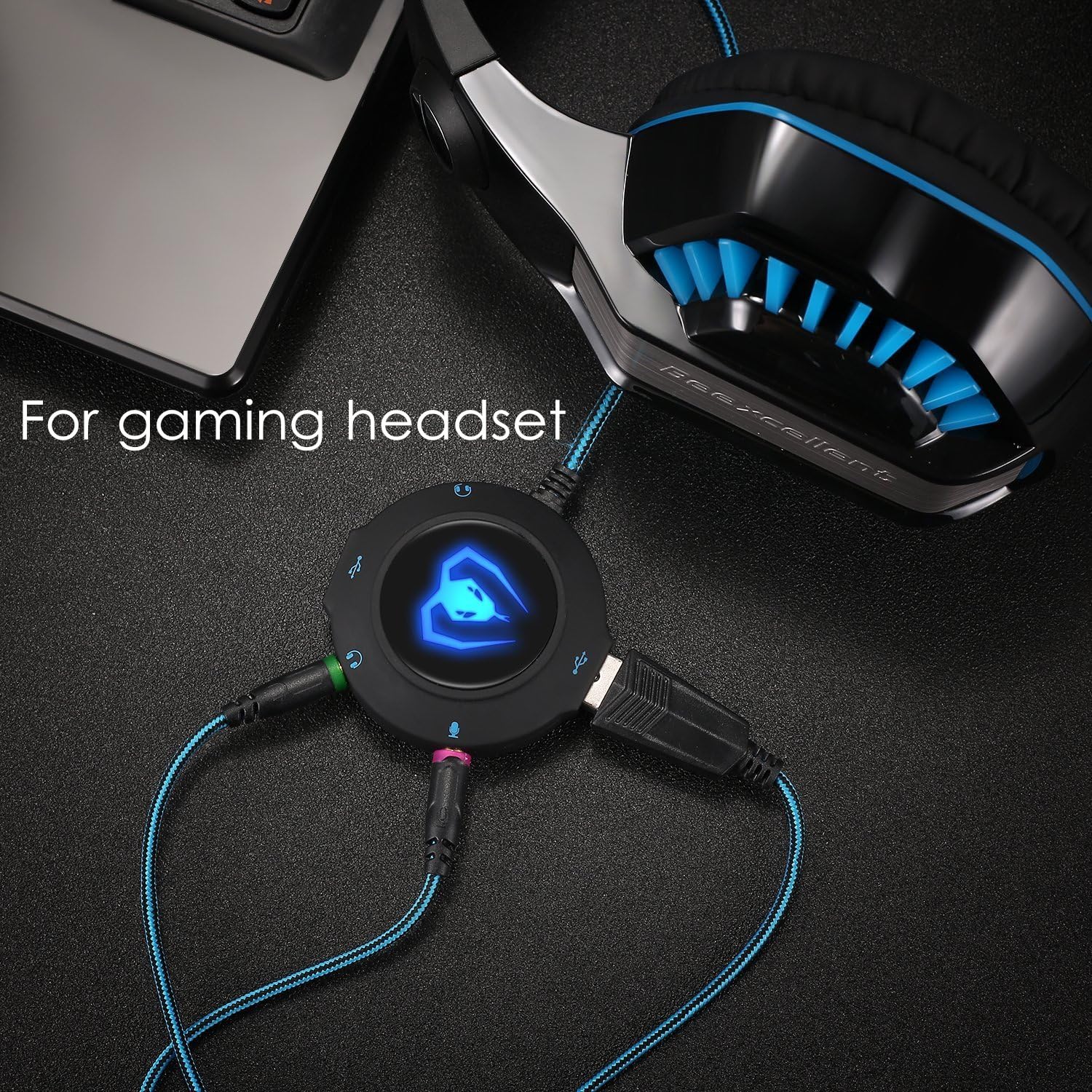
Figure 5: Connecting a Gaming Headset
5.3 Using the USB Hub
The two USB ports on the GM-280 can be used to connect additional USB devices, such as:
- USB flash drives
- External hard drives
- Mice
- Keyboards
- Laptop coolers
- Card readers
- USB fans

Figure 6: Device Overview with Cable Length
6. Operating Instructions
Once connected, the Micolindun GM-280 operates as a direct extension of your computer's audio and USB capabilities. No specific software or complex controls are typically needed for basic functionality.
6.1 Audio Output/Input
- For audio output (headphones/speakers), ensure your operating system's sound settings are configured to use the "USB Audio Device" or similar as the default playback device.
- For microphone input, ensure your operating system's sound settings are configured to use the "USB Audio Device" or similar as the default recording device.
6.2 USB Data Transfer
Plug your USB devices into the available USB ports on the GM-280. They will function as if directly connected to your computer's built-in USB ports.
7. Troubleshooting
- No Sound Output:
- Ensure the GM-280 is securely plugged into a working USB port.
- Check if your headphones/speakers are correctly plugged into the 3.5mm audio output jacks.
- Verify your computer's sound settings. Go to your operating system's Sound settings and ensure the "USB Audio Device" (or similar) is selected as the default playback device.
- Adjust the volume levels on both your computer and your connected audio device.
- Microphone Not Working:
- Confirm the microphone is securely plugged into the 3.5mm microphone input jack.
- Check your computer's sound settings. Ensure the "USB Audio Device" (or similar) is selected as the default recording device and that the microphone volume is not muted or set too low.
- USB Devices Not Detected:
- Ensure the USB device is properly inserted into one of the GM-280's USB hub ports.
- Try plugging the USB device directly into your computer's USB port to confirm it is functional.
- If connecting a high-power USB device (e.g., an external hard drive), ensure it has its own power supply if required, as the hub may not provide sufficient power for all devices simultaneously.
- Intermittent Connection:
- Try using a different USB port on your computer.
- Ensure the cable is not bent or damaged.
8. Maintenance
- Cleaning: Use a soft, dry cloth to clean the device. Avoid using liquid cleaners or solvents.
- Storage: Store the device in a cool, dry place when not in use.
- Handling: Avoid dropping the device or subjecting it to strong impacts. Do not pull on the cable forcefully when disconnecting.
9. Customer Support
If you encounter any issues with your Micolindun GM-280 External USB Sound Card and Hub, please do not hesitate to contact our customer service team. We are committed to providing assistance and resolving any problems you may experience.
For support, please refer to the contact information provided with your purchase or visit the official Micolindun website.


