Introduction
This manual provides comprehensive instructions for the setup, operation, and maintenance of your Polaroid 32 inch Smart TV, model P3270W. Please read this manual thoroughly before using your television to ensure proper functionality and safety. Keep this manual for future reference.
Important Safety Information
- Do not expose the TV to rain or moisture to prevent fire or electric shock.
- Ensure proper ventilation. Do not block ventilation openings.
- Place the TV on a stable, level surface to prevent it from falling.
- Use only the power cord supplied with the TV.
- Unplug the TV during lightning storms or when unused for long periods.
- Do not open the TV cabinet. Refer all servicing to qualified personnel.
Package Contents
Verify that all items listed below are included in your package. If any items are missing or damaged, please contact your retailer.
- Polaroid 32 inch Smart TV (P3270W)
- Remote Control
- AAA Batteries (for remote control)
- TV Stand Base
- User Manual (this document)

Figure 1: Included accessories for the Polaroid P3270W Smart TV. This image displays the remote control, two AAA batteries, the TV stand base, and the printed user manual.
Setup Guide
1. Installing the TV Stand
- Carefully place the TV screen-down on a soft, clean surface to prevent scratches.
- Align the stand base with the mounting holes on the bottom of the TV.
- Secure the stand using the provided screws. Do not overtighten.
2. Connecting Power and Devices
- Connect the power cord to the TV's power input and then to a wall outlet.
- For external devices (e.g., cable box, game console), use HDMI ports. Your TV has 2 HDMI ports.
- USB devices can be connected to the 3 USB ports for media playback.
- A VGA port is available for PC connection.
- An Ethernet RJ45 port is available for wired internet connection.

Figure 2: Front view of the Polaroid P3270W Smart TV, illustrating its design and how it appears once the stand is attached.
3. Initial Power-On and Network Setup
- Press the power button on the remote control or TV.
- Follow the on-screen instructions for initial setup, including language selection and time zone.
- To connect to Wi-Fi, navigate to Settings > Network & Internet, select your Wi-Fi network, and enter the password.
- For a wired connection, connect an Ethernet cable to the RJ45 port. The TV should automatically detect the connection.
Operating Your Polaroid Smart TV
Remote Control Functions
The included remote control allows you to navigate the TV's features. Ensure batteries are correctly inserted. Point the remote directly at the TV's infrared sensor.
- Power Button: Turns the TV on or off.
- Navigation Buttons: Use the directional pad to move through menus and select options.
- Home Button: Returns to the Android TV home screen.
- Back Button: Returns to the previous screen or menu.
- Volume Up/Down: Adjusts the audio volume.
- Input Button: Selects different input sources (HDMI, AV, USB).
- App Buttons: Dedicated buttons for popular streaming services like Netflix and YouTube (if available).
Navigating the Android TV Interface
Your Polaroid Smart TV runs on the Android platform, providing access to a wide range of applications and features.
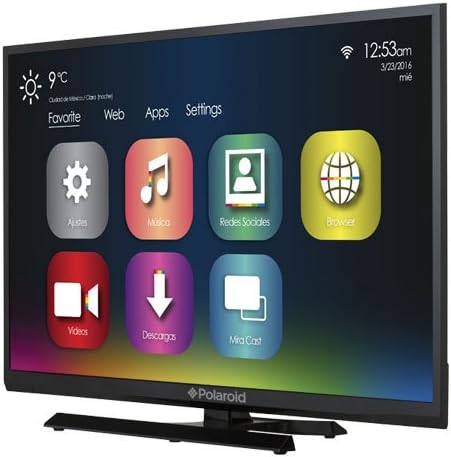
Figure 3: The Android TV home screen, displaying icons for applications such as Settings, Music, Social Networks, and Browser, along with weather information and time.

Figure 4: A view of the Android TV settings menu, showing options for Wi-Fi, Ethernet, Wallpaper, Sound, Language and Input, Date and Time, Backup, Storage, System Update, and Advanced Settings.
- From the home screen, you can access installed applications, input sources, and system settings.
- Use the navigation buttons on your remote to highlight and select desired options.
- Access popular streaming services like Netflix and YouTube directly from the home screen or through the Apps menu.
- Download additional applications from the Google Play Store.
Selecting Input Sources
To switch between connected devices:
- Press the Input button on your remote control.
- A list of available input sources (HDMI1, HDMI2, AV, VGA, Media) will appear.
- Use the navigation buttons to select the desired input and press OK.
Maintenance
Cleaning Your TV
- Always unplug the TV before cleaning.
- Use a soft, dry cloth to wipe the screen and cabinet.
- For stubborn marks, lightly dampen the cloth with water or a mild, non-abrasive screen cleaner. Never spray cleaner directly onto the screen.
- Avoid using alcohol, benzene, thinners, or other volatile substances, as they may damage the TV.
Software Updates
Your Smart TV may receive software updates to improve performance and add new features. It is recommended to keep your TV connected to the internet to receive these updates. You can check for updates manually in the Settings menu.
Troubleshooting
If you encounter issues with your TV, refer to the following common problems and solutions before contacting customer support.
| Problem | Possible Solution |
|---|---|
| No power / TV does not turn on. |
|
| No picture, but sound is present. |
|
| Remote control is not responding or is slow. |
|
| Applications freeze or crash frequently. |
|
| Slow performance or lag in the interface. |
|
Technical Specifications
| Feature | Specification |
|---|---|
| Brand | Polaroid |
| Model Number | P3270W |
| Screen Size | 32 Inches |
| Display Technology | LED |
| Resolution | 1366 x 768 pixels (HD 720p) |
| Aspect Ratio | 16:9 |
| Refresh Rate | 60 hertz |
| Operating System | Android |
| Special Features | Smart TV, Wi-Fi |
| Connectivity Technology | Wi-Fi, Ethernet |
| Hardware Interface | 2x HDMI, 3x USB, 1x VGA, Ethernet RJ45 |
| Supported Internet Services | Netflix, YouTube (and others via Google Play) |
| Remote Control Technology | Infrared |
| Mounting Type | Table Mount |
| Product Dimensions (approximate) | 73 cm X 48 cm X 8 cm (Display) |
| Package Dimensions | 74.8 x 51 x 14.6 cm |
| Item Weight | 6.58 kg |
Warranty and Customer Support
Your Polaroid P3270W Smart TV comes with a limited manufacturer's warranty. Please refer to the warranty card included in your package for specific terms and conditions, including warranty period and coverage details.
For technical assistance, troubleshooting beyond this manual, or warranty claims, please contact Polaroid customer support. Contact information can typically be found on the warranty card or the official Polaroid website.