
keyboard go go go C55-C5241
USA US Layout Laptop Keyboard User Manual
Brand: keyboard go go go | Model: C55-C5241
Introduction
This manual provides essential information for the installation, operation, and maintenance of your new USA US Layout Laptop Keyboard. Please read this manual thoroughly before use to ensure proper function and longevity of the product.
Product Overview
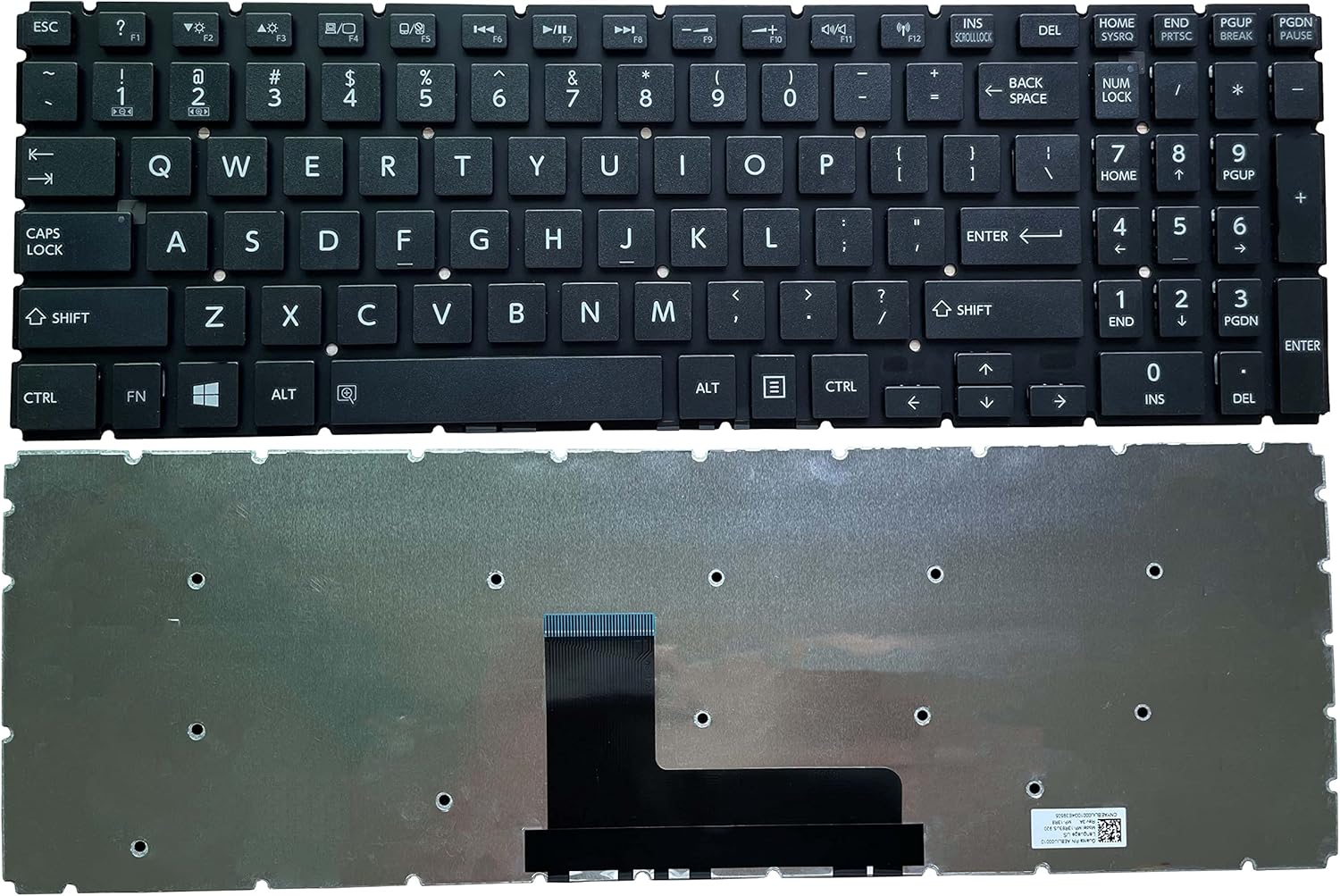
Front and back view of the US layout laptop keyboard, showing the key layout and the metallic backplate with the ribbon cable connector.

A clear top-down view of the keyboard, highlighting the US English layout and frameless design.
This replacement laptop keyboard is designed for various Toshiba Satellite models, featuring a US English layout, black color, and a frameless design without backlight. It is built for durability and comfortable typing.
Setup and Installation
Important: Ensure your laptop is powered off and disconnected from all power sources before beginning installation.
- Preparation: Carefully remove all external components and accessories from your laptop.
- Disassembly: Access the internal components of your laptop. This typically involves removing the bottom cover and other internal parts to reach the keyboard assembly. Note that the keyboard may be secured by plastic rivets; these can be carefully cut or melted to liberate the old keyboard.
- Old Keyboard Removal: Disconnect the ribbon cable of the old keyboard from the motherboard. Gently remove the old keyboard.
- New Keyboard Installation: Align the new keyboard into its designated slot. Carefully connect the new keyboard's ribbon cable to the corresponding port on the motherboard. Ensure the connection is secure and properly seated to avoid damage to the cable or port.
- Reassembly: Reassemble your laptop by reversing the disassembly steps. Ensure all components are properly reconnected and secured.
- Initial Test: Power on your laptop and test all keys to ensure proper functionality before fully securing all covers.
A screwdriver is included as a gift to assist with the installation process.
Operating Instructions
This keyboard functions as a standard US layout laptop keyboard. Once installed, it provides full functionality for typing and system control.
- Typing: The keys are designed for strong resilience, providing a comfortable and responsive typing experience without sticking.
- Function Keys: Utilize the function keys (F1-F12) in combination with the 'Fn' key for various laptop-specific functions such as volume control, screen brightness, and media playback. Refer to your laptop's original manual for specific function key assignments.
- Numeric Keypad: For models with a numeric keypad, ensure 'Num Lock' is activated for numerical input.
Maintenance
Proper maintenance ensures the longevity and performance of your keyboard.
- Cleaning: Regularly clean the keyboard surface with a soft, dry, lint-free cloth. For stubborn dirt, slightly dampen the cloth with water or a mild, non-abrasive cleaner. Avoid excessive moisture.
- Dust Removal: Use compressed air to remove dust and debris from between the keys.
- Spill Prevention: While the keyboard is designed to be robust, avoid spilling liquids on it. If a spill occurs, immediately power off your laptop and disconnect it from power, then carefully clean and dry the keyboard.
- Durability: The keyboard characters are UV-treated to resist wear and remain clear even after extensive use. The keys are equipped with anti-strike columns for enhanced impact resistance.
Troubleshooting
If you encounter issues with your new keyboard, consider the following troubleshooting steps:
- Keyboard Not Responding:
- Ensure the ribbon cable is securely connected to the motherboard. A loose connection is a common cause of non-responsiveness.
- Verify that the laptop is powered on and the operating system has loaded correctly.
- Restart your laptop.
- Specific Keys Not Working:
- Check for any physical obstructions or debris under the non-functioning keys.
- If the issue persists for multiple keys, re-check the ribbon cable connection.
- Incorrect Character Output:
- Ensure your operating system's keyboard layout settings match the US English layout of the physical keyboard.
- Liquid Damage: If the previous keyboard was damaged by liquid, ensure the laptop's motherboard and other components are dry and undamaged before installing the new keyboard. This replacement keyboard is not designed to fix issues caused by a damaged motherboard.
If troubleshooting steps do not resolve the issue, please refer to the Support section.
Specifications
| Feature | Detail |
|---|---|
| Applicable Models | For Toshiba Satellite L50-B, L50D-B, L50T-B, L55-B, L50-C, S50-B, P50-C, C55-C5246, C55-C5240, C55-C5241 |
| Language Layout | US English |
| Color | Black |
| Keyboard Frame | Borderless |
| Backlight | No Backlight |
| Material | Acrylonitrile Butadiene Styrene |
| Item Weight | 9.6 ounces |
| Package Dimensions | 15 x 5 x 0.7 inches |
| Key Durability | UV-treated characters, 100 million uses; 10 million stress tests |
| Included Accessories | 1 x Keyboard, 1 x Screwdriver (Gift) |
Warranty Information
This product comes with a 180-day warranty from the date of purchase. This warranty covers manufacturing defects and ensures the product is free from defects in material and workmanship under normal use.
The warranty does not cover damage caused by:
- Accident, abuse, misuse, or improper installation.
- Unauthorized repairs or modifications.
- Natural disasters or acts of God.
Please retain your proof of purchase for warranty claims.
Support
For technical assistance, warranty claims, or any questions regarding your product, please contact the seller directly through the platform where the purchase was made. Provide your order number and a detailed description of the issue for prompt assistance.
Manufacturer: keyboard go go go