
1. Introduction
Thank you for choosing the AMERTEER Wireless Presentation Remote. This device is designed to enhance your presentations by providing seamless control over your slides and a built-in laser pointer. This manual provides detailed instructions for setup, operation, maintenance, and troubleshooting to ensure optimal performance.
2. Product Overview
The AMERTEER Wireless Presentation Remote (Model RCRF-008) is a compact and ergonomic device featuring a 2.4GHz wireless connection and a red laser pointer. It includes essential buttons for navigating presentations and controlling the laser.
2.1 Package Contents
- AMERTEER Wireless Presentation Remote
- USB Wireless Receiver
- User Manual
2.2 Device Layout
Familiarize yourself with the buttons and features of your presentation remote:

Image 2.2.1: The AMERTEER Wireless Presentation Remote and its detachable USB receiver. The remote features a sleek black design with grey control buttons and a red laser pointer at the top. The USB receiver is stored securely within the remote's body.
- Laser Pointer Button: Activates the red laser.
- Page Up Button: Advances to the next slide.
- Page Down Button: Returns to the previous slide.
- Full Screen/Black Screen Button: Toggles between full-screen mode and a black screen during a presentation.
- On/Off Switch: Located on the side or bottom of the device to conserve battery.
- USB Receiver Compartment: Located at the bottom of the remote for secure storage of the USB receiver.
3. Setup Instructions
3.1 Battery Installation
- Locate the battery compartment cover on the back of the remote.
- Slide or gently pry open the cover.
- Insert one AAA battery (not included), ensuring correct polarity (+/-).
- Replace the battery compartment cover.
3.2 Connecting the USB Receiver

Image 3.2.1: The USB receiver is shown being removed from its storage slot within the remote and then plugged into a laptop's USB port, illustrating the plug-and-play functionality.
- Open the USB receiver compartment at the bottom of the remote and remove the USB receiver.
- Plug the USB receiver into an available USB port on your computer (laptop or desktop).
- Your computer should automatically detect and install the necessary drivers. No additional software installation is typically required.
- For Mac OS X 10.11 El Capitan users: After plugging in the USB receiver, a setup box may appear. Select the '101' or '104' option to ensure proper functionality.
4. Operating Instructions
Once the USB receiver is connected and the remote has power, you can begin using it for your presentations.

Image 4.0.1: The presentation remote is shown with icons illustrating its main functions: Page Up/Down, Full/Black Screen, Laser Control, and Wireless Connection. This image helps users quickly identify button functionalities.
- Power On: Slide the On/Off switch to the 'On' position.
- Slide Navigation:
- Press the Page Up button to move to the next slide.
- Press the Page Down button to move to the previous slide.
- Laser Pointer:
- Press and hold the Laser Pointer button to activate the red laser. Release the button to turn off the laser.
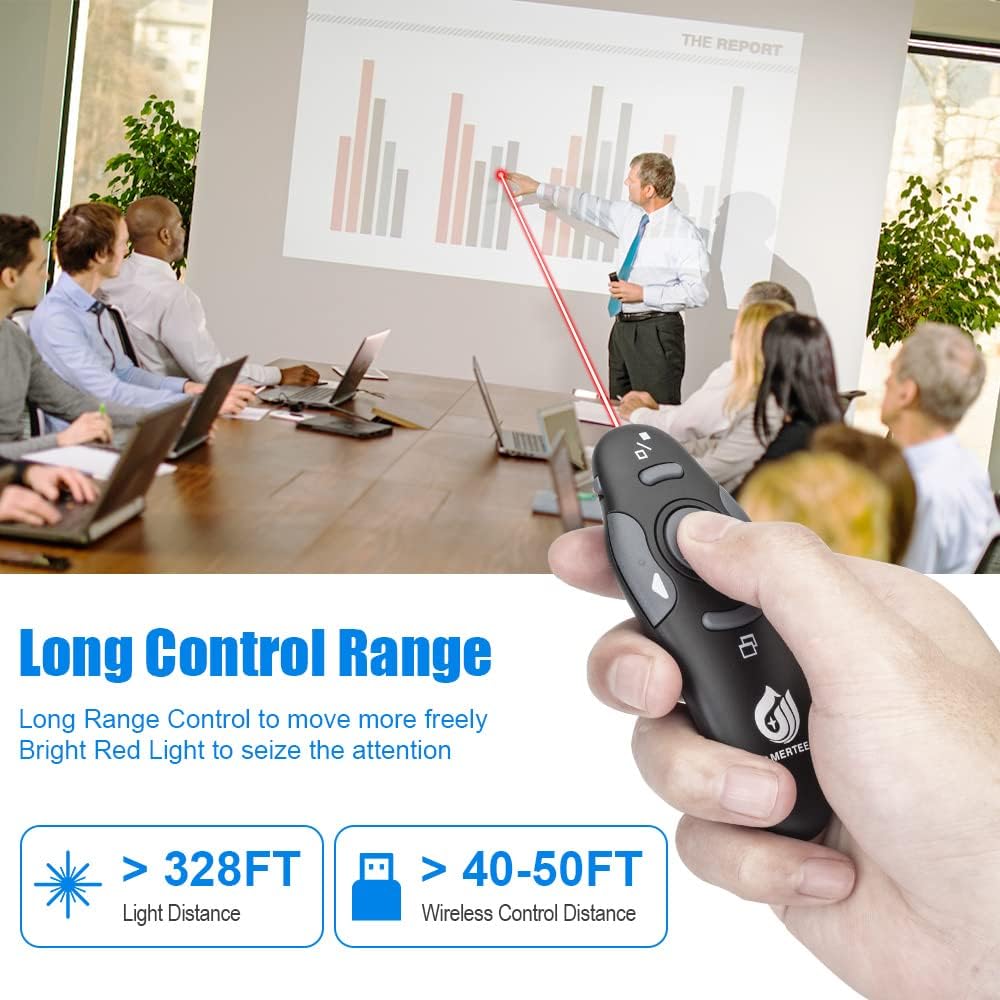
Image 4.3.1: A presenter uses the AMERTEER remote to highlight content on a large screen with its red laser pointer, demonstrating its long control range and visibility.
- Full Screen / Black Screen:
- Press the Full Screen/Black Screen button to initiate a slideshow (e.g., in PowerPoint) or to toggle the screen to black, allowing you to focus audience attention away from the screen. Press again to return to the presentation.
- Power Off: Slide the On/Off switch to the 'Off' position when not in use to conserve battery life.
5. Compatibility
The AMERTEER Wireless Presentation Remote is designed for broad compatibility with various operating systems and presentation software.
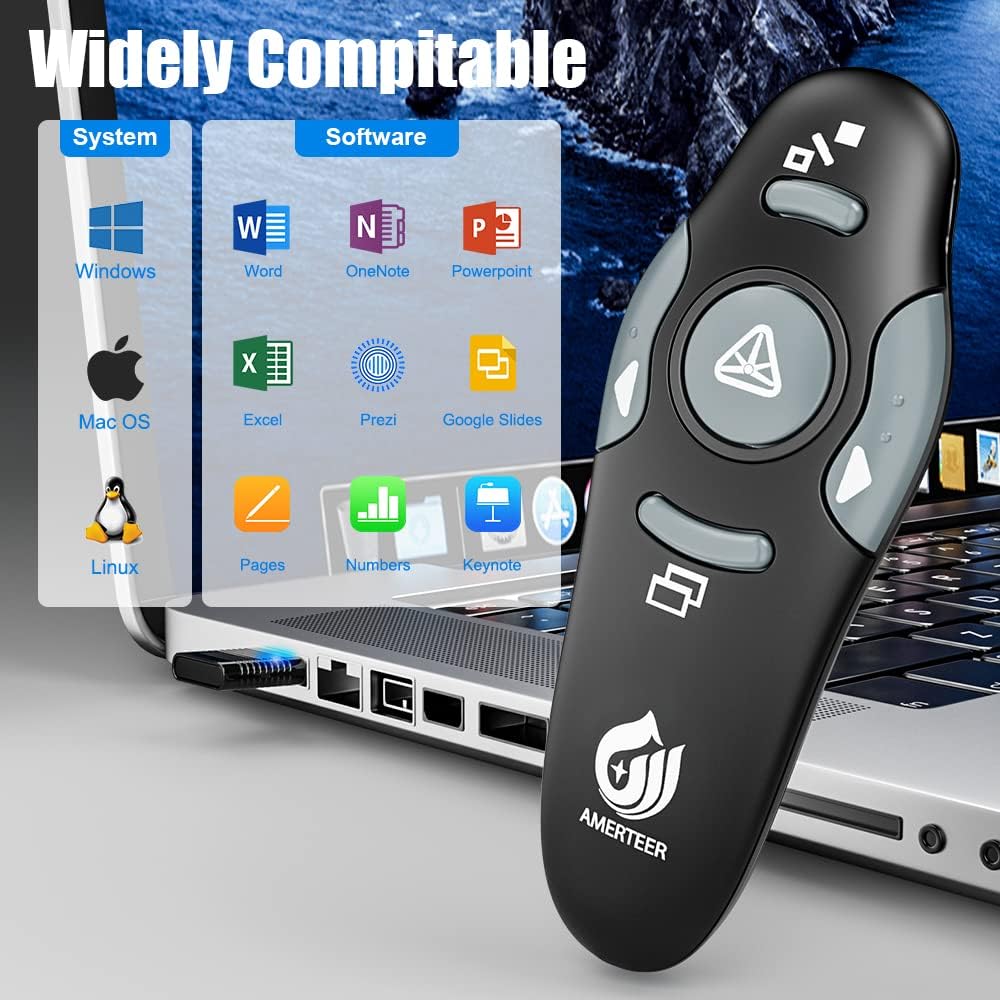
Image 5.0.1: A visual representation of the remote's wide compatibility, showing logos for Windows, Mac OS, Linux operating systems, and software like Word, OneNote, PowerPoint, Excel, Prezi, Google Slides, Pages, Numbers, and Keynote.
5.1 Supported Operating Systems
- Windows (Win2000, XP, Vista, Win7, Win8, Win10)
- Mac OS (including OS X 10.11 El Capitan and newer)
- Linux
5.2 Supported Software
- Microsoft PowerPoint, Word, Excel, OneNote
- Apple Keynote, Pages, Numbers
- Google Slides
- Prezi
- ACDSee
- Websites (for basic navigation)
6. Maintenance
Proper care and maintenance will extend the life of your presentation remote.
6.1 Cleaning
- Use a soft, dry cloth to wipe the surface of the remote.
- For stubborn dirt, slightly dampen the cloth with water or a mild, non-abrasive cleaner.
- Do not use harsh chemicals or immerse the device in liquid.
6.2 Storage
- Always store the USB receiver inside the remote's designated compartment to prevent loss.
- Store the remote in a cool, dry place away from direct sunlight and extreme temperatures.
- If storing for an extended period, remove the AAA battery to prevent leakage.
7. Troubleshooting
If you encounter issues with your AMERTEER Wireless Presentation Remote, refer to the following solutions:
| Problem | Possible Cause | Solution |
|---|---|---|
| Remote not responding | Low battery; Remote is off; USB receiver not connected or recognized; Out of range. | Replace battery; Turn remote On; Ensure USB receiver is firmly plugged in and recognized by OS; Move closer to the computer (within 39 feet). |
| Laser pointer not working | Low battery; Laser button not pressed correctly. | Replace battery; Press and hold the laser button firmly. |
| Buttons unresponsive (e.g., page up/down) | Software not in presentation mode; Button stuck. | Ensure your presentation software is active and in slideshow mode. Repeatedly press the unresponsive button to dislodge it if stuck. |
| Intermittent connection | Interference; Obstructions; Low battery. | Avoid strong electromagnetic interference; Ensure clear line of sight to receiver; Replace battery. |
8. Specifications
- Model Number: RCRF-008
- Product Dimensions: 3.9 x 3.07 x 1.14 inches
- Item Weight: 1.13 ounces
- Wireless Technology: 2.4GHz RF
- Wireless Control Distance: Up to 39 feet (12 meters)
- Laser Type: Red Pointer
- Power Source: 1 x AAA Battery (not included)
- Special Feature: Ergonomic design, Built-in USB receiver storage
- Compatible Devices: Laptop
9. Warranty and Support
For warranty information and technical support, please refer to the documentation provided with your purchase or visit the official AMERTEER website. Keep your purchase receipt as proof of purchase for any warranty claims.