1. Introduction
This manual provides essential information for the safe and efficient use of your Brother MFC-J5335DW 4-in-1 multifunction inkjet printer. This device is designed for printing, scanning, copying, and faxing, offering advanced paper handling and connectivity options for home and office environments.

Figure 1: Front view of the Brother MFC-J5335DW printer, showing the main paper tray, output tray, and the control panel with its touchscreen display.
2. Setup
2.1 Unpacking and Placement
- Carefully remove the printer from its packaging.
- Remove all protective tapes and packing materials from the exterior and interior of the printer.
- Place the printer on a stable, flat surface with adequate space for ventilation and paper handling.
2.2 Ink Cartridge Installation
- Open the ink cartridge cover located on the front of the printer.
- Unpack each ink cartridge (LC3219XL series recommended) and remove the protective cap.
- Insert each cartridge into its corresponding slot, ensuring it clicks into place.
- Close the ink cartridge cover. The printer will initiate an ink charging process.

Figure 2: Proper installation of an ink cartridge into the designated slot.
2.3 Paper Loading
- Main Paper Tray: Pull out the paper tray located at the bottom front of the printer. Adjust the paper guides to fit your paper size (A4, Letter, etc.) and load up to 250 sheets.
- Manual Feed Slot: For thicker media or A3 size paper, use the manual feed slot at the rear of the printer. Insert one sheet at a time.
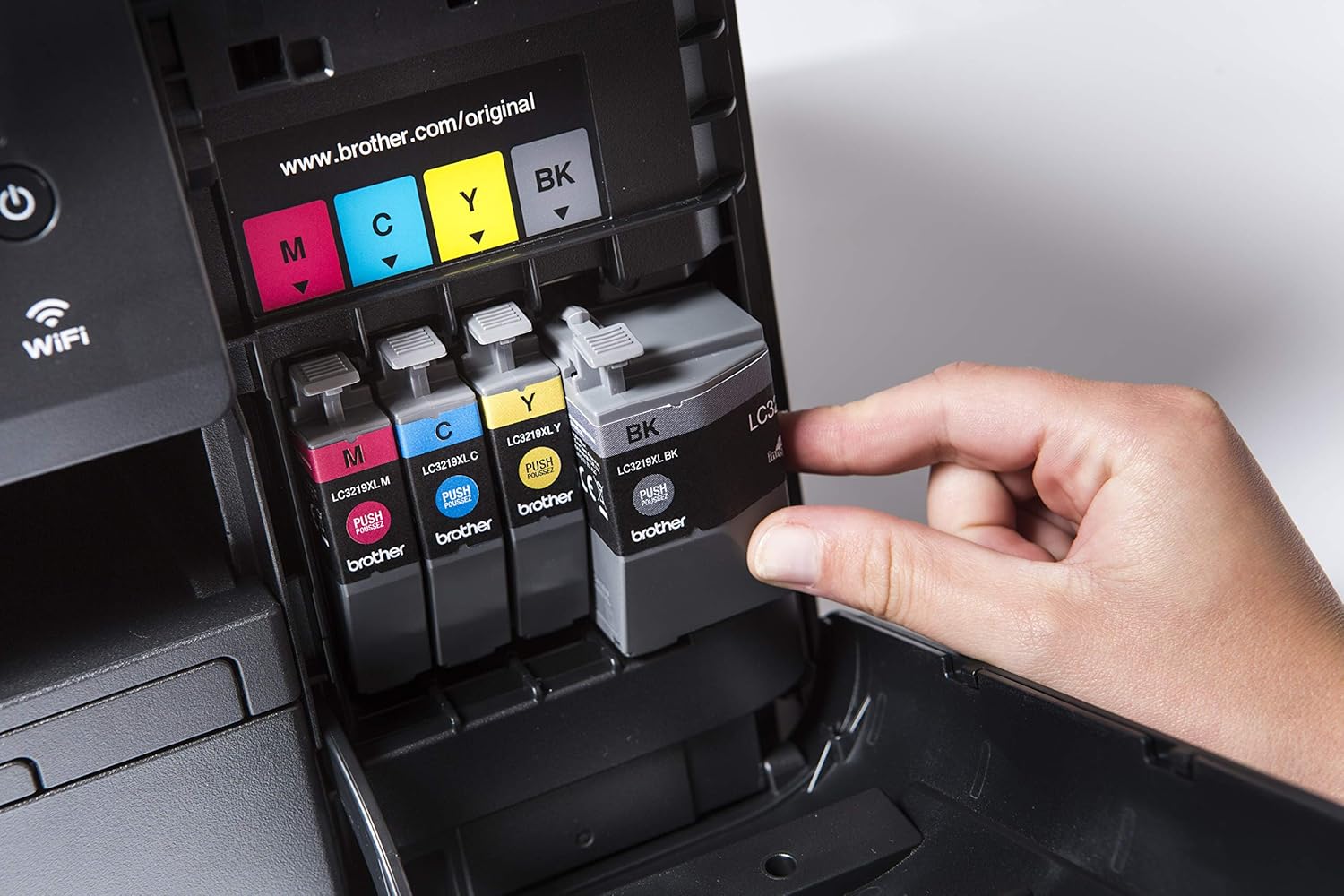
Figure 3: The printer supports various paper sizes, including A3 and A4, for versatile printing needs.
2.4 Connectivity
- Wi-Fi Setup: On the printer's 6.8 cm color LCD touchscreen, navigate to the Network settings. Select your Wi-Fi network and enter the password.
- USB Connection: Connect the printer to your computer using a USB 2.0 cable.
- Wi-Fi Direct: For direct connection from mobile devices without a router, enable Wi-Fi Direct from the printer's network settings.
2.5 Software Installation
Install the latest drivers and software from the Brother support website for full functionality on your computer (Windows/macOS) or mobile device (Android/iOS).
3. Operating the Printer
3.1 Basic Printing
- Standard Printing: From your computer or mobile device, select the Brother MFC-J5335DW as your printer. Adjust print settings such as paper size (A4, A3 via manual feed), color/monochrome, and quality.
- Duplex Printing: The printer supports automatic double-sided printing up to A4 size. Enable this option in your print settings.
- Print speeds are up to 22 ppm for black and 20 ppm for color (ISO/IEC 24734). The first page can be output in approximately 6 seconds.
3.2 Scanning and Copying
- Flatbed Scanner: Place documents face down on the scanner glass.
- Automatic Document Feeder (ADF): Load up to 50 sheets into the ADF for multi-page scanning or copying. The ADF supports duplex scanning.
- Use the printer's touchscreen to select Scan or Copy functions, adjust settings, and initiate the process.
3.3 Mobile Printing and Cloud Services
- The MFC-J5335DW supports various mobile printing solutions including Apple AirPrint, Brother iPrint&Scan, Brother Print Service Plugin for Android, Google Cloud Print, and Mopria.
- Connect to cloud services such as Google Drive, Dropbox, OneDrive, and Evernote directly from the printer's touchscreen to print from or scan to these platforms.

Figure 4: The printer integrates seamlessly with mobile devices for convenient printing.

Figure 5: The 6.8 cm color LCD touchscreen provides intuitive navigation for all printer functions.
4. Maintenance
4.1 Ink Cartridge Replacement
When an ink cartridge is low or empty, a message will appear on the touchscreen. Follow the on-screen instructions to replace the cartridge. Always use genuine Brother ink cartridges for optimal performance and print quality.
4.2 Cleaning
- Exterior: Wipe the exterior of the printer with a soft, lint-free cloth.
- Scanner Glass: Clean the scanner glass with a soft, dry cloth to prevent streaks on scanned or copied documents.
- Print Head: If print quality deteriorates (e.g., missing lines, faded colors), perform a print head cleaning cycle through the printer's maintenance menu.
4.3 Paper Jam Resolution
If a paper jam occurs, the printer's touchscreen will display instructions. Carefully open the indicated covers and gently remove any jammed paper in the direction of the paper path. Avoid tearing the paper to prevent small pieces from remaining inside.
5. Troubleshooting
5.1 Common Issues and Solutions
- Printer Not Responding: Check power connections, USB cable, or Wi-Fi connection. Restart the printer and computer/mobile device.
- Poor Print Quality: Perform a print head cleaning and alignment from the maintenance menu. Ensure ink cartridges are not empty and use appropriate paper settings.
- Connectivity Problems: Verify Wi-Fi network settings on the printer and your device. For Wi-Fi Direct, ensure both devices are connected directly.
- Paper Feed Issues: Ensure paper is loaded correctly and paper guides are adjusted. Clean the paper rollers if necessary.
5.2 Error Messages
Refer to the specific error message displayed on the printer's touchscreen. Consult the Brother support website or the full electronic manual for detailed explanations and resolution steps for each error code.
6. Specifications
| Feature | Specification |
|---|---|
| Model Number | MFC-J5335DW |
| Functions | Print, Scan, Copy, Fax |
| Print Technology | Inkjet |
| Maximum Paper Size | A3 (via manual feed slot), A4 (main tray) |
| Duplex Printing | Yes (up to A4) |
| Print Speed (ISO/IEC 24734) | Up to 22 ppm (black), 20 ppm (color) |
| Maximum Print Speed (Draft) | Up to 35 ppm (monochrome), 28 ppm (color) |
| Maximum Print Resolution | 203 dpi (color and monochrome) |
| Scanner Type | Document (Flatbed & ADF) |
| ADF Capacity | 50 sheets |
| Input Sheet Capacity | 250 sheets (main tray) |
| Connectivity | Wi-Fi, Wi-Fi Direct, USB 2.0 |
| Display | 6.8 cm Color LCD Touchscreen |
| Compatible Operating Systems | Windows, macOS, Android, iOS |
| Product Dimensions (W x D x H) | 50 x 35 x 29 cm |
| Product Weight | 16.9 kg |
7. Warranty and Support
For warranty information, please refer to the warranty card included with your product or visit the official Brother support website. Brother provides customer support and resources for troubleshooting, driver downloads, and frequently asked questions.
You can find further assistance and contact information on the Brother Official Store on Amazon.


