
ACGAM ACGAM R1
ACGAM R1 Bluetooth 4.0 Wireless VR Gamepad Instruction Manual
Model: ACGAM R1 (Item Model Number: 20171213-REMOTE)
Brand: ACGAM
Introduction
The ACGAM R1 Bluetooth 4.0 Wireless VR Gamepad is a versatile control device designed for use with various smart devices, including Android phones, tablets, and VR headsets. It offers multiple operating modes, functioning as a game controller, wireless mouse, music controller, and selfie camera shutter. This manual provides detailed instructions for setup, operation, and troubleshooting to ensure optimal use of your device.
Package Contents
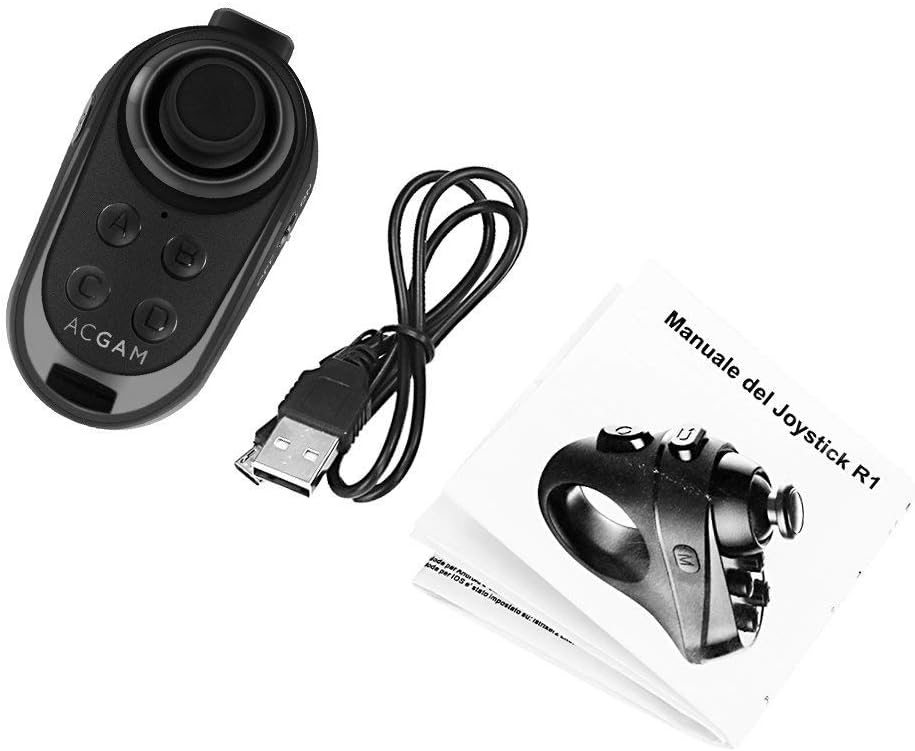
Image: The ACGAM R1 gamepad, a USB charging cable, and a printed instruction manual are included in the package.
- ACGAM R1 Bluetooth 4.0 Wireless VR Gamepad
- USB Charging Cable
- Instruction Manual
Product Overview

Image: Front view of the ACGAM R1 gamepad, showing the joystick and main buttons.
The ACGAM R1 features an ergonomic design for comfortable single-hand operation. It includes a joystick for navigation, four main action buttons (A, B, C, D), a mode button, and a return button. The device is designed to be worn on a finger, allowing for intuitive control.

Image: Icons illustrating the multi-functional capabilities of the ACGAM R1, including game control, mouse functionality, selfie shutter, tablet control, music playback, and mobile phone interaction.
Dimensions
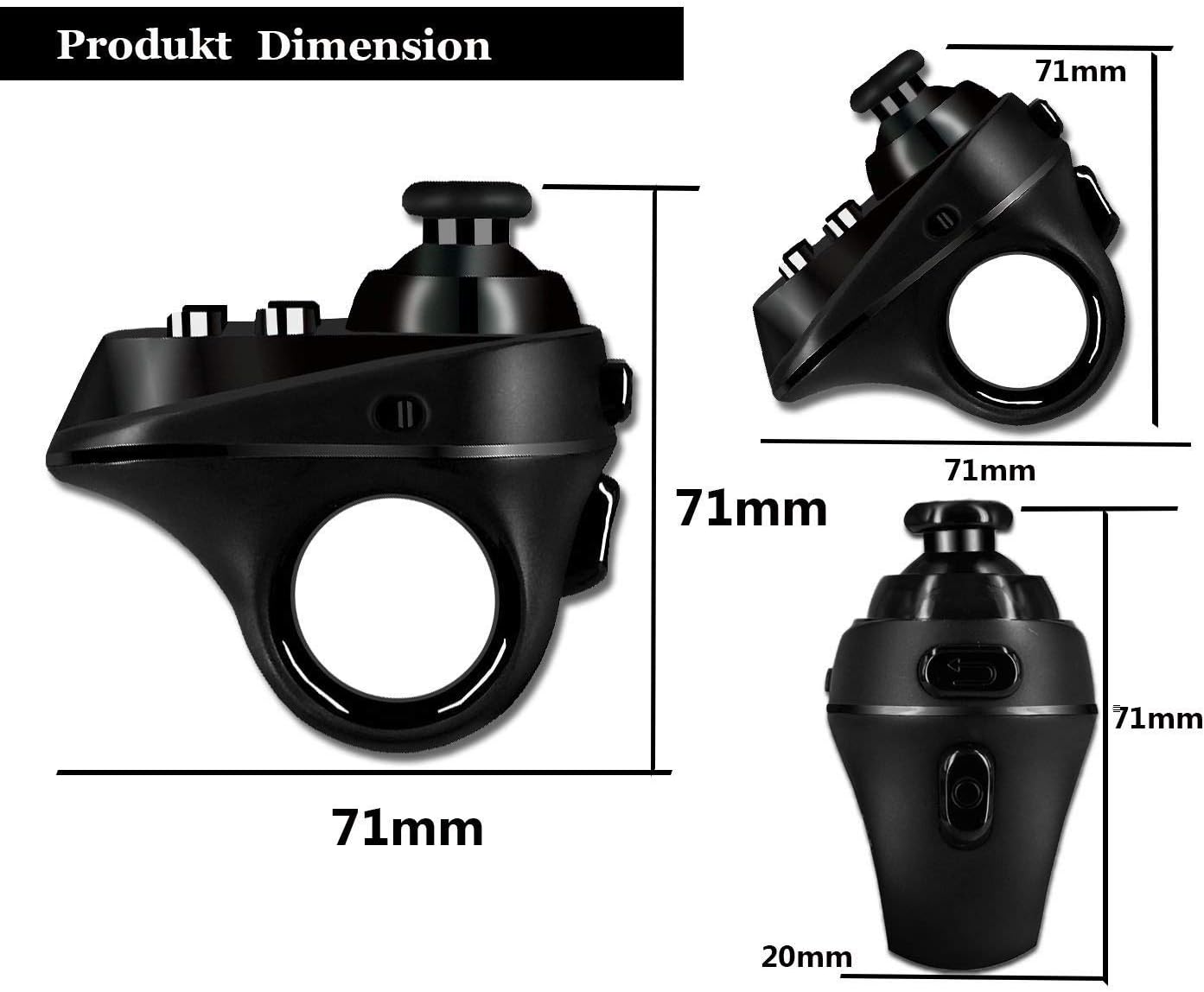
Image: Technical drawing displaying the product dimensions: 71mm (length) x 71mm (width) x 20mm (thickness).
- Product Dimensions: 2.91 x 3.03 x 1.61 inches (71mm x 71mm x 20mm)
- Item Weight: 2.24 ounces
Specifications
| Feature | Detail |
|---|---|
| Brand | ACGAM |
| Model Name | ACGAM R1 |
| Item Model Number | 20171213-REMOTE |
| Connectivity Technology | Bluetooth 4.0, USB (for charging) |
| Controller Type | Gamepad, Remote Control |
| Compatible Devices | VR Headsets, Android Phones, Tablets, iOS (limited functionality) |
| Special Features | Wireless, Multi-functional (Game, Mouse, Music, Selfie Shutter) |
| Human Interface Input | Mouse, Buttons, Joystick |
| Color | Black |
| Battery | Built-in Lithium Battery, 3.7V / 180mAh |

Image: A table comparing Bluetooth 3.0 and Bluetooth 4.0, highlighting faster search and connection, quicker disconnect, smoother data transmission, and lower battery consumption for Bluetooth 4.0, which the ACGAM R1 utilizes.
Setup and Pairing
- Power On: Locate the power switch on the side of the ACGAM R1 gamepad and slide it to the 'ON' position. A blue indicator light will begin to flash, indicating it is in pairing mode.
- Activate Bluetooth: On your smart device (Android phone, tablet, etc.), go to the Bluetooth settings and ensure Bluetooth is enabled.
- Search for Devices: Initiate a scan for new Bluetooth devices. The ACGAM R1 should appear in the list of available devices.
- Connect: Select the ACGAM R1 from the list to pair. The blue indicator light on the gamepad will stop flashing and remain solid once successfully connected.
The ACGAM R1 utilizes Bluetooth 4.0 for fast and stable connections with low power consumption.
Operating Modes and Functions
The ACGAM R1 supports multiple operating modes, each optimized for different functions. To switch between modes, press and hold the 'Mode' button (usually labeled 'M' or located on the side) and then press one of the four main action buttons (A, B, C, D) to select the desired mode. The specific button combinations for each mode are detailed below.
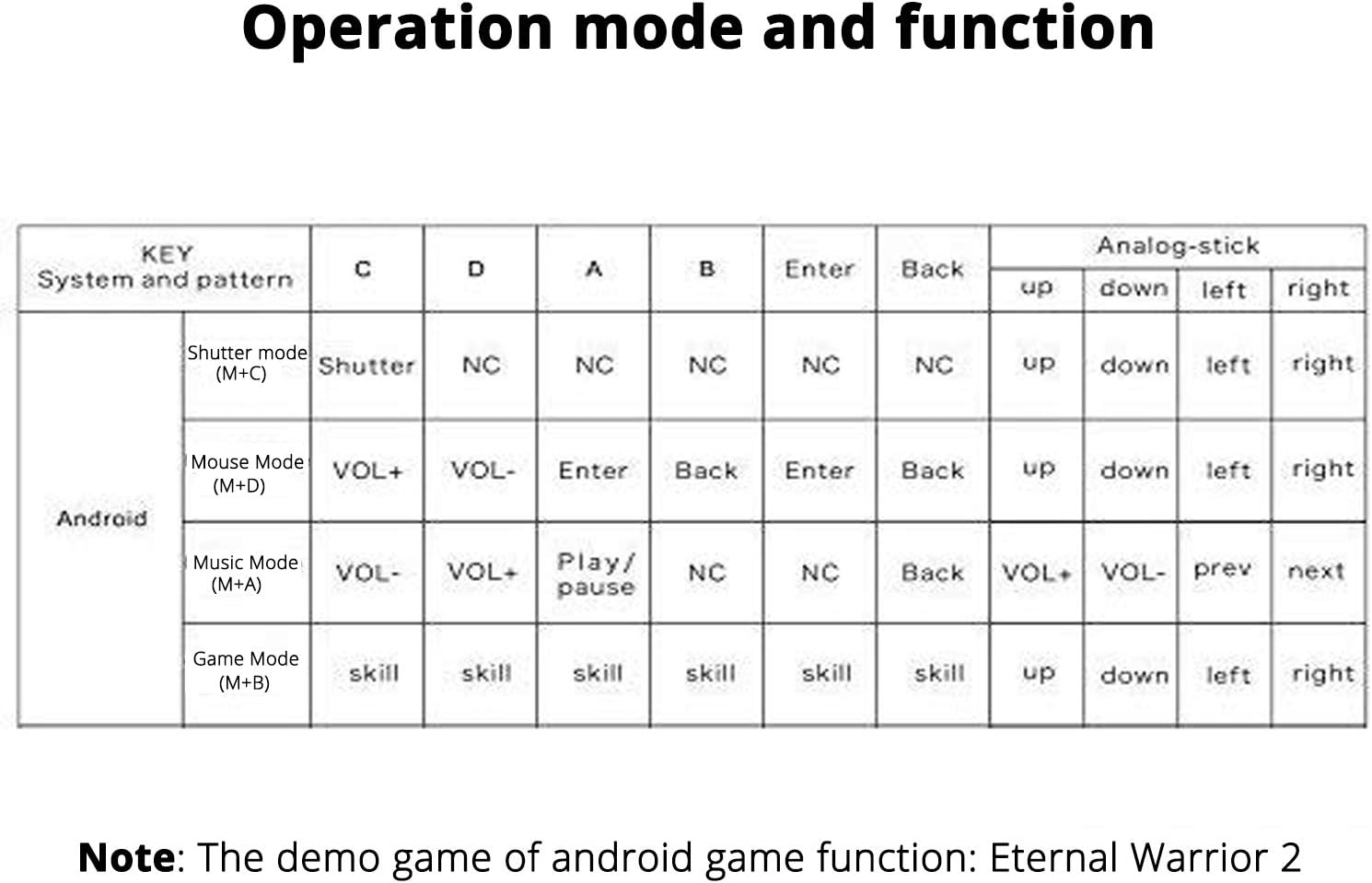
Image: A table outlining the button assignments for Shutter Mode (M+C), Mouse Mode (M+D), Music Mode (M+A), and Game Mode (M+B) on Android devices, including functions for the analog stick.
1. Shutter Mode (M+C)
In Shutter Mode, the gamepad acts as a remote control for your camera. This is ideal for taking selfies or group photos without needing to touch your phone.
- Button C: Activates the camera shutter.
- Analog Stick: Not applicable in this mode.
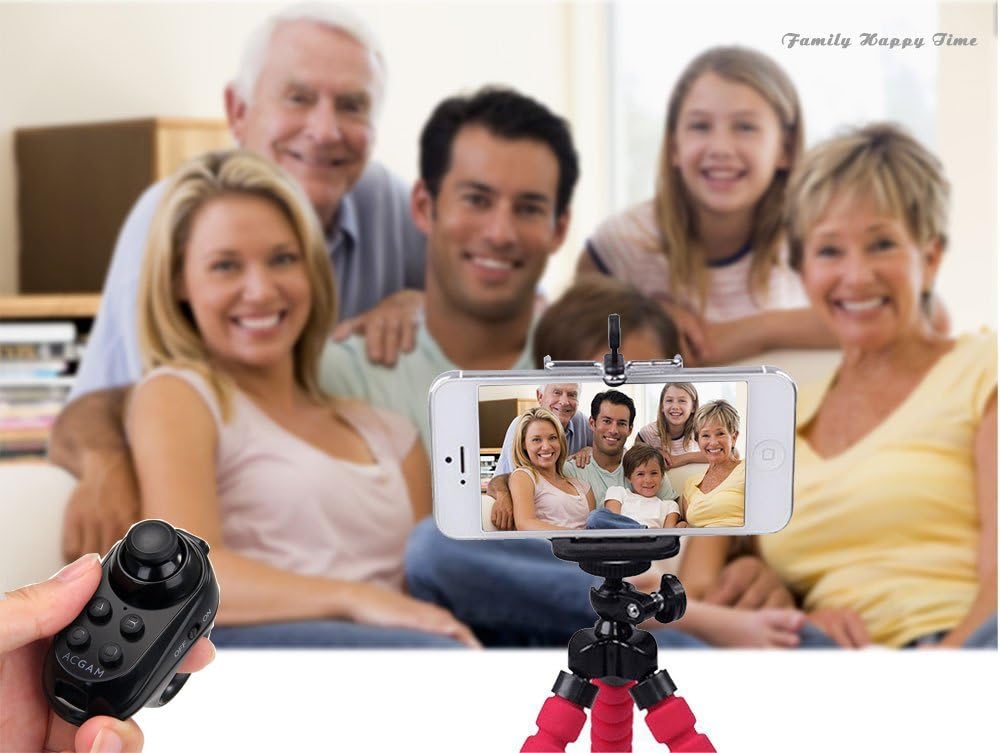
Image: The ACGAM R1 gamepad held in hand, remotely controlling a smartphone mounted on a tripod to capture a family photo.
2. Mouse Mode (M+D)
This mode allows you to control a cursor on your device's screen, similar to a computer mouse. Useful for navigating menus or interacting with applications.
- VOL+ / VOL-: Adjusts volume.
- Enter: Confirms selection.
- Back: Returns to the previous screen.
- Analog Stick: Moves the cursor (Up, Down, Left, Right).
3. Music Mode (M+A)
Control media playback on your device, including playing, pausing, and skipping tracks.
- VOL+ / VOL-: Adjusts volume.
- Play/Pause: Toggles playback.
- Back: Returns to the previous screen.
- Analog Stick: VOL+ (Up), VOL- (Down), Previous Track (Left), Next Track (Right).
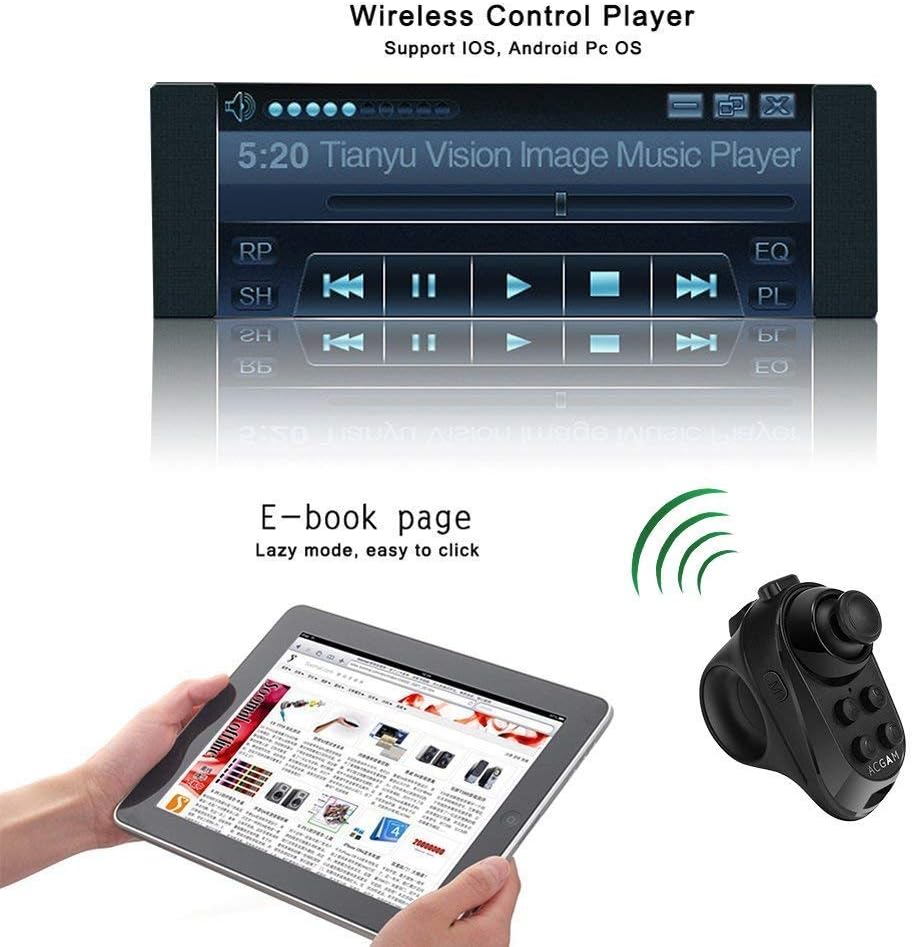
Image: The ACGAM R1 gamepad wirelessly controlling a music player interface on a car stereo display and turning pages in an e-book on a tablet.
4. Game Mode (M+B)
Optimized for gaming, this mode provides control for compatible games. Button functions may vary depending on the game.
- Skill Buttons: Buttons A, B, C, D, Enter, Back are typically assigned to in-game actions or skills.
- Analog Stick: Controls movement (Up, Down, Left, Right).

Image: A hand holding the ACGAM R1 gamepad, positioned next to a pair of VR glasses, suggesting its use for controlling virtual reality experiences.
Charging
The ACGAM R1 features a built-in rechargeable lithium battery. To charge the device, connect the provided USB charging cable to the gamepad's charging port and to a standard USB power source (e.g., computer USB port, USB wall adapter). The indicator light will typically show charging status and turn off or change color when fully charged.
Troubleshooting
- Device Not Pairing:
- Ensure the gamepad is powered on and the blue indicator light is flashing.
- Verify Bluetooth is enabled on your smart device.
- Move the gamepad closer to your device to ensure it's within range.
- If previously paired, try "forgetting" the device in your phone's Bluetooth settings and re-pairing.
- Recharge the gamepad if the battery is low.
- Functions Not Working Correctly:
- Ensure you are in the correct operating mode for the desired function (e.g., Music Mode for music control). Refer to the "Operating Modes and Functions" section for mode switching instructions.
- Some functions, particularly in Game Mode, may require specific app or game compatibility.
- For iOS devices, functionality may be limited compared to Android.
- Lag or Disconnection:
- Ensure there are no obstructions between the gamepad and your device.
- Minimize interference from other wireless devices.
- Re-pair the device if disconnections are frequent.
Safety Information
- Do not expose the device to extreme temperatures, direct sunlight, or moisture.
- Avoid dropping or subjecting the device to strong impacts.
- Keep out of reach of children.
- Use only the provided or a certified USB cable for charging.
- Do not attempt to disassemble or modify the device.
Warranty and Support
For warranty information and technical support, please refer to the contact details provided with your purchase or visit the official ACGAM website. Keep your proof of purchase for any warranty claims.
Related Documents - ACGAM R1
 |
ACGAM YK830 Keyboard User Manual: Features and Operation Comprehensive user manual for the ACGAM YK830 keyboard, detailing its OLED display, connectivity options (USB-C, 2.4Ghz, Bluetooth), customization features, and multimedia key functions. |
 |
LYNX-R1 User Manual - Setup and Operation Guide Comprehensive user manual for the LYNX-R1 mixed reality headset by SL Process. This guide covers unboxing, setup, connections, adjustments, and operation of the LYNX-R1 device, including details on its magnetic facial interface and hand tracking capabilities. |
 |
Attack Shark R1 Superlight Wireless Gaming Mouse User Manual User manual for the Attack Shark R1 Superlight wireless gaming mouse. Features Bluetooth 2.4G connectivity, PixArt PAW3311 sensor, 6 adjustable DPI levels, and a lightweight design for gaming and office use. |
 |
Attack Shark R1 Wireless Gaming Mouse User Manual Comprehensive user manual for the Attack Shark R1 wireless gaming mouse, detailing setup, features, specifications, and troubleshooting for wired, 2.4G, and Bluetooth connectivity. |
 |
Third Reality Smart Motion Sensor R1 User Manual - Setup & Integration Guide Detailed user manual for the Third Reality Smart Motion Sensor R1. Learn how to set up, install, and integrate the sensor with smart home platforms like Amazon Alexa, SmartThings, Hubitat, and Home Assistant using Zigbee. |