
1. Introduction
Thank you for choosing the Dragon War G25 Wired Gaming Mouse. This high-performance gaming mouse is designed for precision, speed, and comfort, featuring an ultralight honeycomb shell, customizable RGB backlighting, and programmable buttons to enhance your gaming experience. This manual provides essential information for setting up, operating, and maintaining your new gaming mouse.

Figure 1: Dragon War G25 Gaming Mouse
2. Product Overview
The Dragon War G25 Gaming Mouse features a ergonomic design with a honeycomb shell for reduced weight and improved airflow. It includes multiple buttons for various functions, a scroll wheel, and customizable RGB lighting.

Figure 2: Mouse Details and Key Features
2.1 Mouse Components
- Left Button: Standard left-click function.
- Right Button: Standard right-click function.
- Scroll Wheel: For scrolling and middle-click function.
- Forward Button: Navigates forward in web browsers or applications.
- Backward Button: Navigates backward in web browsers or applications.
- DPI Button: Adjusts the mouse's sensitivity (Dots Per Inch).
- Backlit Switch Button: Controls RGB lighting modes.

Figure 3: Programmable Gaming Mouse Layout
3. Setup Instructions
Setting up your Dragon War G25 Gaming Mouse is a simple plug-and-play process.
- Connect the Mouse: Plug the USB connector of the Dragon War G25 Gaming Mouse into an available USB 2.0 port on your computer.
- Driver Installation: Your operating system (Windows, macOS) will automatically detect and install the necessary drivers. No manual driver installation is typically required for basic functionality.
- Software Installation (Optional): For advanced customization, such as programming buttons and fine-tuning RGB effects, you may need to download the dedicated Dragon War software from the official website. Refer to the software's instructions for installation and usage.
4. Operating Instructions
4.1 Basic Mouse Functions
- Left Click: Use the Left Button for selecting items, opening files, and primary actions.
- Right Click: Use the Right Button for context menus and secondary actions.
- Scroll: Use the Scroll Wheel to navigate up and down documents or web pages. Pressing the scroll wheel typically acts as a middle-click.
4.2 DPI Adjustment
The DPI (Dots Per Inch) button allows you to instantly change the mouse's sensitivity. Press the DPI Button (typically located below the scroll wheel) to cycle through preset DPI levels. Each press will switch to a different sensitivity, often indicated by a change in the mouse's LED color or pattern. Higher DPI settings result in faster cursor movement.
4.3 RGB Backlight Modes
The Dragon War G25 features dynamic RGB backlighting with multiple effects. Use the Backlit Switch Button (Button 7 in Figure 3, typically on the underside or a dedicated button) to cycle through various lighting modes and effects. These modes can include:
- Cycle Flashes
- Breathing
- Wave
- Colorful Streaming
- Response
- Color Alternation
- Streamer
- Page Change
- RGB Mixed Light
- Gradient Effect

Figure 4: RGB Backlight Modes
4.4 Programmable Functions
For advanced users, the Dragon War G25 Gaming Mouse supports programmable buttons and macros. This functionality requires the installation of the official Dragon War software. Once installed, you can:
- Assign custom functions to each of the 7 buttons.
- Create and assign complex macros for in-game actions.
- Adjust DPI settings with finer control.
- Customize RGB lighting effects, colors, and brightness.
Refer to the software's user interface and help documentation for detailed instructions on programming and customization.
5. Maintenance
Proper maintenance ensures the longevity and optimal performance of your gaming mouse.
- Cleaning: Use a soft, dry cloth to wipe the surface of the mouse. For stubborn dirt, slightly dampen the cloth with water or a mild cleaning solution. Avoid using harsh chemicals or abrasive materials.
- Sensor Cleaning: Occasionally, dust or debris may accumulate around the optical sensor on the underside of the mouse. Use a cotton swab or compressed air to gently clean the sensor area.
- Cable Care: Avoid sharply bending or twisting the USB cable. Store the mouse in a way that prevents the cable from being crimped or damaged.
- Storage: When not in use, store the mouse in a clean, dry environment away from direct sunlight and extreme temperatures.
6. Troubleshooting
If you encounter issues with your Dragon War G25 Gaming Mouse, refer to the following common solutions:
- Mouse Not Responding:
- Ensure the USB cable is securely plugged into a working USB port on your computer.
- Try plugging the mouse into a different USB port.
- Restart your computer.
- Check Device Manager (Windows) or System Information (macOS) to see if the mouse is recognized.
- DPI Not Changing:
- Ensure you are pressing the correct DPI button.
- If using custom software, verify that DPI settings are correctly configured and applied.
- RGB Lights Not Working or Incorrect:
- Press the Backlit Switch Button to cycle through modes.
- If using custom software, check the lighting settings.
- Ensure the mouse is receiving sufficient power from the USB port.
- Buttons Not Functioning Correctly:
- If buttons are programmed via software, ensure the software is running and settings are correct.
- Test the mouse on another computer to rule out system-specific issues.
7. Specifications

Figure 5: Product Dimensions
| Feature | Detail |
|---|---|
| Brand | Dragonwar |
| Model Number | G25 (G-PC-002) |
| Connectivity Technology | Wired USB 2.0 |
| Number of Buttons | 7 |
| Recommended Use | Gaming |
| Weight | Approximately 65 Grams (Ultralight design) |
| Dimensions (L x W x H) | 128.5 mm x 67 mm x 38 mm (5.06 x 2.64 x 1.49 inches) |
| RGB Backlighting | 26 Kinds of RGB Backlit Modes |
| Programmable | Yes, via dedicated software |
| Batteries Required | No |
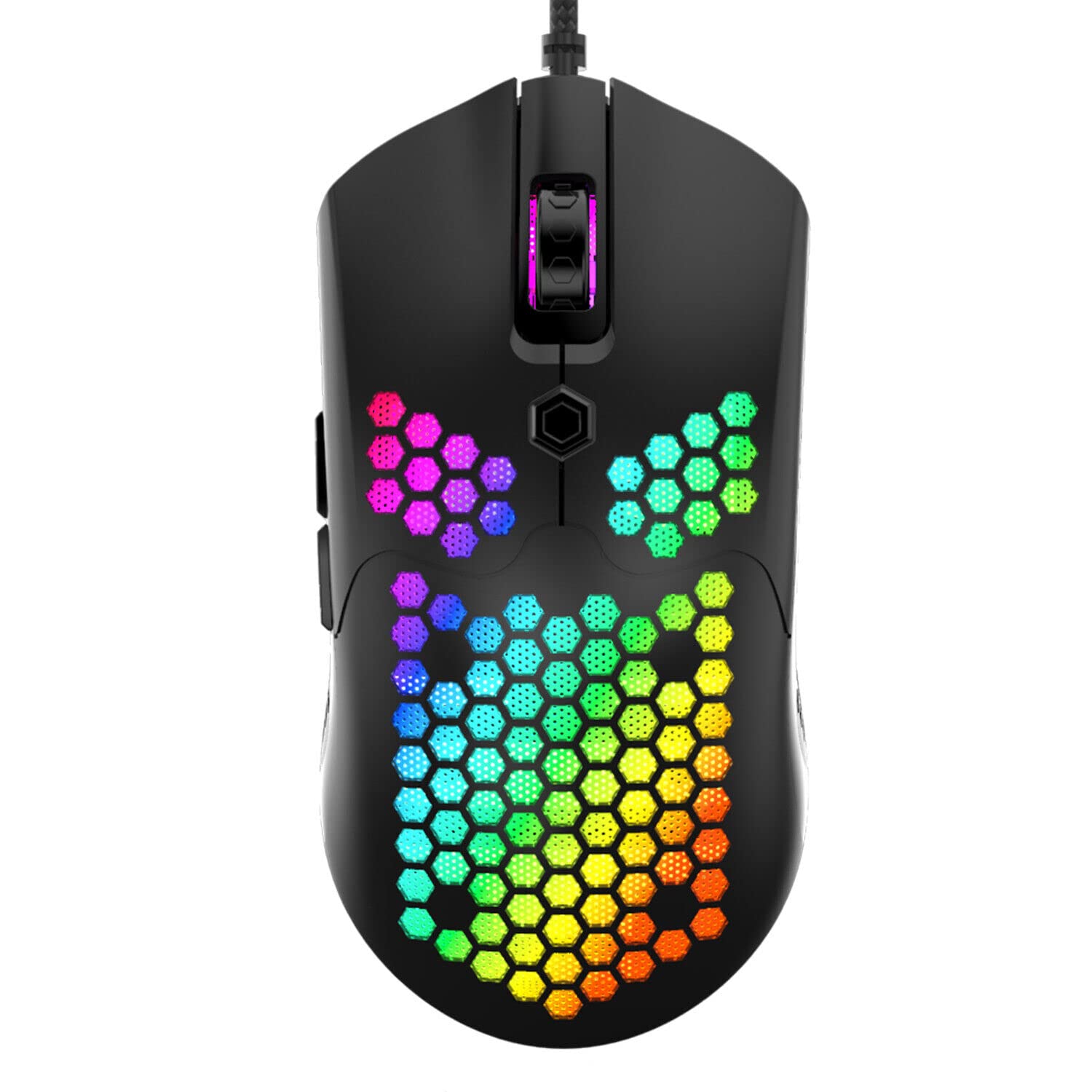
Figure 6: Ultralight Design (Approx. 65g)
8. Warranty and Support
Dragon War products are designed for quality and performance. For warranty information, technical support, or customer service inquiries, please refer to the documentation included with your purchase or visit the official Dragon War website. Keep your proof of purchase for warranty claims.