
1. Product Overview
The SoundXtreme ST-912BT is a digital media receiver designed for in-car entertainment. It features Bluetooth connectivity, USB and SD card playback, auxiliary input, and an FM radio tuner. The unit includes a digital LCD TFT display for clear information display.
Key Features:
- Digital LCD TFT Display
- AM/FM Stereo Receiver
- USB/SD Card Playback
- Auxiliary Input
- Bluetooth Connectivity
- MP3 Playback
2. Safety Information
- Read all instructions carefully before installation and operation.
- Ensure proper wiring to prevent damage to the unit or vehicle.
- Do not operate the unit in a way that distracts from driving.
- Consult a professional for installation if unsure.
- Keep the volume at a level that allows you to hear outside traffic sounds.
3. Package Contents
Verify that all items are present in the package:
- SoundXtreme ST-912BT Digital Media Receiver
- Wiring Harness
- Remote Control
- Mounting Hardware (sleeves, screws)
- User Manual (this document)
4. Unit Components and Controls
Front Panel
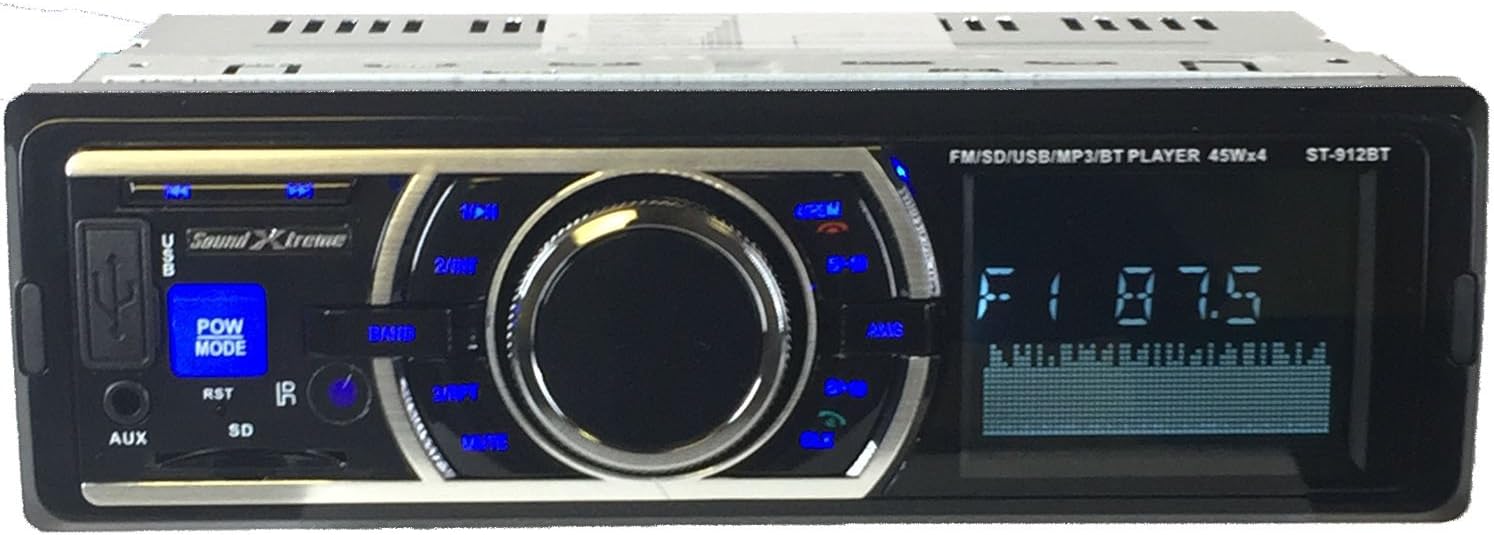
Image: Front view of the SoundXtreme ST-912BT Digital Media Receiver, showing the LCD display, control knob, USB port, SD card slot, AUX input, and various buttons for power, mode, band, and track control.
Rear Panel

Image: Rear view of the SoundXtreme ST-912BT Digital Media Receiver, displaying the RCA output jacks, antenna input, and the main wiring harness connector.
Remote Control

Image: Remote control for the SoundXtreme ST-912BT Digital Media Receiver, featuring buttons for power, mode, volume, track control, EQ, and numeric input.
5. Installation
Mounting
The ST-912BT is designed for standard DIN-size openings.
- Insert the mounting sleeve into the dashboard opening.
- Bend the tabs on the mounting sleeve outwards to secure it.
- Slide the receiver into the mounting sleeve until it locks into place.
Wiring Diagram
Proper wiring is crucial for correct operation and to prevent damage. Refer to the diagram below and your vehicle's wiring manual.

Image: Detailed wiring diagram for the SoundXtreme ST-912BT Digital Media Receiver, showing connections for power (yellow, red, black), speakers (white, gray, green, purple), antenna, and remote turn-on.
Wiring Connections:
- Yellow (Constant +12V): Connect to the vehicle's constant 12V power supply.
- Red (Accessory +12V): Connect to the vehicle's switched 12V accessory power.
- Black (Ground): Connect to a good chassis ground point.
- Blue (Antenna/Remote): Connect to the power antenna or amplifier remote turn-on lead.
- Speaker Wires: Connect to the corresponding vehicle speakers (e.g., White/White-Black for Front Left, Gray/Gray-Black for Front Right, Green/Green-Black for Rear Left, Purple/Purple-Black for Rear Right). Ensure correct polarity.
- RCA Outputs: Connect to external amplifiers if used.
6. Operating Instructions
Power On/Off
Press the POWER/MODE button on the front panel or remote control to turn the unit on or off.
Mode Selection
Press the MODE button on the front panel or remote control to cycle through available modes: FM Radio, Bluetooth, USB, SD, AUX.
Volume Control
Rotate the main knob on the front panel or use the VOL+ / VOL- buttons on the remote control to adjust the volume.
Audio Settings (EQ)
Press the EQ button on the remote to cycle through preset equalizer settings.
Clock Setting
Press and hold the CLK button to enter clock setting mode. Use the volume knob or track buttons to adjust hours and minutes, then press CLK again to confirm.
7. Bluetooth Operation
Pairing a Device
- Ensure the receiver is in Bluetooth mode. The display will show "BT".
- On your mobile device, enable Bluetooth and search for available devices.
- Select "ST-912BT" from the list of devices.
- If prompted for a password, enter "0000".
- Once paired, the unit will confirm the connection.
Making/Receiving Calls
Making a Call: Dial from your paired phone. Audio will transfer to the receiver.
Receiving a Call: Press the Answer button (often represented by a phone icon or play/pause button) on the unit or remote to answer. Press again to end the call.
Bluetooth Audio Streaming (A2DP)
Once paired, you can stream audio from your device. Use the Play/Pause, Next Track, and Previous Track buttons on the receiver or remote to control playback.
8. USB/SD Card Playback
Insert a USB drive into the USB port or an SD card into the SD card slot. The unit will automatically switch to USB/SD mode and begin playback of compatible audio files (e.g., MP3).
Controls
- Play/Pause: Press the Play/Pause button.
- Next/Previous Track: Press the Next Track or Previous Track buttons.
- Folder Navigation: Use the DIR+ / DIR- buttons on the remote (if available) to navigate folders.
- Repeat/Random: Press the RPT (Repeat) or RDM (Random) buttons on the remote to toggle playback modes.
9. Auxiliary Input (AUX)
Connect an external audio device (e.g., smartphone, MP3 player) to the 3.5mm AUX input jack on the front panel using an audio cable.
Press the MODE button until "AUX" is displayed. Audio playback is controlled from the connected device.
10. FM Radio Operation
Tuning
Automatic Scan: Press and hold the BAND/AMS button to automatically scan and store strong stations.
Manual Tuning: Briefly press the Next Track or Previous Track buttons to fine-tune the frequency.
Band Selection
Press the BAND button to switch between FM1, FM2, and FM3 bands.
Preset Stations
Storing Presets: Tune to the desired station, then press and hold one of the numeric preset buttons (1-6) until you hear a beep. The station is now stored.
Recalling Presets: Briefly press the corresponding numeric preset button (1-6) to recall a stored station.
11. Maintenance
- Cleaning: Use a soft, dry cloth to clean the unit's front panel. Do not use abrasive cleaners or solvents.
- Connections: Periodically check all wiring connections to ensure they are secure.
- Fuse Replacement: If the unit does not power on, check the fuse located at the rear of the unit. Replace with a fuse of the same rating if blown.
12. Troubleshooting
| Problem | Possible Cause | Solution |
|---|---|---|
| No power | Blown fuse; Incorrect wiring; Loose power connection. | Check and replace fuse; Verify wiring connections (Yellow to constant 12V, Red to switched 12V, Black to ground); Ensure connections are secure. |
| No sound | Volume too low; Mute function active; Incorrect speaker wiring; Faulty speakers. | Increase volume; Deactivate mute; Check speaker wiring for correct polarity and shorts; Test with known good speakers. |
| Bluetooth not connecting | Device not in pairing mode; Incorrect password; Interference; Already connected to another device. | Ensure receiver is in BT mode and phone's BT is on; Re-enter "0000" if prompted; Move closer to the unit; Disconnect from other devices. |
| USB/SD not playing | Incompatible file format; Corrupted files; USB/SD card not inserted correctly; Maximum capacity exceeded. | Ensure files are MP3 format; Reformat USB/SD card; Reinsert USB/SD card; Use a smaller capacity USB/SD card. |
| Poor radio reception | Antenna not connected; Weak signal; Interference. | Ensure antenna is securely connected; Try tuning manually; Avoid areas with high electrical interference. |
13. Specifications
- Model: ST-912BT
- Brand: SoundXtreme
- Display: Digital LCD TFT
- Connectivity: Bluetooth, USB, SD Card, Auxiliary (3.5mm)
- Radio Tuner: AM/FM Stereo
- Audio Output Mode: Stereo
- Surround Sound Channel Configuration: 4.0
- Compatible Devices: Smartphone, Speaker
- Product Dimensions: 7.25 x 7 x 2 inches
- Item Weight: 4 pounds
14. Warranty and Support
For warranty information and technical support, please contact SoundXtreme customer service. Refer to your purchase documentation for specific warranty terms and contact details.
You may also visit the official SoundXtreme website for additional resources and support.