
waveshare 3.5inch RPi LCD (B)
Waveshare 3.5-inch Resistive Touch Display User Manual
Model: 3.5inch RPi LCD (B)
1. Introduction
This manual provides comprehensive instructions for the setup, operation, and maintenance of your Waveshare 3.5-inch Resistive Touch Display. Designed for seamless integration with various Raspberry Pi models, this display offers a compact and interactive visual interface for your projects.

Image 1.1: The Waveshare 3.5-inch Resistive Touch Display, showing its compact size and the included stylus for touch input.
2. Key Features
- 3.5-inch High-Resolution Display: Features a 480×320 resolution, providing clear and vibrant visuals.
- Easy Raspberry Pi Integration: Connects directly to the Raspberry Pi via the GPIO header, requiring no additional power supply.
- Resistive Touchscreen: Enables precise touch input, responsive to both fingers and styluses.
- Wide Compatibility: Compatible with Raspberry Pi 4, 3, 2, and Zero models, and supports operating systems such as Raspbian, Ubuntu, and RetroPie.
- Low Power Consumption: Designed for power efficiency, suitable for battery-powered or low-energy projects.

Image 2.1: Visual representation of the display's key specifications and features.
3. Package Contents
Verify that all items are present in the package before proceeding with installation:
- Waveshare 3.5-inch RPi LCD (B)
- Stylus for resistive touch input
- Mounting screws and standoffs (typically 2 sets)

Image 3.1: The display unit, stylus, and mounting hardware included in the package.
4. Setup and Installation
Follow these steps to connect the display to your Raspberry Pi:
- Prepare your Raspberry Pi: Ensure your Raspberry Pi is powered off and disconnected from any power source.
- Attach the Display: Carefully align the 40-pin GPIO header on the display with the GPIO pins on your Raspberry Pi. Gently press down to ensure a secure connection.
- Secure the Display (Optional): Use the provided screws and standoffs to secure the display to your Raspberry Pi board, if desired, for added stability.
- Install Drivers: The display requires specific drivers for proper functionality and touch input. Refer to the official Waveshare Wiki for detailed, up-to-date driver installation instructions for your specific Raspberry Pi model and operating system. This typically involves running commands in the terminal to download and install the necessary software.
- Power On: Once drivers are installed and the display is securely attached, connect power to your Raspberry Pi. The display should initialize and show the operating system interface.

Image 4.1: Examples of the display connected to various Raspberry Pi models, illustrating the direct GPIO connection.
5. Operating Instructions
The Waveshare 3.5-inch display functions as a primary or secondary display for your Raspberry Pi, with integrated touch control.
5.1 Display Functionality
Once drivers are correctly installed, the display will mirror or extend your Raspberry Pi's desktop environment. The IPS panel provides a wide 160° viewing angle, ensuring clear visibility from various positions.
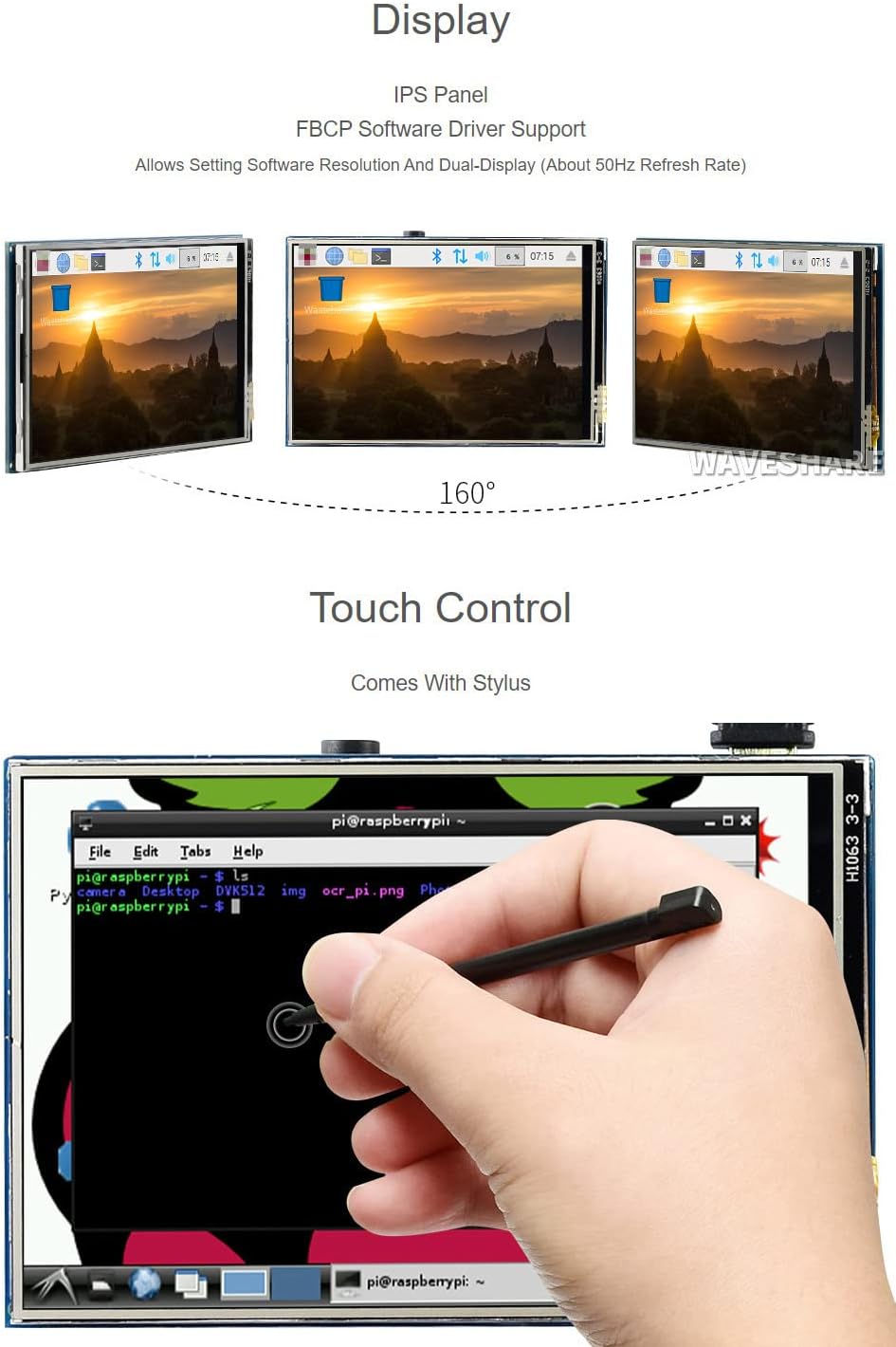
Image 5.1: The display's wide viewing angle and touch control in action.
5.2 Touch Control
The resistive touchscreen allows for precise interaction with the display. Use the provided stylus or a suitable alternative for optimal accuracy. Calibration may be required after driver installation to ensure accurate touch response. Refer to the driver installation guide for calibration procedures.
6. Compatibility
This display is designed for broad compatibility with Raspberry Pi devices and operating systems:
- Raspberry Pi Models: Supports Raspberry Pi 5, 4B, 3B, Zero, Zero W, Zero 2W, Pico, Pico W, Pico WH.
- Operating Systems: Compatible with Raspbian, Ubuntu MATE, Kali Linux, and RetroPie. Driver support is provided by Waveshare.
- FBCP Software Driver: Allows for setting software resolution and dual-display configurations.

Image 6.1: Overview of supported Raspberry Pi models and software.
7. Technical Specifications
| Feature | Specification |
|---|---|
| Screen Size | 3.5 Inches |
| Resolution | 480 x 320 pixels |
| Aspect Ratio | 1.50:1 |
| Display Panel Type | IPS |
| Touch Type | Resistive |
| Display Interface | SPI |
| Product Dimensions | 3.94 x 2.36 x 1.18 inches (100 x 60 x 30 mm approx.) |
| Item Weight | 2.57 ounces (72.86 grams) |
| Manufacturer | Waveshare |
| Model Number | 3.5inch RPi LCD (B) |

Image 7.1: Back view of the display board with dimensions.
8. Troubleshooting
If you encounter issues with your Waveshare 3.5-inch display, consider the following common solutions:
- Display Not Working / Blank Screen:
- Ensure the display is securely connected to the Raspberry Pi's GPIO pins.
- Verify that the correct drivers are installed for your specific Raspberry Pi model and operating system. Driver installation is crucial for this display.
- Check the power supply to your Raspberry Pi; insufficient power can prevent the display from initializing.
- Consult the official Waveshare Wiki for the latest driver versions and installation guides.
- Touchscreen Unresponsive or Inaccurate:
- Ensure touch drivers are installed correctly.
- Perform touchscreen calibration. Instructions for calibration are typically provided with the driver installation guide on the Waveshare Wiki.
- Use the provided stylus or a fine-tipped object for precise input on the resistive screen.
- Slow Refresh Rate:
- Ensure your drivers are up-to-date.
- Refer to the Waveshare Wiki for potential configuration adjustments (e.g., in
config.txt) that might optimize performance, though this may involve trade-offs in color depth or other display characteristics.
9. Maintenance
To ensure the longevity and optimal performance of your display:
- Cleaning: Gently wipe the screen with a soft, lint-free cloth. For stubborn smudges, slightly dampen the cloth with water or a screen-safe cleaner. Avoid abrasive materials or harsh chemicals.
- Handling: Handle the display by its edges to avoid touching the screen surface or electronic components.
- Storage: Store the display in a cool, dry environment, away from direct sunlight and extreme temperatures.
- Protection: When not in use, consider covering the display to protect it from dust and scratches.
10. Warranty and Support
For detailed warranty information and technical support, please refer to the official Waveshare website or the documentation provided with your purchase. You can also find extensive resources, including driver downloads and tutorials, on the Waveshare Wiki.
A PDF user guide is available for download: Waveshare 3.5-inch RPi LCD (B) User Guide (PDF)
Manufacturer: Waveshare
Related documents3.5inch RPi LCD (B)


Ask a question about this manual
Ask about setup, troubleshooting, compatibility, parts, safety, or missing instructions. Manuals+ will review the question and use this page’s manual context to help answer it.