
StarTech USB433ACD1X1
StarTech.com Wireless USB WiFi Adapter User Manual
Model: USB433ACD1X1
1. Introduction
This manual provides detailed instructions for the installation, operation, and maintenance of your StarTech.com Wireless USB WiFi Adapter. This adapter is designed to add external dual-band wireless connectivity to your laptop, tablet, or desktop computer, allowing access to both 2.4GHz and 5GHz Wi-Fi networks.
The compact form factor ensures minimal obstruction when plugged into your device, making it an ideal solution for upgrading or replacing existing wireless capabilities.
2. Product Features
- Dual-Band Wireless Connectivity: Provides reliable access to both 2.4GHz and 5GHz Wi-Fi networks.
- High Data Rates: Supports up to 433 Mbps on the 5GHz band (802.11ac) and up to 150Mbps on the 2.4GHz band.
- Compact Nano Design: Small form factor for minimal obstruction, ideal for portability.
- Broad Compatibility: Backward compatible with 802.11a/b/g/n networks and supports USB 2.0 for wide device compatibility.
- Secure Connection: IEEE 802.11a/b/g/n/ac compliant, supporting WEP, WPA, and WPA2 wireless security protocols.

Figure 2.1: The StarTech.com Wireless USB WiFi Adapter showcasing its key features including USB 2.0, Dual Band, AC600, 150Mbps (2.4GHz) / 433Mbps (5GHz), and Nano Design.
3. Package Contents
- 1x StarTech.com Wireless USB WiFi Adapter (USB433ACD1X1)
- 1x Driver CD
- 1x Quick-Start Guide
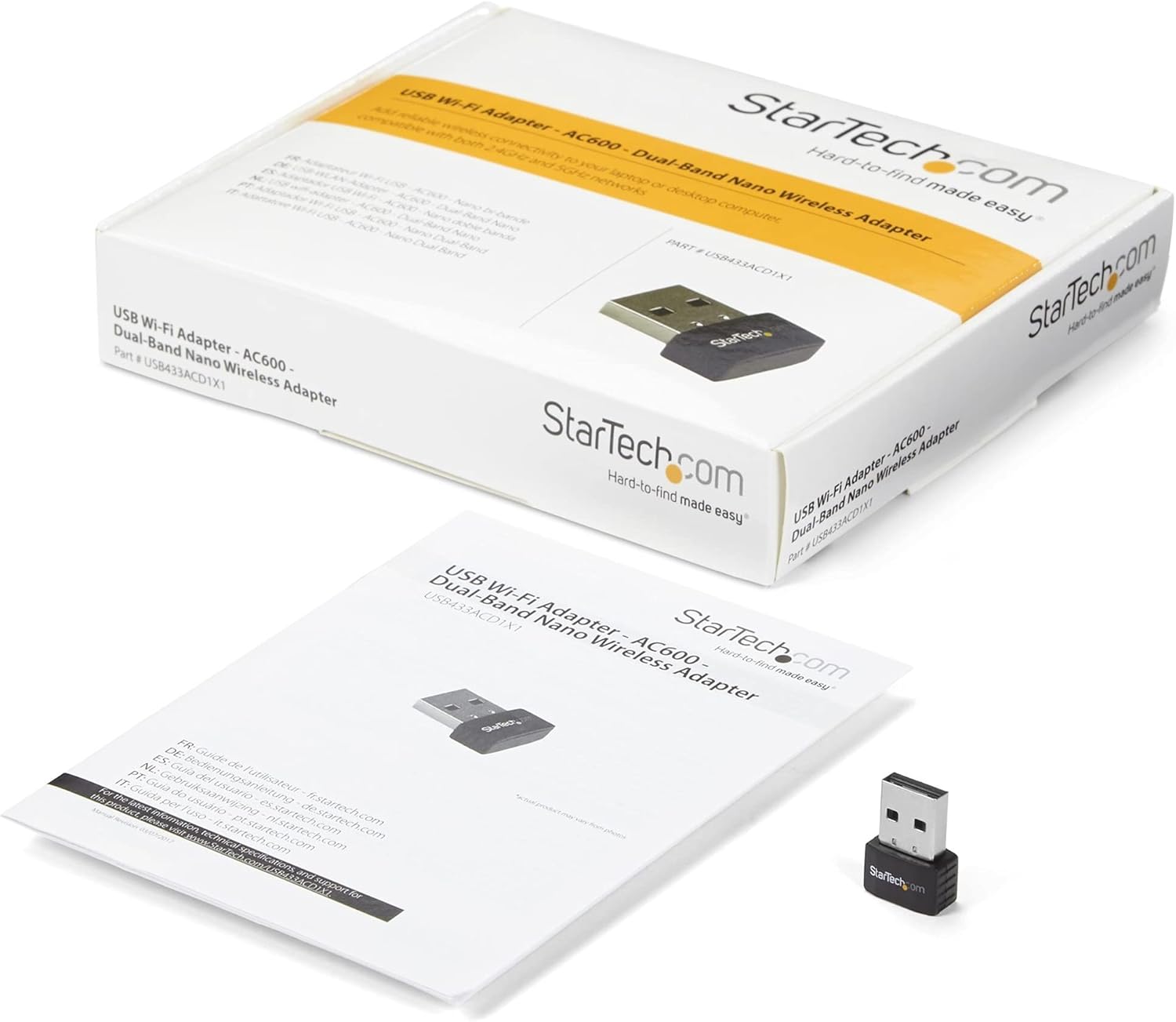
Figure 3.1: The StarTech.com Wireless USB WiFi Adapter, its driver CD, and quick-start guide as included in the package.
4. Setup
- Driver Installation:
Before connecting the adapter, it is recommended to install the necessary drivers. Insert the provided Driver CD into your computer's optical drive. Follow the on-screen instructions to complete the driver installation. If your computer does not have an optical drive, or for the latest drivers, visit the official StarTech.com support website and search for model USB433ACD1X1.
- Connect the Adapter:
Carefully insert the StarTech.com Wireless USB WiFi Adapter into an available USB 2.0 port on your laptop, tablet, or desktop computer. Ensure it is fully seated in the port.

Figure 4.1: The compact StarTech.com Wireless USB WiFi Adapter, ready for connection to a USB port.
- System Recognition:
Your operating system (Windows, macOS, Chrome OS) should automatically detect the adapter and complete the installation process. A notification may appear indicating that the device is ready for use.

Figure 4.2: The adapter is compatible with Apple macOS, Microsoft Windows, and Google Chrome OS.
5. Operating Instructions
- Accessing Wi-Fi Networks:
Once the adapter is installed, navigate to your computer's network settings or Wi-Fi icon in the system tray/menu bar. The adapter will display available wireless networks.
- Connecting to a Network:
Select your desired Wi-Fi network from the list. If prompted, enter the network's security key (password). The adapter will then establish a connection.
- Dual-Band Selection:
If your router supports both 2.4GHz and 5GHz bands, you may see two network names (SSIDs) – one for each band. For optimal performance and less interference, connect to the 5GHz network if available and within range. The 2.4GHz band offers wider coverage, while the 5GHz band provides faster speeds over shorter distances.

Figure 5.1: The adapter supports both 5GHz (433 Mbps) and 2.4GHz (150 Mbps) bands, offering secure dual-band technology with various network compliance and security features.
- Security Protocols:
The adapter supports WEP, WPA, and WPA2 wireless security. Always connect to networks using WPA2 for the strongest encryption and security.
6. Maintenance
- Keep Drivers Updated: Periodically check the StarTech.com website for the latest driver updates to ensure optimal performance and compatibility.
- Cleanliness: Keep the adapter's USB connector clean and free from dust or debris. Use a soft, dry cloth for cleaning.
- Physical Protection: When not in use, store the adapter in a safe place to prevent physical damage. The compact size makes it easy to misplace or damage if not handled carefully.
- Avoid Extreme Conditions: Do not expose the adapter to extreme temperatures, humidity, or direct sunlight.
7. Troubleshooting
- Problem: Adapter not detected or not working.
- Solution:
-
- Ensure the adapter is fully inserted into the USB port.
- Try a different USB port on your computer.
- Verify that the drivers are correctly installed. Reinstall them if necessary.
- Restart your computer.
- Check your computer's Device Manager (Windows) or System Information (macOS) to see if the adapter is listed without errors.
- Problem: Slow Wi-Fi speeds or frequent disconnections.
- Solution:
-
- Ensure you are connected to the 5GHz band if your router supports it and you are in close proximity.
- Reduce the distance between your computer and the wireless router.
- Minimize interference from other electronic devices (e.g., cordless phones, microwaves).
- Update your router's firmware.
- Check for driver updates for the USB WiFi adapter.
- Problem: Cannot connect to a specific Wi-Fi network.
- Solution:
-
- Double-check the Wi-Fi password (security key).
- Ensure the network is within range and has a strong signal.
- Verify that the network's security type (WEP, WPA, WPA2) is supported by the adapter.
- Restart your wireless router.
8. Specifications
| Attribute | Value |
|---|---|
| Model Number | USB433ACD1X1 |
| Wireless Type | 802.11ac, 802.11n, 802.11g, 802.11a, 802.11b |
| Data Transfer Rate | 433 Mbps (5GHz), 150 Mbps (2.4GHz) |
| Hardware Interface | USB 2.0 |
| Operating System Compatibility | Windows 10, Windows 8, Windows 7, Mac OS X El Capitan (10.11), macOS Mojave (10.14), macOS Sierra (10.12), Windows Server 2019, macOS High Sierra (10.13) |
| Dimensions (LxWxH) | 0.7 x 0.9 x 0.3 inches (17.8 x 22.9 x 7.6 mm) |
| Item Weight | 0.07 ounces (2g) |
| Color | Black |
| Security Protocols | WEP, WPA, WPA2 |
9. Warranty and Support
The StarTech.com Wireless USB WiFi Adapter (USB433ACD1X1) is backed by a StarTech.com warranty and free lifetime technical support. For detailed warranty information or to access technical support, please visit the official StarTech.com website or refer to the documentation included with your product.
For further assistance, you can also refer to the StarTech.com Store on Amazon.

Figure 9.1: StarTech.com's commitment to solving IT professionals' hardware connectivity challenges.
Related documentsUSB433ACD1X1


Ask a question about this manual
Ask about setup, troubleshooting, compatibility, parts, safety, or missing instructions. Manuals+ will review the question and use this page’s manual context to help answer it.