
1. Introduction
The Targus Universal USB 3.0 Dual Video 4K Docking Station (DOCK160USZ-50) is designed to expand the connectivity of your laptop or PC, providing dual Ultra-High Definition 4K video output via DisplayPort and HDMI. This compact docking station is compatible with USB 3.0 hosts and supports multiple host platforms and brands, offering broad compatibility for various peripherals and devices. It enables dual video performance up to 4096 x 2160 at 60Hz resolution, making it ideal for enhancing your workstation setup.
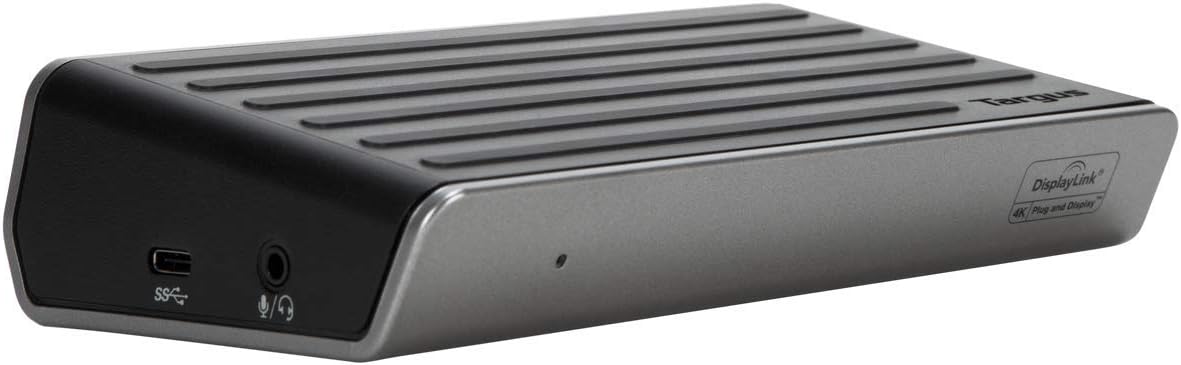
Image 1.1: Front-side view of the Targus DOCK160USZ-50 docking station, showcasing its compact design.
2. Package Contents
Please verify that all items are present in your package:
- Targus Universal USB 3.0 Dual Video 4K Docking Station (DOCK160USZ-50)
- Power Adapter
- 3.3-foot USB-µB to USB-A Host Cable (detachable)
3. Product Features and Ports
The Targus DOCK160USZ-50 offers a comprehensive set of ports to enhance your productivity:
- Video Ports: 2 DisplayPort (DP 1.2a) and 2 HDMI 2.0 ports for dual 4K Ultra HD video monitor support.
- Network: 1 Gigabit Ethernet port for reliable wired network connectivity.
- USB Ports:
- 1 USB-C device port (USB 3.0 data only)
- 4 USB 3.0 ports (including 1 fast device-charging port)
- Audio: 1 x 3.5mm combo Audio In/Out port for microphones, speakers, or earphones.
- Security: Integrated lock slot accommodates industry-standard security locks.

Image 3.1: Rear view of the docking station, detailing the DisplayPort, HDMI, Ethernet, USB 3.0, and power input ports.

Image 3.2: Front view of the docking station, highlighting the USB-C and audio combo jack.
4. Setup Guide
Follow these steps to set up your Targus Universal USB 3.0 Dual Video 4K Docking Station:
- Connect Power: Plug the included power adapter into the DC 18V port on the back of the docking station, then connect it to a power outlet.
- Connect to Host Device: Use the provided USB-µB to USB-A host cable to connect the docking station to an available USB 3.0 port on your laptop or PC.
- Install Drivers (if necessary): For optimal performance, ensure the latest DisplayLink drivers are installed on your operating system. The docking station is compatible with Windows (10/8.1/7), Mac OS X 10.8 or later, and Android (5.1/5.0). Drivers can typically be found on the Targus support website.
- Connect Monitors: Connect your external monitors to the DisplayPort or HDMI ports on the back of the docking station. You can use a combination of two DisplayPort, two HDMI, or one of each for dual display setup.
- Connect Peripherals:
- Connect USB devices (keyboard, mouse, external drives) to the USB 3.0 ports.
- For wired internet, connect an Ethernet cable to the Gigabit Ethernet port.
- Connect headphones, speakers, or a microphone to the 3.5mm audio combo jack on the front.
- Configure Display Settings: Once connected, your operating system should detect the external displays. Adjust display settings (resolution, orientation, extended/duplicate mode) through your system's display preferences.
5. Operating Instructions
The Targus docking station simplifies your workspace by providing a single connection point for all your peripherals.
5.1. Dual Display Operation
The docking station supports up to two external 4K displays simultaneously. Connect your monitors to any two of the four video output ports (2x DisplayPort, 2x HDMI). Ensure your monitors and cables support 4K resolution for optimal performance. You can configure your displays for extended desktop, mirrored display, or primary display only modes via your computer's display settings.
5.2. USB Device Connectivity
Utilize the four USB 3.0 ports for connecting various USB devices. One of these ports is a fast-charging port, suitable for quickly charging smartphones or other compatible devices. The USB-C port on the front is for data transfer only.
5.3. Audio and Network
The 3.5mm combo audio jack allows for convenient connection of headsets, speakers, or microphones. The Gigabit Ethernet port provides a stable and high-speed wired network connection, ideal for environments where Wi-Fi is unreliable or unavailable.
6. Maintenance
To ensure the longevity and optimal performance of your docking station, follow these maintenance guidelines:
- Cleaning: Use a soft, dry, lint-free cloth to clean the exterior of the docking station. Avoid using abrasive cleaners, solvents, or strong chemicals.
- Ventilation: Ensure the docking station is placed in a well-ventilated area to prevent overheating. Do not block any ventilation openings.
- Storage: When not in use for extended periods, store the docking station in a cool, dry place away from direct sunlight and extreme temperatures.
- Cable Management: Keep cables organized and untangled to prevent damage to the ports or cables themselves.
7. Troubleshooting
If you encounter issues with your Targus docking station, refer to the following common troubleshooting steps:
- No Display Output:
- Ensure the docking station is powered on and connected securely to your host device.
- Verify that monitor cables are firmly connected to both the docking station and the monitors.
- Check your computer's display settings to ensure external displays are detected and configured correctly.
- Update your DisplayLink drivers to the latest version from the Targus support website.
- Test with different cables or monitors if possible.
- USB Devices Not Working:
- Ensure the docking station is properly connected to your host device.
- Try connecting the USB device to a different port on the docking station or directly to your computer to isolate the issue.
- Check your computer's Device Manager (Windows) or System Information (macOS) for any unrecognized USB devices.
- No Network Connection:
- Verify the Ethernet cable is securely connected to both the docking station and your network router/switch.
- Check your computer's network settings to ensure the Ethernet adapter is enabled and configured.
- Restart your router/modem and computer.
- Audio Issues:
- Ensure your audio device (headphones/speakers) is correctly plugged into the 3.5mm audio jack.
- Check your computer's sound settings to ensure the docking station's audio output is selected as the default playback device.
- Adjust volume levels on both your computer and the audio device.
For more detailed troubleshooting or specific driver information, please refer to the official Targus User Manual (PDF).
8. Specifications
| Feature | Detail |
|---|---|
| Model Number | DOCK160USZ |
| Brand | Targus |
| Hardware Platform | PC, Tablet |
| Operating System Compatibility | Windows (10/8.1/7), Mac OS X 10.8 or later, Android (5.1/5.0), Chrome, Linux |
| Video Output | 2 x DisplayPort (DP 1.2a), 2 x HDMI 2.0 (Dual 4K Ultra HD) |
| USB Ports | 4 x USB 3.0 (1 fast-charging), 1 x USB-C (data only) |
| Ethernet | 1 x Gigabit Ethernet |
| Audio | 1 x 3.5mm Combo Audio In/Out |
| Power Input | DC 18V (45 watts) |
| Item Weight | 6.4 ounces (0.4 lbs) |
| Product Dimensions (LxWxH) | 3.5 x 1.5 x 6.8 inches |
| Color | Black |
9. Warranty and Support
This Targus product comes with a standard manufacturer's warranty. For specific warranty terms, registration, and technical support, please visit the official Targus website or contact their customer service.
Additional resources:
- Official Targus Store: Targus Amazon Store
- User Manual (PDF): Download Here
Note: No official product videos were found in the provided data for embedding.


