
Audster FK-6100
Audster FK-6100 61-Key Professional Performance MIDI Keyboard Electronic Piano User Manual
Model: FK-6100 | Brand: Audster
Introduction
Thank you for purchasing the Audster FK-6100 61-Key Professional Performance MIDI Keyboard Electronic Piano. This instrument is designed to provide a rich musical experience with its wide range of features, including 345 voices, 128 styles, and a touch-sensitive keyboard. This manual will guide you through the setup, operation, maintenance, and troubleshooting of your new keyboard, ensuring you get the most out of its capabilities.
1. Setup
1.1 Unpacking
Carefully remove all components from the packaging. Ensure the following items are present:
- Audster FK-6100 Electronic Piano
- Power Adapter
- User Manual (this document)
Retain the original packaging for future transport or storage.
1.2 Power Connection
- Ensure the keyboard's power switch is in the OFF position.
- Connect the power adapter to the DC IN jack on the rear panel of the keyboard.
- Plug the power adapter into a standard AC power outlet.
1.3 Connecting Peripherals
The FK-6100 offers various connectivity options for enhanced functionality.
- Headphone Jack: Connect standard stereo headphones to the HEADPHONE jack for private practice. The internal speakers will automatically mute when headphones are connected.
- MIDI Output Jack: Use a MIDI cable to connect the MIDI OUT jack to a MIDI input on another device (e.g., computer, sound module) for MIDI data transmission.
- Speaker Output (L/R): Connect the SPEAKER OUTPUT (L/R) jacks to an external amplifier or powered speakers for larger sound projection.
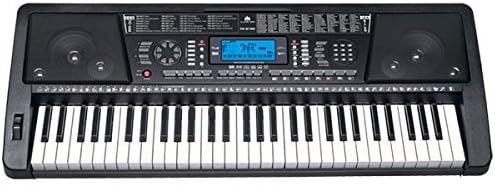
Figure 1: Front view of the Audster FK-6100 keyboard, showing the 61 keys, control panel, and LCD display.
2. Operating Instructions
2.1 Basic Functions
- Power On/Off: Press the POWER button to turn the keyboard on or off.
- Master Volume: Use the MASTER VOLUME control to adjust the overall output level. The keyboard features 16 grades of master volume control.
- LCD Display: The integrated LCD display provides visual feedback on current settings, selected voices, styles, and other parameters.
2.2 Voices (Tones)
The FK-6100 includes 345 different voices (instrument sounds).
- To select a voice, use the VOICE selection buttons or the numeric keypad to enter the desired voice number.
- The selected voice name and number will appear on the LCD display.
- Dual Voices: This feature allows you to layer two different voices to play simultaneously. Refer to the on-screen menu or specific buttons for activation and adjustment.
2.3 Styles (Rhythms)
The keyboard offers 128 accompaniment styles.
- To select a style, use the STYLE selection buttons or the numeric keypad.
- Style Volume Control: Adjust the accompaniment volume independently with the 8-grade style volume control.
- Tempo Control: Modify the speed of the selected style using the 211-level tempo control.
- Chord Functions:
- Single Finger Chord: Play chords by pressing a single key in the lower section of the keyboard.
- Fingered Chord: Play chords by pressing multiple keys in the lower section of the keyboard.
- Chord Volume Control: Adjust the volume of the chord accompaniment with the 8-grade chord volume control.
- Style Controls:
- Intro: Plays an introductory phrase before the main style begins.
- Fill-in: Inserts a short rhythmic variation during playback.
- Ending: Plays an ending phrase to conclude the style.
- Metronome: Activate the metronome function for timing assistance during practice.
- Style Programming Function: Allows for creation and customization of rhythm patterns. Consult the detailed on-screen instructions for this advanced feature.
2.4 Demonstration Songs
The FK-6100 includes 40 demonstration songs.
- Press the DEMO button to cycle through and play the demonstration songs.
- These songs showcase the various voices and styles available on the keyboard.
2.5 Percussion
Access 8 different percussion sounds or utilize the keyboard percussion feature.
- Specific buttons or menu options allow selection of individual percussion sounds.
- Keyboard percussion maps percussion sounds across the keys for manual playing.
2.6 Recording & Playback
The keyboard features a built-in recorder to capture your performances.
- Record: Press the RECORD button to start recording your playing.
- Playback: Press the PLAYBACK button to listen to your recorded performance.
2.7 Advanced Features
- Pitch Bend: Use the pitch bend wheel to smoothly raise or lower the pitch of notes.
- Vibrato: Adds a slight, rapid fluctuation in pitch to notes for expressive playing.
- Sustain: Extends the decay of notes, similar to a piano's sustain pedal.
- Transpose: Shifts the overall pitch of the keyboard up or down in semitone steps.
- Keyboard Split: Divides the keyboard into two sections, allowing different voices to be played on each section.
- Three Bank Registration: Save and recall your favorite settings (voices, styles, tempo, etc.) for quick access.
- One Key / Guide Function: Assists in learning songs by guiding you through the correct notes.
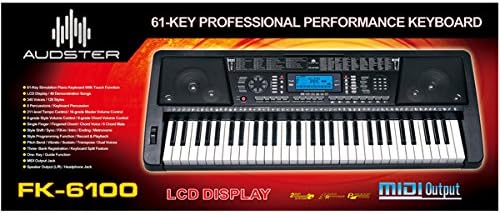
Figure 2: Top view of the Audster FK-6100 keyboard, illustrating the control panel layout and key features such as the LCD display, speakers, and various function buttons.
3. Maintenance
3.1 Cleaning
- Always disconnect the power adapter before cleaning.
- Use a soft, dry cloth to wipe the surface of the keyboard.
- For stubborn dirt, slightly dampen the cloth with water and a mild, non-abrasive cleaner, then wipe dry immediately.
- Avoid using harsh chemicals, solvents, or abrasive materials, as these can damage the finish.
3.2 Storage
- Store the keyboard in a cool, dry place away from direct sunlight, extreme temperatures, and high humidity.
- Avoid placing heavy objects on the keyboard.
- If storing for an extended period, consider covering the keyboard with a dust cover to protect it from dust and debris.
4. Troubleshooting
If you encounter any issues with your Audster FK-6100, please refer to the following common problems and solutions.
| Problem | Possible Cause | Solution |
|---|---|---|
| No power | Power adapter not connected or faulty outlet. | Ensure power adapter is securely connected and the outlet is functional. Try a different outlet. |
| No sound from speakers | Volume too low, headphones connected, or external speakers not connected/powered. | Increase master volume. Disconnect headphones. Check external speaker connections and power. |
| Keys not responding | Keyboard split function active, or a specific mode is engaged. | Check if keyboard split is active. Reset the keyboard by turning it off and on again. |
| MIDI output not working | Incorrect MIDI cable connection or software settings. | Verify MIDI cable connection. Check MIDI input settings on the connected device/software. |
If the problem persists after attempting these solutions, please contact Audster customer support for further assistance.
5. Specifications
| Feature | Detail |
|---|---|
| Model Name | FK-6100 |
| Number of Keys | 61-Key Simulation Piano Keyboard with Touch Function |
| Display | LCD Display |
| Voices | 345 Voices |
| Styles | 128 Styles |
| Demonstration Songs | 40 Demonstration Songs |
| Percussion | 8 Percussions / Keyboard Percussion |
| Tempo Control | 211 Level Tempo Control |
| Master Volume Control | 16 Grade Master Volume Control |
| Style Volume Control | 8 Grade Style Volume Control |
| Chord Volume Control | 8 Grade Chord Volume Control |
| Chord Modes | Single Finger / Fingered Chord |
| Style Functions | Fill-in / Intro / Ending / Metronome |
| Advanced Functions | Style Programming Function, Record & Playback, Pitch Bend, Vibrato, Sustain, Transpose, Dual Voices, Three Bank Registration, Keyboard Split, One Key / Guide Function |
| Connectivity | MIDI Output Jack, Speaker Output (L/R), Headphone Jack |
| Item Weight | 14.12 pounds (approx. 6.4 kg) |
| Package Dimensions | 39.25 x 16.5 x 6.75 inches (approx. 99.7 x 41.9 x 17.1 cm) |
| UPC | 738676655346 |
6. Warranty Information
Specific warranty details for the Audster FK-6100 are typically provided with the product at the time of purchase or can be found on the official Audster website. Please refer to your purchase documentation for the most accurate and up-to-date warranty terms and conditions.
7. Customer Support
For technical assistance, service, or inquiries regarding your Audster FK-6100 keyboard, please contact Audster customer support.
- Online Support: Visit the official Audster website for FAQs, support resources, and contact forms.
- Contact Information: Refer to the product packaging or the Audster website for specific customer service phone numbers or email addresses.
Ask a question about this manual
Ask about setup, troubleshooting, compatibility, parts, safety, or missing instructions. Manuals+ will review the question and use this page’s manual context to help answer it.