
1. Introduction
This manual provides instructions for the setup, operation, and maintenance of your Gingko Brick Click Clock, model GK15R16. This digital alarm clock is designed to display time, date, and temperature, offering both sound-activated and permanent display modes. It features an integrated rechargeable battery for portability and an automatic dimmer function for optimal visibility.
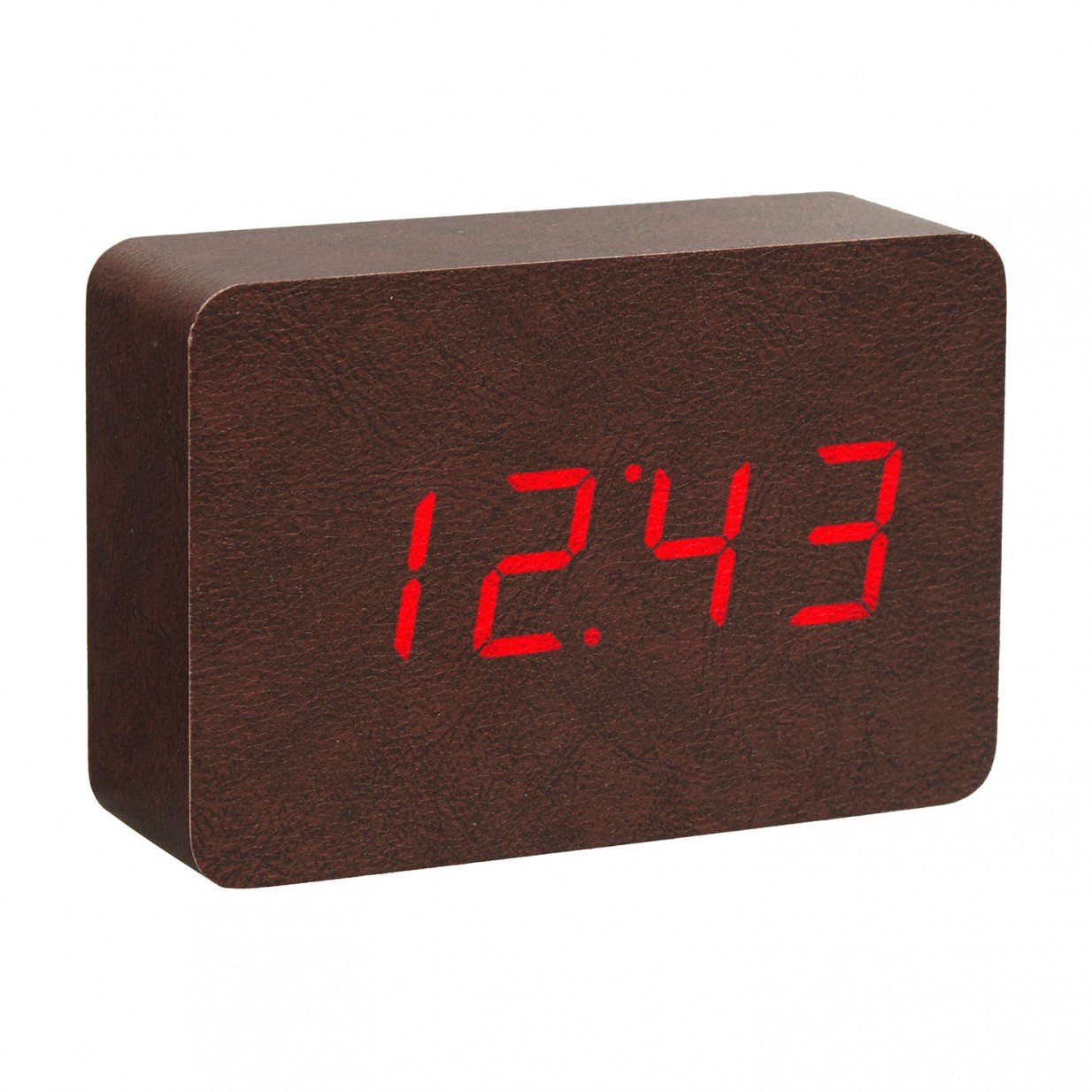
Image: The Gingko Brick Click Clock, featuring a brown leatherette exterior and a red LED display. The clock is shown displaying the time, indicating its digital interface and compact design.
2. Product Features
- Displays Time, Date, and Temperature alternately.
- Sound-activated display mode or permanent display setting.
- Automatic dimmer function for adjustable brightness.
- Integrated rechargeable lithium battery for portable use.
- Compact dimensions: 8 inches (height) x 6 inches (width).
3. Package Contents
Please check the package for the following items:
- Gingko Brick Click Clock (GK15R16)
- USB Charging Cable
- User Manual (this document)
Note: A USB power adapter is typically not included and must be supplied by the user.
4. Setup
4.1 Initial Charging
- Connect the small end of the provided USB charging cable to the charging port on the back or side of the clock.
- Connect the larger end of the USB cable to a compatible USB power adapter (e.g., smartphone charger) or a computer USB port.
- Allow the clock to charge fully before first use. A charging indicator (if present) will typically change color or turn off when charging is complete.
4.2 Powering On
Once charged, the clock should power on automatically. If not, locate the power button (if available) or ensure it is connected to a power source.
5. Operating Instructions
The Gingko Brick Click Clock typically features control buttons on the back or bottom, often labeled 'SET', 'UP', and 'DOWN' (or similar icons).
5.1 Setting Time
- Press and hold the 'SET' button until the time display starts flashing.
- Use the 'UP' and 'DOWN' buttons to adjust the hour. Press 'SET' to confirm.
- Use the 'UP' and 'DOWN' buttons to adjust the minute. Press 'SET' to confirm and exit time setting mode.
5.2 Setting Date
- From the normal display, press 'SET' repeatedly until the date display starts flashing (e.g., YYYY, MM, DD).
- Use 'UP' and 'DOWN' to adjust the year, then press 'SET'.
- Adjust the month, then press 'SET'.
- Adjust the day, then press 'SET' to confirm and exit date setting mode.
5.3 Setting Alarm
- Press 'SET' repeatedly until the alarm setting mode is displayed (often indicated by 'AL' or an alarm icon).
- Press and hold 'SET' until the alarm time starts flashing.
- Use 'UP' and 'DOWN' to set the alarm hour, then press 'SET'.
- Use 'UP' and 'DOWN' to set the alarm minute, then press 'SET'.
- To activate/deactivate the alarm, press 'UP' or 'DOWN' while in alarm setting mode until 'ON' or 'OFF' is displayed. Press 'SET' to confirm.
5.4 Display Modes (Sound Activated / Permanent)
The clock offers two main display modes:
- Sound Activated Mode: The display turns off and activates when a sound (like a clap or tap) is detected. This conserves battery life.
- Permanent Display Mode: The display remains on continuously.
To switch between modes, locate a dedicated button (e.g., 'VOICE' or 'DISPLAY') or cycle through options using the 'SET' button until the desired mode is selected (e.g., 'ON:SD' for sound-activated, 'ON:DP' for permanent display).
5.5 Automatic Dimmer Function
The clock features an automatic dimmer that adjusts the display brightness based on ambient light conditions. This function operates automatically and does not typically require manual adjustment.
6. Maintenance
6.1 Cleaning
To clean the clock, gently wipe the surface with a soft, dry, or slightly damp cloth. Avoid using abrasive cleaners, solvents, or excessive moisture, as these can damage the finish and internal components.
6.2 Battery Care
- For optimal battery life, avoid fully discharging the clock frequently.
- If storing the clock for an extended period, ensure it is partially charged (around 50%) and recharge it every few months.
- Do not expose the clock to extreme temperatures, as this can affect battery performance and lifespan.
7. Troubleshooting
| Problem | Possible Cause | Solution |
|---|---|---|
| Clock display is off or unresponsive. | Low battery; Sound-activated mode active; Power issue. | Charge the clock. Tap or clap near the clock to activate display. Ensure USB cable is securely connected. |
| Time/Date is incorrect. | Not set correctly; Battery drained. | Follow instructions in Section 5.1 and 5.2 to reset time/date. Ensure clock is charged. |
| Alarm does not sound. | Alarm not activated; Volume too low (if adjustable); Incorrect alarm time. | Verify alarm is set to 'ON' (Section 5.3). Check alarm time. (Note: This model may not have adjustable volume). |
| Display is too dim or too bright. | Automatic dimmer adjusting; Ambient light conditions. | The automatic dimmer adjusts based on light. Ensure the light sensor (if visible) is not obstructed. No manual brightness adjustment is typically available. |
| Buttons are unresponsive. | Temporary software glitch; Low battery. | Try charging the clock. If possible, perform a soft reset by disconnecting power and allowing battery to drain, then recharge. |
8. Specifications
| Feature | Detail |
|---|---|
| Brand | Gingko |
| Model Number | GK15R16 |
| Color | Brown Leatherette |
| Display Type | Digital (Red LED) |
| Special Features | Alarm, Temperature Display, Sound Activated Display, Automatic Dimmer |
| Product Dimensions | 6"W x 8"H |
| Power Source | Rechargeable Battery; can also be powered via USB |
| Mounting Type | Tabletop |
| Frame Material | Wood |
| Item Weight | 1.14 pounds |
| UPC | 700900316934 |
| ASIN | B01N186QJ2 |
9. Warranty and Support
Warranty information for the Gingko Brick Click Clock GK15R16 is typically provided with the product packaging or available on the official Gingko website. Please refer to these sources for details regarding warranty coverage, terms, and conditions.
For technical support or further assistance, please contact Gingko customer service through their official website or the contact information provided in your product documentation.