
1. Introduction
This manual provides essential information for the proper installation, operation, and maintenance of your Pioneer BDR-S11J-X Ultra HD Blu-ray Burner. Please read this manual thoroughly before using the product to ensure optimal performance and longevity.
The Pioneer BDR-S11J-X is a premium internal optical drive designed for desktop computers, offering Ultra HD Blu-ray burning and playback capabilities. It supports a wide range of media formats including BDXL, BD, DVD, and CD.

Figure 1: Front view of the Pioneer BDR-S11J-X Ultra HD Blu-ray Burner.
2. Setup and Installation
The BDR-S11J-X is an internal drive designed for desktop computer installation. Ensure your system meets the minimum hardware requirements for Ultra HD Blu-ray functionality.
2.1 Hardware Requirements for Ultra HD Blu-ray Playback/Burning:
- Operating System: Windows 10
- CPU: Intel 7th generation Core i7 / i5 processor (KabyLake-S for desktop, KabyLake-H for notebook). Note: U processor not supported.
- GPU: Intel HD Graphics 630 (Built-in GPU for 7th Generation Processor)
- Main Memory: 6 GB or more
- External Display: 4K resolution (3840 x 2160 or more) display compatible with HDMI 2.0a (HDCP 2.2 required), HDR compatible.
- Motherboard: Intel SGX compatible Intel 200 series motherboard, HDCP 2.2 / HDMI 2.0a output compatible Intel internal GPU output compatible motherboard (for HDMI output).
2.2 Physical Installation:
- Power off your computer and disconnect all cables.
- Open your computer case.
- Locate an available 5.25-inch drive bay.
- Slide the BDR-S11J-X into the drive bay and secure it with screws.
- Connect the SATA data cable from the drive to an available SATA port on your motherboard.
- Connect a SATA power cable from your power supply to the drive.
- Close your computer case and reconnect all cables.

Figure 2: Copper-plated screws are used to improve conductivity and reduce resistance.
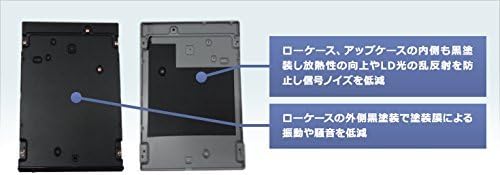
Figure 3: The internal black coating on the upper and lower cases enhances heat dissipation and reduces signal noise by preventing LD light reflection. The external black coating on the lower case minimizes vibration and operational noise.

Figure 4: Anti-vibration rubber placed between the drive case and chassis further reduces vibration and noise during operation.
3. Operating Instructions
The Pioneer BDR-S11J-X supports various disc formats for both reading and writing. Ensure you use compatible media for your desired operation.
3.1 Disc Loading and Ejecting:
- Press the eject button on the front panel of the drive to open the disc tray.
- Carefully place the disc onto the tray with the label side facing up.
- Gently push the tray back into the drive until it closes completely, or press the eject button again.
- To eject a disc, press the eject button or use the eject function within your operating system or media software.

Figure 5: The drive with the disc tray open. The internal black coating on the upper case improves heat dissipation and reduces signal noise. The external black coating on the upper case minimizes vibration and noise. The disc tray features a rubber coating to reduce vibration and noise during disc rotation.
3.2 Supported Media and Speeds:
- Maximum Write Speeds:
- BD-R: 16x
- DVD-R/+R: 16x
- CD-R: 40x
- DVD Dual Layer (DL): 8x
- Maximum Read Speeds:
- BD-R: 12x
- DVD-R/+R: 16x
- CD-R: 40x
- DVD Dual Layer (DL): 12x
3.3 Bundled Software:
The drive includes a suite of software for various media tasks:
- Power2Go8 (Disc burning)
- InstantBurn 5 (Packet writing)
- PowerDVD 14 (UHDBD playback supported)
- PowerProducer 5.5 (Disc authoring)
- PowerDirector 14 (Video editing)
- PowerBackup 2.5 (Data backup)
Install these applications from the provided disc or download them from the manufacturer's website as instructed.

Figure 6: Visual comparison demonstrating the enhanced detail and clarity of 4K Ultra HD resolution compared to standard definition (SD) and high definition (HD).

Figure 7: Illustration of High Dynamic Range (HDR) technology, showing a wider range of brightness and color compared to Standard Dynamic Range (SDR), resulting in more realistic visuals.

Figure 8: Comparison of color reproduction using BT.709 (standard Blu-ray) and BT.2020 (Ultra HD Blu-ray) color spaces, highlighting the significantly wider and more accurate color gamut of BT.2020.

Figure 9: Demonstration of high frame rate playback, comparing 24 frames per second (fps) with 60 fps, illustrating the smoother and more fluid motion achieved at higher frame rates.
4. Maintenance
To ensure the longevity and optimal performance of your Pioneer BDR-S11J-X drive, follow these general maintenance guidelines:
- Keep the Drive Clean: Periodically clean the exterior of the drive with a soft, dry cloth. Avoid using harsh chemicals or abrasive materials.
- Dust Prevention: Ensure your computer case is kept clean and free of excessive dust, as dust can accumulate inside the drive and affect its performance.
- Handle Discs Carefully: Always handle discs by their edges to avoid fingerprints and scratches, which can lead to read/write errors.
- Firmware Updates: Check the Pioneer support website periodically for any available firmware updates for your drive. Firmware updates can improve compatibility and performance.
5. Troubleshooting
If you encounter issues with your Pioneer BDR-S11J-X, consider the following common troubleshooting steps:
- Drive Not Detected:
- Check that the SATA data and power cables are securely connected to both the drive and the motherboard/power supply.
- Verify that the drive is enabled in your computer's BIOS/UEFI settings.
- Ensure your operating system has the necessary drivers installed.
- Disc Read/Write Errors:
- Inspect the disc for scratches, smudges, or damage. Try a different disc.
- Ensure the disc type is compatible with the drive and the operation (e.g., trying to burn to a read-only disc).
- Clean the disc with a soft, lint-free cloth.
- Update the drive's firmware and software.
- Ultra HD Blu-ray Playback Issues:
- Confirm that your system meets all the specified hardware requirements for Ultra HD Blu-ray playback (CPU, GPU, OS, display, motherboard).
- Ensure you are using compatible playback software (e.g., PowerDVD 14 or later with UHDBD support).
- Verify that your display and HDMI connection support HDCP 2.2.
- Software Malfunctions:
- Reinstall the bundled software.
- Check for updates for the software applications.
If problems persist after attempting these steps, contact Pioneer customer support for further assistance.
6. Specifications
| Feature | Specification |
|---|---|
| Model Number | BDR-S11J-X |
| Brand | PIONEER |
| Installation Type | Internal Hard Drive (Optical Drive) |
| Interface | Serial ATA Revision 3.0 |
| Cache Memory | 4 MB |
| Compatible Devices | Desktop PC |
| Special Features | Ultra HD Blu-ray Burning/Playback, BDXL Support, Bundled Software |
| Max Write Speed (BD-R) | 16x |
| Max Write Speed (DVD-R/+R) | 16x |
| Max Write Speed (CD-R) | 40x |
| Max Write Speed (DVD DL) | 8x |
| Max Read Speed (BD-R) | 12x |
| Max Read Speed (DVD-R/+R) | 16x |
| Max Read Speed (CD-R) | 40x |
| Max Read Speed (DVD DL) | 12x |
| Manufacturer | Pioneer Japan |
| Item Weight | 0.74 Kilograms |
7. Warranty Information
Specific warranty details for the Pioneer BDR-S11J-X are not provided in the available product information. Please refer to the warranty card included with your product or visit the official Pioneer website for detailed warranty terms and conditions applicable to your region.
8. Customer Support
For technical assistance, product inquiries, or service requests, please contact Pioneer customer support. Specific contact information (phone numbers, email addresses) is not provided in the available product data. Please visit the official Pioneer website for the most up-to-date support contact details for your country or region.
You can typically find support information on the manufacturer's website: Pioneer Official Website