
1. Introduction
This manual provides essential information for the safe and efficient operation, maintenance, and troubleshooting of your Xiaomi Robot Vacuum S12 EU. Please read this manual thoroughly before using the product and retain it for future reference.
The Xiaomi Robot Vacuum S12 EU is designed to provide automated cleaning for your home, featuring both vacuuming and mopping capabilities. It utilizes advanced navigation technology for precise mapping and efficient cleaning paths.

2. Setup
2.1 Unboxing and Component Check
Carefully remove all components from the packaging. Ensure all items listed in the packing list are present. The package typically includes the robot vacuum, charging dock, power adapter, side brush, main brush, dustbin, water tank, and cleaning tool.
2.2 Charging the Robot
Place the charging dock against a wall in an open area with good Wi-Fi signal. Connect the power adapter to the dock and plug it into a power outlet. Place the robot onto the charging dock, ensuring the charging contacts align. The robot will begin charging automatically. Fully charge the robot before first use.
2.3 App Installation and Connection
- Download the Xiaomi Home app from your device's app store.
- Open the app and create an account or log in.
- Tap the '+' icon to add a new device. Select the Xiaomi Robot Vacuum S12 EU from the list.
- Follow the on-screen instructions to connect the robot to your home Wi-Fi network.

2.4 Initial Mapping
After successful connection, initiate the first cleaning cycle. The robot will perform a comprehensive scan of your home using its LDS laser navigation system to create an accurate map. This map will be displayed in the Xiaomi Home app and is crucial for efficient cleaning and smart features.
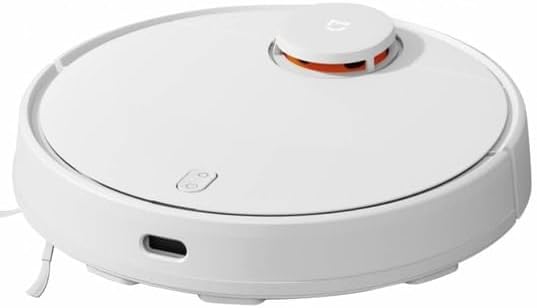
3. Operating
3.1 Cleaning Modes
The robot vacuum offers multiple cleaning modes to suit different needs, adjustable via the Xiaomi Home app:
- Silent Mode: For quiet operation and light cleaning.
- Standard Mode: Balanced cleaning for daily use.
- Media Mode: Increased suction for moderate dirt.
- Turbo Mode: Maximum suction power for deep cleaning of stubborn dirt.

3.2 Scheduling and Zone Cleaning
Use the Xiaomi Home app to set cleaning schedules for specific times and days. You can also define specific zones or rooms on the map for targeted cleaning, allowing the robot to clean only selected areas.
3.3 Mopping Function
To use the mopping function, fill the intelligent water tank with clean water and attach the mopping pad. The intelligent water tank releases water uniformly to ensure consistent humidity without over-wetting the floor. Three different water settings are available for various floor materials.

3.4 Navigation and Cleaning Paths
The robot uses LDS laser navigation for precise positioning and accurate distance measurements, enabling it to create a detailed map of your home. It employs zig-zag and Y-shaped cleaning paths to ensure comprehensive coverage and simulate manual cleaning for effective stain removal.


4. Maintenance
Regular maintenance ensures optimal performance and extends the lifespan of your robot vacuum.
4.1 Dustbin Emptying and Cleaning
Empty the dustbin after each cleaning cycle. Open the top cover of the robot, remove the dustbin, and discard the collected debris. Rinse the dustbin with water if necessary, ensuring it is completely dry before reinserting.
4.2 Brush Cleaning
Regularly check and clean the main brush and side brush. Remove any tangled hair or debris using the provided cleaning tool. The main brush can be detached for easier cleaning.
4.3 Filter Cleaning/Replacement
The HEPA filter inside the dustbin should be cleaned regularly by tapping it gently to remove dust. Replace the filter every 3-6 months, or as indicated by the app, to maintain suction efficiency.
4.4 Water Tank and Mopping Pad Maintenance
After mopping, empty any remaining water from the tank. Remove and clean the mopping pad. Wash the pad thoroughly and allow it to air dry completely before reattaching or storing.
4.5 Sensor Cleaning
Wipe the cliff sensors, wall sensors, and charging contacts with a soft, dry cloth to ensure they are free of dust and debris. Clean the LDS laser sensor window periodically.

5. Troubleshooting
If you encounter issues with your robot vacuum, refer to the following common problems and solutions:
| Problem | Possible Cause | Solution |
|---|---|---|
| Robot does not charge. | Charging contacts are dirty or misaligned. | Clean charging contacts on both robot and dock. Ensure proper alignment. |
| Robot gets stuck frequently. | Obstacles in cleaning path; sensors are dirty. | Clear cables, toys, and other obstacles. Clean all sensors. |
| Poor suction performance. | Dustbin full; filter clogged; main brush tangled. | Empty dustbin. Clean or replace filter. Clean main brush. |
| Mopping function not working. | Water tank empty; mopping pad not attached correctly. | Fill water tank. Ensure mopping pad is securely attached. |
| Robot cannot connect to Wi-Fi. | Incorrect Wi-Fi password; weak signal; router issues. | Verify password. Move robot closer to router. Restart router. |
For more detailed troubleshooting, refer to the Xiaomi Home app or the official Xiaomi support website.
6. Specifications
| Feature | Specification |
|---|---|
| Brand | Xiaomi |
| Model Name | Robot Vacuum S12 |
| Model Number | BHR5988EU |
| Color | Black |
| Capacity | 300 Milliliter |
| Voltage | 230 Volt |
| Runtime | 130 Minutes (2 hours and 10 minutes) |
| Special Features | Anti-collision, Wireless, Anti-fall, Smart-mapping |
| Product Dimensions | 12L x 3B x 8H centimeters |
| Controller Type | Voice Control |
| Filter Type | HEPA |
| Surface Recommendation | Indoor use |
7. Warranty and Support
For information regarding warranty coverage and terms, please refer to the documentation provided with your purchase or visit the official Xiaomi support website. A 30-day refund/replacement policy is typically available from the date of purchase.
For technical support, troubleshooting assistance, or spare parts, please contact Xiaomi customer service through their official channels. Ensure you have your product model number (BHR5988EU) and purchase details ready when contacting support.