1. Introduction
Thank you for choosing the 2BOOM HPBT500K Wireless Headphone System. This manual provides essential information for the proper setup, operation, and maintenance of your new headphones. Please read it thoroughly before use to ensure optimal performance and longevity of the product.
The HPBT500K headphones offer a wireless audio experience with a built-in microphone for hands-free calling, enhanced bass sound, and comfortable wear.
2. What's in the Box
- 2BOOM HPBT500K Wireless Headphone
- USB Charging Cable
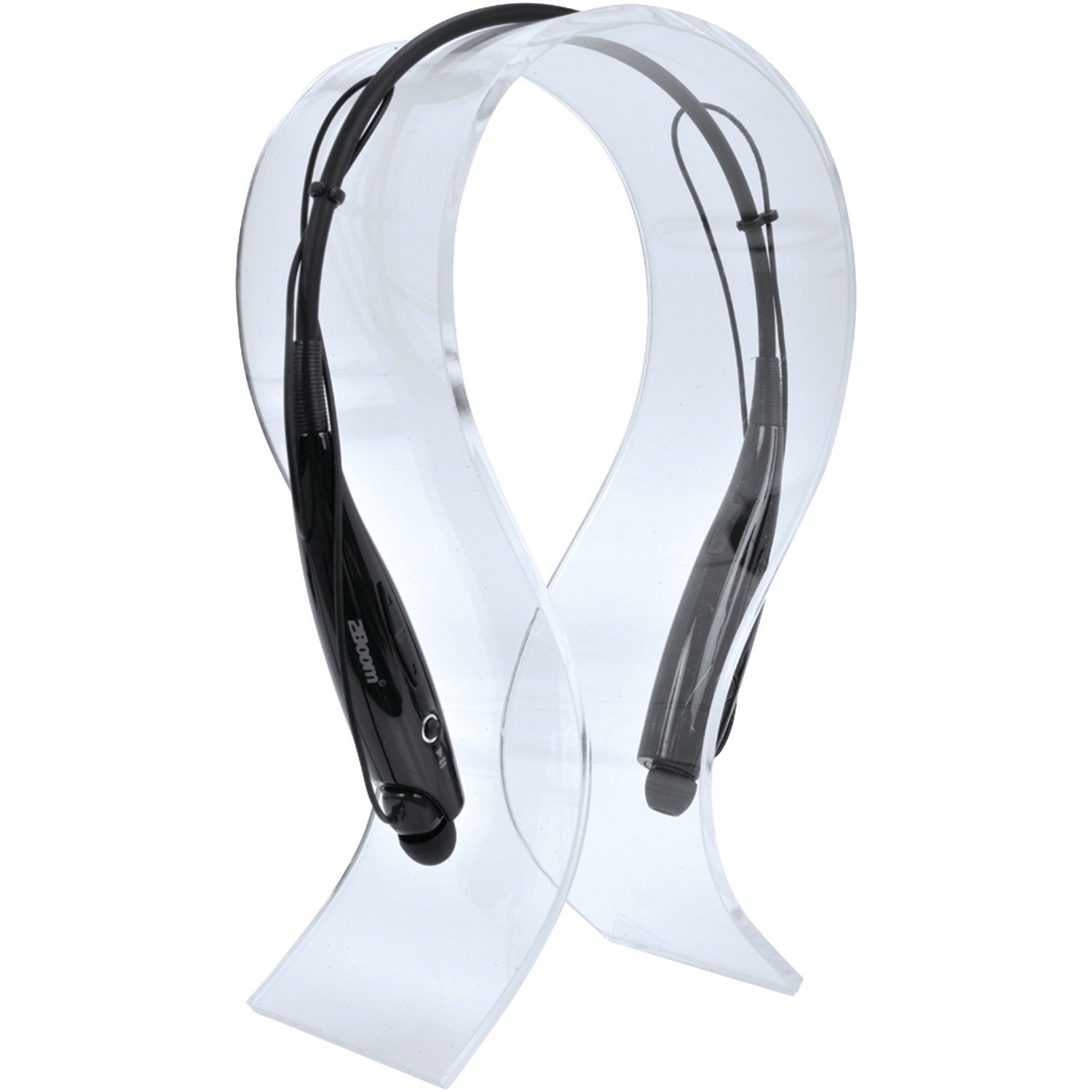
Image: The 2BOOM HPBT500K Wireless Headphone, showcasing its design.
Image: The included USB charging cable for the headphones.
3. Product Overview
Familiarize yourself with the various parts and controls of your HPBT500K headphones.

Image: Side view of the 2BOOM HPBT500K Wireless Headphone, highlighting control buttons and ports.
Controls and Indicators:
- Power Button: Used to turn the headphones on/off and for pairing.
- Volume Up/Next Track: Increases volume or skips to the next song.
- Volume Down/Previous Track: Decreases volume or goes to the previous song.
- Multi-function Button (MFB): Play/Pause, Answer/End Call.
- Microphone: For hands-free communication.
- LED Indicator: Shows power status, pairing mode, and charging status.
- Micro USB Charging Port: For connecting the charging cable.
4. Charging the Headphones
Before first use, fully charge your headphones. A full charge typically takes about 2-3 hours.
- Connect the small end of the USB charging cable to the Micro USB charging port on your headphones.
- Connect the larger end of the USB charging cable to a USB power source (e.g., computer USB port, USB wall adapter). Ensure the power source provides DC 5V.
- The LED indicator will illuminate during charging and change color or turn off once charging is complete.
Note: Do not use chargers with a voltage higher than DC 5V, as this may damage the headphones.
5. Setup and Bluetooth Pairing
Follow these steps to pair your HPBT500K headphones with your Bluetooth-enabled device.
- Power On: Press and hold the Power button on the headphones until the LED indicator flashes, usually alternating blue and red, indicating pairing mode.
- Activate Bluetooth: On your smartphone, tablet, or other Bluetooth device, go to the Bluetooth settings and ensure Bluetooth is turned on.
- Search for Devices: Your device will scan for available Bluetooth devices.
- Select 'HPBT500K': From the list of found devices, select 'HPBT500K'.
- Confirm Pairing: Once paired, the LED indicator on the headphones will typically flash blue slowly or remain solid blue, and your device may confirm the connection.
The operating distance for Bluetooth connectivity is up to 33 feet (10 meters) in an open environment. Obstacles may reduce this range.
6. Operating Instructions
Music Playback:
- Play/Pause: Press the Multi-function Button (MFB) once.
- Next Track: Press and hold the Volume Up button.
- Previous Track: Press and hold the Volume Down button.
- Volume Up: Press the Volume Up button briefly.
- Volume Down: Press the Volume Down button briefly.
Music playback time is up to 3 hours on a full charge.
Hands-Free Calling:
- Answer Call: Press the MFB once when a call comes in.
- End Call: Press the MFB once during a call.
- Reject Call: Press and hold the MFB for approximately 2 seconds when a call comes in.
- Redial Last Number: Double-press the MFB.
Talk time is up to 3 hours on a full charge.
7. Maintenance
To ensure the longevity and optimal performance of your headphones, follow these maintenance guidelines:
- Keep the headphones dry. Avoid exposure to moisture, rain, or liquids.
- Clean the headphones with a soft, dry cloth. Do not use harsh chemicals or abrasive cleaners.
- Store the headphones in a cool, dry place away from extreme temperatures.
- Avoid dropping or subjecting the headphones to strong impacts.
- Do not attempt to disassemble or modify the headphones, as this will void the warranty.
8. Troubleshooting
If you encounter issues with your HPBT500K headphones, refer to the following common problems and solutions:
- Headphones not turning on:
Ensure the headphones are fully charged. Connect them to a power source using the provided USB cable. - Cannot pair with device:
Make sure Bluetooth is enabled on your device and the headphones are in pairing mode (LED flashing blue/red). Move the headphones closer to your device. Try turning both devices off and on again. - No sound or low volume:
Check the volume levels on both the headphones and your connected device. Ensure the headphones are properly paired. - Poor sound quality or disconnections:
Ensure there are no obstructions between the headphones and your device. Move closer to your device. Avoid environments with strong Wi-Fi or other wireless interference. - Microphone not working:
Ensure the headphones are properly connected and selected as the audio input device on your phone/computer.
9. Specifications
| Feature | Specification |
|---|---|
| Bluetooth Version | 2.1 + EDR |
| Operating Distance | Up to 33 feet (10 meters) |
| Music Playback Time | Up to 3 hours |
| Talk Time | Up to 3 hours |
| Charging Input Voltage | DC 5V |
| Charging Time | Approximately 2-3 hours |
| Speaker Output | 2 x 40mW |
| Built-in Battery | 3.7V, 150mAh |
| Item Weight | 113 g |
| Product Dimensions (LxWxH) | 23.11 x 16.76 x 3.81 cm |
| Included Components | Headphone with charging cable |
| Control Method | Touch |
| Special Features | Lightweight, Microphone Included |
10. Warranty and Support
For warranty information or technical support, please refer to the documentation provided at the time of purchase or contact 2BOOM customer service. Keep your proof of purchase for warranty claims.


