
Logitech MK850
Logitech MK850 Performance Wireless Keyboard and Mouse Set User Manual
Model: MK850 | Brand: Logitech
1. Product Overview
The Logitech MK850 Performance Wireless Keyboard and Mouse Set offers a comfortable and productive computing experience. This versatile set features dual connectivity options (Logitech Unifying USB receiver or Bluetooth Smart technology) and Easy-Switch functionality, allowing seamless transition between multiple devices. The keyboard includes a padded palm rest and carefully designed keys for extended comfort, while the ergonomically shaped mouse for right-handers boasts a hyper-fast scroll wheel and customizable buttons via Logitech DuoLink software.

Figure 1.1: The Logitech MK850 Performance Wireless Keyboard and Mouse Set, showcasing the full-size keyboard with integrated palm rest and the ergonomic mouse.
2. Setup Guide
2.1 Package Contents
- Logitech MK850 Wireless Keyboard
- Logitech MK850 Wireless Mouse
- Logitech Unifying USB Receiver
- AA Batteries (for mouse)
- AAA Batteries (for keyboard)
2.2 Battery Installation
The keyboard requires 2 AAA batteries and the mouse requires 1 AA battery. Batteries are typically included.
- Locate the battery compartments on the underside of the keyboard and mouse.
- Open the battery covers.
- Insert the batteries, ensuring correct polarity (+/-).
- Close the battery covers securely.
2.3 Connecting Your Devices
The MK850 set offers two connection methods: Logitech Unifying USB Receiver or Bluetooth Smart technology.
2.3.1 Using the Logitech Unifying Receiver
- Plug the Logitech Unifying USB receiver into an available USB port on your computer.
- Turn on the keyboard and mouse using their respective power switches.
- The devices should automatically connect to the receiver. If not, press and hold one of the Easy-Switch buttons (1, 2, or 3) on the keyboard and mouse until the LED blinks rapidly, then release. The device is now in pairing mode.
- For advanced pairing, download and install the Logitech Options software from the official Logitech website.
2.3.2 Using Bluetooth Smart Technology
- Turn on the keyboard and mouse using their respective power switches.
- Press and hold one of the Easy-Switch buttons (1, 2, or 3) on the keyboard and mouse until the LED blinks rapidly. This indicates pairing mode.
- On your computer or device, open Bluetooth settings.
- Select "Logitech MK850 Keyboard" and "Logitech MK850 Mouse" from the list of available devices to pair.
- Follow any on-screen prompts to complete the pairing process.
3. Operating Instructions
3.1 Keyboard Functions
- Padded Palm Rest: Provides ergonomic support for comfortable typing over extended periods.
- Function Keys (F1-F12): Perform various system functions. Some keys may have secondary functions accessible via the 'Fn' key.
- QWERTZ Layout: Standard German keyboard layout.
- Easy-Switch Buttons (1, 2, 3): Located above the numeric keypad, these buttons allow you to instantly switch the keyboard's connection between up to three paired devices.
3.2 Mouse Functions
- Ergonomic Shape: Designed for comfortable use by right-handed users.
- Hyper-Fast Scroll Wheel: Allows for rapid scrolling through long documents or web pages. Press the button behind the scroll wheel to toggle between hyper-fast and click-to-click scrolling.
- Programmable Buttons: The mouse features additional buttons that can be customized using Logitech Options software for specific functions.
- Easy-Switch Buttons (1, 2, 3): Located on the side of the mouse, these buttons allow you to instantly switch the mouse's connection between up to three paired devices.
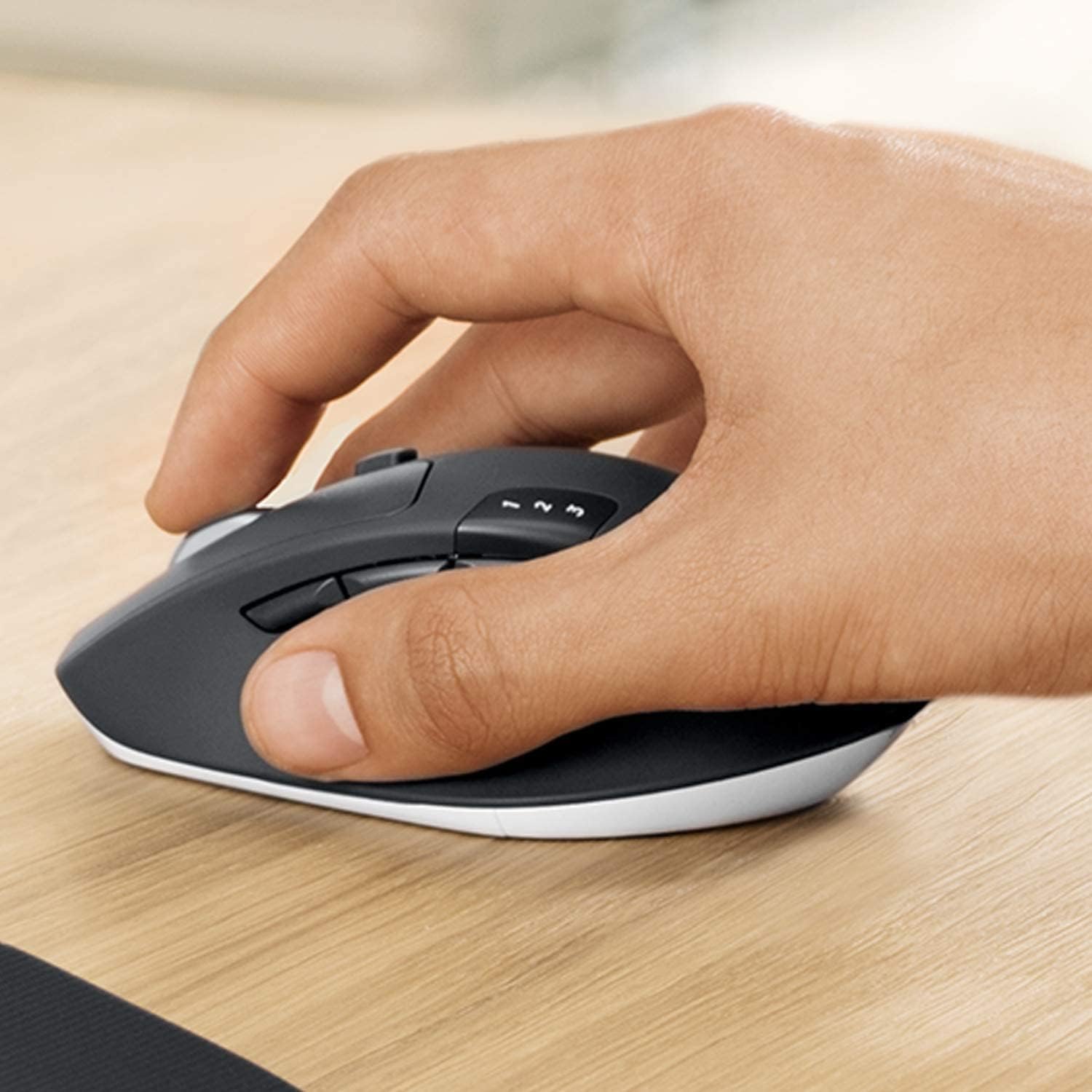
Figure 3.1: A hand demonstrating the ergonomic grip on the Logitech MK850 mouse.

Figure 3.2: A detailed view of the Logitech MK850 mouse, highlighting its scroll wheel and Easy-Switch buttons.
3.3 DuoLink Software
Logitech DuoLink is a feature within Logitech Options software that allows the mouse and keyboard to work together for enhanced functionality. For example, holding the Fn key on the keyboard can change the mouse's button functions.
Download Logitech Options from the official Logitech website to customize your device settings, program buttons, and enable DuoLink.
4. Care and Maintenance
- Cleaning: Use a soft, lint-free cloth slightly dampened with water or a mild cleaning solution to clean the surfaces of the keyboard and mouse. Avoid harsh chemicals or abrasive materials.
- Battery Replacement: Replace batteries when the low battery indicator light illuminates. Ensure to use the correct battery type (AAA for keyboard, AA for mouse).
- Storage: When not in use for extended periods, turn off the devices to conserve battery life. Store in a cool, dry place.
5. Troubleshooting
5.1 Connection Issues
- No Connection: Ensure the keyboard and mouse are turned on. Check battery levels. For Unifying receiver, try plugging it into a different USB port. For Bluetooth, ensure Bluetooth is enabled on your device and the devices are in pairing mode.
- Interference: Move the devices closer to the receiver or Bluetooth-enabled device. Avoid placing them near other wireless devices that might cause interference (e.g., Wi-Fi routers, cordless phones).
- Re-pairing: If connection is lost, try re-pairing the devices using the steps in Section 2.3.
5.2 Performance Issues
- Lag or Delay: Ensure sufficient battery power. Reduce distance between devices and receiver/Bluetooth host. Close other applications that might be consuming system resources.
- Mouse Tracking Issues: Clean the mouse sensor. Use the mouse on a suitable surface (non-reflective, non-transparent).
6. Technical Specifications
| Feature | Specification |
|---|---|
| Brand | Logitech |
| Model | MK850 |
| Connectivity Technology | Bluetooth Smart, Logitech Unifying (2.4 GHz wireless) |
| Compatible Devices | PC (Windows 10/11 or later), Mac (macOS 10.15 or later), Chrome OS, Linux, iPadOS 13.4 or later, Android 7 or later |
| Keyboard Dimensions (L x W x H) | Approx. 43 x 21 x 2.5 cm |
| Mouse Dimensions (L x W x H) | Approx. 99 x 60 x 39 mm |
| Item Weight | Approx. 845 g (total for set) |
| Battery Type | Keyboard: 2 x AAA; Mouse: 1 x AA |
| Battery Life | Up to 36 months (keyboard), up to 24 months (mouse) - May vary based on usage. |
| Color | Black |

Figure 6.1: Dimensions of the Logitech MK850 mouse.
7. Warranty and Support
Logitech products are manufactured to high quality standards and are designed to provide reliable performance. For detailed warranty information specific to your region and product, please refer to the warranty card included with your product or visit the official Logitech support website.
For technical support, FAQs, and driver downloads, please visit the Logitech support website:
- Logitech Support Website: support.logi.com
When contacting support, please have your product model (MK850) and serial number ready.
Related documentsMK850


Ask a question about this manual
Ask about setup, troubleshooting, compatibility, parts, safety, or missing instructions. Manuals+ will review the question and use this page’s manual context to help answer it.