
1. Introduction
This manual provides comprehensive instructions for the setup, operation, maintenance, and troubleshooting of your Avaya 9641G Gigabit IP Color Touchscreen Display Phone. Please read this manual thoroughly to ensure proper use and to maximize the functionality of your device.
2. Product Overview
The Avaya 9641G is a high-performance IP desk phone designed for advanced communication needs. It features a large color touchscreen display, Gigabit Ethernet connectivity, and a wide range of telephony features to enhance productivity.
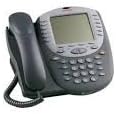
Figure 1: Front view of the Avaya 9641G Gigabit IP Color Touchscreen Display Phone. This image shows the phone's main body, handset, and the prominent color touchscreen display, along with the keypad and function buttons.
3. Setup
Follow these steps to set up your Avaya 9641G IP Phone:
- Connect the Handset: Plug one end of the coiled handset cord into the handset jack on the side of the phone and the other end into the handset.
- Connect the Network Cable: Connect one end of an Ethernet cable to the LAN port on the back of the phone and the other end to a network jack or switch. The 9641G supports Gigabit Ethernet.
- Connect Power (if not using PoE): If your network does not provide Power over Ethernet (PoE), connect the power adapter (sold separately) to the power jack on the back of the phone and then to an electrical outlet.
- Optional: Connect a Headset: If using a headset, plug it into the headset jack on the side of the phone.
- Initial Boot-up: The phone will power on automatically. It may take a few minutes to boot up and connect to the network. Follow any on-screen prompts for initial configuration or login.
4. Operating Instructions
4.1 Basic Call Functions
- Making a Call:
- Lift the handset or press the Speaker button.
- Dial the number using the keypad or select a contact from the directory.
- Press the Call softkey or wait for the call to connect.
- Answering a Call:
- Lift the handset, press the Speaker button, or press the Answer softkey.
- Ending a Call:
- Replace the handset or press the End Call softkey.
4.2 Using the Touchscreen Display
The color touchscreen allows for intuitive navigation and access to various features. Tap icons or menu options to select them. Swipe gestures may be used for scrolling through lists or pages.
4.3 Accessing Features
- Contacts/Directory: Tap the Contacts icon to access your personal and corporate directories.
- Call History: Tap the History icon to view missed, received, and dialed calls.
- Voicemail: Press the Message button or tap the Voicemail icon to access your voicemail messages.
- Settings: Tap the Settings icon to adjust display, audio, and other phone preferences.
4.4 Adjusting Volume
Use the Volume buttons located on the side of the phone to adjust the handset, speaker, or ringer volume during a call or when idle.
5. Maintenance
- Cleaning the Phone: Use a soft, damp, lint-free cloth to clean the phone's exterior and display. Avoid using abrasive cleaners, solvents, or aerosol sprays.
- Handset and Cords: Regularly check the handset cord for tangles or damage. Ensure all cables are securely connected.
- Environmental Conditions: Keep the phone away from excessive heat, direct sunlight, and moisture.
6. Troubleshooting
If you encounter issues with your Avaya 9641G phone, refer to the following common problems and solutions:
| Problem | Possible Solution |
|---|---|
| No Dial Tone |
|
| Display is Blank or Frozen |
|
| Cannot Make/Receive Calls |
|
7. Specifications
- Model: Avaya 9641G
- Part Number: 700480627-16619
- Brand: AVAYA Co
- Connectivity: Gigabit Ethernet (10/100/1000 Mbps)
- Display: Color Touchscreen
- Dialer Type: Single Keypad
- Answering System Type: Digital
- Caller Identification: No (as per product specifications)
- First Available: December 8, 2016
8. Warranty and Support
This Avaya product is typically covered by a manufacturer's warranty. For specific warranty terms and conditions, please refer to the documentation provided at the time of purchase or contact your Avaya reseller or service provider. For technical support, troubleshooting assistance beyond this manual, or service inquiries, please contact your authorized Avaya support channel.
Note: Parts should be installed by experienced technicians to ensure proper functionality and to maintain warranty validity.