1. Product Overview
The KYOCERA ECOSYS M5526cdn is a versatile A4 color multifunctional system designed for efficient office environments. It combines printing, copying, and scanning functionalities in one compact device, offering high-quality output and robust performance.

Figure 1.1: Front view of the KYOCERA ECOSYS M5526cdn printer.
Key Features:
- CO2-neutral A4 color multifunctional system.
- Print, Copy, and Scan capabilities.
- Original feeder for up to 50 sheets (up to A4).
- Up to 26 DIN A4 pages per minute in black and white and color.
- 250-sheet paper cassette and 50-sheet universal feeder (up to A4).
- Resolution up to 1200 x 1200 dpi.
- USB and Gigabit network interface.
- 10.9 cm touch display for intuitive operation.
- Duplex unit for double-sided printing, copying, and scanning.
- "Quiet Print" function for reduced noise.
- High security through SSL, IPsec, and "Confidential Print" features.
- Document-proof (PTS certificate).

Figure 1.2: Overview of key features including CO2 neutrality, print/copy/scan, 50-sheet ADF, 26 ppm speed, 250-sheet cassette, 1200 dpi resolution, USB/Gigabit interface, and 10.9 cm touch display.
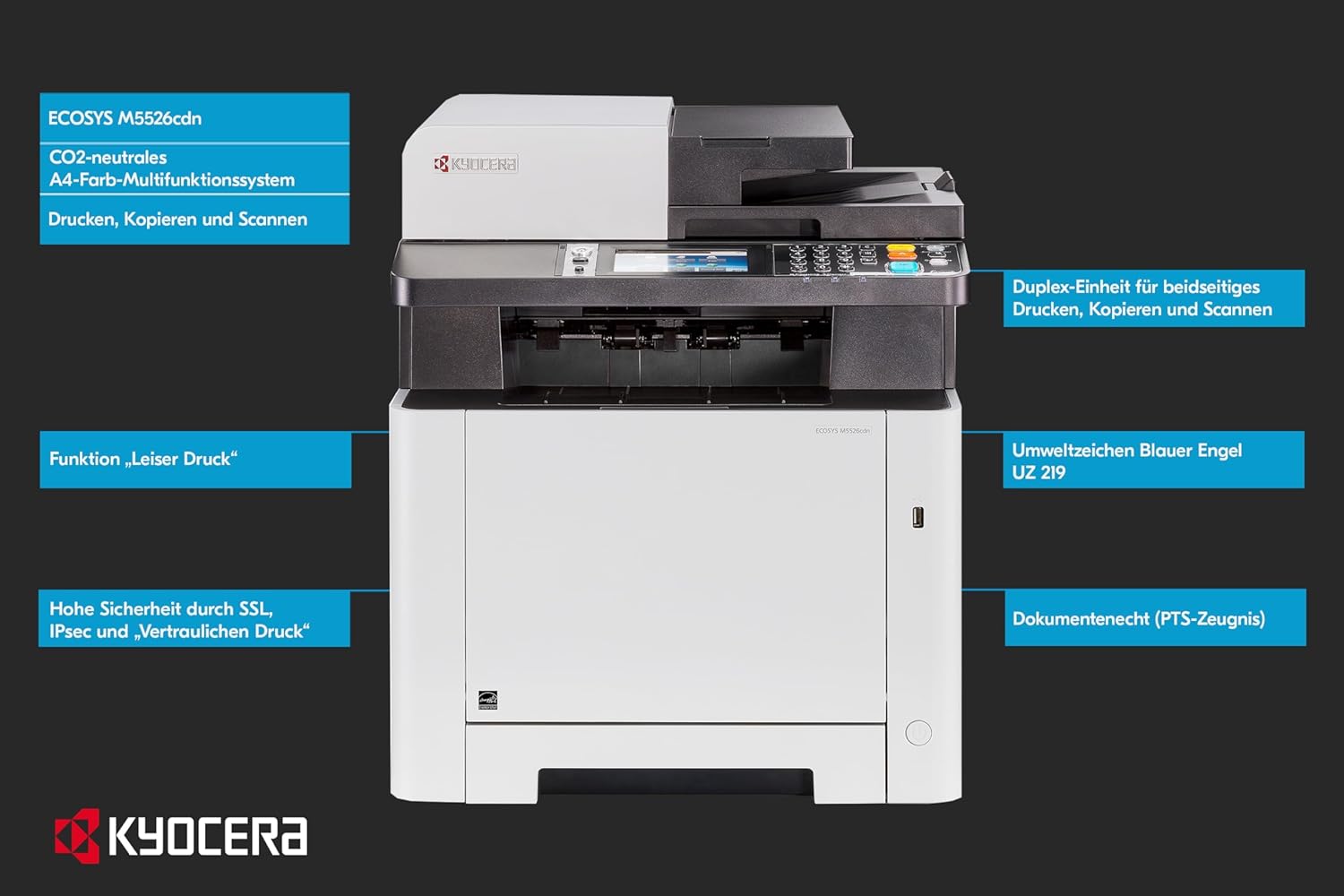
Figure 1.3: Additional features highlighted, such as the duplex unit, "Quiet Print" function, Blue Angel environmental label, high security protocols, and document proofing.
What's in the Box:
- KYOCERA ECOSYS M5526cdn Printer
- Toner Cartridges (Starter Set)
- Power Cable
- Setup Guide
- Driver CD/DVD (or link to download)
2. Setup Guide
2.1 Unpacking the Printer
Carefully remove the printer from its packaging. Ensure all packing materials, tapes, and protective films are removed from the exterior and interior of the device. Retain the packaging for future transport if needed.
2.2 Connecting Power
Connect the power cable to the printer's power input port, located at the rear of the device. Plug the other end into a grounded electrical outlet. Do not power on the printer until all other connections are made.

Figure 2.1: Rear view of the printer, highlighting the power input and network ports.
2.3 Installing Toner Cartridges
Open the front cover of the printer. Gently shake each toner cartridge horizontally a few times to distribute the toner evenly. Insert each cartridge into its corresponding slot until it clicks into place. Close the front cover securely.
2.4 Loading Paper
Open the paper cassette or the multi-purpose tray. Adjust the paper guides to fit the size of the paper you are loading. Insert the paper stack, ensuring it is not overfilled. Close the tray or cassette.
2.5 Connecting to Network/Computer
For network connectivity, connect an Ethernet cable from your network router or switch to the Ethernet port on the rear of the printer. For direct USB connection, connect a USB cable from your computer to the USB port on the printer.
2.6 Driver Installation
Once the printer is physically connected and powered on, install the necessary drivers on your computer. You can typically find the latest drivers on the official KYOCERA website or use the provided installation media. Follow the on-screen instructions to complete the installation.
3. Operating Instructions
3.1 Control Panel Overview
The printer features a 10.9 cm touch display and physical buttons for easy navigation and operation. Familiarize yourself with the layout and functions of the control panel.

Figure 3.1: Detailed view of the printer's control panel, showing the touch display and various function buttons.

Figure 3.2: A user interacting with the touch screen interface of the control panel.
3.2 Basic Printing
To print a document, open the document on your computer and select 'Print'. Choose the KYOCERA ECOSYS M5526cdn from the list of available printers. Adjust print settings such as paper size, orientation, and color/monochrome preference as needed, then click 'Print'.

Figure 3.3: Printed documents being delivered to the output tray.
3.3 Copying Documents
Place your document face-up in the Automatic Document Feeder (ADF) or face-down on the scanner glass. On the control panel, select the 'Copy' function. Adjust settings like number of copies, color/monochrome, and duplex options. Press the 'Start' button to begin copying.

Figure 3.4: Loading documents into the Automatic Document Feeder for copying or scanning.
3.4 Scanning Documents
Place your document in the ADF or on the scanner glass. On the control panel, select the 'Scan' function. Choose your desired scan destination (e.g., email, network folder, USB drive) and adjust scan settings like resolution and file format. Press 'Start' to scan.
4. Maintenance
4.1 Replacing Toner Cartridges
When a toner cartridge is low or empty, the printer will display a notification. Open the front cover, remove the old cartridge by pulling it out, and insert a new, genuine KYOCERA toner cartridge until it clicks into place. Close the cover.
4.2 Cleaning the Printer
Regularly wipe the exterior of the printer with a soft, damp cloth. For the scanner glass, use a lint-free cloth and a non-abrasive glass cleaner. Avoid spraying cleaner directly onto the glass; apply it to the cloth first.
4.3 Clearing Paper Jams
If a paper jam occurs, the printer display will indicate the location of the jam. Carefully open the indicated covers or trays and gently pull out the jammed paper in the direction of the paper path. Ensure no torn pieces remain inside. Refer to the on-screen instructions for specific jam locations.
5. Troubleshooting
This section provides solutions to common issues you might encounter with your KYOCERA ECOSYS M5526cdn printer.
5.1 Printer Not Responding
- Check if the printer is powered on and connected to the power outlet.
- Verify that the USB or Ethernet cable is securely connected to both the printer and the computer/network.
- Restart the printer and your computer.
- Ensure the correct printer driver is installed and selected on your computer.
5.2 Poor Print Quality
- Check toner levels and replace any low or empty cartridges.
- Ensure you are using genuine KYOCERA toner cartridges.
- Perform a print head cleaning or calibration from the printer's maintenance menu.
- Check paper type and quality settings in your print driver.
5.3 Paper Jams Occur Frequently
- Ensure paper is loaded correctly and not overfilled in the trays.
- Use paper that meets the printer's specifications (weight, type).
- Fan the paper stack before loading to prevent sheets from sticking together.
- Clean the paper feed rollers if they appear dirty.
5.4 Error Codes
If an error code appears on the control panel, consult the printer's display for a brief explanation or refer to the comprehensive error code list available on the KYOCERA support website for detailed troubleshooting steps.
6. Specifications
Detailed technical specifications for the KYOCERA ECOSYS M5526cdn.
| Feature | Specification |
|---|---|
| Model Name | M5526cdn |
| Printing Technology | Laser |
| Printer Output | Monochrome & Color |
| Maximum Print Speed (Color) | 26 ppm |
| Max Printspeed Monochrome | 26 ppm |
| Maximum Color Print Resolution | 600 x 600 dpi |
| Maximum Black and White Print Resolution | 600 x 600 dpi |
| Duplex Printing | Automatic |
| Scanner Type | Sheetfed |
| Max Copy Speed (Black & White) | 26 ppm |
| Max Input Sheet Capacity | 550 sheets (250-sheet cassette + 50-sheet universal feeder) |
| Output Sheet Capacity | 250 sheets |
| Connectivity Technology | Ethernet, USB 2.0 (1 port) |
| Memory Storage Capacity | 512 MB |
| Product Dimensions | 16.89 x 16.42 x 19.49 inches |
| Item Weight | 57.2 pounds (26 Kilograms) |
| Wattage | 375 watts |
| Sheet Size | A4 [NA], Maximum Media Size: A4 |
| UPC | 632983036600 |

Figure 6.1: Angled view of the KYOCERA ECOSYS M5526cdn, showcasing its design.

Figure 6.2: The Energy Star certification logo, indicating energy efficiency.

Figure 6.3: Computer Bild Trusted Solutions 2018 award logo, recognizing KYOCERA in printer maintenance and service.
7. Warranty Information
The KYOCERA ECOSYS M5526cdn comes with a limited warranty. For specific terms, conditions, and duration of the warranty, please refer to the warranty documentation included with your product or visit the official KYOCERA support website. Keep your proof of purchase for warranty claims.
8. Support and Contact
For further assistance, technical support, or to order replacement parts and consumables, please visit the official KYOCERA support website or contact their customer service. Online resources often include FAQs, driver downloads, and detailed troubleshooting guides.
Online Support: www.kyoceradocumentsolutions.com
Please have your printer's model number (M5526cdn) and serial number ready when contacting support.


