
KINGTOP K168
KINGTOP 2.4G Wireless Vertical Ergonomic Optical Mouse User Manual
Model: K168
Product Overview
The KINGTOP 2.4G Wireless Vertical Ergonomic Optical Mouse is designed for comfort and efficiency, reducing wrist strain during extended use. It features dual connectivity (wireless and wired), adjustable DPI settings, and a long-lasting rechargeable battery.
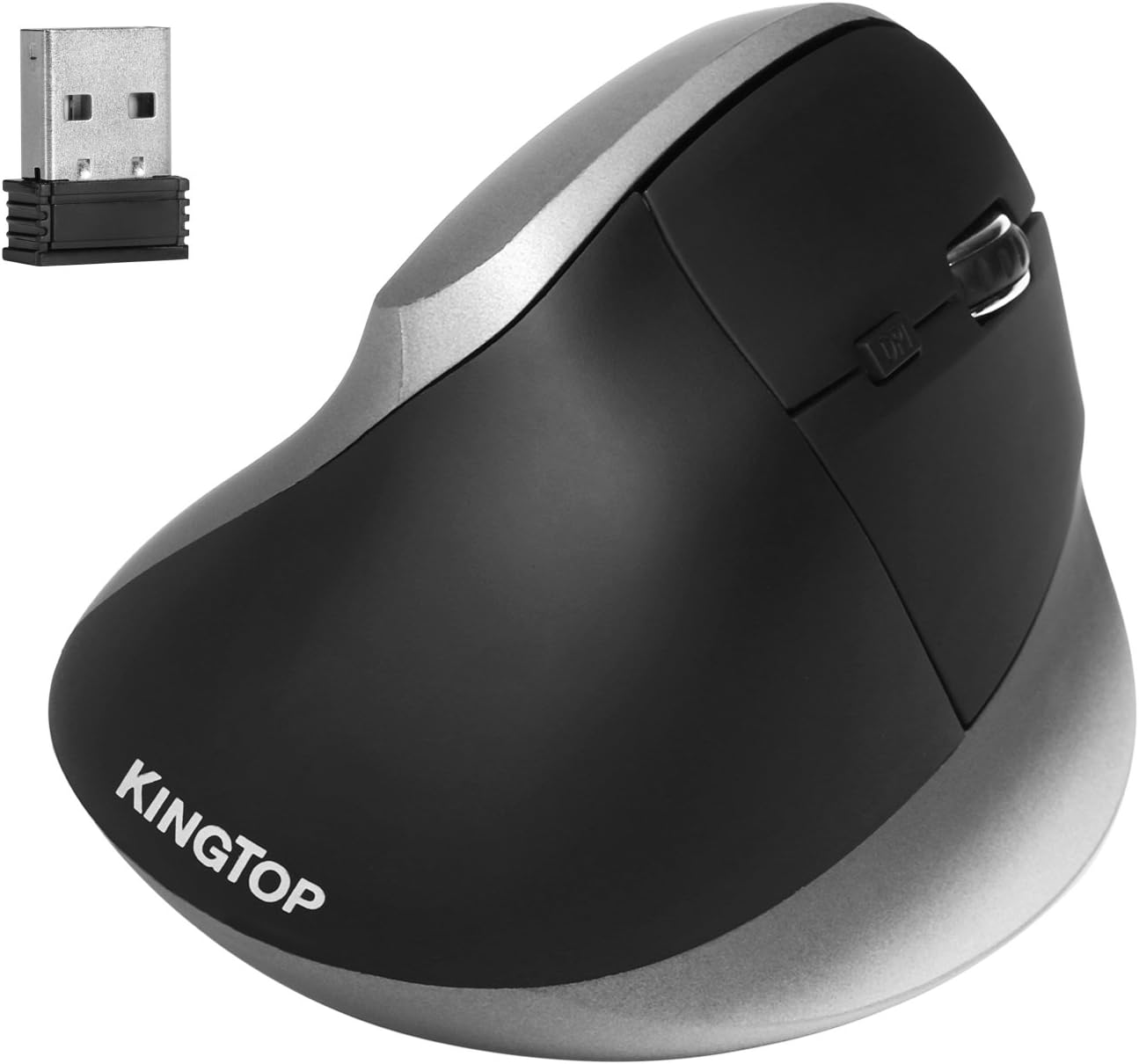
Image: The KINGTOP vertical ergonomic mouse shown with its accompanying USB receiver. This design promotes a natural hand and wrist posture.
Package Contents
Please verify that all items are present in the package:
- KINGTOP 2.4G Wireless Vertical Ergonomic Optical Mouse
- Mini USB Receiver
- USB Charging Cable
- User Manual (this document)

Image: The retail box displaying the KINGTOP vertical mouse, USB receiver, USB charging cable, and user manual.
Setup and Installation
1. Charging the Mouse
Before first use, it is recommended to fully charge the mouse. Connect the included USB charging cable to the mouse's charging port and the other end to a USB power source (e.g., computer USB port, USB wall adapter).
- The side LED indicator will show charging status.
- A full charge provides approximately 33 hours of continuous wireless use or one week of typical 8-hour office work.
- The mouse can be used while charging.

Image: The mouse connected via its USB charging cable, indicating the charging process.
2. Connecting the Mouse (Wireless Mode)
- Locate the mini USB receiver stored in the compartment on the bottom of the mouse.
- Plug the USB receiver into an available USB port on your computer.
- Turn on the mouse using the ON/OFF switch located on the bottom of the mouse.
- The mouse should be automatically recognized by your operating system (Plug & Play).

Image: The underside of the mouse, highlighting the storage slot for the USB receiver and the power switch.
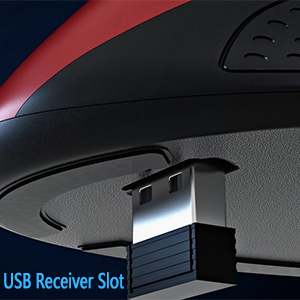
Image: A close-up view of the USB receiver securely stored within its dedicated slot on the mouse's base.
3. Connecting the Mouse (Wired Mode)
For wired connectivity, simply connect the mouse to your computer using the provided USB charging cable. The mouse will function as a wired mouse and charge simultaneously.
Operating Instructions
Ergonomic Design and Grip
The vertical design of this mouse is intended to promote a neutral wrist and forearm posture, reducing pronation and potential discomfort associated with traditional mice. Grip the mouse naturally, allowing your hand to rest comfortably on its sculpted surface.

Image: A hand demonstrating the natural, comfortable grip on the vertical ergonomic mouse, showcasing how it aligns the wrist.

Image: Various angles of the KINGTOP vertical mouse, highlighting its ergonomic contours designed for comfort.
Adjusting DPI Sensitivity
The mouse features 6 adjustable DPI (Dots Per Inch) levels, allowing you to customize cursor speed and precision. Press the DPI button located near the scroll wheel to cycle through the settings:
- 800 DPI: LED flashes 1 time
- 1200 DPI: LED flashes 2 times
- 1600 DPI: LED flashes 3 times
- 2400 DPI: LED flashes 4 times
- 3200 DPI: LED flashes 5 times
- 4800 DPI: LED flashes 6 times

Image: A diagram illustrating the 6 DPI levels and their corresponding LED flash patterns on the mouse.
Button Functions
The mouse is equipped with 6 buttons for enhanced productivity:
- Left Click Button
- Right Click Button
- Scroll Wheel: For vertical scrolling and middle-click function.
- DPI Button: Adjusts cursor sensitivity.
- Forward Button: Navigates forward in web browsers or file explorers.
- Backward Button: Navigates backward in web browsers or file explorers.
Power Saving Mode
The mouse features a smart auto-sleep mode to conserve battery power. If the mouse is inactive for a period, it will enter sleep mode. To wake it up, simply click any button or move the mouse.
When the battery level is approximately 20% or lower, the side LED indicator will flash red, signaling that it's time to recharge the mouse.
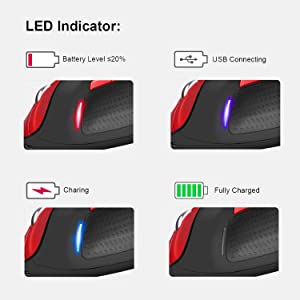
Image: Visual representation of the LED indicator states: low battery (flashing red), USB connected (blue), charging (blue), and fully charged (off or solid blue).
Maintenance
- Cleaning: Use a soft, dry cloth to clean the mouse. Avoid using harsh chemicals or abrasive materials.
- Storage: When not in use for extended periods, turn off the mouse to conserve battery life. Store it in a cool, dry place.
- Battery Care: To prolong battery lifespan, avoid fully discharging the battery frequently. Recharge when the low battery indicator appears.
Troubleshooting
| Problem | Possible Solution |
|---|---|
| Mouse not responding (Wireless) |
|
| Cursor movement is erratic or slow |
|
| Mouse not charging |
|
| Forward/Backward buttons not working |
|
Specifications
| Feature | Detail |
|---|---|
| Model Number | K168 |
| Connectivity | 2.4GHz Wireless, Wired (via USB cable) |
| DPI Levels | 800 / 1200 / 1600 / 2400 / 3200 / 4800 DPI |
| Buttons | 6 (Left, Right, Scroll Wheel, DPI, Forward, Backward) |
| Movement Detection | Optical |
| Battery Type | Rechargeable Lithium Battery |
| Wireless Range | Up to 10m (33ft) |
| Product Dimensions | 4.63 x 3.2 x 2.4 inches (11.76 x 8.13 x 6.1 cm) |
| Item Weight | 3.88 ounces (110 grams) |
| Compatibility | Windows XP, Vista, 7, 8, 8.1, 10; Linux; Notebook, PC, Laptop, Computer |

Image: A technical drawing showing the length, width, and height dimensions of the KINGTOP vertical mouse.
Warranty and Support
For warranty information and technical support, please refer to the official KINGTOP website or contact their customer service directly. Keep your purchase receipt for warranty claims.
Manufacturer: KINGTOP INTERNATIONAL TECHNOLOGY COMPANY LIMITED
For further assistance, visit the KINGTOP Store on Amazon.
Ask a question about this manual
Ask about setup, troubleshooting, compatibility, parts, safety, or missing instructions. Manuals+ will review the question and use this page’s manual context to help answer it.