
1. Introduction
This manual provides detailed instructions for the installation, operation, and maintenance of the CP PLUS CP-UVR-1616K1-V3 16-Channel 1080P Digital Video Recorder (DVR). This device supports 16 channels of video input and 16 channels of audio input, offering comprehensive surveillance capabilities. It is designed for reliable performance in various security applications.
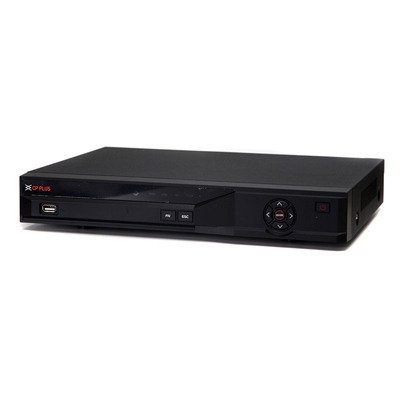
Figure 1: Front view of the CP PLUS CP-UVR-1616K1-V3 DVR unit.
2. Safety Precautions
- Ensure proper ventilation around the DVR to prevent overheating.
- Do not expose the device to water or moisture.
- Use only the power adapter supplied with the unit.
- Avoid placing the DVR in direct sunlight or near heat sources.
- Handle the device with care to prevent physical damage.
3. Setup and Installation
3.1 Unpacking
Carefully remove all components from the packaging. Verify that all items listed in the packing list are present.
3.2 Hardware Connections
- Connect Cameras: Connect your HDCVI, Analog, or IP cameras to the BNC video input ports (16 channels available) on the rear panel of the DVR.
- Connect Audio: Connect audio input devices to the 16 RCA audio input channels. Connect an audio output device to the 1 RCA audio output channel.
- Connect Display: Connect a monitor or television to the HDMI or VGA output port for video display.
- Connect Network: Connect an Ethernet cable from the DVR's network port to your router or network switch for remote access and IP camera integration.
- Install HDD (Optional): If not pre-installed, open the DVR casing and connect a SATA HDD (up to 6TB) to the internal SATA port. Secure the HDD with screws.
- Connect USB Devices: Connect a mouse or USB storage device to one of the two USB 2.0 ports.
- Power On: Connect the power adapter to the DVR and then to a power outlet. The DVR will power on automatically.
4. Operating Instructions
4.1 Initial Setup Wizard
Upon first power-on, the DVR will guide you through an initial setup wizard. Follow the on-screen prompts to configure basic settings such as language, date/time, network settings, and user accounts.
4.2 Live View
After initial setup, the DVR will display the live view of connected cameras. You can switch between different display splits (1/4/8/9/16 channels) using the on-screen controls or mouse.
4.3 Recording
The DVR supports various recording modes including continuous, motion detection, and scheduled recording.
- Main Stream Recording: 1080P (1~15fps), 1080N/720P/960H/D1/HD1/BCIF/CIF/QCIF (1~25/30fps).
- Extra Stream Recording: CIF/QCIF (1~15fps).
Access the recording settings through the main menu to configure your preferred recording schedule and parameters.
4.4 Playback
To review recorded footage, navigate to the Playback menu. You can search for recordings by date, time, and event type.
4.5 Mobile Access
Download the official mobile applications (iCMOB, gCMOB, wCMOB) from your device's app store to access live view and playback remotely. Refer to the app's instructions for setup.
4.6 CMS Software
For centralized management of multiple DVRs, use the KVMS or KVMS Pro CMS software. Install the software on a compatible computer and follow the provided instructions for device addition and management.
5. Maintenance
- Regular Cleaning: Keep the DVR free from dust. Use a soft, dry cloth for cleaning. Do not use liquid cleaners.
- Firmware Updates: Periodically check the CP PLUS official website for firmware updates to ensure optimal performance and security.
- Hard Drive Health: Monitor the health of the installed hard drive through the DVR's system settings. Replace the HDD if errors are detected.
- Backup Recordings: Regularly back up important recordings to an external USB storage device or network storage.
6. Troubleshooting
| Problem | Possible Cause | Solution |
|---|---|---|
| No video output on monitor. | Loose HDMI/VGA cable, incorrect input selected on monitor, DVR not powered on. | Check cable connections, ensure monitor is on correct input, verify DVR power. |
| Cameras not displaying. | Loose BNC cable, camera power issue, incorrect camera type selected. | Check camera connections and power, verify camera compatibility and settings in DVR menu. |
| No recording. | HDD not installed or faulty, recording schedule not configured, insufficient storage. | Install/check HDD, configure recording schedule, check HDD space. |
| Remote access not working. | Network cable disconnected, incorrect network settings, firewall blocking. | Check network cable, verify IP address/gateway/DNS settings, configure port forwarding or P2P. |
7. Specifications
| Feature | Detail |
|---|---|
| Model | CP-UVR-1616K1-V3 |
| Video Input | 16 channel BNC (HDCVI/Analog/IP up to 5Mp) |
| Audio Input/Output | 16 channel RCA input, 1 channel RCA output |
| Video Output | 1 HDMI, 1 VGA (Simultaneous) |
| Video Resolution | 1080P(1920×1080), 1080N(960×1080), 720P, 960H, D1, HD1, BCIF, CIF, QCIF |
| Video Compression | H.264 |
| Audio Compression | G.711 |
| Recording Frame Rate (Main Stream) | 1080P (1~15fps), 1080N/720P/960H/D1/HD1/BCIF/CIF/QCIF (1~25/30fps) |
| HDD Support | 1 SATA port, up to 6TB |
| USB Interface | 2 x USB 2.0 |
| Mobile Software | iCMOB, gCMOB, wCMOB |
| CMS Software | KVMS, KVMS Pro |
| Dimensions | 325mm x 255mm x 55mm |
| Weight | 1.5Kg (without HDD) |
8. Support and Warranty
For technical assistance, product support, or warranty inquiries, please contact CP PLUS customer service. Refer to the official CP PLUS website for the most current contact information and warranty terms.
Official Website: www.cpplusworld.com
Keep your purchase receipt as proof of purchase for warranty claims.


