
Canon VIXIA HF G20
Canon VIXIA HF G20 Camcorder User Manual
Model: VIXIA HF G20
1. Introduction
Welcome to the user manual for your Canon VIXIA HF G20 Camcorder. This document provides essential information for setting up, operating, and maintaining your device. The VIXIA HF G20 is designed for high-quality video recording, featuring a 10x HD video lens, a 3.5-inch touchscreen LCD, and advanced image stabilization technologies.
Please read this manual thoroughly before using your camcorder to ensure proper operation and to maximize its capabilities.
2. Safety Information
Observe the following safety precautions to prevent injury or damage to your camcorder:
- Do not expose the camcorder to water or moisture.
- Avoid extreme temperatures.
- Use only Canon-approved batteries and accessories.
- Keep the lens clean and free from dust.
- Do not attempt to disassemble or modify the camcorder.
3. Setup
3.1. Unpacking
Your package includes the Canon VIXIA HF G20 Camcorder body. Please check for any visible damage upon receipt.
3.2. Battery Installation and Charging
Insert the battery pack into the battery compartment until it clicks into place. Connect the power adapter to the camcorder and a power outlet to charge the battery. The charging indicator will show the status.
3.3. Memory Card Insertion
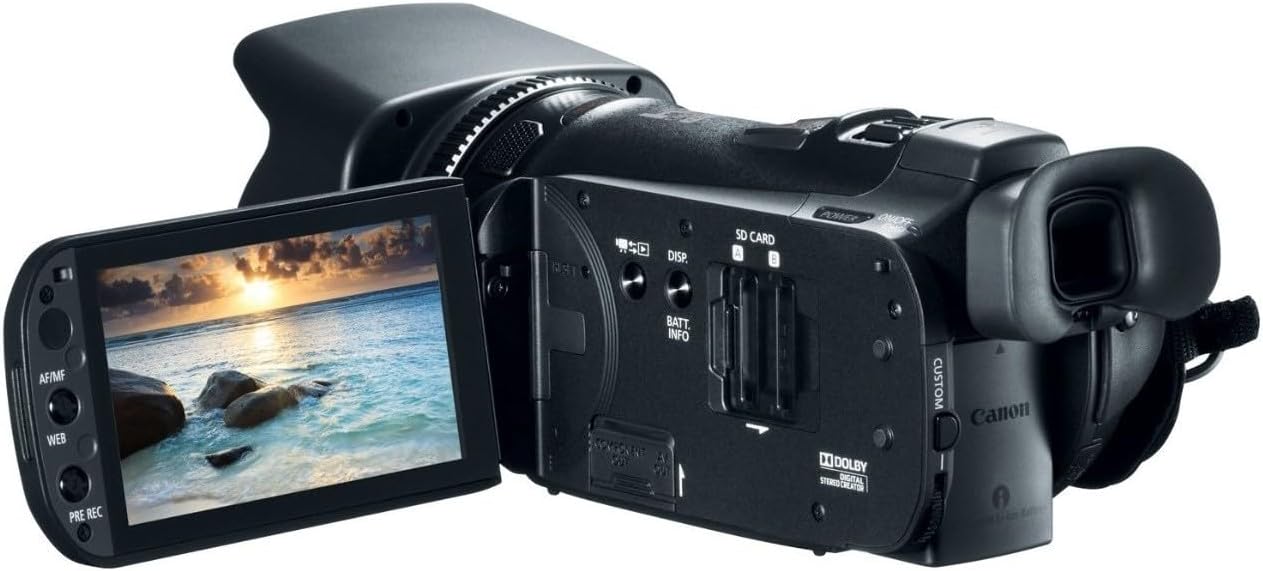
The camcorder supports SD and SDXC memory cards. Open the memory card slot cover and insert the card with the label facing the correct direction until it clicks. Ensure the card is fully inserted.
3.4. Attaching the Lens Hood
Align the lens hood with the front of the lens and twist it gently until it locks into position. The lens hood helps reduce glare and protects the lens.

3.5. Initial Power-On and Basic Settings
Press the POWER button to turn on the camcorder. Follow the on-screen prompts to set the date, time, and language. These settings are crucial for accurate video metadata.
4. Operating the Camcorder
4.1. Power On/Off
To power on the camcorder, slide the ON/OFF switch located near the rear of the device. To power off, slide the switch back to the OFF position.
4.2. Recording Video
The Canon VIXIA HF G20 features a 10x HD video lens and an HD CMOS Pro Image Sensor for superior video quality. It records in 1080p resolution in MP4 format.
- Start/Stop Recording: Press the REC START/STOP button, typically located on the rear or top of the camcorder, to begin and end recording.
- Zoom: Use the zoom lever (W/T) to adjust the 10x optical zoom.
- Image Stabilization: Dynamic SuperRange Optical Image Stabilization and Intelligent IS automatically reduce camera shake for smooth footage.
- Storage: Videos are recorded to the 32GB internal flash memory or inserted SD/SDXC cards. Relay Recording automatically switches to the second card when the first is full.
- Shooting Modes: Utilize Smart AUTO for automatic scene recognition or explore manual functions and Professional Shooting Assist Functions for greater control.
- Cinema-Look Filter: Apply one of the 9 built-in cinema-look filters for creative effects.

4.3. Capturing Photos
The camcorder can also capture still images. Refer to the on-screen menu for photo mode selection and settings.
4.4. Using the Display and Viewfinder
The VIXIA HF G20 features a bright 3.5-inch Touch Panel LCD and an Electronic Viewfinder (EVF) with a large eye cap. You can use either for monitoring your shots, and the camcorder supports simultaneous output to both.
- Touch Panel LCD: Navigate menus and adjust settings directly on the touchscreen.
- Electronic Viewfinder: Use the EVF for precise framing, especially in bright conditions.

4.5. Playback
To review your recordings, switch the camcorder to playback mode. Use the touchscreen or navigation buttons to browse and play back videos and photos.
4.6. Connectivity
The camcorder includes USB and HDMI ports for connecting to external devices. Use the USB port to transfer files to a computer and the HDMI port to view content on a TV or monitor.
5. Maintenance
- Cleaning: Use a soft, dry cloth to clean the camcorder body. For the lens, use a lens cleaning cloth and solution.
- Battery Care: Store batteries in a cool, dry place. Fully charge batteries before extended storage and recharge them every six months to maintain their lifespan.
- Storage: When not in use, store the camcorder in a protective case in a dry, dust-free environment.
6. Troubleshooting
| Problem | Solution |
|---|---|
| Camcorder does not power on. | Ensure the battery is charged and correctly inserted. Check the ON/OFF switch position. |
| Memory card error. | Reinsert the memory card. Ensure it is compatible and not damaged. Try a different card. |
| Blurry footage. | Check if the lens is clean. Ensure proper focus settings (auto or manual). Verify image stabilization is active. |
| No audio during playback. | Check volume settings on the camcorder and playback device. Ensure external microphones (if used) were properly connected and functioning during recording. |
7. Specifications
- Brand: Canon
- Model: VIXIA HF G20
- Lens: 10x HD Video Lens (30.4mm-304mm equivalent)
- Image Sensor: HD CMOS Pro (1/3-inch, 1920 x 1080)
- Video Capture Resolution: 1080p
- Video Capture Format: MP4
- Supported Audio Format: AAC, MP3
- Internal Memory: 32GB Flash Memory
- External Memory: SD, SDXC card slots
- Screen: 3.5 Inches Touch Panel LCD
- Image Stabilization: Dynamic SuperRange Optical Image Stabilization, Intelligent IS
- Connectivity: USB, HDMI
- Dimensions: 3 x 6.3 x 3.1 inches
- Item Weight: 1.27 pounds
8. Warranty and Support
For detailed warranty information and technical support, please refer to the official Canon website or contact Canon customer service. As this is a renewed product, specific warranty terms may vary; please consult your retailer for details regarding your purchase.