
1. Introduction
Thank you for purchasing the ExquizOn 5018D LED Projector. This manual provides essential information for the safe and efficient operation of your device. Please read it thoroughly before use and retain it for future reference.
The ExquizOn 5018D is a versatile multimedia projector featuring a 5.8-inch TFT LCD display, 3000 lumens brightness, and a native resolution of 1280x800 pixels, supporting up to 1080p. It includes a DVB-T2 tuner for digital television reception and offers various connectivity options.
2. Package Contents
Upon unpacking, ensure all the following items are present:
- 1 x ExquizOn 5018D LED Projector
- 1 x Remote Control
- 1 x Power Cable
- 1 x AV Cable
- 1 x VGA Cable
- 1 x DVB-T2 Antenna Cable
- 1 x Lens Cap
- 1 x User Manual (this document)
3. Product Overview
3.1. Projector Interfaces
Familiarize yourself with the various ports and controls on your projector.

Image 3.1: Rear panel of the ExquizOn 5018D projector, showing labeled ports including Video In, Audio In, Antenna, Audio Out, TF Card slot, VGA, HDMI, USB, Ventilation, and Power Line Socket.
- Video In: Connects to composite video sources.
- Audio In: Connects to external audio sources.
- Antenna: Connects to the DVB-T2 antenna for digital TV reception.
- Audio Out: Connects to external speakers or audio systems.
- TF Card: Slot for TransFlash (MicroSD) memory cards.
- VGA: Connects to computers or laptops via VGA cable.
- HDMI: Connects to HDMI-enabled devices such as laptops, game consoles, or Blu-ray players.
- USB: Connects to USB storage devices for media playback.
- Ventilation: Ensures proper airflow to prevent overheating.
- Power Line Socket: Connects the projector to the main power supply.
4. Setup
4.1. Placement
Position the projector on a stable, flat surface or mount it to the ceiling. Ensure there is adequate space around the ventilation openings for proper airflow.
4.2. Power Connection
- Connect the power cable to the "Power Line Socket" on the projector.
- Plug the other end of the power cable into a standard electrical outlet (AC 100V to 240V, 50Hz to 60Hz).
- Press the power button on the projector or remote control to turn on the device.
4.3. Connecting Input Devices
The projector supports various input devices. Refer to the image below for examples of compatible devices.
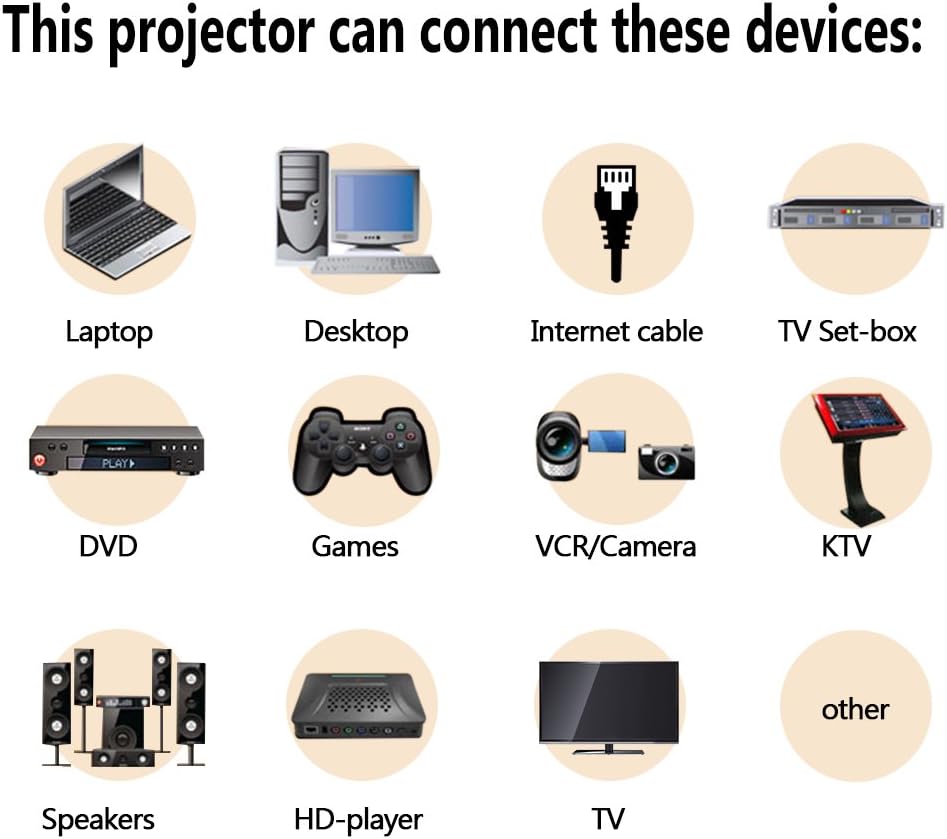
Image 4.1: Illustration of various devices compatible with the ExquizOn 5018D projector, such as laptops, desktops, TV set-top boxes, DVD players, game consoles, VCRs/cameras, external speakers, and HD players.
- HDMI: For high-definition video and audio from devices like Blu-ray players, game consoles (Xbox), or computers.
- USB: For playing media files directly from a USB flash drive.
- VGA: For connecting to older computers or laptops.
- AV (Composite): For connecting to standard definition devices like DVD players or VCRs.
- DVB-T2 Antenna: For receiving digital terrestrial television broadcasts.
4.4. Focus and Keystone Adjustment
- Turn on the projector and display an image.
- Adjust the Focus Ring on the projector lens until the image is sharp and clear.
- If the image appears trapezoidal (wider at the top or bottom), use the Keystone Correction dial (usually located near the lens or on the top panel) to adjust it until the image is rectangular. The projector supports ±15° keystone correction.
4.5. Projection Distance and Screen Size
The optimal projection distance varies depending on the desired screen size and aspect ratio. The projector supports screen sizes from 60 to 200 inches.

Image 4.2: This chart illustrates the recommended projection distances for various screen sizes (60" to 150") for both 16:9 and 4:3 aspect ratios. For example, a 100" 16:9 screen requires approximately 3.5 meters distance.
5. Operating Instructions
5.1. Basic Controls
The projector can be controlled using the buttons on the top panel or the included remote control.
- Power Button: Turns the projector on/off.
- Source Button: Selects the input source (HDMI, USB, VGA, AV, DVB-T2).
- Menu Button: Accesses the on-screen display (OSD) menu.
- Navigation Buttons (Arrows): Navigates through menu options.
- OK/Enter Button: Confirms selections.
- Volume Buttons: Adjusts the audio volume.
5.2. Input Source Selection
After connecting your desired input device, press the Source button on the remote or projector to cycle through available input options until your device's signal is displayed.
5.3. DVB-T2 Tuner Operation
- Connect the DVB-T2 antenna cable to the "Antenna" port on the projector.
- Select "DVB-T2" as the input source.
- Navigate to the "Channel Search" option in the OSD menu to scan for available digital television channels.
- Once channels are found, you can browse and watch digital TV broadcasts.
5.4. Media Playback (USB/TF Card)
- Insert a USB flash drive or TF card into the respective port.
- Select "USB" or "TF Card" as the input source.
- The projector's media browser will appear. Navigate through folders and select the desired file (video, music, image, text).
- Supported formats include:
- Video: MPEG-2, MPEG-4, H.264 decoder, RM, RMVB, MPG, DAT, AVI, MP4, VOB, FLV
- Music: MPEG-1, MPEG-2, MP3, AAC-LC, WMA
- Image: JPG, BMP, PNG, TIFF
- Text: TXT
5.5. Image Quality and Performance
The projector offers a 2000:1 contrast ratio for clear and sharp images. For optimal viewing, it is recommended to use the projector in a dark environment.

Image 5.1: This image demonstrates the superior color performance and contrast ratio (2000:1) of the ExquizOn 5018D projector, compared to a lower contrast ratio (800:1).

Image 5.2: Examples of images projected by the ExquizOn 5018D in a dark environment, illustrating clarity and color reproduction.
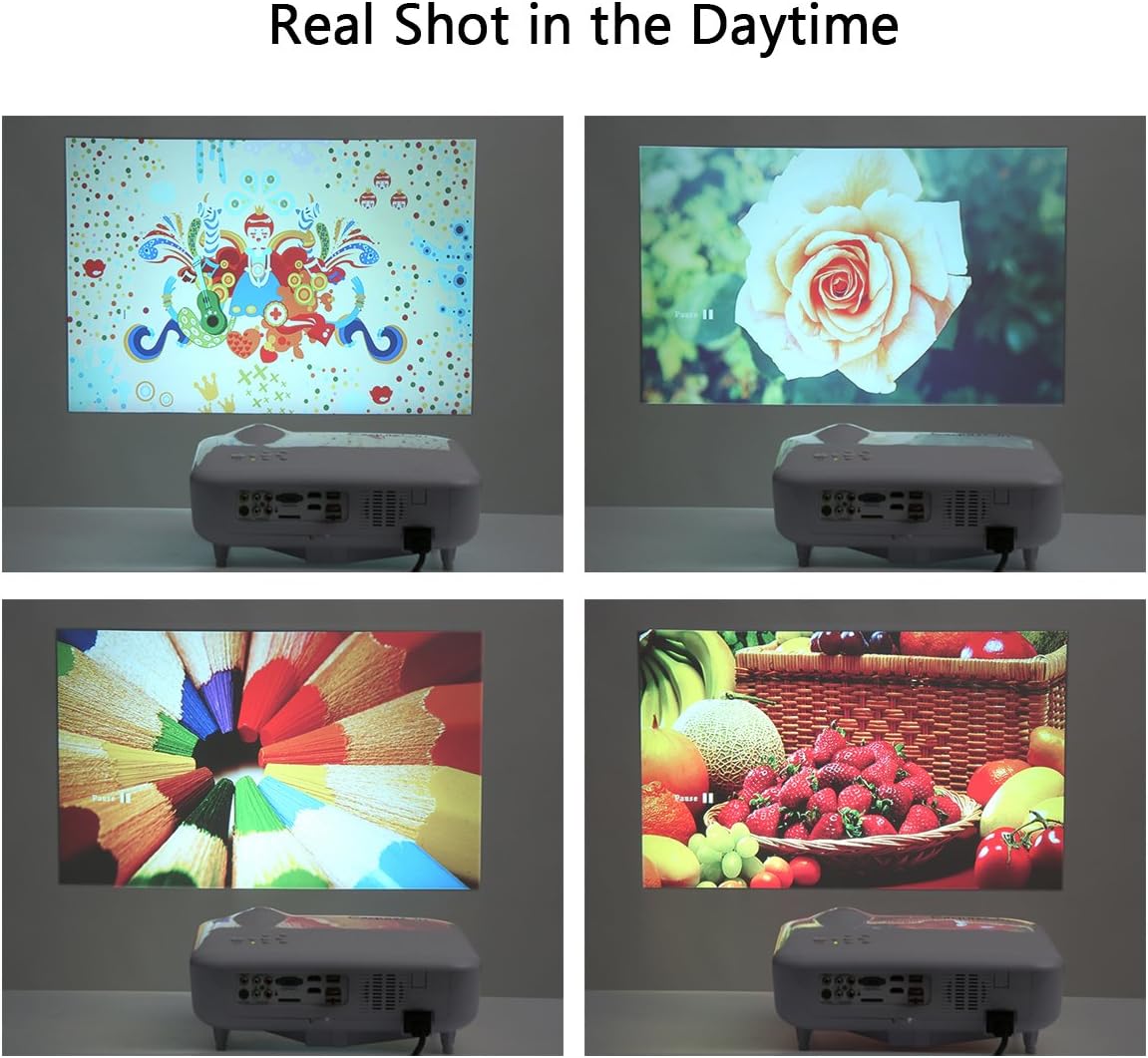
Image 5.3: Examples of images projected by the ExquizOn 5018D in a daytime environment, demonstrating its performance under ambient light conditions.
6. Maintenance
6.1. Cleaning the Lens
Use a soft, lint-free cloth specifically designed for optical lenses to gently wipe the projector lens. Avoid using abrasive cleaners or excessive force, as this can scratch the lens.
6.2. Cleaning Ventilation Openings
Dust accumulation in the ventilation openings can lead to overheating. Regularly clean the vents using a soft brush or compressed air to ensure proper airflow. Do not block the ventilation openings during operation.
6.3. LED Lamp Life
The projector utilizes an LED light source with an estimated lifespan of over 20,000 hours, significantly reducing the need for lamp replacement.
7. Troubleshooting
If you encounter issues with your projector, refer to the following common problems and solutions:
- No Image Displayed:
- Ensure the projector is powered on.
- Verify that the input source is correctly selected (e.g., HDMI1, USB).
- Check all cable connections between the projector and the input device.
- Try a different input device or cable to rule out external issues.
- Blurry Image:
- Adjust the focus ring on the projector lens.
- Ensure the projection distance is within the recommended range.
- Clean the projector lens if it is dirty.
- Image is Trapezoidal:
- Adjust the keystone correction dial until the image is rectangular.
- Ensure the projector is placed perpendicular to the screen.
- No Sound or Low Sound:
- Increase the volume on the projector and the input device.
- Check audio cable connections (if using AV or external audio).
- Ensure the audio output from the source device is enabled.
- If using external speakers, ensure they are properly connected and powered.
- Excessive Fan Noise:
- Ensure the projector's ventilation openings are not blocked.
- Place the projector in an area with good air circulation.
- While some fan noise is normal for projectors, persistent loud noise might indicate dust buildup or a fan issue. Contact support if it persists.
8. Specifications
| Feature | Specification |
|---|---|
| Projection Technology | 5.8 inch TFT LCD |
| Native Resolution | 1280 x 800 pixels |
| Supported Resolution | Up to 1920 x 1080p |
| LED Brightness | 3000 Lumens |
| Contrast Ratio | 2000:1 |
| Color Reproduction | 1.67 Million Colors |
| Lens | F = 2.8; f = 200 mm |
| Aspect Ratio | Native 16:9, Compatible 4:3 |
| Projection Distance | 2 - 5.3 meters |
| Projection Size | 60 - 200 inches |
| Projection Method | Front / Rear / Ceiling Mount |
| Speaker | 4 ohms, 3 W |
| Power Supply | AC 100V to 240V, 50Hz to 60Hz |
| Keystone Correction | ±15° Manual |
| Noise Level | ≤ 50 dB |
| Interfaces | 1 x DVB-T2, 1 x USB, 1 x TV, 1 x HDMI, 1 x VGA, 1 x AV |
| LED Lifespan | 20,000 hours |
| Product Dimensions (L x W x H) | 34 cm × 26.5 cm × 12.5 cm (13.39 × 10.43 × 4.92 inches) |
| Net Weight | 3.2 kg (7.05 lbs) |
| OSD Languages | 22 languages including English, Spanish, French, German, Italian, etc. |
9. Warranty and Support
Specific warranty details for the ExquizOn 5018D projector are not provided in this manual. Please refer to the warranty card included with your purchase or contact your retailer for information regarding warranty coverage and terms.
For technical support, troubleshooting assistance beyond this manual, or inquiries about replacement parts, please contact ExquizOn customer service through their official website or the contact information provided with your product.

