1. Introduction
This manual provides detailed instructions for the installation, operation, and maintenance of your Balance World Inc Analog TV Box MTV-Box+. Please read this manual thoroughly before using the device to ensure proper functionality and to prevent damage.
2. Package Contents
Verify that all items listed below are present in your package:
- 1 x Analog TV Box (MTV-Box+)
- 1 x Remote Control
- 1 x Power Adapter (DV5V-1A)
- 1 x VGA Cable
- 1 x Audio Cable
- 1 x User Manual (this document)
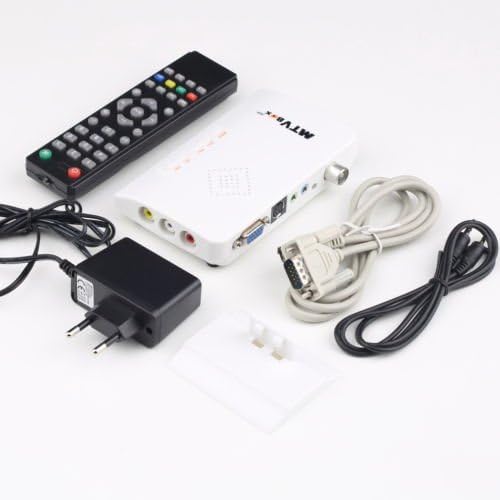
Figure 2.1: Included components of the Analog TV Box MTV-Box+ package. This image displays the main white TV box unit, a black remote control, a black power adapter, a light gray VGA cable, and a black audio cable.
3. Setup Instructions
Follow these steps to connect your Analog TV Box:
- Connect the Antenna: Connect your analog antenna cable to the RF input port on the TV Box.
- Connect to Monitor: Use the provided VGA cable to connect the VGA OUT port on the TV Box to the VGA input port on your monitor (LCD or CRT).
- Connect Audio: If your monitor does not have built-in speakers, connect external speakers to the audio output port on the TV Box using the audio cable. The TV Box has a built-in speaker, but external speakers can be used for enhanced audio.
- Connect Power: Plug the power adapter into the DV5V-1A power input port on the TV Box, then plug the adapter into a standard electrical outlet.
- Power On: Turn on your monitor and then power on the Analog TV Box using the power button on the device or the remote control.
Note: This TV box is designed for analog signals. Ensure your antenna provides an analog signal for proper operation.
4. Operating Instructions
4.1. Basic Operation
- Remote Control: Use the full-function remote control to navigate menus, change channels, adjust volume, and access other features.
- OSD Display: The device features a Chinese/English On-Screen Display (OSD) for easy navigation and settings adjustment.
- Channel Scan: Perform an automatic channel scan upon first use or if channels are missing. Refer to the OSD menu for this option.
- Volume Control: Adjust volume using the remote control or the front panel buttons.
4.2. Advanced Features
- PIP Function: The Unique Picture-in-Picture (PIP) function allows you to view another video source (e.g., DVD, game console via AV/S-Video) simultaneously with the TV broadcast. The size and position of the PIP window can be adjusted via the OSD menu.
- External Device Connection: The TV Box supports PAL video input format and provides VIDEO and S-Video interfaces for easy connection of cameras, DVD players, video game machines, and other equipment.
- Image Optimization: Features powerful optimization and AntiAlias smoothing techniques for high-definition image creation, along with motion adaptive row-by-row processing, digital zoom, and line frequency functions.
- Snake Game: Enjoy playing the classic snake game using the remote control while watching TV. Access this feature through the OSD menu.
5. Maintenance
- Cleaning: Use a soft, dry cloth to clean the exterior of the TV Box. Do not use liquid cleaners or aerosols.
- Ventilation: Ensure the TV Box is placed in a well-ventilated area to prevent overheating. Do not block ventilation openings.
- Power Disconnection: Disconnect the power adapter from the outlet if the device will not be used for an extended period.
- Avoid Moisture: Keep the device away from water and high humidity environments.
6. Troubleshooting
| Problem | Possible Cause | Solution |
|---|---|---|
| No power | Power adapter not connected or faulty. | Ensure the power adapter is securely connected to the TV Box and a working electrical outlet. Test the outlet with another device. |
| No signal / Blank screen | Antenna not connected or poor signal; incorrect input selected on monitor. | Check antenna connection. Ensure your monitor is set to the correct VGA input. Perform a channel scan. Verify antenna signal strength. |
| No audio | Volume too low; audio cable not connected; monitor speakers off. | Increase volume on the TV Box and monitor. Ensure audio cable is correctly connected to external speakers if used. Check monitor's audio settings. |
| Remote control not working | Batteries are dead or incorrectly inserted; obstruction between remote and TV Box. | Replace remote control batteries. Ensure there is a clear line of sight between the remote and the TV Box's IR receiver. |
7. Specifications
| Feature | Detail |
|---|---|
| Model | MTV-Box+ (ASIN: B01M3O3II8) |
| Shell Material | Plastic |
| Color | White |
| Dimensions (Approx.) | 12.5cm (L) X 7.5cm (W) X 1.8cm (H) |
| Power Input | DV5V-1A |
| RF Input | 47-870MHz |
| Video Input | 1VP-P (PSL/NTSC) |
| Supported Resolutions | 800x600, 1024x768, 1280x1024, 1336x768, 1440x900, 1660x900, 1600x1200, 1680x1050, 1920x1080, 1920x1200 |
| Frequency Output (H) | 37KHz-75KHz |
| Frequency Output (V) | 60Hz |
| Display Modes Supported | 16:9, 16:10, 4:3 (for CRT and LCD widescreen displays) |
| Remote Control Included | Yes |
| Connectivity Technology | VGA |
8. Warranty and Support
Information regarding product warranty and customer support is not available in this document. Please refer to the product packaging or contact your retailer for details on warranty coverage and technical assistance.
9. Official Product Videos
No official product videos from the seller are available for this model at this time.