
1. Introduction and Overview
The Belkin Thunderbolt 3 Dock is designed to expand the connectivity of your MacBook Pro (2016 or later models, including 2018 versions) with a single Thunderbolt 3 cable. This dock provides power delivery up to 85W to your MacBook Pro while offering a wide array of ports for connecting multiple devices and peripherals.
Key features include:
- Single cable solution for charging and connecting peripherals.
- High-speed data transfer rates of up to 40Gbps.
- Support for dual 4K displays at 60Hz or a single 5K display at 60Hz.
- Ability to daisy-chain up to 5 additional Thunderbolt devices.
- Multiple ports including Thunderbolt 3 (USB-C), USB-A 3.0, DisplayPort, Audio In/Out, and Gigabit Ethernet.

Figure 1: Front view of the Belkin Thunderbolt 3 Dock, showcasing its compact and modern design.
2. Setup Instructions
Follow these steps to set up your Belkin Thunderbolt 3 Dock:
- Connect the Power Adapter: Plug the included power adapter into the DC IN port on the back of the dock, then connect it to a power outlet. The dock requires external power to function and charge your laptop.
- Connect to your MacBook Pro: Use the provided Thunderbolt 3 cable to connect one of the Thunderbolt 3 (USB-C) ports on the dock to a Thunderbolt 3 port on your MacBook Pro. This single connection will provide power, data, and video to your laptop.
- Connect Peripherals:
- Displays: Connect your monitor(s) to the DisplayPort or the second Thunderbolt 3 port using appropriate cables/adapters. The dock supports dual 4K @60Hz displays or a single 5K @60Hz display.
- USB Devices: Plug your USB-A devices (e.g., keyboard, mouse, external hard drives) into the USB-A 3.0 ports on the front or back of the dock.
- Ethernet: For a stable wired network connection, connect an Ethernet cable from your router or modem to the Gigabit Ethernet port on the back of the dock.
- Audio: Connect headphones, speakers, or a microphone to the Audio In/Out or Audio Out ports.
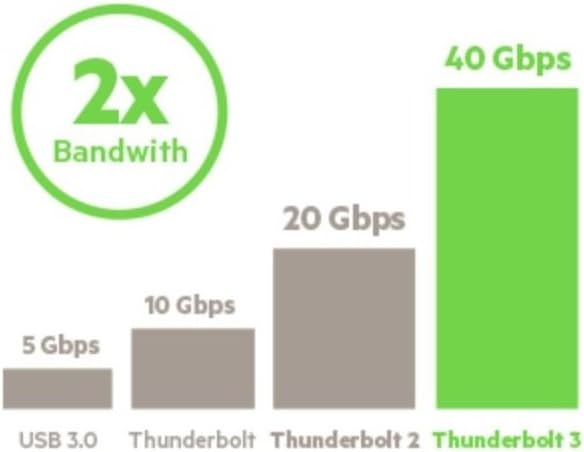
Figure 2: Rear ports of the Belkin Thunderbolt 3 Dock, showing connectivity options.

Figure 3: The included Thunderbolt 3 cable for connecting the dock to your computer.
Video 1: An overview of the Belkin Thunderbolt 3 Dock, demonstrating its features and how it can streamline your workspace setup.
3. Operating the Dock
Once connected, the Belkin Thunderbolt 3 Dock operates automatically, extending your computer's capabilities. Your MacBook Pro will begin charging, and all connected peripherals will be accessible.
- Display Management: Your operating system should automatically detect connected displays. You can configure display settings (resolution, arrangement, mirroring/extending) through your computer's display preferences.
- Data Transfer: The Thunderbolt 3 ports offer up to 40Gbps bandwidth, ideal for high-speed external storage or other Thunderbolt devices. USB-A 3.0 ports provide standard USB 3.0 speeds for compatible devices.
- Daisy-Chaining: The second Thunderbolt 3 port on the dock allows you to connect up to five additional Thunderbolt devices in a series, expanding your setup even further.
- Power Delivery: The dock delivers up to 85W of power to your connected MacBook Pro, ensuring it stays charged even under heavy use.

Figure 4: The dock in use, demonstrating its ability to connect numerous devices simultaneously.

Figure 5: Visual representation of the dock supporting dual 4K displays.
4. Maintenance
To ensure the longevity and optimal performance of your Belkin Thunderbolt 3 Dock, consider the following maintenance tips:
- Cleaning: Gently wipe the dock with a soft, dry, lint-free cloth. Avoid using harsh chemicals, cleaning solvents, or abrasive materials.
- Environment: Keep the dock in a cool, dry place, away from direct sunlight, heat sources, and excessive moisture.
- Cable Management: Avoid bending or crimping cables excessively, especially at the connectors, to prevent damage.
- Ventilation: Ensure the dock has adequate airflow around it to prevent overheating. Do not cover ventilation openings.
5. Troubleshooting
If you encounter issues with your Belkin Thunderbolt 3 Dock, try the following troubleshooting steps:
- No Power: Verify that the power adapter is securely connected to both the dock and a working power outlet. Check if the power indicator light on the dock is illuminated.
- No Display Output:
- Ensure your monitor is powered on and set to the correct input source (e.g., DisplayPort).
- Check all display cables for secure connections.
- Try connecting the monitor directly to your MacBook Pro to rule out monitor issues.
- Restart your MacBook Pro.
- Peripherals Not Recognized:
- Disconnect and reconnect the peripheral device.
- Try connecting the peripheral to a different port on the dock or directly to your MacBook Pro.
- Ensure the peripheral has any necessary drivers installed on your computer.
- Slow Data Transfer:
- Ensure you are using a certified Thunderbolt 3 cable.
- Avoid running multiple high-bandwidth operations simultaneously if possible.
- Audio Issues:
- Check all audio cable connections.
- Verify that the correct audio output device is selected in your computer's sound settings.
6. Specifications
| Feature | Detail |
|---|---|
| Brand | Belkin |
| Model Number | F4U095 |
| Color | Silver |
| Hardware Interface | Thunderbolt |
| Compatible Devices | MacBook Pro (2016 or later), Monitor |
| Total USB Ports | 3 (USB-A 3.0) |
| Number of Thunderbolt Ports | 2 (USB-C) |
| Item Weight | 12.8 ounces |
| Wattage | 85 watts (Power Delivery) |
| Data Transfer Speed | 40 Gbps |
| Display Support | Dual 4K @60Hz or Single 5K @60Hz |
| Ethernet Port | 1 Gigabit Ethernet port |
| Audio Ports | 1 Audio In/Out port, 1 Audio Out port |
7. Warranty and Support
The Belkin Thunderbolt 3 Dock comes with a 2-year limited warranty. For detailed warranty information, technical support, or further assistance, please visit the official Belkin support website or contact their customer service.
You can find more information and support resources at: www.belkin.com/support