
1. Introduction
Thank you for choosing the Kaidi KD-766 Gaming Headset. This manual provides essential information for the proper setup, operation, and maintenance of your new headset. Please read it thoroughly before use to ensure optimal performance and longevity of the product.
2. Safety Information
- Avoid prolonged listening at high volumes to prevent hearing damage.
- Do not expose the headset to extreme temperatures, humidity, or corrosive substances.
- Keep the device away from water and other liquids.
- Do not attempt to disassemble or modify the headset. This will void the warranty.
- Clean the headset with a soft, dry cloth only.
3. Package Contents
Ensure all items are present in the package:
- Kaidi KD-766 Gaming Headset
- User Manual (this document)

Image: Retail box of the Kaidi KD-766 Gaming Headset, showing the headset with RGB lighting and the model number KD-766.
4. Product Overview
Familiarize yourself with the components of your KD-766 Gaming Headset.
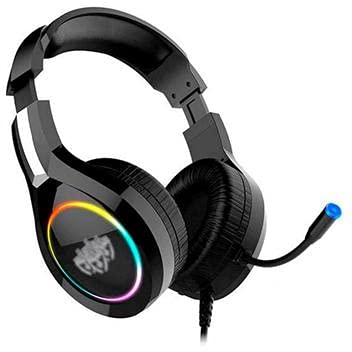
Image: The Kaidi KD-766 Gaming Headset, featuring over-ear cups, an adjustable headband, and a flexible boom microphone.
- Adjustable Headband: For comfortable fit.
- Padded Earcups: Over-ear design for sound isolation and comfort.
- Flexible Boom Microphone: Adjustable for clear voice communication.
- In-line Remote Control: For volume adjustment and microphone mute.
- 3.5mm Audio Jack (P2): For audio input/output.
- USB Connector: For powering LED lighting.
5. Setup Instructions
5.1 Connecting to a PC/Console
- Audio Connection: Locate the 3.5mm audio jack (P2) on your computer or gaming console. Plug the 3.5mm connector from the headset into this port. Ensure it is fully inserted.
- USB Power (for LED): If your headset features LED lighting, plug the USB connector into an available USB port on your computer or console. This provides power for the lighting effects.
- Microphone Setup: If your device has separate audio and microphone jacks, you may need a Y-splitter adapter (not included) to use both the headset audio and microphone simultaneously with a single 3.5mm combo jack. For devices with separate ports, plug the 3.5mm audio jack into the headphone port and the microphone jack (if separate) into the microphone port. The KD-766 typically uses a single 3.5mm jack for audio and mic, plus a USB for LED.
- Adjust Settings: After connecting, go to your device's sound settings to ensure the headset is selected as the default audio output and input device. Adjust volume levels as needed.
6. Operating Instructions
6.1 Volume Control
Use the in-line remote control on the headset cable to adjust the volume. Rotate the volume wheel up to increase volume and down to decrease it.
6.2 Microphone Usage
Position the flexible boom microphone approximately 2-3 cm (1 inch) from your mouth for optimal voice clarity. Use the microphone mute switch on the in-line remote to quickly turn the microphone on or off.
6.3 LED Lighting
The LED lighting on the earcups will illuminate automatically when the USB connector is plugged into a powered USB port. There are no user-adjustable controls for the LED lighting.
7. Maintenance
- Cleaning: Wipe the headset with a soft, dry, lint-free cloth. Do not use liquid cleaners or aerosols.
- Storage: Store the headset in a cool, dry place when not in use. Avoid direct sunlight and extreme temperatures.
- Cable Care: Avoid sharp bends or excessive pulling on the cables to prevent damage.
8. Troubleshooting
| Problem | Possible Cause | Solution |
|---|---|---|
| No sound from headset. | Headset not properly connected. Volume too low. Incorrect audio output selected. | Ensure the 3.5mm jack is fully inserted. Increase volume using the in-line control and your device's settings. Check your device's sound settings and select the headset as the default output. |
| Microphone not working. | Microphone muted. Incorrect audio input selected. | Check the microphone mute switch on the in-line remote. Ensure the headset microphone is selected as the default input device in your device's sound settings. |
| LED lights not working. | USB connector not plugged in or not receiving power. | Ensure the USB connector is securely plugged into a powered USB port. Try a different USB port. |
| Sound quality is poor. | Loose connection. Audio source issue. | Check all connections. Test the headset with another device to rule out an issue with the audio source. |
9. Specifications
| Brand: | Kaidi |
| Model: | KD-766 |
| Ear Placement: | Circum-aural (Over-ear) |
| Noise Control: | Sound Isolation |
| Sensitivity: | 108 dB |
| Frequency Range: | 20Hz - 20kHz |
| Connectivity Technology: | Wired |
| Headphone Input: | 3.5mm Jack |
| Compatible Devices: | Desktops, Notebooks, Gaming Consoles |
| Control Method: | Remote (In-line) |
10. Warranty and Support
For warranty information and technical support, please refer to the warranty card included with your product or contact your local Kaidi distributor or retailer. Keep your proof of purchase for warranty claims.