1. Introduction
This manual provides comprehensive instructions for the setup, operation, maintenance, and troubleshooting of the Kyocera Mita KM-4050 Tabloid-Size Monochrome Laser Multifunction Copier. Please read this manual thoroughly before using the device to ensure proper and safe operation.
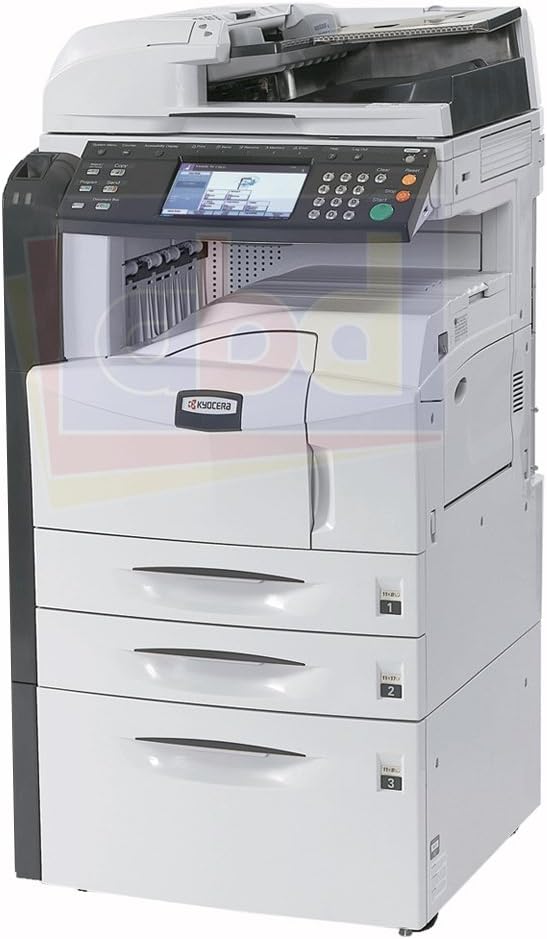
Figure 1.1: Front view of the Kyocera Mita KM-4050 Multifunction Copier, showcasing its compact design and multiple paper trays.
2. Safety Information
Always observe the following safety precautions to prevent injury or damage to the machine.
- Ensure the device is connected to a grounded power outlet.
- Do not block ventilation openings.
- Keep hands clear of moving parts during operation.
- Do not attempt to service the machine beyond the scope of this manual. Refer to qualified service personnel.
3. Setup Guide
3.1 Unpacking and Placement
Carefully remove the copier from its packaging. Place the unit on a stable, level surface with adequate ventilation space around it. Ensure the location is free from excessive dust, humidity, and direct sunlight.
3.2 Connecting Power and Network
- Connect the power cord to the copier's power input and then to a grounded electrical outlet.
- For network printing and scanning, connect an Ethernet cable to the RJ-45 port on the rear of the device and to your network router or switch.
- For direct connection, use a USB 2.0 cable to connect the copier to your computer.
3.3 Initial Toner and Paper Loading
The Kyocera Mita KM-4050 comes with pre-installed consumables. For initial setup or replacement:
- Toner: Ensure the toner cartridge is correctly seated. Refer to the maintenance section for replacement procedures.
- Paper Trays: The device features two 500-sheet paper trays and a 200-sheet bypass tray. Open the desired tray, load paper (up to 11" x 17" or A3 size), and adjust the paper guides to fit the paper size.
4. Operating Instructions
4.1 Control Panel Overview
The control panel features a color touchscreen display and physical buttons for various functions. Use the touchscreen for navigation and settings adjustments.
4.2 Copying Documents
- Place the original document face-down on the scanner glass or face-up in the automatic document feeder (ADF).
- On the control panel, select the "Copy" function.
- Adjust settings such as quantity, paper size, and duplex options as needed.
- Press the "Start" button to begin copying.
4.3 Printing from a Computer
Ensure the printer drivers are installed on your computer. Drivers can typically be found on the manufacturer's website or included with the device.
- Open the document you wish to print on your computer.
- Select "Print" from the application's menu.
- Choose "Kyocera Mita KM-4050" as your printer.
- Adjust print settings (e.g., paper source, duplex, quality) and click "Print".
4.4 Scanning Documents
- Place the document on the scanner glass or in the ADF.
- On the control panel, select the "Scan" function.
- Choose your scan destination (e.g., network folder, email, USB).
- Configure scan settings such as resolution, color mode, and file format.
- Press the "Start" button to initiate the scan.
5. Maintenance
5.1 Cleaning the Device
- Exterior: Wipe the exterior surfaces with a soft, damp cloth. Do not use abrasive cleaners.
- Scanner Glass: Clean the scanner glass with a lint-free cloth and a non-abrasive glass cleaner to ensure clear scans.
- ADF Rollers: Periodically clean the ADF rollers to prevent paper jams and misfeeds.
5.2 Replacing Consumables
The Kyocera Mita KM-4050 uses a monochrome toner cartridge. The device will display a warning when toner levels are low.
- Open the front cover of the copier.
- Carefully remove the empty toner cartridge.
- Unpack the new toner cartridge and shake it gently to distribute the toner.
- Insert the new cartridge firmly until it clicks into place.
- Close the front cover.
6. Troubleshooting
This section addresses common issues you may encounter with the Kyocera Mita KM-4050.
| Problem | Possible Cause | Solution |
|---|---|---|
| No Power | Power cord disconnected; Power outlet issue. | Check power cord connection; Try a different outlet. |
| Paper Jam | Incorrectly loaded paper; Obstruction in paper path. | Remove all jammed paper carefully; Ensure paper is loaded correctly and guides are adjusted. |
| Poor Print Quality | Low toner; Dirty print head/drum; Incorrect print settings. | Replace toner cartridge; Clean internal components as per maintenance; Adjust print quality settings in driver. |
| Cannot Print/Scan from PC | Network connection issue; Incorrect driver installation. | Verify network cable connection; Reinstall printer drivers. |
7. Technical Specifications
| Feature | Detail |
|---|---|
| Model | KM-4050 |
| Functions | Copy, Print, Scan (Optional Fax and Finishers) |
| Print Technology | Monochrome Laser |
| Print Speed (B&W) | Up to 30 ppm (A4/A3) |
| Scan Speed | 50 opm B&W; 25 opm Color |
| Maximum Paper Size | 11" x 17" or A3 |
| Paper Input Capacity | Standard: 1,200 sheets (2x 500-sheet trays + 200-sheet bypass); Max: 4,200 sheets |
| Print Resolution | 1200 dpi quality |
| Copy Resolution | 600 x 600 dpi |
| Processor | PowerPC 750FL 600 MHz |
| Memory | 512 MB |
| Hard Disk | 40 GB |
| Interface | Ethernet RJ-45, USB 2.0 |
| Duplex | Automatic Duplex Unit and Feeder Standard |
| Included Components | Printer, Power Cord, Toner |
8. Warranty Information
This Kyocera Mita KM-4050 unit comes with a 30-Day Parts Warranty. This warranty covers parts necessary for the proper functioning of the machine. For warranty claims or service, please contact your vendor or authorized service provider.
Note: This machine is fully refurbished in-house by certified technicians. Consumables are provided "as is" and are not covered under the warranty.
9. Customer Support
For further assistance, technical support, or to inquire about service, please refer to the contact information provided by your reseller or visit the official KYOCERA support website.
Online Resources:
- Visit the KYOCERA Store on Amazon
- For driver downloads and updated manuals, please visit the official Kyocera website (specific URL not provided in product data).


