
1. Introduction
This manual provides comprehensive instructions for the Cable Matters USB C Hub (Model 201048-BLK). It covers product features, setup, operation, maintenance, troubleshooting, and technical specifications. Please read this manual thoroughly to ensure proper use and optimal performance of your device.
The Cable Matters USB C Hub is designed to expand the connectivity of your USB-C enabled device, offering HDMI video output, Gigabit Ethernet, USB 3.0 data ports, and Power Delivery charging through a single USB-C connection.
2. Product Overview
2.1 Key Features
- HDMI Output: Supports resolutions up to 4K Ultra HD (3840x2160) at 60Hz.
- Power Delivery (PD): Supports up to 100W charging for your host laptop via the USB-C PD port.
- Gigabit Ethernet: Provides a stable and fast wired network connection (10/100/1000 Mbps).
- USB 3.0 Ports: Two USB-A ports for connecting peripherals with data transfer speeds up to 5Gbps.
- Compact Design: Portable and lightweight for on-the-go use.
2.2 Port Layout

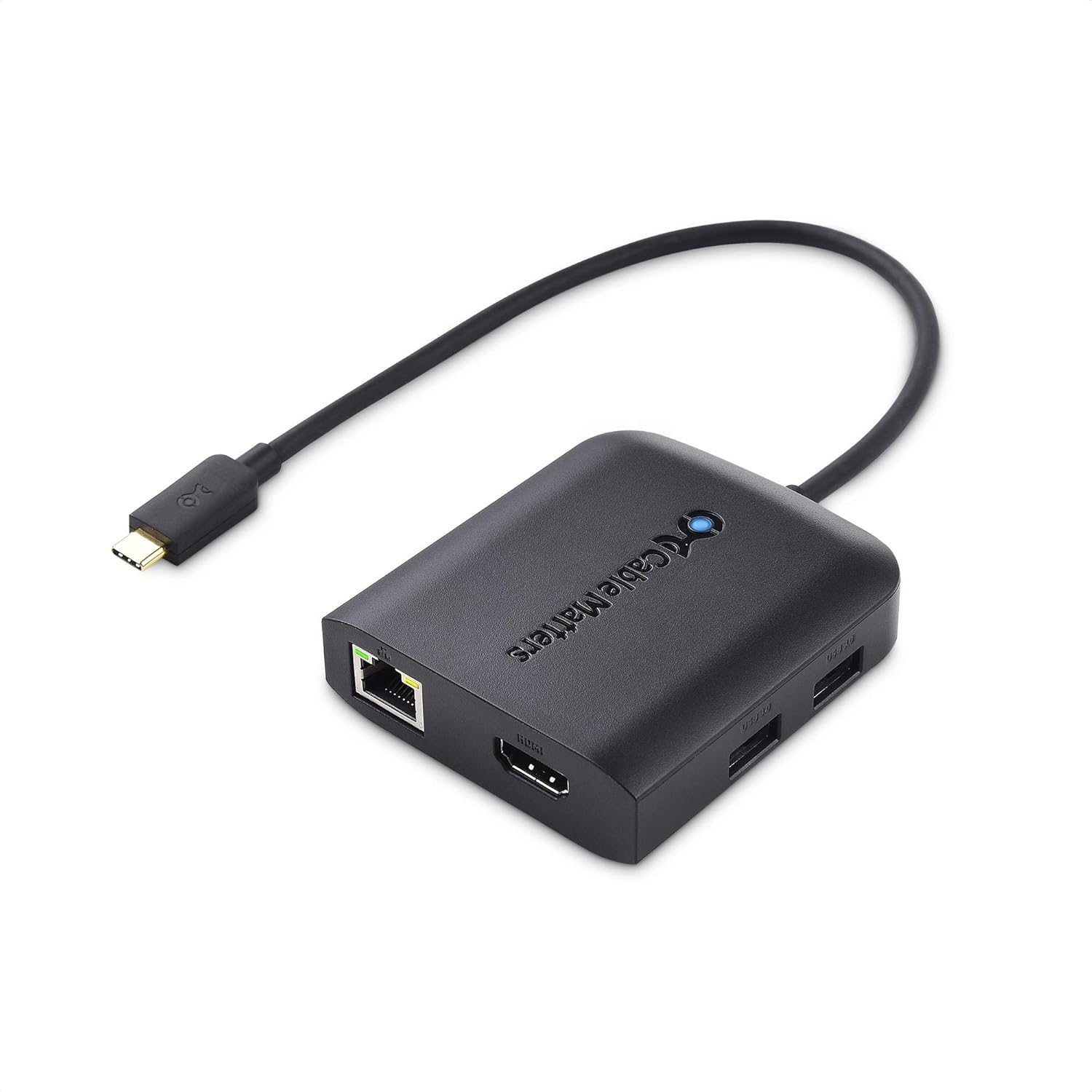
The image above illustrates the various ports available on the Cable Matters USB C Hub, designed for easy identification and connection.
- USB-C Host Cable: Connects to your laptop or tablet's USB-C port.
- USB-C Power Delivery (PD) Port: For connecting a USB-C power adapter to charge your host device and power the hub. This port also supports data transfer.
- Gigabit Ethernet Port: For wired network connection.
- HDMI Port: For connecting to an external display.
- USB 3.0 Ports (x2): For connecting USB peripherals such as keyboards, mice, or flash drives.
3. Setup Instructions
Follow these steps to set up your Cable Matters USB C Hub:
- Connect to Host Device: Plug the integrated USB-C host cable of the hub into an available USB-C or Thunderbolt 3/4 port on your laptop, tablet, or compatible smartphone.
- Connect HDMI Display (Optional): Connect an HDMI cable from your external monitor or TV to the HDMI port on the hub. Ensure your display is set to the correct HDMI input.
- Connect Ethernet (Optional): For a wired network connection, plug an Ethernet cable from your router or modem into the Gigabit Ethernet port on the hub.
- Connect USB Peripherals (Optional): Plug your USB devices (e.g., mouse, keyboard, USB flash drive) into the USB 3.0 ports on the hub.
- Connect Power Adapter (Optional): If you wish to charge your host device or power high-consumption USB peripherals, connect your USB-C power adapter to the USB-C Power Delivery (PD) port on the hub. The hub can operate without external power for basic functions (bus-powered).

This diagram illustrates the typical connection setup, showing the hub acting as a central point for various peripherals and power for your USB-C host device.
4. Operating Instructions
4.1 Display Output
The HDMI port supports video resolutions up to 4K (3840x2160) at 60Hz. Your host device must support DisplayPort Alternate Mode (Alt Mode) over USB-C for video output. Most modern laptops with USB-C or Thunderbolt 3/4 ports support this feature.
- Extend Mode: Allows you to use the external display as an extension of your primary screen, providing more desktop space.
- Mirror Mode: Duplicates your primary screen onto the external display.
Adjust display settings (resolution, orientation, mirror/extend) through your operating system's display preferences.
The image demonstrates the hub's capability to output 4K Ultra HD video to a compatible display.
4.2 Power Delivery
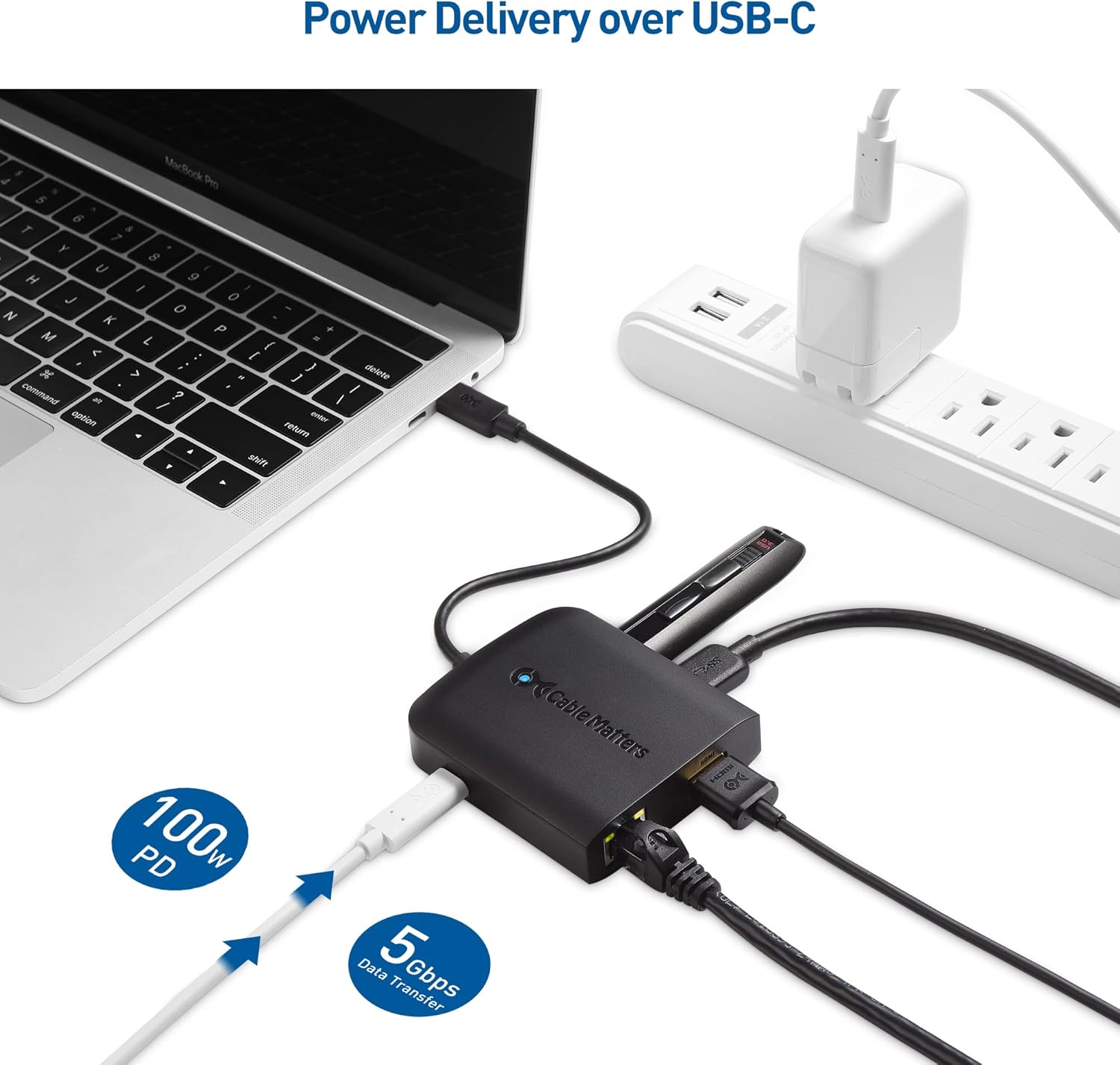
The USB-C PD port allows you to charge your host laptop while using the hub. Connect your laptop's USB-C power adapter to this port. The hub supports up to 100W Power Delivery, with up to 80W passed through to the host device after accounting for hub power consumption.
The hub can also operate without an external power adapter (bus-powered), drawing power directly from the host device. However, connecting high-power USB peripherals or charging your laptop simultaneously may require external power for stable operation.

This image illustrates the Power Delivery function, showing a 100W power source connected to the hub, which then charges the laptop and powers connected devices.
4.3 Data Transfer
The two USB 3.0 ports provide high-speed data transfer up to 5Gbps, suitable for connecting external hard drives, flash drives, and other USB peripherals. These ports are backward compatible with USB 2.0 devices.
4.4 Network Connection
The Gigabit Ethernet port provides a reliable and high-speed wired internet connection, supporting 10/100/1000 Mbps networks. This port is typically plug-and-play, requiring no additional drivers for most operating systems.
The image highlights the Gigabit Ethernet port, demonstrating its readiness for a wired network connection.
5. Maintenance
To ensure the longevity and optimal performance of your USB C Hub, follow these maintenance guidelines:
- Cleaning: Use a soft, dry cloth to clean the exterior of the hub. Avoid using liquid cleaners or solvents.
- Storage: Store the hub in a cool, dry place away from direct sunlight and extreme temperatures.
- Handling: Avoid dropping the device or subjecting it to strong impacts. Do not bend or twist the integrated USB-C cable excessively.
- Ventilation: Ensure the hub has adequate airflow around it, especially during extended use, to prevent overheating.
6. Troubleshooting
If you encounter issues with your Cable Matters USB C Hub, refer to the following common problems and solutions:
- No display output on external monitor:
- Ensure the integrated USB-C host cable is securely connected to your host device.
- Verify the HDMI cable is firmly connected between the hub and your display.
- Check that your external display is powered on and set to the correct HDMI input source.
- Confirm your host device's USB-C port supports DisplayPort Alternate Mode.
- Try restarting your host device.
- Host device is not charging:
- Ensure a compatible USB-C power adapter is connected to the hub's USB-C PD port.
- Verify the power adapter provides sufficient wattage for your host device and the hub.
- Check the connection of the power adapter to the hub and the power outlet.
- Ethernet connection is not working:
- Confirm the Ethernet cable is securely connected to both the hub and your network source.
- Check your host device's network settings to ensure the Ethernet adapter is recognized and enabled.
- Try connecting the Ethernet cable directly to your host device (if applicable) to rule out network issues.
- USB peripherals are not recognized or function intermittently:
- Ensure USB devices are properly plugged into the hub's USB 3.0 ports.
- If using high-power USB devices (e.g., external hard drives), connect a USB-C power adapter to the hub's PD port.
- Try connecting the USB device directly to your host device to confirm its functionality.
7. Specifications
| Feature | Specification |
|---|---|
| Model Number | 201048-BLK |
| Brand | Cable Matters |
| Product Dimensions | 9.72 x 2.68 x 0.59 inches |
| Item Weight | 2.8 ounces |
| Color | Black |
| Hardware Interface | USB 3.0, USB-C, HDMI, Ethernet |
| HDMI Resolution | Up to 4K (3840x2160) @ 60Hz |
| Power Delivery | Up to 100W (80W to host) |
| Ethernet Speed | 10/100/1000 Mbps Gigabit Ethernet |
| Compatible Devices | Laptops, Tablets, Keyboards, Mouse (with USB-C/Thunderbolt 3/4 port) |
8. Warranty and Support
8.1 Warranty Information
Cable Matters products are covered by a limited warranty. For detailed warranty terms and conditions, please refer to the official Cable Matters website or the documentation included with your purchase.
8.2 Customer Support
For technical assistance, product inquiries, or support, please visit the official Cable Matters website at www.cablematters.com. You may also find additional resources and FAQs on their support pages.