
Logitech 920-008149
Logitech K780 Multi-Device Wireless Keyboard User Manual
Model: 920-008149
Product Overview
The Logitech K780 Multi-Device Wireless Keyboard is a versatile, full-sized keyboard designed to work seamlessly across multiple devices, including computers, smartphones, and tablets. Its integrated stand securely holds mobile devices, providing an optimal typing angle. This keyboard supports both Logitech Unifying and Bluetooth Smart technologies for flexible connectivity.
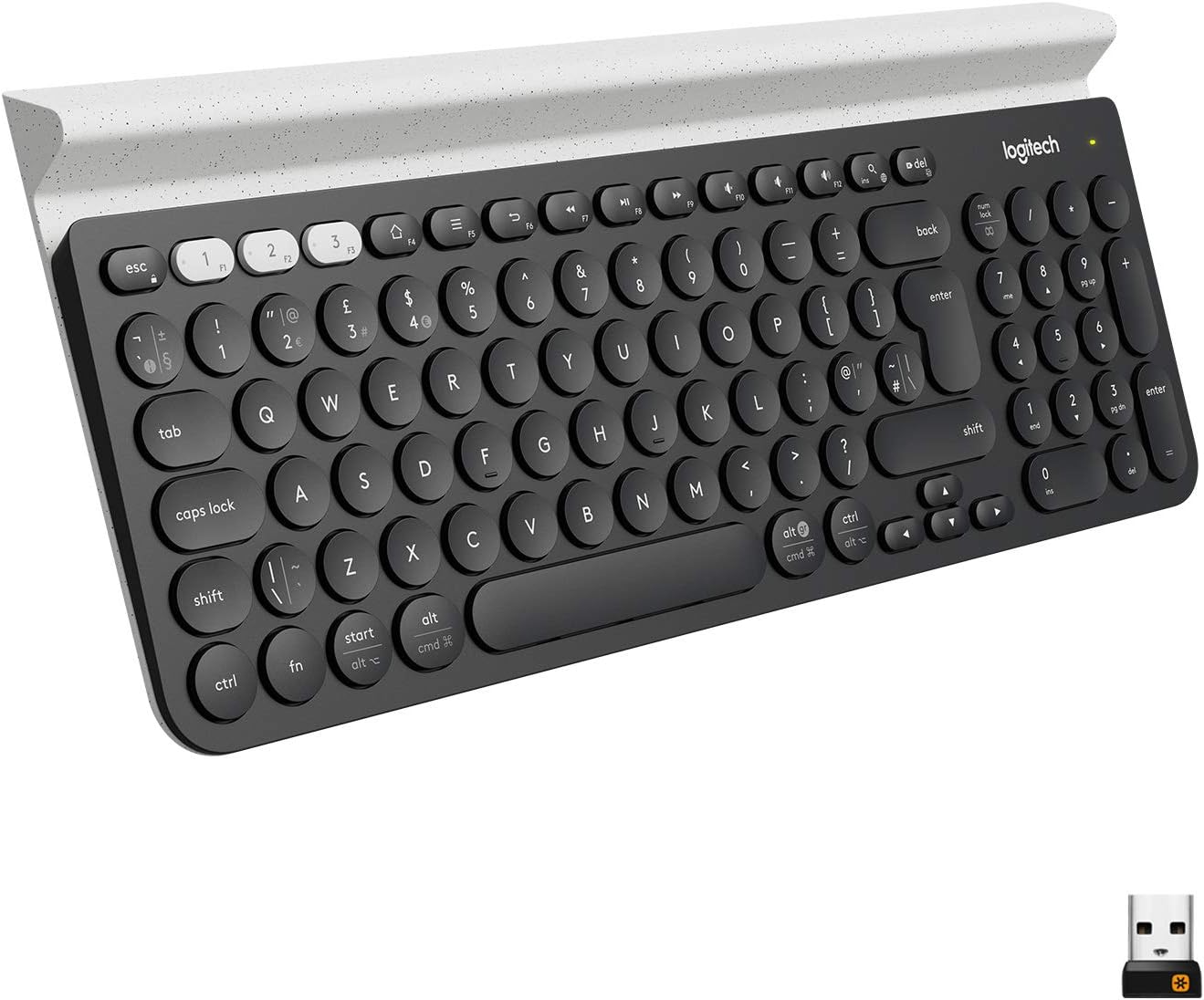
Image: Logitech K780 Multi-Device Wireless Keyboard, showcasing its full layout and integrated device stand.
Setup
What's in the Box
- Logitech K780 Multi-Device Wireless Keyboard
- 2 AAA batteries (pre-installed)
- USB Unifying Receiver
- Quick Start User Guide
Battery Installation
The keyboard comes with two AAA batteries pre-installed. To activate, remove the plastic pull tab from the battery compartment located on the underside of the keyboard. If replacing batteries, ensure correct polarity.
Connectivity Options
The K780 keyboard offers two primary connection methods: the Logitech Unifying Receiver and Bluetooth Smart technology.
Using the Logitech Unifying Receiver
- Locate the USB Unifying Receiver in the keyboard's battery compartment or packaging.
- Plug the Unifying Receiver into an available USB port on your computer.
- Turn on the keyboard using the On/Off switch located on the right side.
- The keyboard should automatically connect. If not, download and use the Logitech Options software for pairing.

Image: Logitech K780 keyboard shown with the small USB Unifying Receiver, illustrating its compact size.
Using Bluetooth Smart Technology
The K780 can connect to up to three Bluetooth-enabled devices.
- Turn on the keyboard.
- Press and hold one of the three easy-switch buttons (1, 2, or 3) located at the top left of the keyboard until the LED light above it starts blinking rapidly. This indicates pairing mode.
- On your device (computer, smartphone, or tablet), go to Bluetooth settings and search for new devices.
- Select "Logitech K780" from the list of available devices.
- Follow any on-screen prompts to complete the pairing process. The LED light on the keyboard will turn solid for a few seconds and then turn off once connected.
- Repeat for up to two more devices using the other easy-switch buttons.
System Compatibility
The Logitech K780 is compatible with a wide range of operating systems:
- Windows: Windows 8 or later, Windows 10, 11 or later
- macOS: OS X 10.10 or later, macOS 10.14 or later, macOS 10.15 or later
- iOS: iOS 5 or later, iOS 11 or later, iPadOS 13.4 or later
- Android: Android 5.0 or later, Android 7 or later
- Chrome OS
Operating the Keyboard
Switching Between Devices
To switch between paired devices, simply press the corresponding easy-switch button (1, 2, or 3) at the top left of the keyboard. The keyboard will connect to the selected device within a few seconds.

Image: Logitech K780 keyboard demonstrating a tablet securely placed in its integrated stand, highlighting multi-device functionality.
Integrated Device Stand
The K780 features an integrated rubber cradle that securely holds your smartphone or tablet at an ideal typing angle. This stand is designed to accommodate devices of various sizes, including larger tablets.
Key Functions and Layout
The K780 features a full-size QWERTY layout with a numeric keypad. It includes function keys (F1-F12) that can be used for media control, volume adjustment, and other shortcuts. The keyboard automatically adapts its key layout to the connected operating system (Windows, macOS, Android, iOS) to provide familiar shortcuts.
- Function Keys (F1-F12): Perform system-specific actions. By default, they often control media, volume, and brightness.
- OS-Specific Keys: Keys like 'Start' (Windows) or 'Cmd' (macOS) will function according to the connected operating system.
- Numeric Keypad: Provides a dedicated section for number entry.
Battery Saving Mode
To conserve battery life, the keyboard will enter a sleep mode after a period of inactivity. To wake it up, simply press any key. The keyboard will reconnect to the last active device within a few seconds.
Maintenance
Cleaning the Keyboard
To clean your K780 keyboard, use a soft, lint-free cloth slightly dampened with water or a mild cleaning solution. Avoid using abrasive cleaners, solvents, or harsh chemicals, as these can damage the surface and key legends. Do not immerse the keyboard in liquid.
Battery Replacement
When the battery indicator light (usually located near the On/Off switch or an easy-switch button) turns red, it's time to replace the batteries. The K780 uses two AAA batteries. To replace them:
- Turn off the keyboard using the On/Off switch.
- Open the battery compartment cover on the underside of the keyboard.
- Remove the old AAA batteries.
- Insert two new AAA batteries, ensuring correct polarity (+ and -).
- Close the battery compartment cover.
- Turn on the keyboard.
Properly dispose of used batteries according to local regulations.
Troubleshooting
Connectivity Issues
- Keyboard not connecting:
- Ensure the keyboard is turned on.
- Check battery level; replace if low.
- For Unifying Receiver: Ensure the receiver is securely plugged into a working USB port. Try a different USB port.
- For Bluetooth: Ensure Bluetooth is enabled on your device. Try re-pairing the keyboard by holding down an easy-switch button until it blinks, then re-selecting it in your device's Bluetooth settings.
- Move the keyboard closer to your device/receiver to reduce interference.
- Lag or dropped connection:
- Ensure there are no large metal objects or other wireless devices causing interference between the keyboard and receiver/device.
- Update your device's Bluetooth drivers or Logitech Options software.
Keys Not Responding
- Check battery level.
- Ensure the keyboard is connected to the correct device (check the easy-switch button LED).
- Restart your computer or device.
- Clean any debris from around the affected keys.
Num Lock / Caps Lock Indicator
The K780 keyboard does not have dedicated indicator lights for Num Lock or Caps Lock. You may need to rely on on-screen indicators provided by your operating system or software.
For further assistance, please visit the official Logitech support website or consult the full user manual available for download.
Specifications
| Model Number | 920-008149 |
| Connectivity Technology | Logitech Unifying protocol (2.4 GHz), Bluetooth Smart technology |
| Wireless Range | >33 ft / 10m (may vary) |
| Power Source | Battery Powered |
| Batteries | 2 x AAA (included) |
| Item Weight | 1.92 pounds (approx. 871g) |
| Product Dimensions (LxWxH) | 14.9 x 6.2 x 0.9 inches (approx. 37.8 x 15.7 x 2.3 cm) |
| Color | White (referring to the accent color/device holder) |
| Number of Keys | 96 |
| Keyboard Description | QWERTY |
| Hardware Platform | Tablet, PC, Smartphone |
Warranty and Support
Warranty Information
Logitech products typically come with a limited hardware warranty. For specific warranty terms and conditions applicable to your region and purchase date, please refer to the warranty card included with your product or visit the official Logitech website.
Customer Support
For technical support, frequently asked questions, and driver downloads, please visit the official Logitech support website:
You can also find the official User Manual (PDF) and Installation Manual (PDF) for this product through the following links:
Related documents920-008149


Ask a question about this manual
Ask about setup, troubleshooting, compatibility, parts, safety, or missing instructions. Manuals+ will review the question and use this page’s manual context to help answer it.