1. Introduction
This manual provides detailed instructions for the Kercan KR-230-EIO Automatic Wired USB 2D Barcode Scanner. This device is designed for efficient and accurate scanning of various 1D and 2D barcodes, including QR, PDF417, and Data Matrix codes. Featuring CCD optical imaging technology and an automatic sensor, it offers reliable performance for diverse scanning needs.

Figure 1.1: The Kercan KR-230-EIO Barcode Scanner. This image displays the ergonomic design of the scanner, highlighting its black body and yellow trigger button.
2. Setup
2.1 Unpacking
Carefully remove all components from the packaging. The box should contain the Kercan KR-230-EIO barcode scanner and a USB cable.
2.2 Connecting the Scanner
Connect the USB cable to the scanner's port and then plug the other end into an available USB port on your computer (Desktop or Laptop).
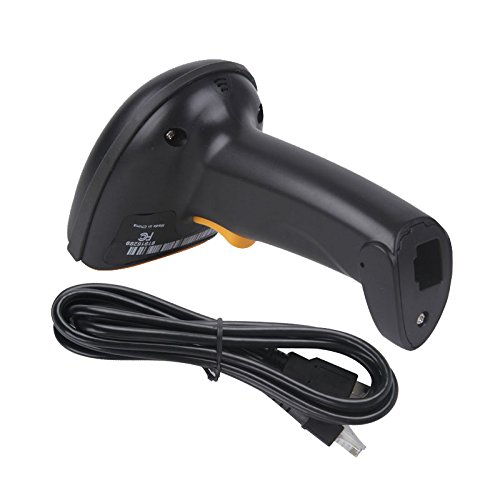
Figure 2.1: Scanner with its USB cable. This image shows the scanner connected to its USB cable, ready for connection to a computer.
2.3 Driver Installation
The KR-230-EIO scanner is designed for plug-and-play functionality with most operating systems, including Windows. For certain iOS and Linux systems, a driver installation may be required. If the scanner does not function immediately, please contact Kercan support for the necessary driver files.
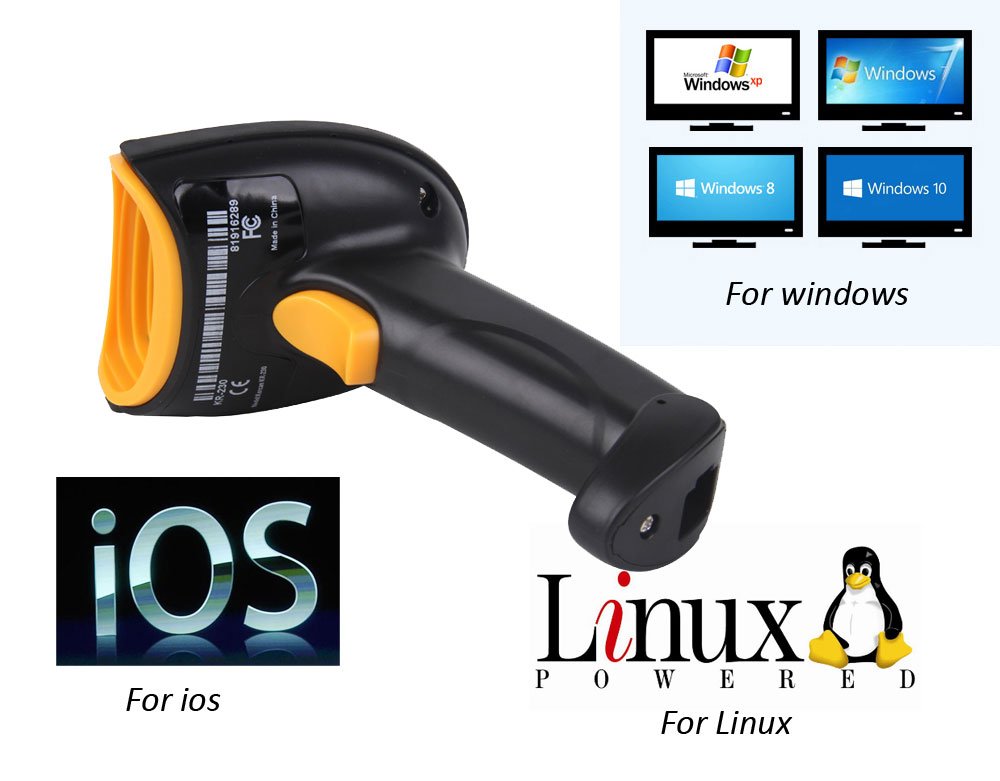
Figure 2.2: Operating System Compatibility. This image illustrates the scanner's compatibility with various operating systems, including Windows (XP, 7, 8, 10), iOS, and Linux.
2.4 Initial Configuration
Some advanced barcode types or scanning conditions require specific configuration steps:
- Data Matrix Code Activation: By default, Data Matrix (ECC200) scanning is disabled. To enable this function, scan the following setting code:
- Black Background Barcodes: The scanner's default setting is optimized for white background barcodes. If you need to scan barcodes with a black background, please contact Kercan support for specific setting codes.

Figure 2.3: Data Matrix Activation Code (FFA222). Scan this barcode to enable Data Matrix scanning functionality.

Figure 2.4: Barcode Background Scanning. This image shows examples of default (white background) and black background QR codes, indicating that special settings are needed for black background scanning.
3. Operating Instructions
3.1 Basic Scanning
The KR-230-EIO features an automatic sensor. Simply bring the barcode close to the scanner's window, and it will automatically detect and scan the code. A successful scan is typically indicated by an audible beep and/or a visual confirmation light.

Figure 3.1: Scanner in operation. This image depicts the scanner actively reading a QR code displayed on a smartphone screen, demonstrating its ability to scan digital codes.
3.2 Supported Barcode Types
The scanner supports a wide range of 1D and 2D barcode symbologies, including but not limited to:
- 2D Codes: QR Code, PDF417, Data Matrix, Aztec, Australian Post, BPO, Canada Post, Dutch Post, EAN.UCC Composite.
- 1D Codes: Codabar, Codablock, Code 11, Code 39, Code 93, Code 128/EAN128, Interleaved 2 of 5.
3.3 Scanning Performance
The KR-230-EIO utilizes CCD optical imaging scanning technology, enabling it to identify screen codes, incomplete codes, and fuzzy codes effectively.
- Precision: 5 mil
- Depth of Scan Field: 10-800mm
- Scan Speed: 200 times/sec
- Pixels: 0.35 Megapixel
- Graphics Format: Bitmap, JPEG, TIFF
- Bite Error Rate: Less than 1/9 million
- Scan Angle: (Yaw): 45 degrees, Pitch: 60 degrees
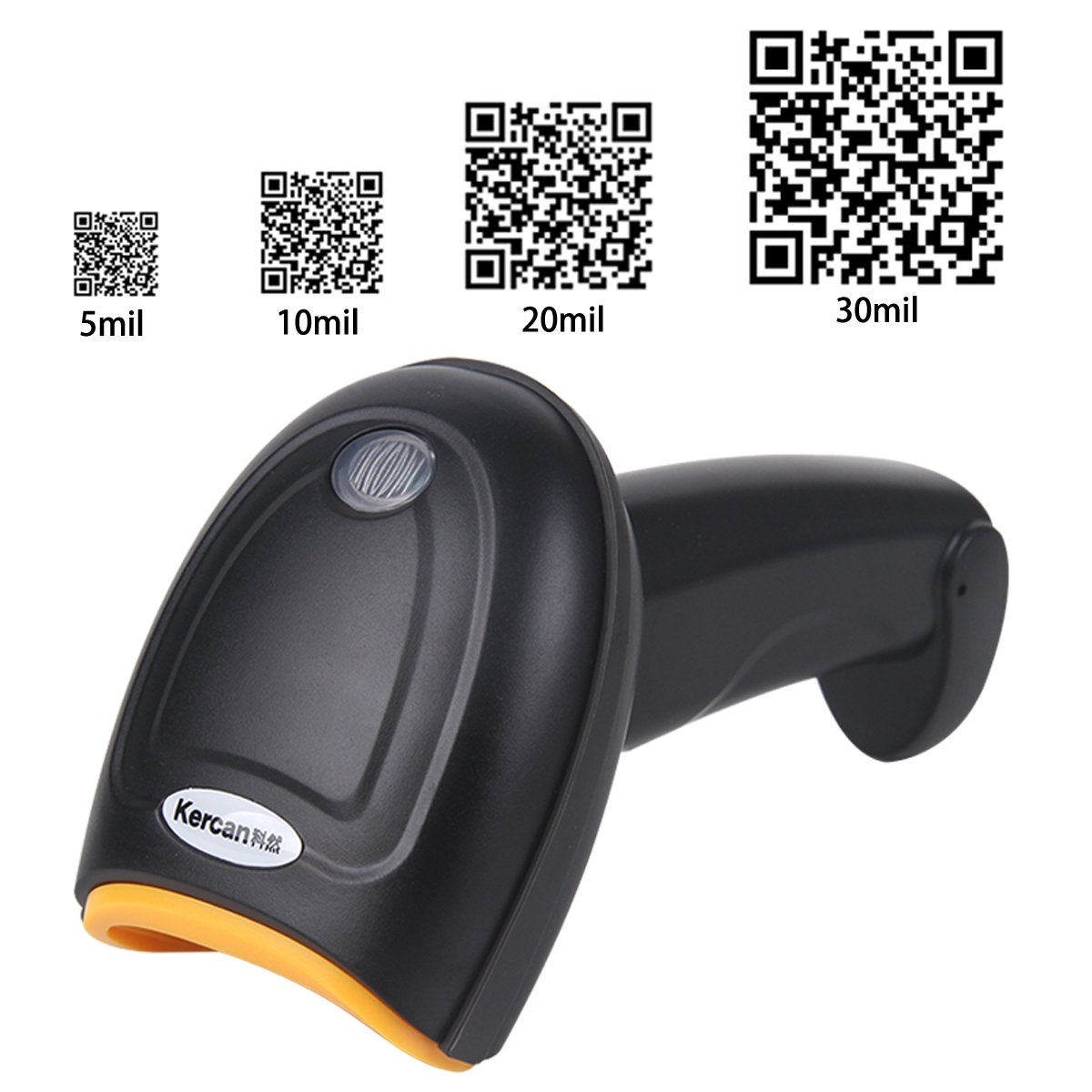
Figure 3.2: Barcode Precision Examples. This image illustrates the scanner's ability to read QR codes of varying sizes and precision, from 5 mil to 30 mil.
4. Maintenance
4.1 Cleaning
To ensure optimal performance, keep the scanner's window clean. Use a soft, lint-free cloth lightly dampened with water or a mild, non-abrasive cleaning solution. Avoid using harsh chemicals or abrasive materials that could scratch the scanning window.
4.2 Storage
Store the scanner in a cool, dry place away from direct sunlight and extreme temperatures. Protect it from dust and physical impact when not in use.
5. Troubleshooting
- Scanner not recognized by computer:
- Ensure the USB cable is securely connected to both the scanner and the computer.
- Try connecting to a different USB port.
- For iOS or Linux systems, verify if a specific driver is required and contact support if needed.
- Cannot scan Data Matrix codes:
- Data Matrix scanning is disabled by default. Refer to Section 2.4 "Initial Configuration" and scan the FFA222 code to enable it.
- Cannot scan barcodes with black backgrounds:
- The scanner is optimized for white backgrounds by default. Contact Kercan support for specific setting codes to enable black background scanning.
- Scanner not reading specific barcodes:
- Ensure the barcode is clean, clear, and not damaged.
- The scanner can read incomplete or fuzzy codes, but extreme damage may prevent scanning.
- Verify the barcode type is supported by the scanner (refer to Section 3.2).
- Ensure proper distance and angle when scanning.
- No beep sound after scanning:
- The scanner typically provides an audible beep for successful scans. If no sound is heard, check if the sound function has been inadvertently disabled. Consult the full programming guide (if available) or contact support for assistance with sound settings.
6. Specifications
| Feature | Specification |
|---|---|
| Model | KR-230-EIO |
| Light Sources | 650nm |
| Interface | USB Port |
| Precision | 5 mil |
| Depth of Scan Field | 10-800mm |
| Scan Speed | 200 times/sec |
| Pixels | 0.35 Megapixel |
| Graphics Format | Bitmap, JPEG, TIFF |
| Bite Error Rate | Less than 1/9 million |
| Scan Angle (Yaw) | 45 degrees |
| Scan Angle (Pitch) | 60 degrees |
| Item Weight | 322 g |
| Compatible Devices | Desktop, Laptop |
| Power Source | Corded Electric (via USB) |
7. Warranty Information
Kercan products are typically covered by a manufacturer's warranty. For specific details regarding the warranty period and terms for your KR-230-EIO scanner, please refer to the warranty card included in your product packaging or visit the official Kercan website. Keep your purchase receipt as proof of purchase for any warranty claims.
8. Customer Support
If you encounter any issues or have questions not covered in this manual, please contact Kercan customer support. You can typically find contact information on the product packaging, the official Kercan website, or through your point of purchase. When contacting support, please have your product model (KR-230-EIO) and a description of your issue ready.
- For driver files for specific iOS/Linux systems.
- For setting codes related to black background barcode scanning.
- For any custom programming or advanced configuration needs.