
Introduction
This manual provides essential instructions for the safe and efficient operation of your Pyle PTVLED32 32-inch LED TV. Please read this manual thoroughly before using the product and retain it for future reference.
The Pyle PTVLED32 is a 32-inch LED backlight flat screen television featuring Full HD 1080p support, a widescreen hi-resolution display, and multiple viewing modes. It includes built-in full-range stereo speakers and various input interfaces for versatile connectivity.
Important Safety Instructions
- Read all instructions before operating the TV.
- Keep these instructions for future reference.
- Heed all warnings on the appliance and in the operating instructions.
- Follow all instructions.
- Do not use this apparatus near water.
- Clean only with a dry cloth.
- Do not block any ventilation openings. Install in accordance with the manufacturer's instructions.
- Do not install near any heat sources such as radiators, heat registers, stoves, or other apparatus (including amplifiers) that produce heat.
- Protect the power cord from being walked on or pinched, particularly at plugs, convenience receptacles, and the point where they exit from the apparatus.
- Only use attachments/accessories specified by the manufacturer.
- Unplug this apparatus during lightning storms or when unused for long periods of time.
- Refer all servicing to qualified service personnel. Servicing is required when the apparatus has been damaged in any way, such as power-supply cord or plug is damaged, liquid has been spilled or objects have fallen into the apparatus, the apparatus has been exposed to rain or moisture, does not operate normally, or has been dropped.
What's in the Box
Verify that all components are present before proceeding with setup.
- Pyle PTVLED32 32-inch LED TV
- Remote Control (requires 2 x 'AAA' batteries, included)
- Power Cord
- Base Stands (2 pieces)
- Screws for Base Stands
- User Manual (this document)

Image: Included components for the Pyle PTVLED32 TV, showing the remote control, power cord, two base stands, and mounting screws.
Setup
1. Attaching the Base Stands
- Carefully place the TV screen-down on a soft, clean surface to prevent scratches.
- Align each base stand with the corresponding slots on the bottom of the TV.
- Secure each stand using the provided screws. Ensure they are tightened firmly.
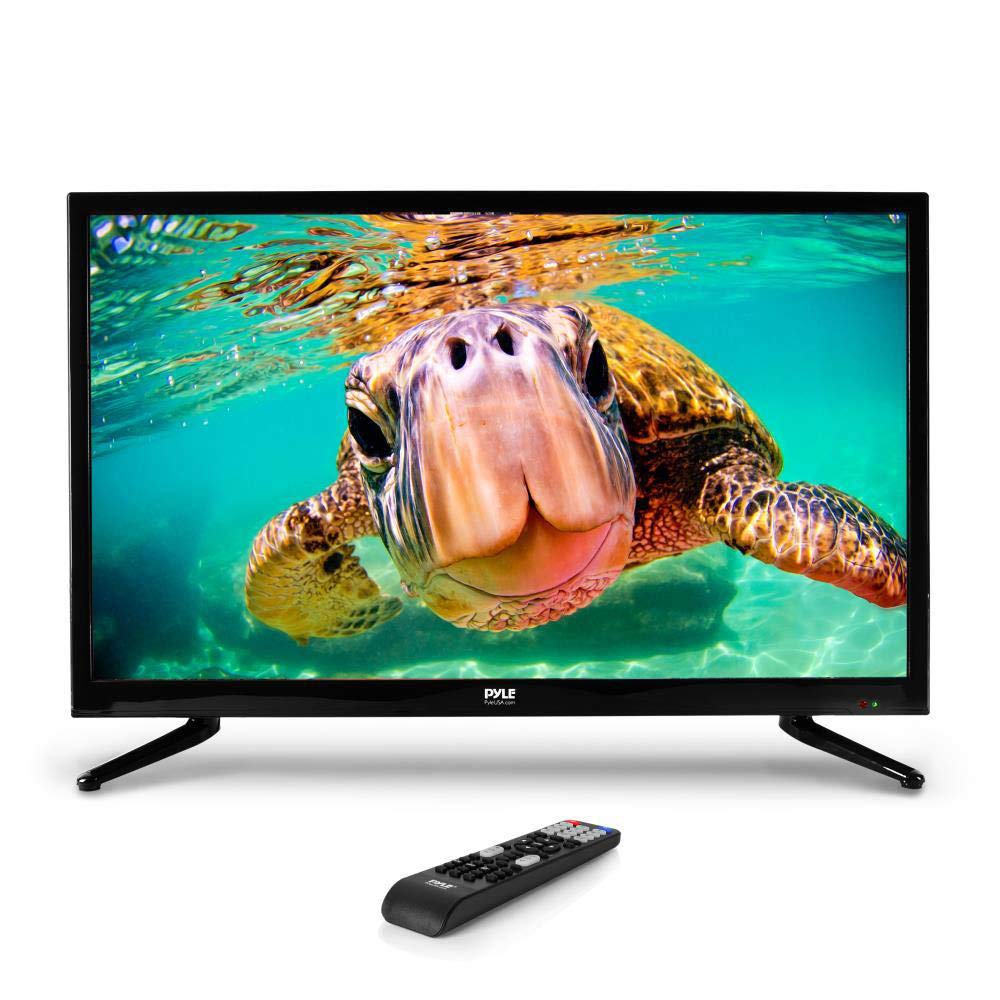
Image: Front view of the Pyle PTVLED32 TV with its base stands attached, alongside the remote control.
2. Wall Mounting (Optional)
The PTVLED32 is compatible with VESA standard wall mounts (100mm x 100mm). Remove the base stands before wall mounting. Use appropriate wall mounting hardware (not included) and follow the instructions provided with your wall mount.
3. Connecting External Devices
The TV offers various input ports for connecting external devices. Refer to the image below for port locations.

Image: Detailed view of the rear panel connections, including HDMI, YPbPr, RCA, VGA, PC Audio, RF, Optical Audio Out, and Headphone ports.
- HDMI (x3): Connect Blu-ray players, game consoles, cable/satellite boxes, or other HDMI-enabled devices.
- YPbPr (Component Video): Connect devices using component video cables (red, green, blue) and RCA L/R audio cables.
- RCA (L/R Audio): For analog audio input, often used with YPbPr or composite video (if available).
- VGA/PC: Connect a computer using a VGA cable.
- PC Audio: For audio input when using the VGA connection.
- RF (Antenna): Connect an antenna or cable TV signal for over-the-air or basic cable channels.
- Optical (Digital) Audio Out: Connect to a soundbar or home theater system for digital audio output.
- Headphones: Connect headphones for private listening.
4. Connecting Power
Plug the power cord into the TV's power input, then plug the other end into a standard electrical outlet (100-240V, 50/60Hz).
5. Initial Setup and Channel Scan
Upon first power-on, the TV may guide you through an initial setup process, including language selection and channel scanning. Follow the on-screen prompts to scan for available channels if you are using an antenna or cable connection.
Operating Instructions
Remote Control Functions
The included remote control provides full functionality for your TV. Ensure the 'AAA' batteries are correctly installed.
Image: The Pyle PTVLED32 TV and its remote control, illustrating the primary interface for operation.
- Power: Turns the TV on or off.
- Input/Source: Selects the input source (HDMI 1/2/3, YPbPr, VGA, RF).
- Volume +/-: Adjusts the volume level.
- Channel +/-: Changes TV channels.
- Menu: Accesses the on-screen display (OSD) menu for settings.
- Navigation Buttons (Up/Down/Left/Right/OK): Navigate through menu options and confirm selections.
- Exit: Exits the current menu.
- Mute: Mutes or unmutes the sound.
- Display Modes: Cycles through display modes (16:9, 4:3, Zoom, Cinema).
- V-Chip: Accesses parental control settings.
- Closed Caption (CC): Toggles closed captions on/off.
- Sleep Timer: Sets a timer for the TV to automatically turn off.
Side Panel Button Controls
Basic functions can also be controlled using the buttons located on the side panel of the TV.

Image: Side panel of the Pyle PTVLED32 TV, highlighting the physical control buttons for power, volume, channel, menu, and input selection.
- Power: Turns the TV on or off.
- Input: Cycles through input sources.
- Menu: Opens the on-screen menu.
- CH+/CH-: Changes channels up or down.
- VOL+/VOL-: Increases or decreases volume.
Picture and Sound Settings
Access the TV's menu using the Menu button on the remote or side panel. From here, you can adjust various settings:
- Picture: Adjust brightness, contrast, color, sharpness, and select picture modes (e.g., Standard, Dynamic, Movie).
- Sound: Adjust bass, treble, balance, and select sound modes (e.g., Standard, Music, Movie).
- Time: Set the sleep timer, current time, and date.
- Setup: Access language settings, OSD duration, and other general system settings.
Maintenance
Cleaning the TV
- Always unplug the TV from the power outlet before cleaning.
- Screen: Gently wipe the screen with a soft, lint-free cloth. For stubborn marks, dampen the cloth slightly with water or a specialized screen cleaner. Never spray cleaner directly onto the screen.
- Cabinet: Use a soft, dry cloth to wipe the cabinet. Avoid using abrasive cleaners, waxes, or solvents as they can damage the finish.
Storage
If you need to store the TV for an extended period, unplug it, remove the batteries from the remote control, and store it in a cool, dry place, preferably in its original packaging to protect it from dust and physical damage.
Troubleshooting
Before contacting customer support, please refer to the following troubleshooting guide for common issues.
No Power
- Ensure the power cord is securely plugged into both the TV and a working electrical outlet.
- Check if the power outlet is functional by plugging in another device.
- Press the power button on the TV's side panel to rule out a remote control issue.
No Picture, But Sound is Present
- Verify that the correct input source is selected (e.g., HDMI 1, VGA).
- Check the cable connections between the TV and the external device. Try re-seating the cables.
- Ensure the external device (e.g., Blu-ray player, cable box) is powered on and functioning correctly.
- Adjust brightness and contrast settings in the picture menu.
No Sound, But Picture is Present
- Check if the TV is muted. Press the Mute button on the remote.
- Increase the volume using the Volume + button.
- Verify audio cable connections for external devices.
- If using external speakers, ensure they are powered on and connected correctly.
- Check sound settings in the TV menu.
Remote Control Not Working
- Ensure there are no obstructions between the remote and the TV's IR sensor.
- Replace the batteries in the remote control with new 'AAA' batteries.
- Point the remote directly at the TV.
Poor Picture Quality / Fuzzy Image
- For antenna/cable, check the antenna connection and try rescanning channels.
- For external devices, ensure high-quality cables are used and connected securely.
- Adjust picture settings (sharpness, contrast, brightness) in the TV menu.
- Ensure the source device is outputting a compatible resolution.
Technical Specifications
| Screen Size | 32.0 inches (Diagonal) |
| Display Type | D-LED Backlight |
| Display Resolution | 1366 x 768 pixels |
| Signal Support | 1080p, 1080i, 720p, 480p, 480i |
| Display Modes | 16:9, 4:3, Zoom, Cinema |
| Viewing Angle | 178° Vertical, 178° Horizontal |
| Speaker Power | (2) 8 Watt, 8Ω |
| Refresh Rate | 60Hz |
| TV Tuner | ATSC/NTSC |
| Response Time | 20ms |
| Max. Color | 16.7M |
| Contrast | 4000:1 (25,000:1 Dynamic) |
| Brightness | 250 cd/m2 |
| VESA Mounting | 100mm x 100mm |
| Power Supply | 100/240V, 50/60Hz |
| Product Dimensions (L x W x H) | 29.1'' x 3.0'' x 17.2'' |
| Item Weight | 13.28 pounds |
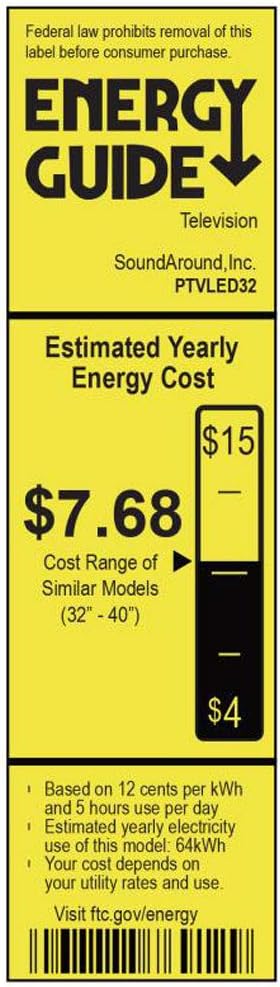
Image: Energy Guide label for the Pyle PTVLED32 television, showing estimated yearly energy cost and consumption.
For more information, visit ftc.gov/energy.
Warranty Information
Pyle products are designed and manufactured to the highest quality standards. This product is covered by a limited warranty. Please refer to the warranty card included with your product or visit the official Pyle website for detailed warranty terms and conditions.
Please retain your proof of purchase for warranty claims.
Customer Support
If you encounter any issues not covered in the troubleshooting section or require further assistance, please contact Pyle customer support.
- Website: Visit the official Pyle website for FAQs, support resources, and contact information.
- Phone/Email: Refer to the contact details provided on the Pyle website or in your product packaging.


