
Roland Xps-30
Roland XPS-30 Expandable Synthesizer Keyboard Instruction Manual
Model: XPS-30
1. Introduction
The Roland XPS-30 is a versatile and portable synthesizer keyboard, ideal for musicians requiring a broad range of sounds and performance features. Building upon the success of previous models, the XPS-30 offers enhanced capabilities for live performance and creative music production.
This manual provides essential information on setting up, operating, and maintaining your Roland XPS-30, ensuring you can fully utilize its extensive features.

Figure 1.1: Roland XPS-30 Expandable Synthesizer Keyboard
2. Setup
2.1 Unpacking
Carefully remove all components from the packaging. Ensure the following items are present:
- Roland XPS-30 Keyboard Unit
- AC Adapter
- Owner's Manual (this document)
2.2 Powering On
The XPS-30 can be powered using the included AC adapter or via AA batteries.
- AC Power: Connect the AC adapter to the DC IN jack on the rear panel and plug it into a standard power outlet.
- Battery Power: Insert eight AA-size Ni-MH rechargeable batteries into the battery compartment on the underside of the unit. Ensure correct polarity.
2.3 Connecting Peripherals
Connect your audio output devices, headphones, and other peripherals to the appropriate jacks on the rear panel.

Figure 2.1: Rear Panel Connections
- Audio Output: Connect the L/MONO and R OUTPUT jacks to your amplifier, mixer, or audio interface.
- Headphones: Plug your headphones into the PHONES jack for private monitoring.
- Pedals: Connect sustain or expression pedals to the appropriate pedal jacks for enhanced control.
- USB/MIDI: Use the USB COMPUTER port for MIDI and audio communication with a computer. The USB MEMORY port is for connecting a USB flash drive.
3. Operating Instructions
3.1 Front Panel Overview
The XPS-30 features an intuitive front panel design with dedicated controls for various functions, allowing for quick and efficient sound manipulation.

Figure 3.1: Front Panel Controls
3.2 Master Volume and Mode Controls
The Master Volume knob controls the overall output level. The Mode section provides quick access to Sample Import and DAW Control functions, along with dedicated knobs for sound modification.
- Cutoff, Resonance, Attack, Release: These knobs allow for real-time shaping of your sound's timbre and envelope.
- Mic Reverb, MFX Ctrl, Chorus/Delay, Reverb: These assignable knobs control various effects, allowing you to add depth and space to your sounds.
3.3 Sample Import Function
The XPS-30 allows you to import your own audio samples via a USB flash drive. These samples can then be assigned to keys or phrase pads for playback and integration into your performances.
Video 3.1: Demonstration of Sample Import functionality on the Roland XPS-30. This segment shows how to navigate the menu to import audio files from a USB drive and assign them to the keyboard for playback.
3.4 DAW Control
The DAW Control button enables direct integration with Digital Audio Workstation (DAW) software on your computer. This allows the XPS-30 to function as a MIDI controller, facilitating seamless music production workflows.
Video 3.2: Overview of the DAW Control feature on the XPS-30. This clip highlights the button for direct computer connectivity, useful for integrating with DAW software.
3.5 Faders and Levels
The four faders provide precise control over various audio levels, including microphone input, phrase pad playback, and the volume of lower and upper tones when using split or layer functions.
Video 3.3: Explanation of the faders on the XPS-30. This segment details how to adjust levels for microphone input, phrase pads, and the lower/upper parts of layered sounds.
3.6 Phrase Pad
The XPS-30 features eight Phrase Pads, allowing you to trigger samples, loops, and one-shot audio phrases. These pads are highly responsive and can be used for adding rhythmic elements or vocal phrases to your performance.
- Loop Function: Engage the LOOP button to continuously play assigned audio phrases.
- Erase Function: Use the ERASE button to clear recorded or assigned phrases from the pads.
- Mute Function: Temporarily silence a phrase pad using the MUTE button.
3.7 Battery Operation
The XPS-30 can be operated on batteries, providing flexibility for performances in locations without immediate access to AC power. A dedicated battery indicator light on the front panel shows the power status.
Video 3.4: Demonstration of the battery operation feature on the XPS-30. This segment shows the battery indicator and discusses the convenience of battery power for portability.
3.8 Favorite Tones
The XPS-30 allows you to store up to 100 of your most frequently used or preferred tones as favorites for instant recall during performances or practice sessions. Use the FAVORITE and BANK buttons to access your saved selections.
3.9 Pattern Sequencer
The eight-track pattern sequencer is a powerful tool for creating and arranging musical ideas. You can import MIDI data, record your own performances, and control the tempo of your patterns in real-time.
Video 3.5: Detailed look at the Pattern Sequencer on the XPS-30. This video demonstrates importing MIDI, recording patterns, and adjusting the tempo for dynamic performance control.
3.10 Mixer
The built-in mixer allows you to adjust the levels and panning of individual tracks within the pattern sequencer, providing comprehensive control over your arrangements.
3.11 Virtual Expansion Slot
The XPS-30 features a virtual expansion slot, allowing you to load new sound waveforms and collections from Roland's Axial website. This significantly expands the keyboard's sonic palette with a variety of high-quality sounds, including pianos, strings, brass, and world instruments.
Video 3.6: Overview of the Virtual Expansion Slot on the XPS-30. This segment explains how to access and utilize new sound collections downloaded from Roland's Axial website.
4. Maintenance
Proper maintenance ensures the longevity and optimal performance of your Roland XPS-30.
- Cleaning: Use a soft, dry cloth to wipe down the surface of the keyboard. For stubborn dirt, a slightly damp cloth with mild soap can be used, followed by a dry cloth. Avoid abrasive cleaners or solvents.
- Storage: Store the keyboard in a cool, dry place away from direct sunlight, extreme temperatures, and high humidity. If storing for extended periods, remove batteries to prevent leakage.
- Software Updates: Periodically check the Roland website for firmware updates. Updates can improve performance, add new features, or resolve issues. Follow the instructions provided with the update carefully.
5. Troubleshooting
This section addresses common issues you might encounter with your XPS-30.
- No Sound:
- Check master volume and individual part volumes.
- Ensure speakers/headphones are properly connected and powered on.
- Verify that the correct tone is selected and not muted.
- Keyboard Not Responding:
- Check power connection and battery status.
- Perform a factory reset if necessary (refer to the full owner's manual for instructions).
- USB/MIDI Connection Issues:
- Ensure correct USB drivers are installed on your computer.
- Verify DAW settings for MIDI input/output.
For more detailed troubleshooting, please refer to the comprehensive owner's manual or contact Roland support.
6. Specifications
| Feature | Specification |
|---|---|
| Model Name | Roland XPS-30 |
| Number of Keys | 61 |
| Dimensions (D x W x H) | 30D x 100.8W x 9.7H Centimeters |
| Item Weight | 5.3 kg (5300 Grams) |
| Power Source | AC Adapter, AA batteries (8 required) |
| Connectivity Technology | MIDI, USB |
| Headphones Jack | 3.5mm Jack |
| Body Material | Plastic |
| Included Components | 1N Keyboard |
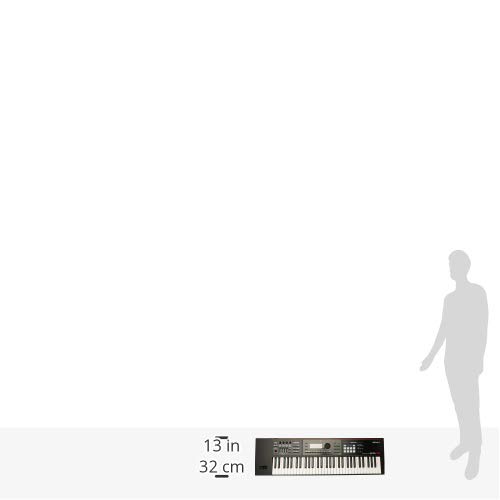
Figure 6.1: Roland XPS-30 with size reference
7. Warranty and Support
Your Roland XPS-30 is covered by a manufacturer's warranty. Please refer to the warranty card included with your product for specific terms and conditions.
- Online Support: Visit the official Roland website for FAQs, driver downloads, and additional support resources.
- Customer Service: For technical assistance or service inquiries, please contact Roland customer support. Contact details can be found on the Roland website or your product's warranty documentation.
Ask a question about this manual
Ask about setup, troubleshooting, compatibility, parts, safety, or missing instructions. Manuals+ will review the question and use this page’s manual context to help answer it.