1. Introduction
This manual provides essential information for the safe and efficient use of your Dell XPS 13 (9360) laptop. It covers initial setup, basic operation, maintenance guidelines, and troubleshooting steps to help you resolve common issues. Please read this manual thoroughly before using your device.

Figure 1: Dell XPS 13 (9360) Laptop Front View
2. Setup
2.1 Unboxing and Initial Inspection
Carefully remove all components from the packaging. Verify that the following items are included:
- Dell XPS 13 (9360) Laptop
- Power Adapter
- Quick Start Guide
- Warranty, Safety, and Regulatory Information
Inspect the laptop for any physical damage. If any components are missing or damaged, contact Dell support immediately.
2.2 Connecting the Power Adapter
- Connect the power adapter cable to the power port on the side of your laptop.
- Plug the power adapter into a wall outlet.
- The battery indicator light will illuminate, indicating that the laptop is charging.
2.3 First Power On and Operating System Setup
- Open the laptop lid.
- Press the power button located on the top right of the keyboard.
- Follow the on-screen instructions to complete the Windows 10 operating system setup. This includes selecting your region, language, creating a user account, and connecting to a Wi-Fi network.
3. Operating Your Laptop
3.1 Power Management
- Power On: Press the power button.
- Sleep Mode: Close the lid or select 'Sleep' from the Windows Start menu.
- Shut Down: Select 'Shut down' from the Windows Start menu.
- Restart: Select 'Restart' from the Windows Start menu.
3.2 Display and Input
Your Dell XPS 13 (9360) features a 13.3-inch QHD+ (3200 x 1800) InfinityEdge touch display. This display offers high resolution and touch functionality for interactive use.

Figure 2: Laptop Display and Keyboard
- Keyboard: The integrated keyboard provides tactile feedback for typing.
- Touchpad: Use the multi-touch touchpad for navigation and gestures.
- Touch Screen: Interact directly with the display using touch gestures.
3.3 Ports and Connectivity
The laptop includes various ports for connecting external devices:
- USB 3.0 Ports: Two ports for connecting USB devices.
- Wireless: Integrated 802.11ac for Wi-Fi connectivity.
- Other Ports: Refer to the physical layout of your laptop for additional ports such as Thunderbolt 3 (USB-C), SD card reader, and audio jack.
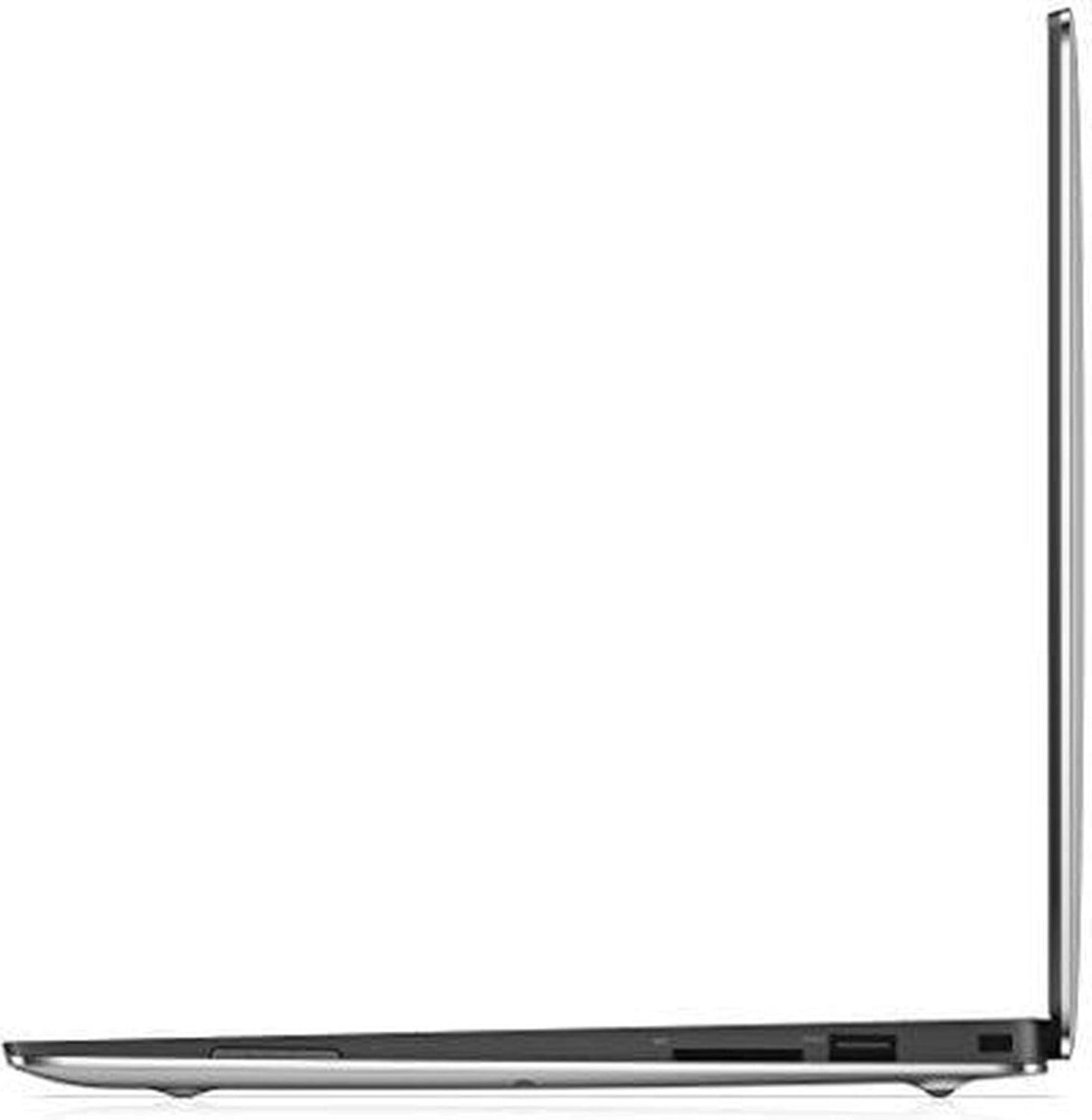
Figure 3: Left Side Ports

Figure 4: Right Side Ports
4. Maintenance
4.1 Cleaning Your Laptop
- Use a soft, lint-free cloth dampened with water or a screen cleaner to clean the display.
- Wipe the keyboard and chassis with a soft, dry cloth. Avoid harsh chemicals.
- Ensure the laptop is powered off and unplugged before cleaning.
4.2 Battery Care
- Avoid fully discharging the battery frequently.
- Store the laptop in a cool, dry place when not in use for extended periods.
- Use only the original Dell power adapter.
4.3 Software Updates
Regularly update your Windows 10 operating system and Dell drivers to ensure optimal performance and security. You can check for updates through Windows Update settings and the Dell SupportAssist application.
5. Troubleshooting
This section addresses common issues you might encounter with your Dell XPS 13 (9360) laptop.
5.1 Power Issues
- Laptop does not turn on: Ensure the power adapter is securely connected and the outlet is functional. Try a different outlet.
- Battery not charging: Verify the power adapter connection. Check for any error messages in the operating system.
5.2 Display Issues
- Screen flickering or streaks: Update graphics drivers. If the issue persists, contact Dell support.
- No display: Connect an external monitor to check if the issue is with the laptop's internal display.
5.3 Connectivity Issues
- Wi-Fi not connecting: Ensure Wi-Fi is enabled in Windows settings. Restart your router and laptop. Update wireless drivers.
- USB device not recognized: Try a different USB port or device. Update USB drivers.
For more complex issues, refer to the Dell support website or contact technical assistance.
6. Specifications
| Feature | Specification |
|---|---|
| Model Name | XPS 13 (9360) |
| Item Model Number | XPS9360-7336SLV |
| Processor | 7th Generation Intel Core i7-7500U (up to 3.5 GHz) |
| RAM | 16 GB LPDDR3-1866MHz |
| Storage | 512 GB SSD |
| Display | 13.3-inch QHD+ (3200 x 1800) InfinityEdge Touch Display |
| Graphics | Intel HD Graphics 620 (Integrated) |
| Operating System | Windows 10 |
| Wireless Type | 802.11ac |
| USB Ports | 2 x USB 3.0 Ports |
| Item Weight | 2.7 pounds (1.22 kg) |
| Product Dimensions | 7.88 x 11.98 x 0.6 inches (19.99 x 30.43 x 1.52 cm) |
| Battery | 1 Lithium Ion battery (included) |
7. Warranty and Support
7.1 Warranty Information
Your Dell XPS 13 (9360) laptop is covered by a limited hardware warranty. Please refer to the 'Warranty, Safety, and Regulatory Information' document included with your product for specific terms and conditions, including warranty duration and coverage details.
7.2 Technical Support
For technical assistance, driver downloads, or further troubleshooting, please visit the official Dell support website:
You will need your laptop's service tag or express service code, typically found on a label on the bottom of the device, to access personalized support resources.