
Introduction
The VDWall LVP615S is an advanced LED Video Processor designed to manage and scale various video input signals for display on LED screens. This device offers enhanced connectivity and an improved user interface compared to previous models. It supports multiple input types and provides flexible scaling capabilities to ensure optimal display performance.
Package Contents
Before proceeding with installation, please verify that all items listed below are present in your package:
- VDWall LVP615S LED Video Processor Unit
- Power Cable
- USB Cable
- DVI Cable
- VGA Cable
- Ethernet Cable
- Remote Control
- User Manual (this document)
- Software CD
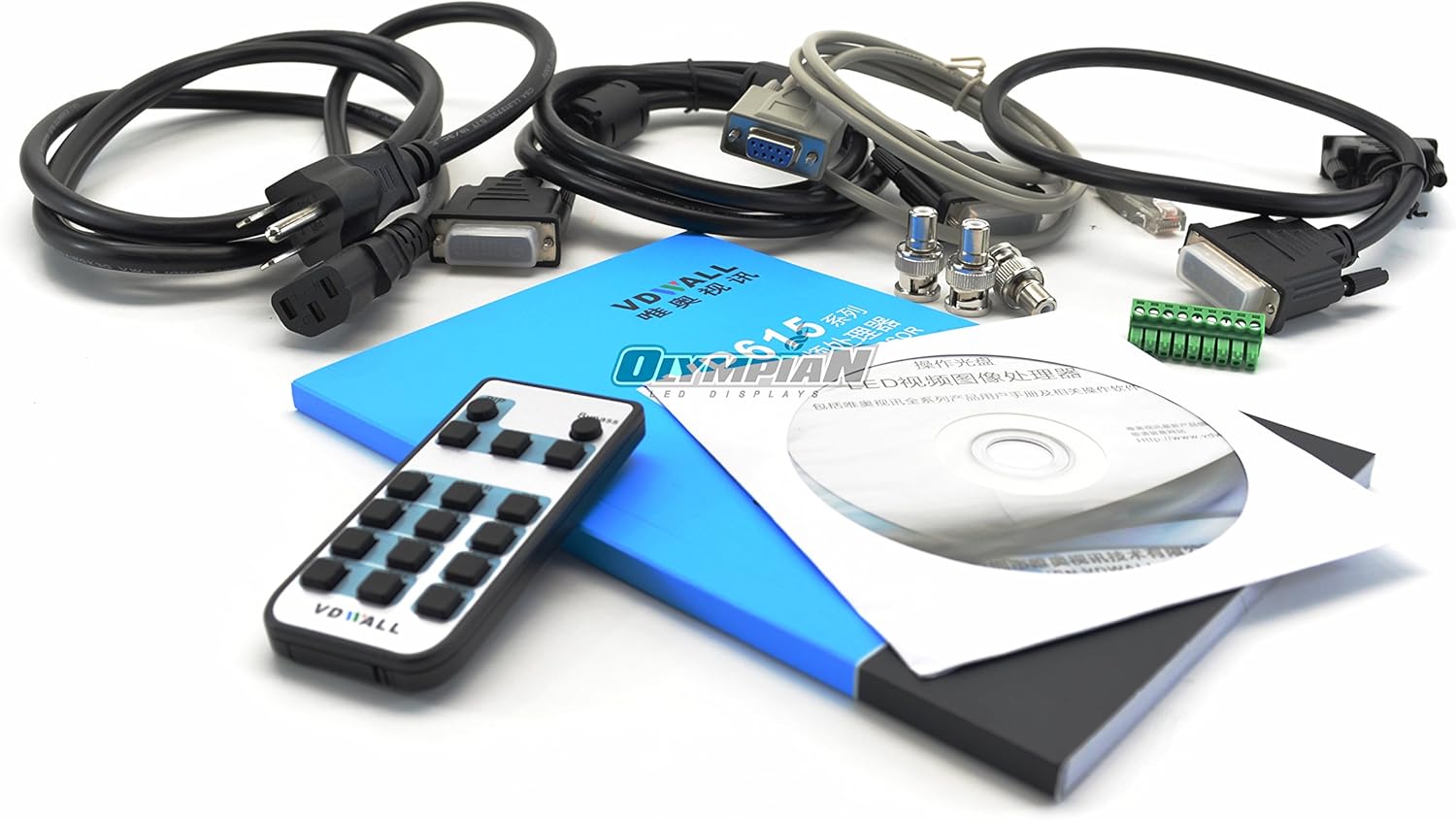
Image: Contents of the VDWall LVP615S package, showing the remote control, various cables (power, VGA, DVI, USB, Ethernet), and the user manual with a software CD.
Setup
Follow these steps to set up your VDWall LVP615S LED Video Processor:
- Power Connection: Connect the provided power cable to the '100-240V~' input on the rear panel of the processor and then to a suitable power outlet.
- Input Source Connection: Connect your video input sources (e.g., computers, media players) to the desired input ports on the rear panel. The LVP615S supports various inputs including VGA, DVI, HDMI, and DisplayPort.
- Output Connection: Connect the processor's output ports (DVI, VGA) to your LED screen sending cards. The device features removable trays for easy installation and removal of sending cards.
- Network Connection (Optional): For remote control via the iPhone app or PC software, connect an Ethernet cable from the 'LAN' port on the processor to your network router or switch.
- USB Connection (Optional): Connect a USB cable from the 'USB' port to a computer for firmware updates or advanced control.
- Power On: Press the power switch located on the front panel to turn on the device. The LED display on the front panel will illuminate.

Image: Front and rear view of the VDWall LVP615S LED Video Processor, highlighting the input/output ports, power connection, and control buttons.
Operating Instructions
The LVP615S offers an improved menu system for intuitive operation.
Basic Operation
- Input Selection: Use the input selection buttons (V1, V2, VGA1, VGA2, HDMI, DVI, DP) on the front panel to switch between connected video sources.
- Scaling: The processor automatically scales the input signal to fit your LED screen's resolution. Fine-tuning of scaling parameters can be done through the on-screen menu.
- Menu Navigation: Use the 'Menu' button and the rotary encoder on the front panel to navigate through the improved menu system. Press the encoder to select an option and rotate to change values.
- Preset Recall: The device supports saving and recalling custom display presets. Use the 'Preset' buttons (W1, W2, W3) to quickly switch between configurations.
Advanced Control
- iPhone App Control: Download the official VDWall iPhone application from the App Store. Ensure the processor is connected to the same network as your iPhone via the Ethernet port. Follow the app's instructions for pairing and control.
- PC Software Control: Install the provided PC software from the CD or VDWall's website. Connect your PC to the processor via Ethernet or USB for comprehensive control and configuration.
Maintenance
Proper maintenance ensures the longevity and optimal performance of your LVP615S processor.
- Cleaning: Regularly clean the exterior of the unit with a soft, dry cloth. Do not use liquid cleaners or abrasive materials. Ensure ventilation openings are free from dust and obstructions.
- Firmware Updates: Periodically check the VDWall official website for new firmware versions. Firmware updates can improve performance, add features, or resolve issues. Follow the provided instructions carefully when performing updates.
- Environmental Conditions: Operate the processor in a well-ventilated area, away from direct sunlight, excessive heat, moisture, and strong electromagnetic fields.
Troubleshooting
If you encounter issues with your LVP615S, refer to the following common problems and solutions:
- No Signal on LED Screen:
- Verify all video input and output cables are securely connected.
- Ensure the correct input source is selected on the processor.
- Check the LED screen's power and input settings.
- Test with a different input source or cable if possible.
- Distorted or Flickering Image:
- Check cable connections for looseness or damage.
- Ensure the input signal resolution and refresh rate are compatible with the processor and LED screen.
- Adjust scaling settings in the processor's menu.
- Remote Control Not Responding:
- Ensure there are no obstructions between the remote and the processor's IR receiver.
- Replace the batteries in the remote control.
- No Power:
- Verify the power cable is securely connected to both the processor and the power outlet.
- Check if the power outlet is functional.
- Ensure the power switch on the front panel is in the 'ON' position.
If problems persist, please contact VDWall customer support.
Specifications
| Feature | Description |
|---|---|
| Model | LVP615S |
| Product Dimensions | 20 x 20 x 10 inches |
| Item Weight | 11.27 pounds |
| Manufacturer | VDWall |
| Date First Available | September 7, 2016 |
| Input Types | VGA, DVI, HDMI, DisplayPort |
| Output Types | DVI, VGA (for sending cards) |
| Control Methods | Front Panel, Remote Control, iPhone APP, PC Software (via Ethernet/USB) |
| Key Features | Improved LED screen, improved menu, DisplayPort, removable trays for sending cards, wireless control by iPhone APP, Ethernet port. |
Warranty and Support
For warranty information, technical support, or service inquiries, please refer to the warranty card included in your package or visit the official VDWall website. Ensure you have your product model (LVP615S) and serial number ready when contacting support.