
Introduction
The KDLINKS R100 Dual Lens Dash Cam is designed to enhance your driving safety and provide reliable video evidence. This rearview mirror-mounted system features a built-in 5-inch IPS screen, offering both front and rear high-definition recording capabilities. Key features include superior night vision, advanced parking mode with motion detection, and support for high-capacity micro SD cards. This manual provides essential information for setting up, operating, and maintaining your R100 dash cam.

Figure 1: KDLINKS R100 Dual Lens Dash Cam with rear camera unit.
Package Contents
Please ensure all items are present before proceeding with installation:
- KDLINKS R100 Mirror Dash Cam Unit (with integrated front camera and 5-inch IPS screen)
- Rear Camera Unit
- Rear Camera Connection Cable
- Car Charger (Power Cable)
- Rubber Mounting Straps (for mirror attachment)
- GPS Module
- Cable Management Tool
- User Manual
- Micro SD Card (64GB or 128GB, depending on package)
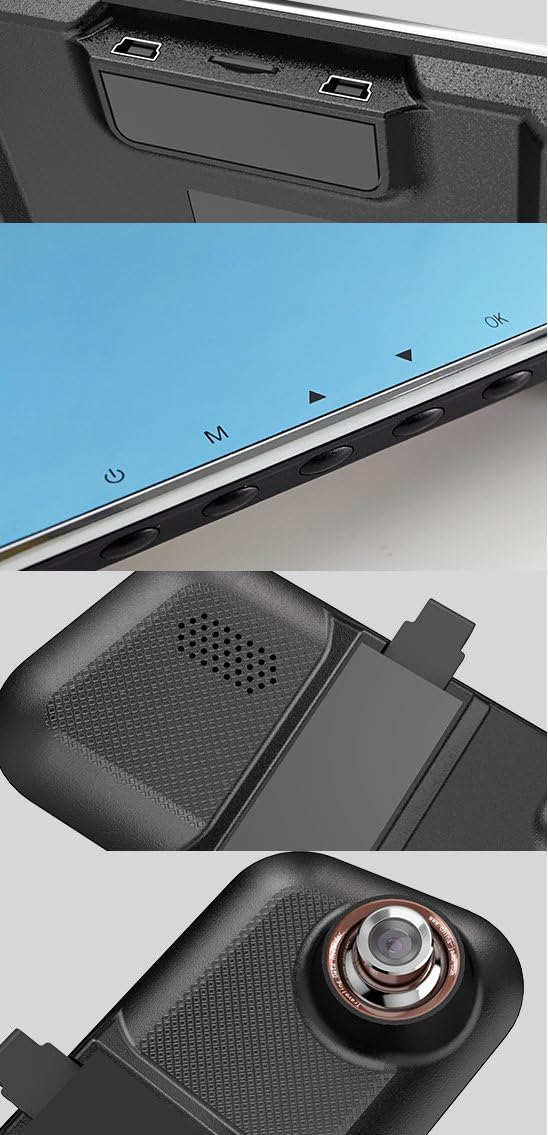
Figure 2: KDLINKS R100 ports and connections.
Setup and Installation
Follow these steps to properly install your KDLINKS R100 dash cam:
- Mount the Mirror Unit: Secure the KDLINKS R100 mirror unit over your existing rearview mirror using the provided rubber straps. Ensure it is firmly attached and does not obstruct your view.
- Connect Power: Plug the car charger into the mirror unit's power input. Route the power cable discreetly along the windshield trim and down to your vehicle's 12V power outlet. Use the cable management tool to tuck the cable neatly.
- Install Rear Camera: Mount the rear camera unit at the back of your vehicle, typically near the license plate or inside the rear window. Connect the rear camera cable to the main mirror unit. Route this cable along the vehicle's headliner and side panels to the rear, ensuring it is hidden and secure.
- Connect GPS Module: Attach the GPS module to the mirror unit and secure it to the windshield, ensuring it has a clear view of the sky for accurate signal reception.
- Insert Micro SD Card: Insert the provided micro SD card into the designated slot on the mirror unit.
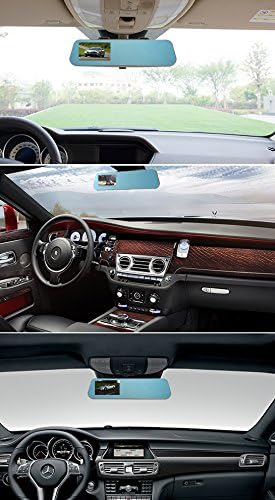
Figure 3: KDLINKS R100 installed in a vehicle.

Figure 4: Mirror unit attachment steps.
Operating Instructions
The KDLINKS R100 is designed for intuitive operation:
- Automatic Recording: The dash cam will automatically power on and begin recording when your vehicle's ignition is turned on. Recording stops and saves when the ignition is turned off.
- Screen Display Modes: Tap the screen to switch between front camera view, rear camera view, or a split-screen display showing both simultaneously. The 5-inch IPS screen provides a clear and wide viewing angle.
- Parking Mode: The R100 features an advanced parking mode. When movement is detected while the vehicle is parked and off, the dash cam will automatically record for a short period and then power off, providing surveillance for your parked car.
- Loop Recording: The system continuously records, overwriting the oldest files when the micro SD card is full. Important footage can be manually locked to prevent overwriting.
- Night Vision: The 6-glass lens design and Wide Dynamic Range (WDR) technology ensure superior video quality in low-light conditions.

Figure 5: Split-screen display showing front and rear camera views.

Figure 6: IPS screen wide viewing angle comparison.
Features
The KDLINKS R100 is equipped with several advanced features:
- Dual Lens Recording: Captures Ultra HD 1296P video from the front and 1080P from the rear, providing comprehensive coverage.
- Anti-Glare Rearview Mirror: The mirror surface is designed to reduce glare, ensuring clear visibility even when the screen is off.
- 5-inch IPS Display: A high-quality IPS screen offers wide viewing angles and clear image display.
- Superior Night Mode: Enhanced low-light performance thanks to the 6-glass lens and WDR technology.
- Advanced Parking Mode: Automatic motion detection and recording when the vehicle is parked, protecting against incidents.
- High-Capacity Storage: Supports micro SD cards up to 128GB for extended recording times.
- Built-in Battery: An 800mAh internal battery provides temporary power for parking mode and emergency recording.
Maintenance
To ensure the longevity and optimal performance of your KDLINKS R100:
- SD Card Formatting: Regularly format the micro SD card (at least once a month) to prevent data corruption and ensure smooth recording. This can usually be done through the device's settings menu.
- Lens Cleaning: Keep the front and rear camera lenses clean using a soft, lint-free cloth. Avoid abrasive materials that could scratch the lens.
- Firmware Updates: Check the KDLINKS website periodically for firmware updates to ensure your device has the latest features and bug fixes.
- Temperature Control: Avoid exposing the dash cam to extreme temperatures for prolonged periods, as this can affect battery life and component integrity.
Troubleshooting
If you encounter issues with your KDLINKS R100, try the following:
- Device Not Powering On: Ensure the car charger is properly connected and the vehicle's 12V outlet is functioning. Check the power cable for any damage.
- Recording Issues: Format the micro SD card. If issues persist, try a different high-speed (Class 10 or higher) micro SD card. Ensure loop recording is enabled.
- Poor Video Quality: Clean the camera lenses. Check the resolution settings in the device menu to ensure they are set to the desired quality (e.g., 1296P front, 1080P rear).
- Rear Camera Not Displaying: Check the connection cable between the main unit and the rear camera for any disconnections or damage.
- GPS Signal Issues: Ensure the GPS module is securely attached to the windshield with a clear view of the sky. Avoid placing it under metallic objects.
Specifications
| Brand | KDLINKS |
| Model | R100 |
| Screen Size | 5 Inches |
| Display Technology | LCD (IPS) |
| Front Video Resolution | 1296P |
| Rear Video Resolution | 1080P |
| Real Angle of View | 280 Degrees |
| Optical Sensor Technology | CMOS |
| Lens Type | 6-Glass Wide Angle |
| Supported SD Card | 64GB / 128GB Micro SD |
| Built-in Battery | 800mAh |
| Installation Type | Surface Mount (Rearview Mirror) |
| Voltage | 24 Volts |
Warranty and Support
Every KDLINKS R100 dual dash cam kit is backed by a reliable 1-year warranty. For customer support, technical assistance, or warranty claims, please refer to the contact information provided in your product packaging or on the official KDLINKS website.