Introduction
This manual provides detailed instructions for the Neoteck DAC04 4K HDMI Audio Extractor Converter. This device allows you to extract audio from an HDMI signal and output it to SPDIF (optical) and analog RCA (L/R) while passing the video signal through to an HDMI display. It supports resolutions up to 4K@30Hz and various audio formats, making it ideal for integrating modern HDMI sources with older audio systems.
Product Features
- 4K HDMI Audio Extraction: Converts HDMI input to HDMI output with additional SPDIF and R/L analog audio outputs. Supports HDCP 1.4 and 3D.
- High Resolution Support: Input resolution up to Ultra HD 4K@30Hz. Compatible with 1080p@60/50Hz, 1080i, 720p, 576i, 480p, and 480i. Note: Does not support 4K@60Hz.
- Versatile Audio Modes: Offers PASS, 2.0CH, and 5.1CH audio output options. Analog RCA output supports 2-channel PCM stereo audio. SPDIF output supports 2-channel PCM, Dolby Digital, and DTS (Dolby Digital Plus is not supported). HDMI output supports up to 7.1CH audio.
- LED Indicators: A red LED illuminates for power status, and a green LED illuminates for HDMI connection status.
- Durable Construction: Features an aluminum alloy casing for enhanced durability and heat dissipation.
- Wide Compatibility: Suitable for various HDMI source devices including Blu-ray/DVD players, game consoles (PS3, PS4, Xbox), streaming devices (Roku, Chromecast, Amazon Fire TV, Apple TV), PCs, laptops, HD cameras, and HD DVRs.
Package Contents
Please check the package contents upon unboxing:
- 1 x Neoteck DAC04 HDMI Audio Extractor Converter
- 1 x USB Power Cable
- 1 x User Manual
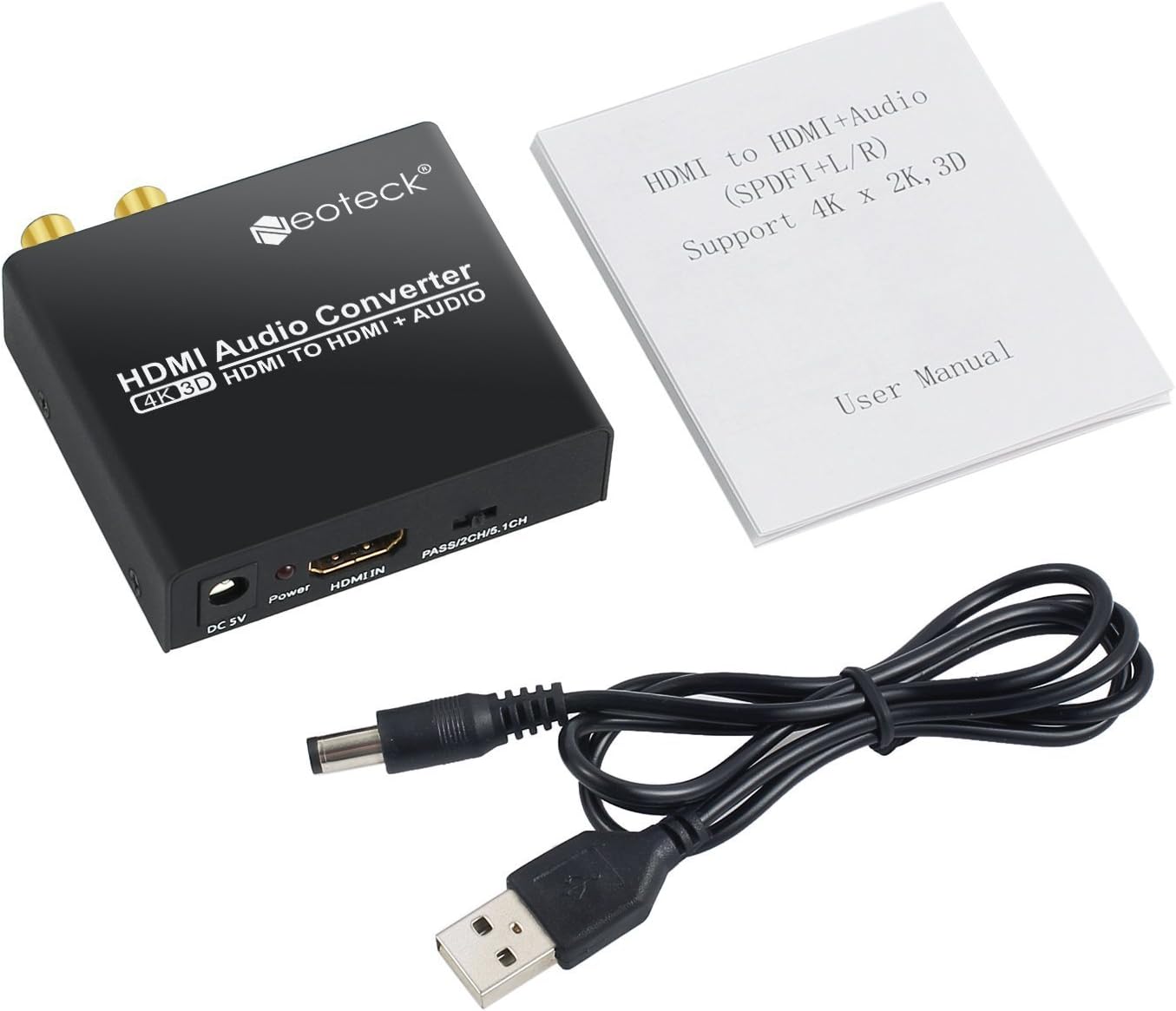
Image: Neoteck DAC04 HDMI Audio Extractor, USB power cable, and user manual included in the package.
Product Diagram
Front and Rear Panels
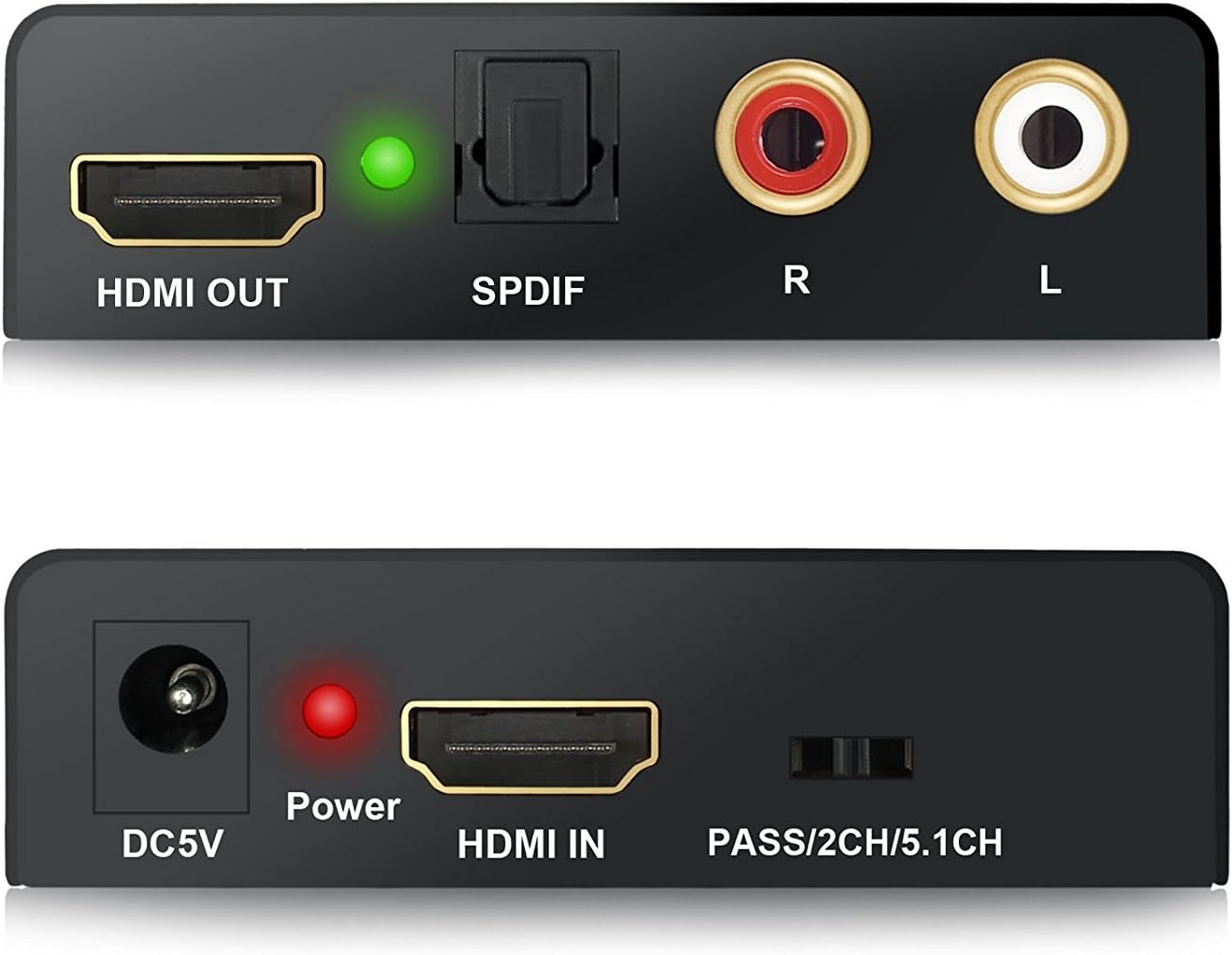
Image: Close-up view of the Neoteck DAC04 converter's front panel (DC5V, Power LED, HDMI IN, Audio Mode Switch) and rear panel (HDMI OUT, SPDIF, R/L RCA, HDMI LED).
- DC5V: Power input port.
- Power LED: Red indicator for power status.
- HDMI IN: HDMI input port for source devices.
- PASS/2CH/5.1CH Switch: Audio mode selection switch.
- HDMI OUT: HDMI output port for display devices.
- SPDIF: Optical audio output port.
- R/L: Analog RCA stereo audio output ports (Red for Right, White for Left).
- HDMI LED: Green indicator for HDMI connection status.
Typical Connection Diagram

Image: Diagram illustrating how to connect a Blu-ray DVD player (HDMI In) to the Neoteck converter, then HDMI Out to an HDTV and Optical Out/RCA Out to an amplifier.
Setup Instructions
- Connect your HDMI source device (e.g., Blu-ray player, PS4) to the "HDMI IN" port of the Neoteck converter using an HDMI cable.
- Connect your HDMI display (e.g., TV, projector) to the "HDMI OUT" port of the Neoteck converter using an HDMI cable.
- For audio output:
- To use optical audio, connect an optical cable from the "SPDIF" port of the converter to your audio receiver or soundbar.
- To use analog stereo audio, connect RCA cables from the "R/L" ports of the converter to your stereo amplifier or speakers.
- Connect the provided USB power cable to the "DC5V" port on the converter and then to a USB power source (e.g., a USB port on your TV, a USB wall adapter). The red Power LED will illuminate.
- Ensure all connected devices (source, display, audio system) are powered on. The green HDMI LED will illuminate when a stable HDMI connection is established.
Operating Instructions
The Neoteck DAC04 features a switch on the front panel to select the desired audio output mode: PASS, 2.0CH, or 5.1CH.

Image: The audio mode switch on the Neoteck DAC04 with labels for PASS, 2CH, and 5.1CH, and corresponding explanations.
- PASS Mode: In this mode, the SPDIF audio output format depends on the EDID (Extended Display Identification Data) of the connected TV or display. The audio signal is passed through without modification.
- 2.0CH Mode: When set to "2.0CH", the SPDIF output audio format will be LPCM 2-channel stereo. This is suitable for stereo audio systems.
- 5.1CH Mode: When set to "5.1CH", the SPDIF output audio format will be 5.1-channel. For this mode to function correctly, the source audio must also be 5.1CH. This mode supports Dolby Digital and DTS 5.1-channel audio.
Troubleshooting
- No Video Output:
- Ensure all HDMI cables are securely connected.
- Verify that the HDMI source device and display are powered on and functioning correctly.
- Check if the converter's red Power LED is illuminated. If not, ensure the USB power cable is connected to a working power source.
- Confirm that your display supports the input resolution (up to 4K@30Hz). This converter does not support 4K@60Hz.
- No Audio Output:
- Check all audio cables (SPDIF, RCA) for secure connections.
- Ensure your audio receiver/amplifier is powered on and set to the correct input.
- Verify the audio mode switch on the converter is set appropriately (PASS, 2.0CH, or 5.1CH) for your audio system and source content.
- If using 5.1CH mode, confirm that the source audio is indeed 5.1CH.
- Note that Dolby Digital Plus is not supported by the SPDIF output.
- If using PASS mode, the SPDIF output format depends on the TV's EDID. Try 2.0CH or 5.1CH mode if you experience issues.
- Poor Audio Quality:
- Ensure all cables are high quality and not damaged.
- Check for interference from other electronic devices.
- Adjust audio settings on your source device and audio receiver.
Specifications
| Brand | Neoteck |
| Model Number | DAC04 |
| Input Port | 1 x HDMI |
| Output Ports | 1 x HDMI, 1 x SPDIF (Optical), 1 x RCA L/R |
| HDMI Resolution | Up to 4K@30Hz, 1080p@60/50Hz, 1080i, 720p, 576i, 480p, 480i |
| HDCP Version | HDCP 1.4 |
| 3D Support | Yes |
| Audio Output Modes | PASS, 2.0CH, 5.1CH |
| SPDIF Audio Formats | PCM 2CH, Dolby Digital, DTS (Dolby Digital Plus not supported) |
| RCA L/R Audio Formats | PCM 2CH Stereo |
| HDMI Audio Formats | Up to 7.1CH |
| Power Supply | DC 5V (via USB) |
| Casing Material | Aluminum Alloy |
| Manufacturer | Neoteck |
Maintenance
- Keep the device in a dry, well-ventilated area.
- Avoid exposing the device to extreme temperatures, humidity, or direct sunlight.
- Clean the device with a soft, dry cloth. Do not use liquid cleaners or aerosols.
- Ensure proper ventilation around the device to prevent overheating.
Warranty and Support
For warranty information or technical support, please refer to the contact details provided with your purchase or visit the official Neoteck website. Keep your purchase receipt for warranty claims.