
1. Introduction
The DSC PowerSeries PG9920 is a PowerG 915MHz Wireless Repeater designed to extend the range of PowerG wireless devices within a security system. It receives signals from PowerG devices and re-transmits them to the main control panel, ensuring reliable communication in larger installations or environments with signal obstructions.
This manual provides detailed instructions for the installation, operation, maintenance, and troubleshooting of your PG9920 Wireless Repeater.
1.1 What's in the Box
- DSC PowerSeries PG9920 Wireless Repeater Unit
- Power adapter
- Mounting screws
- Installation Guide (this document)
2. Product Overview
Familiarize yourself with the components and indicators of the PG9920 Wireless Repeater.
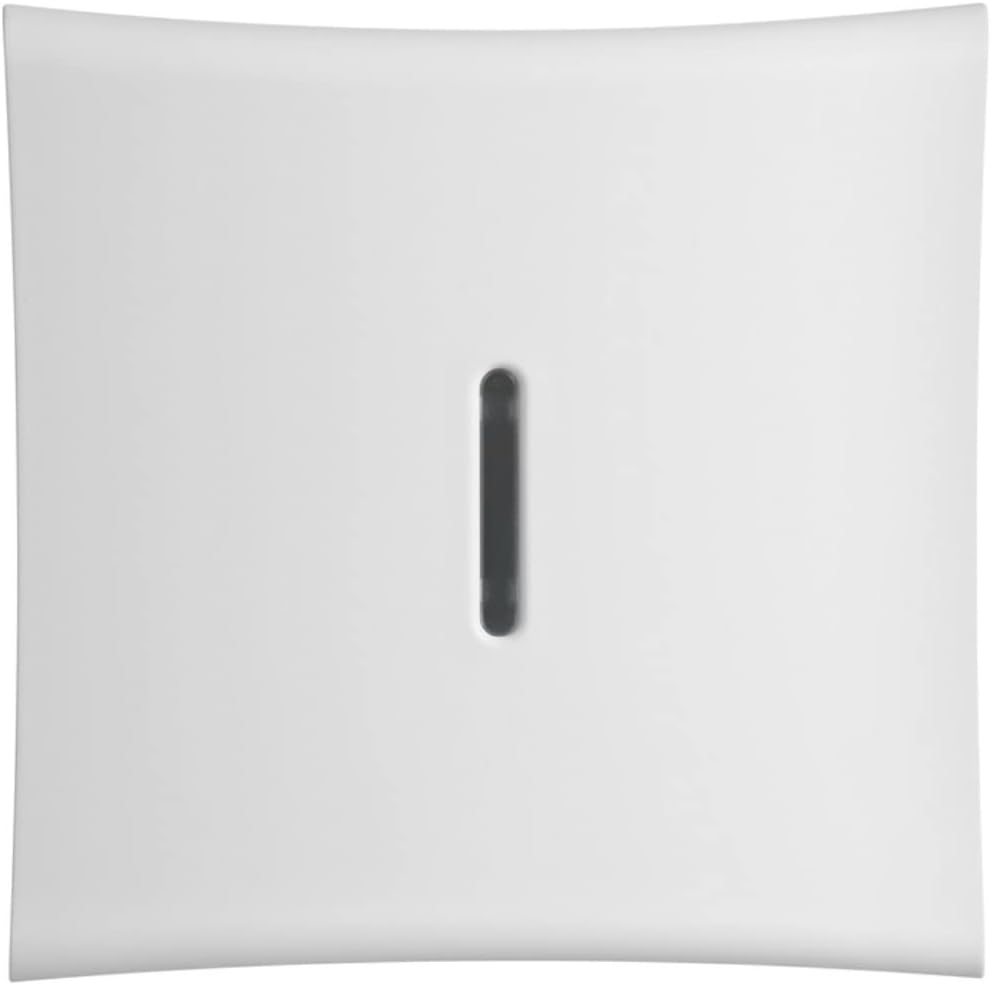
Figure 2.1: Front view of the DSC PG9920 Wireless Repeater. The front panel features a central LED indicator slot.

Figure 2.2: Angled view of the DSC PG9920 Wireless Repeater, showing its slim profile and the LED indicator slot.

Figure 2.3: Side-angled view of the DSC PG9920 Wireless Repeater, highlighting its compact design.
2.1 LED Indicator
The PG9920 features a multi-color LED indicator that provides status information:
- Green (Solid): Normal operation, good signal reception.
- Green (Flashing): Transmitting data.
- Red (Solid): Fault condition or poor signal.
- Off: No power or unit is not functioning.
3. Setup and Installation
Proper placement and installation are crucial for optimal performance of the wireless repeater.
3.1 Site Selection
Choose a central location between the PowerG devices and the main control panel. Avoid placing the repeater near large metal objects, concrete walls, or other sources of interference (e.g., microwave ovens, large electrical motors). Ensure the location is within the wireless range of both the devices and the panel.
3.2 Mounting
- Mark the desired mounting location on the wall.
- Drill pilot holes if necessary, using an appropriate drill bit for your wall material.
- Secure the repeater to the wall using the provided mounting screws. Ensure it is firmly attached.
3.3 Power Connection
Connect the provided power adapter to the repeater's power input port. Plug the power adapter into a standard electrical outlet. The LED indicator should illuminate, indicating power is supplied.
3.4 Enrolling the Repeater
The PG9920 must be enrolled into your PowerG security system. Refer to your main control panel's installation manual for specific instructions on enrolling wireless devices. Generally, this involves:
- Entering the panel's installer programming mode.
- Selecting the option to enroll a new wireless device.
- Activating the repeater (e.g., by powering it on or pressing a learn button, if applicable, refer to the device's specific instructions).
- Confirming successful enrollment on the panel.
4. Operating Instructions
Once installed and enrolled, the PG9920 operates automatically to extend the range of your PowerG wireless devices.
4.1 Automatic Range Extension
The repeater listens for signals from PowerG devices that are out of direct range of the main control panel. Upon receiving a signal, it amplifies and re-transmits it to the panel, effectively extending the communication range of your wireless security system.
4.2 Signal Quality Indication
The LED indicator on the front of the repeater provides a visual cue for signal quality. A solid green light indicates good signal strength and proper operation. If the LED is red, it suggests a poor signal or a fault, requiring attention (refer to Troubleshooting section).
5. Maintenance
The DSC PG9920 Wireless Repeater requires minimal maintenance to ensure continued optimal performance.
5.1 Cleaning
Periodically wipe the exterior of the repeater with a soft, dry cloth to remove dust. Do not use abrasive cleaners, solvents, or spray directly onto the unit.
5.2 Firmware Updates
From time to time, firmware updates may be available for your repeater to improve performance or add new features. Consult your security system installer or DSC technical support for information on available updates and the procedure for applying them.
6. Troubleshooting
If you experience issues with your PG9920 Wireless Repeater, refer to the table below for common problems and their solutions.
| Problem | Possible Cause | Solution |
|---|---|---|
| LED is off. | No power. | Check power adapter connection and ensure the outlet has power. |
| LED is solid red. | Poor signal quality or fault. | Relocate the repeater to a more central position. Check for obstructions. Re-enroll the device if necessary. Consult your installer. |
| Devices still show "out of range". | Repeater not properly enrolled or placed too far from devices/panel. | Verify enrollment status. Adjust repeater placement. Ensure no major interference sources are nearby. |
| Intermittent communication issues. | Interference or marginal signal. | Check for new electronic devices that might cause interference. Consider adding another repeater if the area is very large or complex. |
7. Specifications
| Feature | Detail |
|---|---|
| Model | PG9920 |
| Brand | DSC |
| Wireless Communication Standard | PowerG 915 MHz Radio Frequency |
| Data Transfer Rate | 915 MHz |
| Special Features | Automatic Transmission Power Optimization, Signal Quality LED Indicator |
| Product Dimensions | 7.5 x 3.5 x 11.5 inches |
| Manufacturer | DSC |
| First Available Date | August 11, 2016 |
8. Warranty and Technical Support
8.1 Warranty Information
DSC products are typically covered by a limited warranty against defects in materials and workmanship. The specific warranty period and terms may vary. Please refer to the warranty card included with your product or contact your authorized DSC dealer/installer for detailed warranty information.
8.2 Technical Support
For technical assistance, installation questions, or troubleshooting beyond the scope of this manual, please contact your authorized DSC security system installer or dealer. They are equipped to provide expert support for your specific system configuration.
You may also visit the official DSC website for additional resources, FAQs, and contact information for customer support.


