
Introduction
The Port Designs 900121 USB 3.0 Hub is designed to expand the connectivity of your computer by providing four additional USB 3.0 ports. This hub facilitates high-speed data transfer and simultaneous charging for compatible electronic devices such as smartphones, tablets, and USB storage devices. Its aluminum body ensures durability and a premium finish.
Product Overview
The Port Designs 900121 USB 3.0 Hub features a compact design with a durable aluminum casing. It includes a built-in USB-A cable for connection to your host device and four USB 3.0 ports for connecting peripherals.

Figure 1: Top view of the Port Designs 900121 USB 3.0 Hub, showing the four USB 3.0 ports and the integrated USB-A cable.
Key Features:
- 4 USB 3.0 Ports: Connect up to four USB devices simultaneously.
- High-Speed Data Transfer: Supports data transfer speeds of up to 5 Gigabits per second (Gbps).
- Plug and Play: No driver installation required for most operating systems.
- Durable Construction: Features a high-quality aluminum body finish.
- Versatile Connectivity: Compatible with various electronic devices for data transfer and charging.
Setup Instructions
Follow these steps to set up your Port Designs 900121 USB 3.0 Hub:
- Unpack the Hub: Carefully remove the USB hub from its packaging.
- Identify Components: Ensure you have the USB 3.0 hub with its integrated USB-A cable.
- Connect to Host Device: Plug the USB-A connector of the hub's integrated cable into an available USB 3.0 port on your computer or laptop. For optimal performance, use a USB 3.0 port (often identified by a blue interior or "SS" SuperSpeed logo).
- System Recognition: Your operating system (Windows, macOS, ChromeOS, Linux) should automatically detect and install the necessary drivers. This process is typically quick and does not require manual intervention.
- Ready for Use: Once recognized, the hub is ready to connect your USB devices.

Figure 2: Illustration of the USB 3.0 Hub connected to a laptop's USB-A port.
Operating Instructions
Using the Port Designs 900121 USB 3.0 Hub is straightforward:
- Connect USB Devices: Plug your USB devices (e.g., external hard drives, flash drives, keyboards, mice, smartphones, tablets) into any of the four available USB 3.0 ports on the hub.
- Data Transfer: For data transfer, ensure your connected device is properly recognized by your computer. You can then transfer files at speeds up to 5 Gbps, provided both your host port and connected device support USB 3.0.
- Device Charging: The hub can provide power for charging compatible devices. Charging speed may vary depending on the device and the power output of the host USB port.
- Safe Removal: Always safely eject USB storage devices from your operating system before physically disconnecting them from the hub to prevent data corruption.
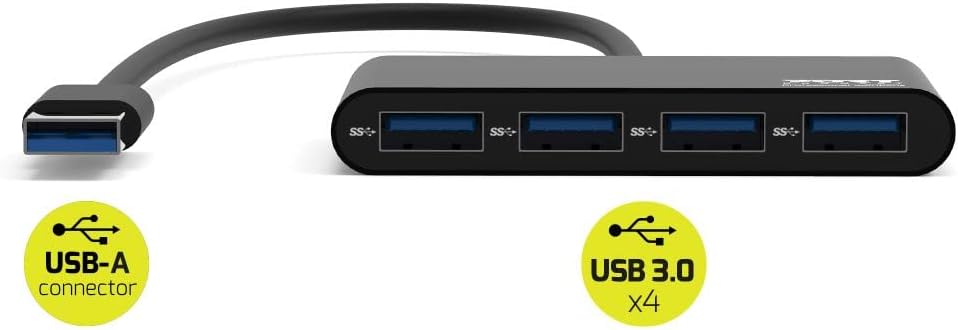
Figure 3: Close-up view of the four SuperSpeed (SS) USB 3.0 ports on the hub.
Maintenance
To ensure the longevity and optimal performance of your Port Designs 900121 USB 3.0 Hub, follow these simple maintenance guidelines:
- Cleaning: Use a soft, dry, lint-free cloth to gently wipe the surface of the hub. Avoid using liquid cleaners, aerosols, or solvents, as these can damage the finish or internal components.
- Storage: When not in use, store the hub in a cool, dry place away from direct sunlight and extreme temperatures.
- Handling: Avoid dropping the hub or subjecting it to strong impacts. Do not bend or twist the integrated cable excessively.
- Environmental Conditions: Keep the hub away from water, moisture, and excessive dust.
Troubleshooting
If you encounter issues with your Port Designs 900121 USB 3.0 Hub, refer to the following common problems and solutions:
- Device Not Recognized:
- Ensure the hub's USB-A connector is securely plugged into your computer's USB port.
- Try plugging the hub into a different USB port on your computer.
- Disconnect and reconnect the problematic USB device from the hub.
- Restart your computer.
- Slow Data Transfer Speeds:
- Verify that the hub is connected to a USB 3.0 port on your computer. USB 2.0 ports will limit speeds to USB 2.0 standards.
- Ensure the connected USB device (e.g., flash drive, external HDD) also supports USB 3.0.
- Avoid connecting multiple high-bandwidth devices simultaneously if you experience slowdowns.
- Interference with 2.4GHz Wi-Fi:
- USB 3.0 devices can sometimes generate electromagnetic interference that affects 2.4GHz wireless signals.
- Try repositioning the USB hub and any 2.4GHz wireless devices (e.g., Wi-Fi router, wireless mouse receiver) further apart.
- If possible, use a USB extension cable to move the hub away from your computer's Wi-Fi antenna.
- Consider using 5GHz Wi-Fi if your router and devices support it, as it is less susceptible to this type of interference.
- Power Issues:
- The hub is bus-powered, meaning it draws power directly from the host USB port. If connecting power-hungry devices, ensure your computer's USB port can supply sufficient power.
- If devices are not charging or are unstable, try connecting them directly to your computer's USB port or use a powered USB hub (this model is unpowered).
Specifications
Detailed technical specifications for the Port Designs 900121 USB 3.0 Hub:
| Feature | Detail |
|---|---|
| Brand | Port Designs |
| Model Number | 900121 |
| Hardware Interface | USB 3.0 (USB 3.1 Gen 1) |
| Number of Ports | 4 |
| Data Transfer Rate | Up to 5 Gbps |
| Compatible Devices | Smartphones, Tablets, USB storage devices, Peripherals |
| Operating System Compatibility | Windows, macOS, ChromeOS, Linux |
| Color | Black |
| Item Weight | 2.4 ounces (approx. 68 grams) |
| Product Dimensions (LxWxH) | 3.74 x 1.1 x 1.97 inches (approx. 9.5 x 2.8 x 5 cm) |
| Special Features | Fast Data Transfer, Plug and Play |
Warranty Information
Port Designs products are typically covered by a manufacturer's warranty. For specific details regarding the warranty period and terms for your 900121 USB 3.0 Hub, please refer to the warranty card included with your purchase or visit the official Port Designs website. Keep your proof of purchase for warranty claims.
Support Information
For technical assistance, product inquiries, or further support regarding your Port Designs 900121 USB 3.0 Hub, please contact Port Designs customer service. Contact details can usually be found on the product packaging, the official Port Designs website, or within the documentation provided with your purchase.
Online Resources:
- Visit the Port Designs official website for product information and support.
- Check for updated drivers or firmware (though typically not required for this plug-and-play device).