
Introduction
This manual provides detailed instructions for the installation, operation, and maintenance of your Vantec NexStar TX Dual Bay USB 3.0 Hard Drive Dock. This device is designed to provide a convenient solution for accessing 2.5-inch and 3.5-inch SATA HDDs and SSDs via a SuperSpeed USB 3.0 connection.

Image: The Vantec NexStar TX Dual Bay USB 3.0 Hard Drive Dock, showing its sleek black design and dual drive bays.
Setup
Package Contents
- Vantec NexStar TX Dual Bay USB 3.0 Hard Drive Dock
- USB 3.0 Cable
- Power Adapter
- User Manual (this document)
System Requirements
- Available USB 3.0 or USB 2.0 port
- Windows 7 or later
- Mac OS X 10.6 or later
Hardware Installation
- Connect Power: Connect the provided power adapter to the dock's power input and then to a wall outlet.
- Connect USB: Connect one end of the USB 3.0 cable to the dock's USB 3.0 port and the other end to an available USB 3.0 port on your computer.
- Insert Hard Drives:
- Gently slide your 2.5-inch or 3.5-inch SATA HDD/SSD into an available drive bay until it is securely seated. The dock supports two drives simultaneously.
- Ensure the drive's SATA connector aligns with the dock's connector.

Image: The Vantec NexStar TX dock highlighting its SuperSpeed USB 3.0, Dual Bay, Plug & Play, and EZ Swap Design features.
Operation
Powering On/Off
- After connecting the power and USB cables, press the power button on the dock to turn it on. The power LED will illuminate.
- To turn off the dock, press the power button again. Always safely eject drives from your operating system before powering off.
Drive Recognition and Data Transfer
- Once powered on, your operating system should automatically detect the inserted drives. New drives may require initialization and formatting before use.
- You can now access the drives like any other external storage device. Drag and drop files or use your preferred backup software.
- The dock supports SuperSpeed USB 3.0 for fast data transfer rates.
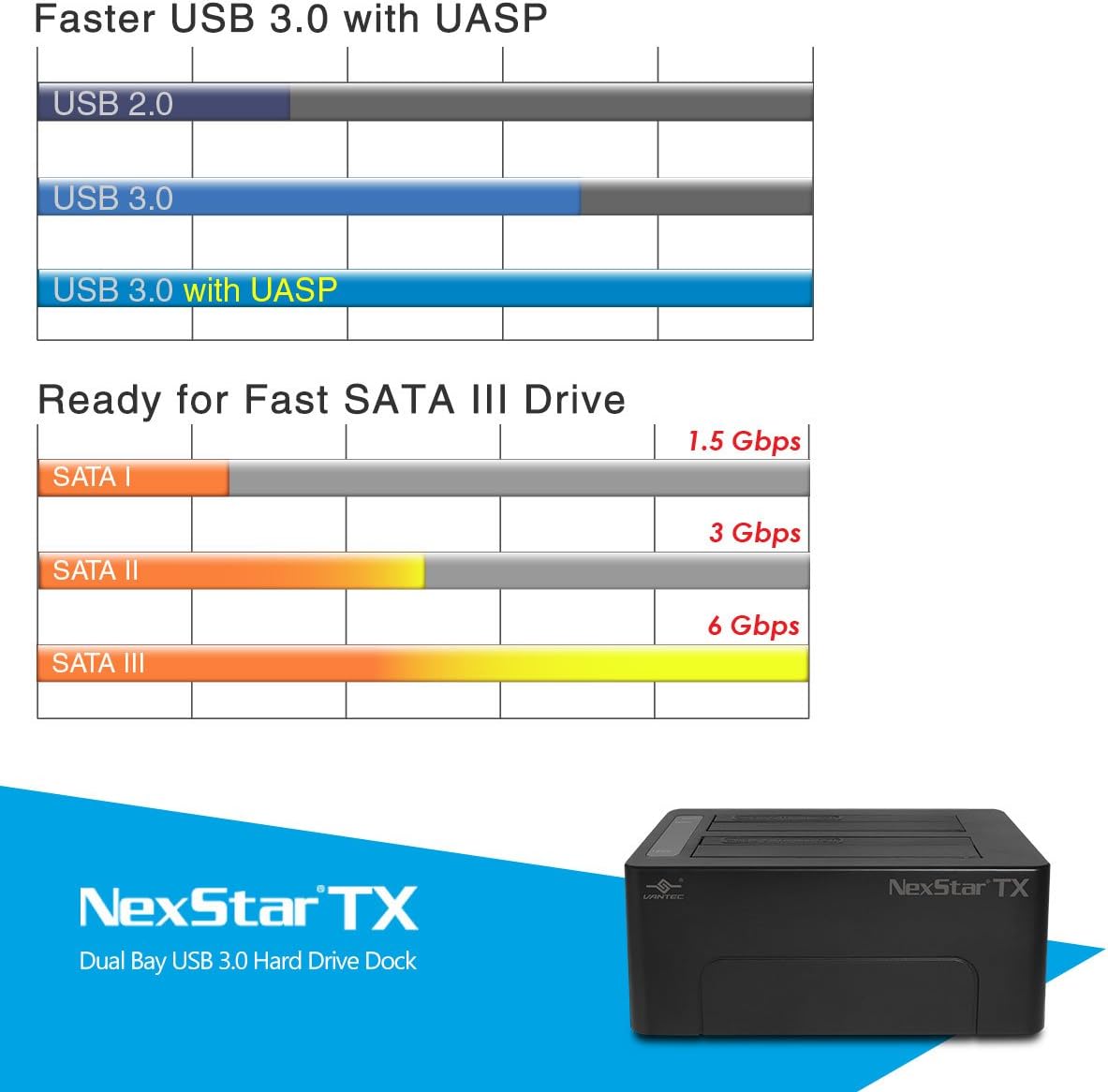
Image: A chart illustrating the speed advantages of USB 3.0 with UASP and SATA III (6 Gbps) compared to older standards.
Hot-Swapping Drives
The NexStar TX dock supports hot-swapping. To safely remove a drive while the dock is powered on:
- Safely eject the drive from your operating system (e.g., "Safely Remove Hardware" in Windows, "Eject" in macOS).
- Once the OS confirms it's safe, gently pull the drive out of the bay.
- You can then insert another drive.

Image: Illustration showing compatibility with various 2.5-inch SSD/HDD and 3.5-inch HDD sizes, supporting up to 16TB total capacity.
Maintenance
Cleaning
- Ensure the dock is powered off and disconnected from all cables before cleaning.
- Use a soft, dry, lint-free cloth to wipe the exterior of the dock.
- Do not use liquid cleaners, aerosols, or solvents, as they may damage the finish or internal components.
Safe Handling and Storage
- Avoid dropping or subjecting the dock to strong impacts.
- Store the dock in a cool, dry place away from direct sunlight and extreme temperatures.
- Keep the dock away from liquids and excessive dust.
Troubleshooting
Drive Not Detected
- Check Power: Ensure the dock is powered on and the power adapter is securely connected.
- Check USB Connection: Verify the USB cable is firmly connected to both the dock and your computer. Try a different USB port or cable.
- Re-insert Drive: Remove and re-insert the hard drive(s) to ensure they are properly seated in the bays.
- Drive Health: Test the hard drive in another enclosure or directly connected to a computer (if possible) to rule out drive failure.
- Disk Management (Windows) / Disk Utility (macOS): Check if the drive appears in your operating system's disk management tools. New drives may need to be initialized and formatted.
Slow Data Transfer Speeds
- USB 3.0 Port: Ensure the dock is connected to a USB 3.0 port on your computer. Connecting to a USB 2.0 port will result in USB 2.0 speeds.
- USB 3.0 Cable: Use the provided USB 3.0 cable or another certified USB 3.0 cable.
- Drive Speed: The actual transfer speed is limited by the slowest component, which is often the hard drive itself. Older HDDs will be slower than modern SSDs.
- System Load: High CPU usage or other background processes can affect transfer speeds.
Dock Not Powering On
- Power Adapter: Ensure the power adapter is correctly connected to both the dock and a working wall outlet.
- Power Button: Press the power button firmly.
- Test Outlet: Try plugging the power adapter into a different electrical outlet.
Specifications
| Model Number | NST-D428S3-BK |
| Brand | Vantec |
| Hardware Interface | USB 3.0 |
| Compatible Drives | 2.5" / 3.5" SATA I/II/III HDD/SSD |
| Number of Drive Bays | 2 |
| Product Dimensions (L x W x H) | 6" x 4.3" x 2.4" (15.24 cm x 10.92 cm x 6.1 cm) |
| Item Weight | 1.3 Pounds (0.59 kg) |
| Power Input | AC Adapter (36W) |
| Operating System Support | Windows 7 and later, Mac OS X 10.6 and later |
Warranty & Support
Warranty Information
Vantec products typically come with a limited warranty. Please refer to the warranty card included with your product or visit the official Vantec website for specific warranty terms and conditions applicable to the NexStar TX Dual Bay USB 3.0 Hard Drive Dock.
Technical Support
If you encounter any issues not covered in this manual or require further assistance, please contact Vantec Technical Support:
- Website: Visit the Vantec USA website for support resources, FAQs, and contact information.
- Email/Phone: Refer to the Vantec website for the most current email and phone support options.
When contacting support, please have your product model number (NST-D428S3-BK) and a detailed description of your issue ready.
