
1. Introduction
This manual provides detailed instructions for the DTECH USB to RS232 DB9 Serial Adapter Cable, Model DT-5051. This adapter facilitates the connection of RS-232 serial devices to modern computers lacking a native serial port, utilizing a USB interface. It is designed for reliable data transfer and broad compatibility across various operating systems.
2. Product Overview
The DTECH USB to RS232 DB9 Serial Adapter Cable converts a USB port into a standard RS-232 serial port, enabling communication with legacy serial devices. It features an FTDI chipset for stable performance and broad operating system support.

Figure 2.1: DTECH USB to RS232 DB9 Serial Adapter Cable (15 Feet).
2.1 Key Features
- USB to RS-232 Conversion: Connects RS-232 serial devices to a USB port on your computer.
- FTDI Chipset: Equipped with a high-performance FTDI FT232RL processor chip for reliable and stable communication.
- Broad Compatibility: Supports Windows 11, 10, 8.1, 8, 7, XP, 2000, 98, Mac OS 8 or higher, and Linux 2.4.0 and later.
- Gold Plated Interface: Ensures improved oxidation resistance and signal stabilization.
- Data Transfer Rate: Supports data transfer rates over 1Mbps.
- Integrated LED Indicators: Features Power, Transmit (TXD), and Receive (RXD) LED indicators for easy monitoring and troubleshooting of data flow.
- Length: 15 feet (approximately 4.57 meters) cable for extended reach.
2.2 Connector Types
The adapter features a USB-A male plug for connection to your computer and an RS232 DB9 male plug for connection to serial devices. It is important to note that this is an RS232 serial adapter and not a USB to VGA monitor cable.
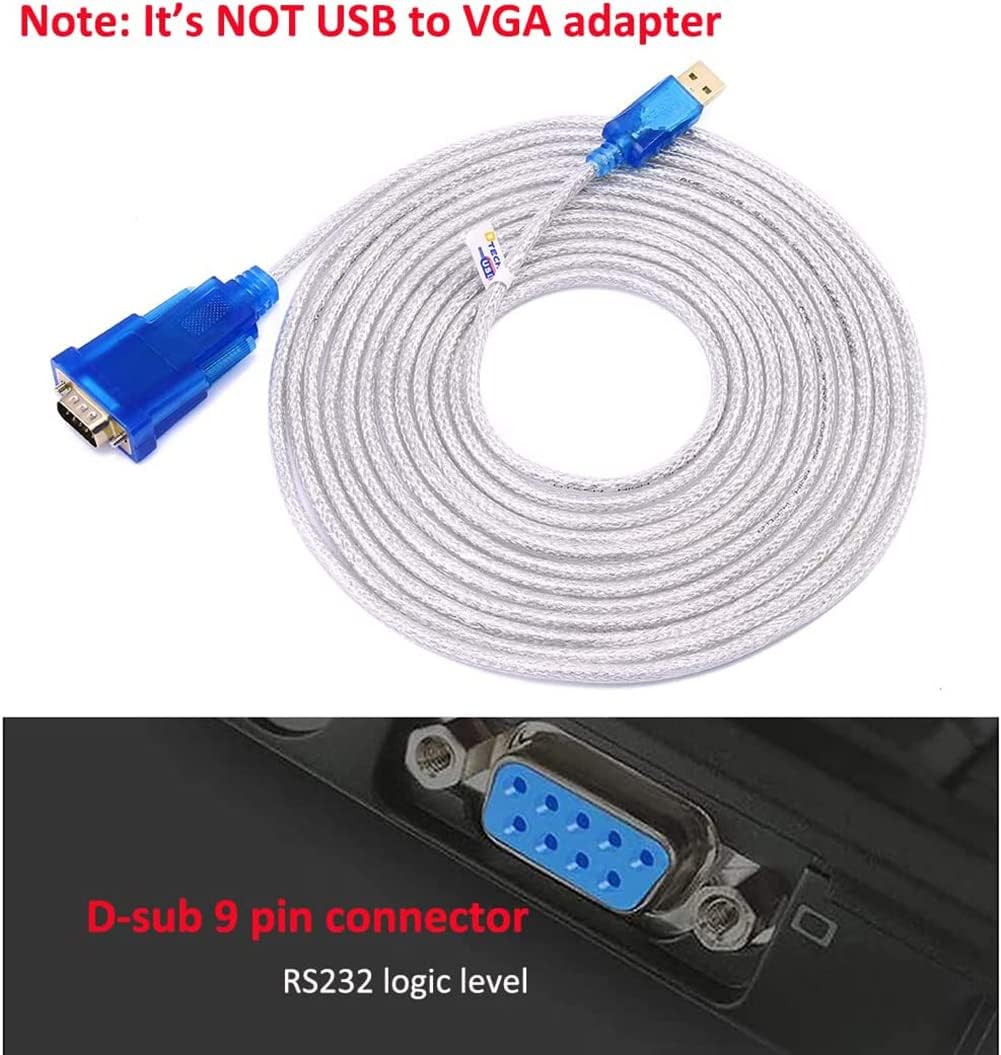
Figure 2.2: Close-up view of the USB-A and DB9 male connectors. This cable is for RS232 serial communication, not VGA video output.

Figure 2.3: Visual guide for identifying the correct 9-pin RS232 male plug for serial data cables, distinguishing it from a 9-hole RS232 female socket or a 15-pin VGA port.

Figure 2.4: The adapter features built-in LED indicators: a red light for power, a green light that blinks when sending data, and a yellow light that blinks when receiving data. These indicators assist in troubleshooting and monitoring communication.
3. Specifications
| Feature | Detail |
|---|---|
| Model Number | DT-5051 |
| Connector Type | DB9 (9-pin) Male to USB A |
| Chipset | FTDI FT232RL |
| Cable Length | 15 Feet (approx. 4.57 meters) |
| Data Transfer Rate | Over 1Mbps |
| Operating System Support | Windows 11, 10, 8.1, 8, 7, XP, 2000, 98; Mac OS 8 or higher; Linux 2.4.0 and later |
| Interface | USB 1.1 and USB 2.0 compatible |
| Pinout | 9 wire pinout 1-9: DCD, RXD, TXD, DTR, GND, DSR, RTS, CTS, RI |
| Product Dimensions | 24.13 x 15.24 x 5.59 cm; 259 g |
| Color | Transparent Blue |
| Input Voltage | 5 Volts |
| Current Rating | 150 Milliamps |

Figure 3.1: Detailed pinout for the DB9 male connector and a list of supported baud rates, ranging from 300 to 921600.
4. Setup and Installation
- Connect to Serial Device: Connect the DB9 male connector of the adapter cable to the RS-232 serial port of your peripheral device (e.g., PLC, programming machine, barcode scanner, modem). Ensure the thumb screws are tightened for a secure connection.
- Connect to Computer: Plug the USB-A male connector of the adapter cable into an available USB port on your computer.
- Driver Installation: Proceed to Section 5 for detailed driver installation instructions. The adapter requires specific drivers to function correctly.
- Verify Connection: Once drivers are installed, verify the connection through your computer's Device Manager (Windows) or system information (Mac/Linux) to ensure the serial port is recognized and assigned a COM port number.
5. Driver Installation
The DTECH USB to RS232 DB9 Serial Adapter Cable utilizes an FTDI chipset, which requires specific drivers for proper operation. While some operating systems may automatically install generic drivers, it is recommended to install the official FTDI drivers for optimal performance and compatibility.
5.1 Driver Download
Drivers can typically be found on the manufacturer's website or the FTDI official website. For any installation or usage issues, please refer to the FTDI official website for the latest drivers and guides:
FTDI Official Driver Website: https://www.ftdichip.com/Drivers/VCP.htm
DTECH Electronics Download Center: https://www.dtech-electronics.com/downloads/downloadsearch/user_downloadscat_id/0/search_value/5051

Figure 5.1: The adapter supports various operating systems including Windows, Mac OS, and Linux. The image also highlights the FTDI official website for driver downloads.
5.2 Installation Steps (General)
- Download the appropriate driver for your operating system from the FTDI website.
- Unzip the downloaded file (if necessary).
- Follow the on-screen instructions to install the driver. For Windows, this often involves running an executable file or updating the driver through Device Manager. For Mac and Linux, specific instructions will be provided on the FTDI website.
- Restart your computer if prompted.
- Connect the USB to RS232 adapter to your computer and serial device. The operating system should now recognize the adapter and assign a COM port.
6. Operating Instructions
Once the drivers are successfully installed and the adapter is connected, your computer will treat the USB-connected serial port as a native COM port. You can then use any serial communication software to interact with your serial device.
6.1 Identifying the COM Port
- Windows: Open Device Manager (search for "Device Manager" in the Start menu). Expand "Ports (COM & LPT)". Look for an entry like "USB Serial Port (COMX)", where X is the assigned COM port number.
- Mac: Open Terminal and type
ls /dev/tty.*. Look for entries like/dev/tty.usbserial-XXXX. - Linux: Open Terminal and type
ls /dev/ttyUSB*.
6.2 Using with Serial Communication Software
In your serial communication software (e.g., PuTTY, Tera Term, HyperTerminal, or specific device programming software), select the identified COM port and configure the serial settings (baud rate, data bits, parity, stop bits, flow control) to match those of your serial device.

Figure 6.1: The adapter enables connection between a computer and various 9-pin serial devices, including industrial instruments, PDAs, barcode printers, modems, and set-top boxes.
6.3 Visual Communication Status
The integrated LED indicators on the adapter provide real-time status of the connection:
- Red LED: Indicates power is supplied to the adapter.
- Green LED: Blinks when data is being transmitted (TXD).
- Yellow LED: Blinks when data is being received (RXD).
These indicators are useful for diagnosing communication issues.
6.4 Official Product Videos
Video 6.1: An overview of the DTECH USB to RS-232 Serial Cable, demonstrating its features and applications. This video highlights the product's design and functionality.
Video 6.2: This video showcases the USB to Serial Adapter with its FTDI chip and LED indicators, providing a visual guide to its internal components and operational status.
7. Troubleshooting
- Device Not Recognized:
- Ensure drivers are correctly installed (refer to Section 5).
- Try a different USB port on your computer.
- Restart your computer.
- No Data Transfer:
- Verify the correct COM port is selected in your serial communication software.
- Check that serial settings (baud rate, data bits, parity, stop bits, flow control) in your software match the device's requirements.
- Observe the TXD/RXD LEDs on the adapter (Figure 2.4). If they are not blinking during expected communication, there might be an issue with the device or software configuration.
- Ensure the serial device is powered on and functioning correctly.
- Intermittent Connection:
- Check for loose connections at both the USB and DB9 ends.
- Avoid routing the cable near sources of strong electromagnetic interference.
- Incorrect COM Port Number:
- In Windows Device Manager, you can manually change the COM port number if it conflicts with another device. Right-click the "USB Serial Port", select "Properties", then "Port Settings" tab, and click "Advanced" to change the COM port number.
8. Maintenance
- Keep the cable clean and free from dust and debris.
- Store the cable in a cool, dry place when not in use.
- Avoid bending or kinking the cable sharply to prevent internal damage.
- Do not expose the cable to extreme temperatures or moisture.
9. Warranty and Support
This DTECH USB to RS232 DB9 Serial Adapter Cable is backed by a 365-day warranty from the purchase date, covering manufacturing defects.
For technical support, driver assistance, or warranty claims, please contact DTECH customer service through their official website or the retailer where the product was purchased. Always refer to the latest information available on the manufacturer's website for the most up-to-date support resources.
