
Introduction
This manual provides comprehensive instructions for the VINABTY XRT500 QWERTY Keyboard Backlit Remote Replacement. It is designed to be compatible with various VIZIO TV models, offering enhanced control and text input capabilities. This guide covers product features, compatibility, setup, operation, maintenance, troubleshooting, and specifications to ensure optimal use of your new remote.
Product Features
- Backlit QWERTY Keyboard: Full keyboard on the reverse side for easy text entry in any lighting condition.
- No Programming Required: Ready to use with compatible VIZIO TVs right out of the box.
- Ergonomic Design: Comfortable to hold and use for extended periods.
- Infrared Connectivity: Reliable communication with your television.
- Durable Plastic Enclosure: Built for longevity and everyday use.
- Compact Dimensions: Approximately 5 inches (L) x 1.9 inches (W) x 0.5 inches (H).
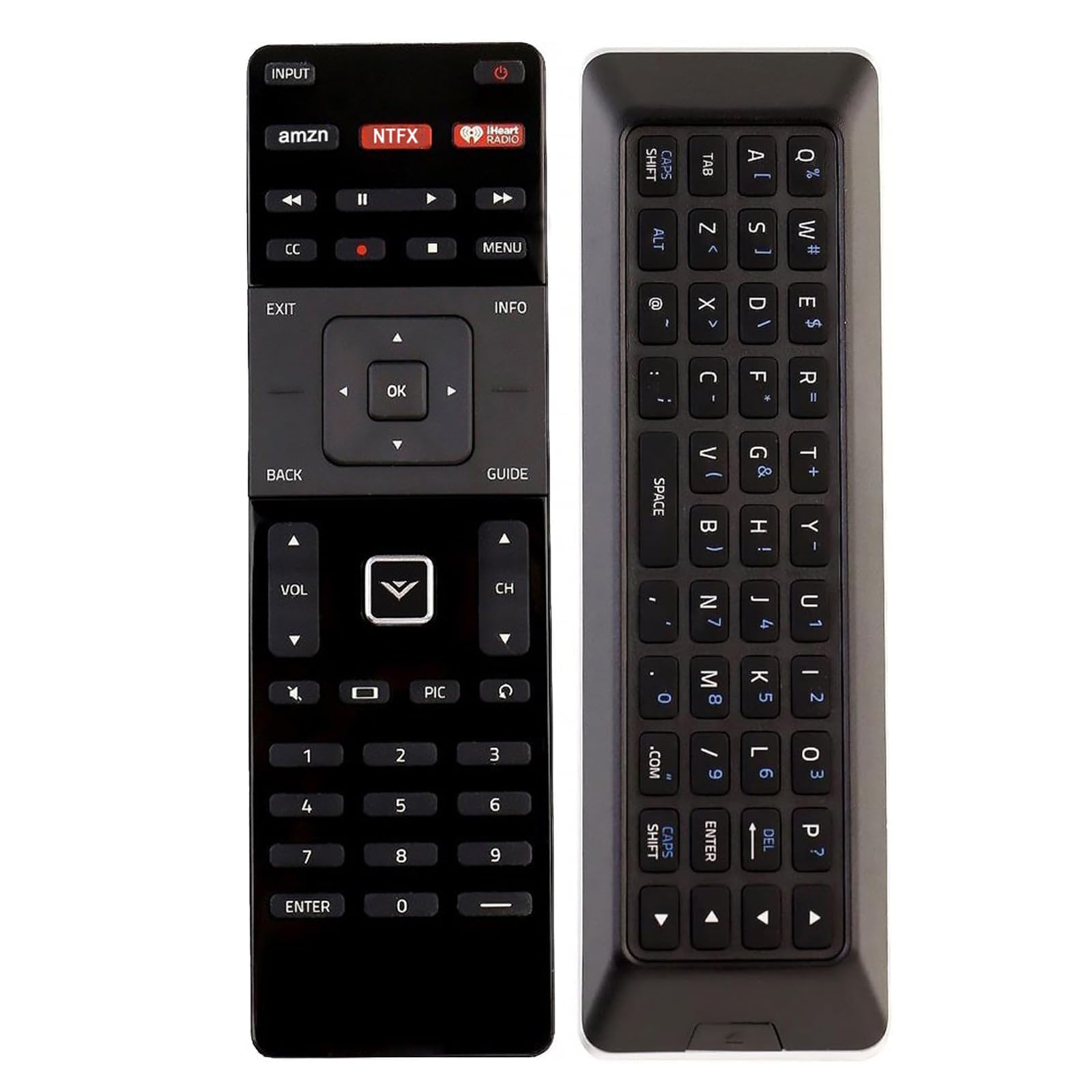
Image: Front and back view of the VINABTY XRT500 remote control, showcasing its dual-sided design with traditional remote buttons on one side and a QWERTY keyboard on the other.

Image: Close-up of the backlit QWERTY keyboard on the reverse side of the XRT500 remote, illuminated for visibility in dark environments.
Compatibility
The VINABTY XRT500 remote is compatible with numerous VIZIO TV models. Below is a list of some compatible models:
- P702UI-B3, RS65-BL, M602I-B3, M322I-B1, M422I-B1, P502UI-B1E, P552UI-B2, P602UI-B3, P652UI-B2, P502UI-B1, E401i-a3
- M602IBE, M652I-B2, M652IB2, M702I-B3, M702IB3, P502UI-B1, P502UIB1, P502UI-B1E, P502UIB1E, P552UI-B2, P552UIB2, P602UI-B3, P602UIB3, P652UI-B2, P652UIB2
- M43-C1, M49-C1, M50-C1, M55-C2, M60-C3, M65-C1, M70-C3, M75-C1, M80-C3, M322I-B1, M422I-B1, M492I-B2, M502I-B1, M552I-B2, M602I-B3, M652I-B2, M702I-B3, D43fx-F4, D58U-D3, E24-C1, E55-E1, M557-G0, E55-C1, E32-C1, E43U-D2, M60-c3, M43-C1, M50-C1
Setup
Battery Installation
The remote requires two AAA 1.5V batteries (not included) for operation.
- Locate the battery compartment on the back of the remote.
- Slide open the battery cover.
- Insert two AAA batteries, ensuring correct polarity (+ and -).
- Close the battery cover securely until it clicks into place.

Image: The back of the XRT500 remote with the battery compartment cover removed, showing where to insert AAA batteries.
Initial Use
This remote replacement is designed to work with compatible VIZIO TVs without requiring any programming. Simply insert the batteries as described above, and it should function immediately with your television.
Operating Instructions
Front Panel Controls
The front side of the remote features standard television controls. These include:
- Power Button: Turns the TV on or off.
- Input Button: Selects the input source (HDMI, AV, etc.).
- Navigation Pad (Up/Down/Left/Right/OK): Used to navigate menus and select options.
- Volume Up/Down: Adjusts the television volume.
- Channel Up/Down: Changes television channels.
- Quick Access Buttons: Dedicated buttons for popular streaming services like Amazon, Netflix, and iHeartRadio.

Image: The front face of the XRT500 remote, displaying the primary control buttons for TV operation, including navigation, volume, channel, and dedicated app buttons.
QWERTY Keyboard Usage
Flip the remote over to access the full QWERTY keyboard. This keyboard allows for efficient text input, such as searching for movies, shows, or entering login credentials on your VIZIO Smart TV applications.

Image: A detailed view of the QWERTY keyboard on the back of the XRT500 remote, showing the key layout and symbols.
Backlight Function
The QWERTY keyboard features a backlight that illuminates the keys, making it easy to use in dimly lit rooms. The backlight typically activates automatically when the remote is moved or a key is pressed, and it will turn off after a period of inactivity to conserve battery life.
Video: A demonstration of the XRT500 remote's QWERTY keyboard with its backlight feature, showing how the keys illuminate for use in low-light conditions.
Maintenance
Battery Replacement
When the remote's performance degrades or it stops responding, it is time to replace the batteries. Always use two fresh AAA batteries and ensure they are inserted with the correct polarity.
Cleaning
To maintain the remote's appearance and functionality, clean it regularly with a soft, dry cloth. Do not use liquid cleaners, solvents, or abrasive materials, as these can damage the remote's finish or internal electronics.
Troubleshooting
- Remote Not Responding:
Ensure that the batteries are correctly installed and have sufficient charge. Replace the batteries if necessary. Verify that there is a clear line of sight between the remote and your VIZIO TV's infrared receiver. Obstructions can block the signal. - Backlight Not Activating:
Check the battery levels. The backlight feature is designed to conserve power and may have a timeout or only activate when the remote is in active use. If batteries are low, the backlight may not function. - Specific Keys Not Functioning:
Inspect the unresponsive keys for any physical debris or stickiness. Gently clean around the buttons. If the issue persists, the remote may have internal damage and could require replacement.
Specifications
- Brand: VINABTY
- Model Number: XRT500
- Connectivity Technology: Infrared
- Keyboard Layout: QWERTY
- Special Features: Backlit, Ergonomic, No Programming Required, with keyboard
- Power Source: 2 x AAA Batteries (not included)
- Material: Plastic
- Product Dimensions: 5"L x 1.9"W x 0.5"H
- Item Weight: 3.5 Ounces
What's in the Box
- 1 x VINABTY XRT500 Remote Control
Warranty and Support
This product is typically covered by a standard manufacturer's warranty. For specific warranty details, claims, or technical support, please refer to the documentation provided with your purchase or contact the seller directly. Keep your proof of purchase for any warranty-related inquiries.